<?xml version="1.0" encoding="UTF-8"?>
<feed xmlns="http://www.w3.org/2005/Atom" xml:lang="">
                        <id>https://support.yourdigitalagency.com.au/feed/643</id>
                                <link href="https://support.yourdigitalagency.com.au/feed/643" rel="self"></link>
                                <title><![CDATA[FLAT RATE SOCIAL MEDIA Article Feed]]></title>
                    
                                <subtitle></subtitle>
                                                    <updated>2024-01-19T06:10:53+00:00</updated>
                        <entry>
            <title><![CDATA[DO YOU OFFER WHITE LABEL?]]></title>
            <link rel="alternate" href="https://support.yourdigitalagency.com.au/articles/do-you-offer-white-label-2319" />
            <id>https://support.yourdigitalagency.com.au/2319</id>
            <author>
                <name><![CDATA[Leah Gibbs]]></name>
            </author>
            <summary type="html">
                <![CDATA[<p>We do NOT communicate directly with your clients</p><p><br /></p><p>You are free to be the middle man.</p><p><br /></p><p>We do offer a white-label service for Flat Rate Socal Media, you can find this here <a href="https://flatratesocialmedia.com/whitelabel">https://flatratesocialmedia.com/whitelabel</a> </p><p><br /></p>]]>
            </summary>
                                    <updated>2021-02-19T05:13:23+00:00</updated>
        </entry>
            <entry>
            <title><![CDATA[WHAT TYPE OF BUSINESS CAN BE CLAIMED WITH GOOGLE MY BUSINESS?]]></title>
            <link rel="alternate" href="https://support.yourdigitalagency.com.au/articles/what-types-of-business-can-be-claimed-with-this-service" />
            <id>https://support.yourdigitalagency.com.au/703</id>
            <author>
                <name><![CDATA[Leah Gibbs]]></name>
            </author>
            <summary type="html">
                <![CDATA[<p>There are business verticals that GMB had declared not fit for this claiming method. This list outlines what verticals are acceptable:
</p><ul><li>
Adult businesses (where legal) <br /><br /></li><li>Home or office cleaning service
<br /><br /></li><li>Pest control services
<br /><br /></li><li>Insurance providers to individuals or small businesses
<br /><br /></li><li>Lawyers and legal services
<br /><br /></li><li>Contracting service for home or business work and repair
<br /><br /></li><li>Electrical repair, installation, and inspection services
<br /><br /></li><li>Flower shops and flower delivery services
<br /><br /></li><li>Real estate</li></ul>]]>
            </summary>
                                    <updated>2020-02-29T03:44:54+00:00</updated>
        </entry>
            <entry>
            <title><![CDATA[WHAT IF GOOGLE MY BUSINESS PROFILE IS ALREADY CLAIMED?]]></title>
            <link rel="alternate" href="https://support.yourdigitalagency.com.au/articles/what-if-google-my-business-is-already-claimed" />
            <id>https://support.yourdigitalagency.com.au/704</id>
            <author>
                <name><![CDATA[Leah Gibbs]]></name>
            </author>
            <summary type="html">
                <![CDATA[<p>In order to post to Google, My Business listings must all be claimable.<br /></p><p>
</p><p>We cannot process Transfer of Ownerships. 
</p><p>
</p><p>To check the state of a listing, go to maps.google and search for the business. If you can see a ‘Is this business yours?’ link, the listing is good to go! If all you see is ‘Suggest an Edit’, the listing is already owned by someone</p>]]>
            </summary>
                                    <updated>2020-02-29T03:46:07+00:00</updated>
        </entry>
            <entry>
            <title><![CDATA[CAN WE CLAIM A GOOGLE MY BUSINESS IF UNDER CONSTRUCTION?]]></title>
            <link rel="alternate" href="https://support.yourdigitalagency.com.au/articles/can-we-claim-the-listings-of-a-business-that-is-still-under-construction" />
            <id>https://support.yourdigitalagency.com.au/705</id>
            <author>
                <name><![CDATA[Leah Gibbs]]></name>
            </author>
            <summary type="html">
                <![CDATA[<p>No, it is best to wait until the business has a permanent address and phone number.</p>]]>
            </summary>
                                    <updated>2020-02-29T03:46:33+00:00</updated>
        </entry>
            <entry>
            <title><![CDATA[CAN SERVICE AREA BUSINESSES BE CLAIMED?]]></title>
            <link rel="alternate" href="https://support.yourdigitalagency.com.au/articles/can-service-area-businesses-be-claimed" />
            <id>https://support.yourdigitalagency.com.au/706</id>
            <author>
                <name><![CDATA[Leah Gibbs]]></name>
            </author>
            <summary type="html">
                <![CDATA[<p>If the business is home-based, as long as there is a sign on the property and customers go to that location for goods and/or services and the address can be publicly displayed on the listing, Google will accept this as a storefront.<br /></p>]]>
            </summary>
                                    <updated>2020-02-29T03:47:02+00:00</updated>
        </entry>
            <entry>
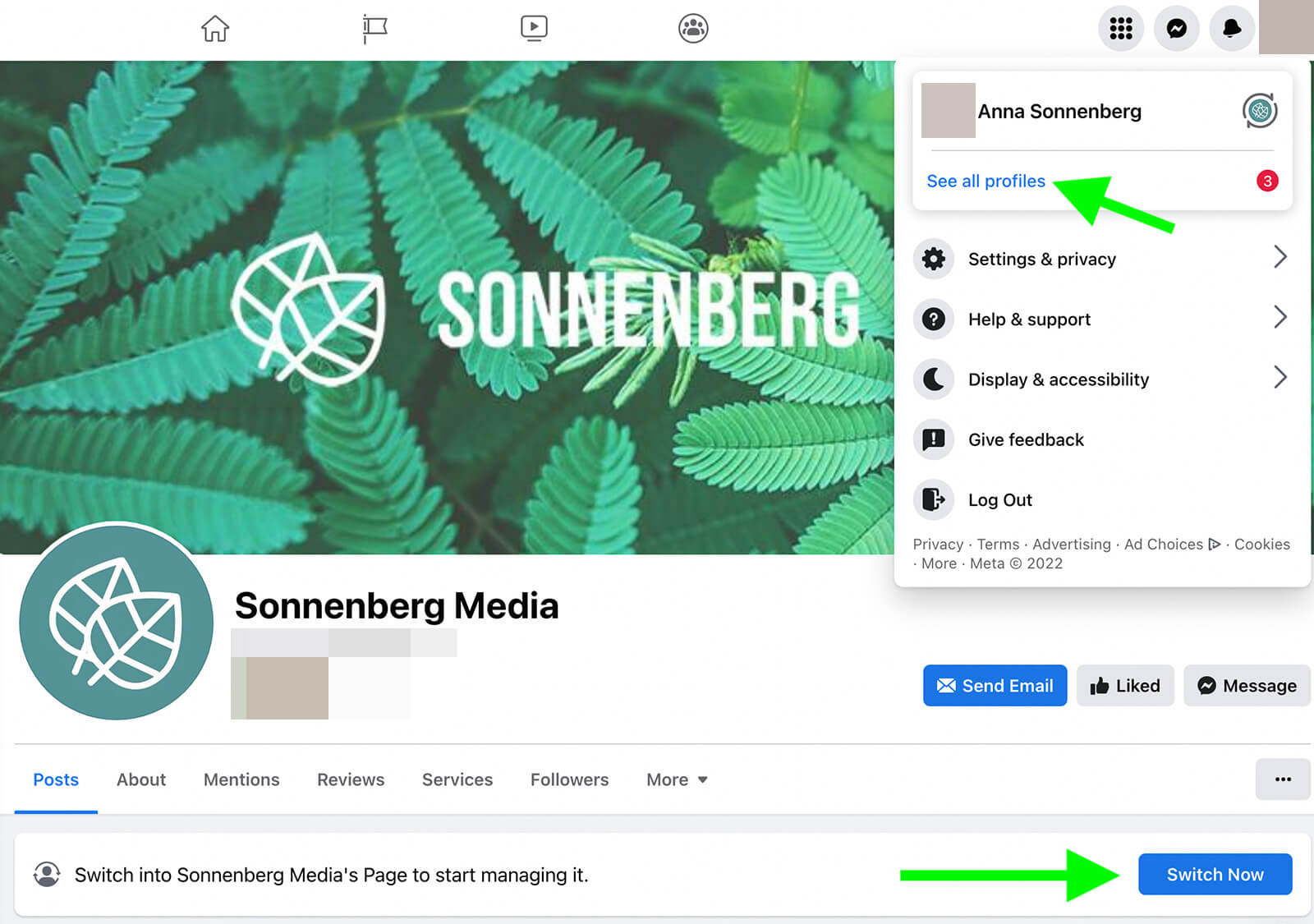
            <title><![CDATA[HOW DO I ADD OR REMOVE YOU AS ADMIN ON MY FACEBOOK PAGE?]]></title>
            <link rel="alternate" href="https://support.yourdigitalagency.com.au/articles/how-do-i-add-or-remove-you-as-admin-on-my-facebook-page-1118" />
            <id>https://support.yourdigitalagency.com.au/1118</id>
            <author>
                <name><![CDATA[Leah Gibbs]]></name>
            </author>
            <summary type="html">
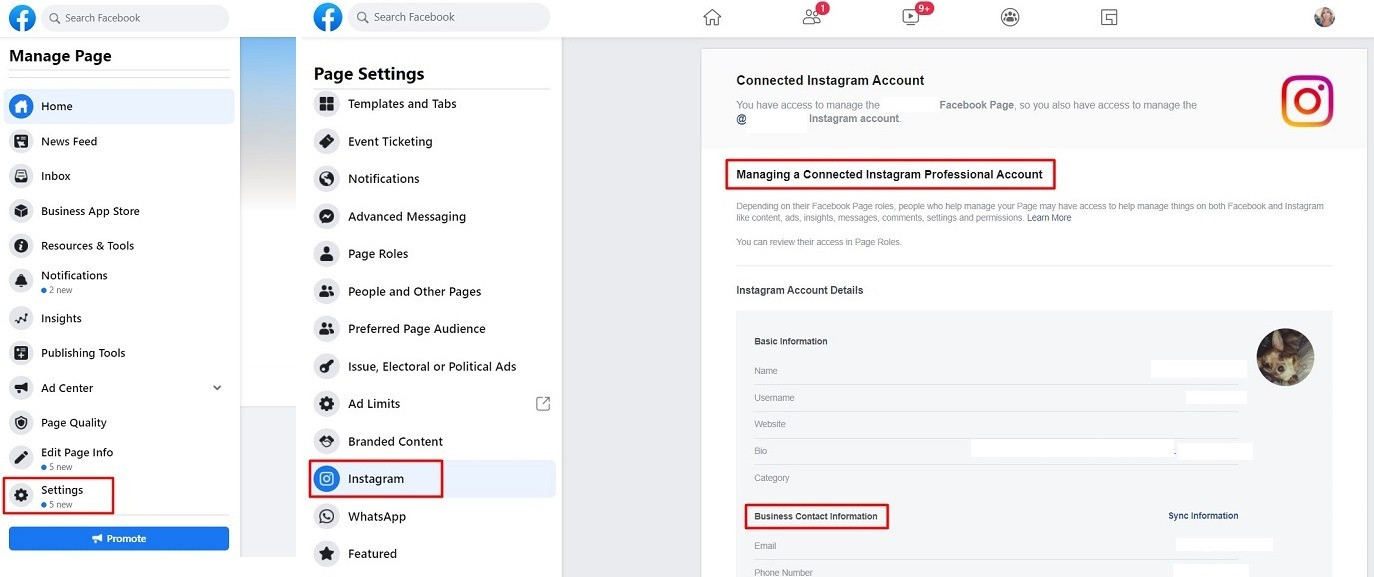
                <![CDATA[<p><b>How do I manage roles for my Facebook Page?</b></p><p>There's no limit to the number of people who can have a role on a Page</p><p>
</p><p><b>Give Someone a Role
</b></p><p>If you're an admin:
</p><ul><li>Click Settings at the top of your Page.
</li><li>Click Page Roles in the left column.
</li><li>Type a name or email in the box and select the person from the list that appears.
</li><li>Click Editor to select a role from the dropdown menu.
</li><li>Click Add and enter your password to confirm.
</li></ul><p>Keep in mind that if you're not friends with the person you're adding, they'll have to accept your invite before they can start helping you manage your Page.
</p><p>
</p><p><b>Remove Someone Who Has a Role
</b></p><p>If you're an admin:
</p><ul><li>Click Settings at the top of your Page.
</li><li>Click Page Roles in the left column.
</li><li>Click Edit next to the person you want to remove, and then click Remove.
</li><li>Click Confirm. You may need to enter your password.
</li></ul><p>You can always remove yourself from a Page, but if you're the Page's only admin, you'll need to add another admin first.
</p><p>
</p><p><b>Change Someone's Role
</b></p><p>If you're an admin:
</p><ul><li>Click Settings at the top of your Page.
</li><li>Click Page Roles in the left column.
</li><li>Click Edit next to the name of the person whose role you want to change and then select a new role from the dropdown menu.
</li><li>Click Save. You may need to enter your password to confirm.
</li></ul><p>Note: If you're a new admin, keep in mind that you may need to wait 7 days before you can remove or demote another admin.</p>]]>
            </summary>
                                    <updated>2021-08-04T02:08:57+00:00</updated>
        </entry>
            <entry>
            <title><![CDATA[WHAT HAPPENS AFTER I PURCHASE THIS SERVICE?]]></title>
            <link rel="alternate" href="https://support.yourdigitalagency.com.au/articles/what-happens-after-i-purchase-this-service-1186" />
            <id>https://support.yourdigitalagency.com.au/1186</id>
            <author>
                <name><![CDATA[Leah Gibbs]]></name>
            </author>
            <summary type="html">
                <![CDATA[<p>1. You will be sent an onboarding profile discovery questionnaire(s) to complete
 </p><p>2. You will complete and send it back to us within 24 hours</p><p> 3. It takes up to 10 to 12 business days to receive your content for review</p><p>We prefer to work long term with clients to get a smashing ROI<br /></p>]]>
            </summary>
                                    <updated>2022-03-01T05:44:42+00:00</updated>
        </entry>
            <entry>
            <title><![CDATA[CAN I ORDER MORE THAN ONE MONTH?]]></title>
            <link rel="alternate" href="https://support.yourdigitalagency.com.au/articles/can-i-order-more-than-one-month-1187" />
            <id>https://support.yourdigitalagency.com.au/1187</id>
            <author>
                <name><![CDATA[Leah Gibbs]]></name>
            </author>
            <summary type="html">
                <![CDATA[<p>This gig is for one month of service and starts the day of purchase. </p><p>You are then set up on a recurring monthly order at the same price. </p><p>You can cancel at any time.</p>]]>
            </summary>
                                    <updated>2019-08-20T11:23:20+00:00</updated>
        </entry>
            <entry>
            <title><![CDATA[WHAT IS INCLUDED IN YOUR SOCIAL MEDIA POSTS?]]></title>
            <link rel="alternate" href="https://support.yourdigitalagency.com.au/articles/what-is-included-in-your-social-media-posts-1188" />
            <id>https://support.yourdigitalagency.com.au/1188</id>
            <author>
                <name><![CDATA[Leah Gibbs]]></name>
            </author>
            <summary type="html">
                <![CDATA[<p>- Posts by a graphic designer
</p><p> - Posts by a Content writer, on brand and on point
</p><p> - Promoting your brand, products/services/promotional content
 -</p><p> Post Types: Branded Images/Inspirational Quote
</p><p> - Posts are optimised with hashtags &amp; business information<br /></p>]]>
            </summary>
                                    <updated>2019-08-20T11:24:24+00:00</updated>
        </entry>
            <entry>
            <title><![CDATA[CAN I APPROVE ALL POSTS FIRST?]]></title>
            <link rel="alternate" href="https://support.yourdigitalagency.com.au/articles/can-i-approve-all-posts-first-1189" />
            <id>https://support.yourdigitalagency.com.au/1189</id>
            <author>
                <name><![CDATA[Leah Gibbs]]></name>
            </author>
            <summary type="html">
                <![CDATA[<p>Most clients do not require this, however when placing your order please choose the add on to approve all posts first.<br /></p><p>Before we start posting to your account you are shown a weeks worth of content for approval to see if we are on brand and on point</p>]]>
            </summary>
                                    <updated>2019-08-20T11:25:28+00:00</updated>
        </entry>
            <entry>
            <title><![CDATA[WILL YOU WORK IN ANY INDUSTRY?]]></title>
            <link rel="alternate" href="https://support.yourdigitalagency.com.au/articles/will-you-work-in-any-industry-1190" />
            <id>https://support.yourdigitalagency.com.au/1190</id>
            <author>
                <name><![CDATA[Leah Gibbs]]></name>
            </author>
            <summary type="html">
                <![CDATA[<p>No. We will not work with CBD/Hemp products, Sex or Adult Entertainment, Gambling, Alcohol or Drugs or any other service/product we perceive as misleading or not aligned with our values. </p><p>Please contact and ask if you are unsure.<br /></p>]]>
            </summary>
                                    <updated>2019-08-20T11:26:32+00:00</updated>
        </entry>
            <entry>
            <title><![CDATA[DO I NEED TO GIVE ACCESS TO MY SOCIAL MEDIA ACCOUNTS?]]></title>
            <link rel="alternate" href="https://support.yourdigitalagency.com.au/articles/do-i-need-to-give-access-to-my-social-media-accounts-1191" />
            <id>https://support.yourdigitalagency.com.au/1191</id>
            <author>
                <name><![CDATA[Leah Gibbs]]></name>
            </author>
            <summary type="html">
                <![CDATA[<p>Will I have to give you my login details for my social media accounts?
</p><p>
YES, you are required to provide your emails, user names and logins to your social media accounts.
 We also use a social media posting tool where you can connect up your accounts if you prefer to do it this way, no passwords are exchanged.</p>]]>
            </summary>
                                    <updated>2019-08-20T11:27:30+00:00</updated>
        </entry>
            <entry>
            <title><![CDATA[DO YOU RESPOND TO QUESTIONS AND MANAGE COMMUNITY?]]></title>
            <link rel="alternate" href="https://support.yourdigitalagency.com.au/articles/do-you-respond-to-questions-amp-manage-community-1192" />
            <id>https://support.yourdigitalagency.com.au/1192</id>
            <author>
                <name><![CDATA[Leah Gibbs]]></name>
            </author>
            <summary type="html">
                <![CDATA[<p>Do you respond to questions and offer community management?
</p><p>
</p><p>Due to working in global time zones, it is not always possible to respond to your audience immediately so community management is NOT included .</p><p>It would be up to you to manage questions and responses from your customers. However I can 
 - Invite new fans on FB
 - Engage with Likes on FB etc</p>]]>
            </summary>
                                    <updated>2019-09-13T02:38:57+00:00</updated>
        </entry>
            <entry>
            <title><![CDATA[WHAT ARE THE MIN REQUIREMENTS TO WORK WITH YOU?]]></title>
            <link rel="alternate" href="https://support.yourdigitalagency.com.au/articles/what-are-the-min-requirements-to-work-with-you-1193" />
            <id>https://support.yourdigitalagency.com.au/1193</id>
            <author>
                <name><![CDATA[Leah Gibbs]]></name>
            </author>
            <summary type="html">
                <![CDATA[<p>What is the minimum requirements for you to work with new clients?
</p><p>
</p><p>I do like to work with clients 3 months at a time as social media is an ongoing long term strategy and investment and not a one off quick fix. I can offer you amazing results if we commit to working together long term.</p>]]>
            </summary>
                                    <updated>2019-08-20T11:29:25+00:00</updated>
        </entry>
            <entry>
            <title><![CDATA[IS THIS SUITABLE FOR ANY BUSINESS?]]></title>
            <link rel="alternate" href="https://support.yourdigitalagency.com.au/articles/is-this-suitable-for-any-business-1195" />
            <id>https://support.yourdigitalagency.com.au/1195</id>
            <author>
                <name><![CDATA[Leah Gibbs]]></name>
            </author>
            <summary type="html">
                <![CDATA[<p>Of course! No matter what your business provides, Social Media can help you succeed. We are offering low cost Social Media Marketing &amp; Advertising Services for all business profiles in one place</p>]]>
            </summary>
                                    <updated>2019-08-21T03:55:37+00:00</updated>
        </entry>
            <entry>
            <title><![CDATA[DO YOU REQUIRE MY CREDIT CARD DETAILS?]]></title>
            <link rel="alternate" href="https://support.yourdigitalagency.com.au/articles/do-you-require-my-credit-card-details-1196" />
            <id>https://support.yourdigitalagency.com.au/1196</id>
            <author>
                <name><![CDATA[Leah Gibbs]]></name>
            </author>
            <summary type="html">
                <![CDATA[<p>When you sign up to one of our Social Media Plans, you will be prompted to pay using your credit card to sign up to a recurring monthly subscription. Please read our Terms &amp; Conditions for further information.</p>]]>
            </summary>
                                    <updated>2019-08-21T03:55:58+00:00</updated>
        </entry>
            <entry>
            <title><![CDATA[I DON'T HAVE THE TIME TO POST ALL THE TIME, CAN YOU DO IT FOR ME?]]></title>
            <link rel="alternate" href="https://support.yourdigitalagency.com.au/articles/i-dont-have-the-time-to-post-all-the-time-can-you-do-it-for-me-1197" />
            <id>https://support.yourdigitalagency.com.au/1197</id>
            <author>
                <name><![CDATA[Leah Gibbs]]></name>
            </author>
            <summary type="html">
                <![CDATA[<p>Absolutely, choose from one of our Social Media plans and we will do it all for you.</p>]]>
            </summary>
                                    <updated>2019-08-21T03:56:21+00:00</updated>
        </entry>
            <entry>
            <title><![CDATA[WHAT ANALYTICS DO YOU PROVIDE?]]></title>
            <link rel="alternate" href="https://support.yourdigitalagency.com.au/articles/what-analytics-do-you-provide-1198" />
            <id>https://support.yourdigitalagency.com.au/1198</id>
            <author>
                <name><![CDATA[Leah Gibbs]]></name>
            </author>
            <summary type="html">
                <![CDATA[<p>All plans include a dashboard at where you can check analytics for your Social Media accounts. We also suggest setting up Google Analytics to track your web traffic and social goals and events.</p>]]>
            </summary>
                                    <updated>2019-08-21T03:56:43+00:00</updated>
        </entry>
            <entry>
            <title><![CDATA[IS THERE SUPPORT IF I GET STUCK?]]></title>
            <link rel="alternate" href="https://support.yourdigitalagency.com.au/articles/is-there-support-if-i-get-stuck-1199" />
            <id>https://support.yourdigitalagency.com.au/1199</id>
            <author>
                <name><![CDATA[Leah Gibbs]]></name>
            </author>
            <summary type="html">
                <![CDATA[<p>Of course! Our team of friendly support experts are ready to answer your questions and solve any problems that you may come along. Just send us a message using out Ticket System or Client Portal.</p>]]>
            </summary>
                                    <updated>2019-08-21T03:56:58+00:00</updated>
        </entry>
            <entry>
            <title><![CDATA[CAN I ORDER MORE THAN ONE SOCIAL MEDIA PACKAGE?]]></title>
            <link rel="alternate" href="https://support.yourdigitalagency.com.au/articles/can-i-order-more-than-one-social-media-package-1200" />
            <id>https://support.yourdigitalagency.com.au/1200</id>
            <author>
                <name><![CDATA[Leah Gibbs]]></name>
            </author>
            <summary type="html">
                <![CDATA[<p>Yes, order as many as you like. If you have multiple businesses or locations let us know! We may offer you a discount</p>]]>
            </summary>
                                    <updated>2019-08-21T03:57:13+00:00</updated>
        </entry>
            <entry>
            <title><![CDATA[CAN I PREVIEW THE POSTS PRIOR TO THEM BEING POSTED?]]></title>
            <link rel="alternate" href="https://support.yourdigitalagency.com.au/articles/can-i-preview-the-posts-prior-to-them-being-posted-1201" />
            <id>https://support.yourdigitalagency.com.au/1201</id>
            <author>
                <name><![CDATA[Leah Gibbs]]></name>
            </author>
            <summary type="html">
                <![CDATA[<p>Absolutely</p><p>You will be able to provide comments and changes if required. There is no additional charge for this.</p>]]>
            </summary>
                                    <updated>2020-02-28T00:59:44+00:00</updated>
        </entry>
            <entry>
            <title><![CDATA[DO YOU OFFER REFUNDS?]]></title>
            <link rel="alternate" href="https://support.yourdigitalagency.com.au/articles/do-you-offer-refunds-1202" />
            <id>https://support.yourdigitalagency.com.au/1202</id>
            <author>
                <name><![CDATA[Leah Gibbs]]></name>
            </author>
            <summary type="html">
                <![CDATA[<p>No. All services are prepaid monthly in advance with no contracts. Please see our refund policy for more information.</p>]]>
            </summary>
                                    <updated>2019-08-21T03:57:39+00:00</updated>
        </entry>
            <entry>
            <title><![CDATA[DO YOU OFFER A FREE TRIAL?]]></title>
            <link rel="alternate" href="https://support.yourdigitalagency.com.au/articles/do-you-offer-a-free-trial-1203" />
            <id>https://support.yourdigitalagency.com.au/1203</id>
            <author>
                <name><![CDATA[Leah Gibbs]]></name>
            </author>
            <summary type="html">
                <![CDATA[<p>We do not offer a trial period at this time. Our pricing is too finely tuned to offer a free trial. A lot of work goes into setting up your service, with no setup fee charged. </p><p>We recommend giving us a try for one month to see how freaking awesome we are.</p>]]>
            </summary>
                                    <updated>2019-08-21T03:57:55+00:00</updated>
        </entry>
            <entry>
            <title><![CDATA[WHAT IS YOUR SOCIAL MEDIA ACTION PLAN?]]></title>
            <link rel="alternate" href="https://support.yourdigitalagency.com.au/articles/what-is-your-social-media-action-plan-1204" />
            <id>https://support.yourdigitalagency.com.au/1204</id>
            <author>
                <name><![CDATA[Leah Gibbs]]></name>
            </author>
            <summary type="html">
                <![CDATA[<p>All our plans include a Social Media Action Plan. </p><p>This will be provided by your account manager to help you get started and make the best use of our services, delivering, planning &amp; action tasks, and activities together, optimising for best practices.</p>]]>
            </summary>
                                    <updated>2019-08-21T03:58:14+00:00</updated>
        </entry>
            <entry>
            <title><![CDATA[ARE YOU ABLE TO WRITE BLOG CONTENT FOR ME?]]></title>
            <link rel="alternate" href="https://support.yourdigitalagency.com.au/articles/are-you-able-to-write-blog-content-for-me-1205" />
            <id>https://support.yourdigitalagency.com.au/1205</id>
            <author>
                <name><![CDATA[Leah Gibbs]]></name>
            </author>
            <summary type="html">
                <![CDATA[<p>Yes, we can certainly help. We are a full service Digital Marketing Agency. </p><p>We’ll can write articles from 500 to 2000 words each for your blog, which are SEO optimised with your keywords and topics. </p><p>These will be written and approved as per your needs, to engage your readers, grow your website traffic and promote your products and services.</p>]]>
            </summary>
                                    <updated>2019-08-21T03:58:38+00:00</updated>
        </entry>
            <entry>
            <title><![CDATA[WHO WRITES THE SOCIAL MEDIA CONTENT?]]></title>
            <link rel="alternate" href="https://support.yourdigitalagency.com.au/articles/who-writes-the-social-media-content-1206" />
            <id>https://support.yourdigitalagency.com.au/1206</id>
            <author>
                <name><![CDATA[Leah Gibbs]]></name>
            </author>
            <summary type="html">
                <![CDATA[<p>We have an amazing team of Content Specialists that are Social Media pros and native speakers of the language they’ll be posting in. </p><p>They spend lots of time scouring the internet to find great content that will match your company’s Social Media needs. </p><p>Writers are from Australia and the USA.</p>]]>
            </summary>
                                    <updated>2020-10-03T12:24:41+00:00</updated>
        </entry>
            <entry>
            <title><![CDATA[WHAT IS FACEBOOK ADVERTISING AND WHAT ARE ITS BENEFITS?]]></title>
            <link rel="alternate" href="https://support.yourdigitalagency.com.au/articles/what-is-facebook-advertising-and-what-are-its-benefits-1207" />
            <id>https://support.yourdigitalagency.com.au/1207</id>
            <author>
                <name><![CDATA[Leah Gibbs]]></name>
            </author>
            <summary type="html">
                <![CDATA[<p>Some of our plans include Facebook advertising budget and management. Under which we’ll create and manage a Facebook ad campaign for "Likes". </p><p>It is a small amount that we spend but gets results. </p><p>This included budget is for for the growth of engagement/likes and leads. Facebook advertising has been proven to be a great tool for increasing reach and brand loyalty. </p><p>It’s especially recommended if you have a small business.</p>]]>
            </summary>
                                    <updated>2020-02-28T09:33:40+00:00</updated>
        </entry>
            <entry>
            <title><![CDATA[I DON'T HAVE ANY SOCIAL MEDIA ACCOUNTS YET. CAN YOU CREATE THOSE FOR ME?]]></title>
            <link rel="alternate" href="https://support.yourdigitalagency.com.au/articles/i-dont-have-any-social-media-accounts-yet-can-you-create-those-for-me-1208" />
            <id>https://support.yourdigitalagency.com.au/1208</id>
            <author>
                <name><![CDATA[Leah Gibbs]]></name>
            </author>
            <summary type="html">
                <![CDATA[<p>Yes, sure we can. Creating and optimising Social Media accounts is included depending on your plan</p>]]>
            </summary>
                                    <updated>2019-08-21T03:59:33+00:00</updated>
        </entry>
            <entry>
            <title><![CDATA[WHAT HAPPENS AFTER I PURCHASE?  HOW LONG TO GET STARTED?]]></title>
            <link rel="alternate" href="https://support.yourdigitalagency.com.au/articles/what-happens-after-i-purchase-how-long-to-get-started-1209" />
            <id>https://support.yourdigitalagency.com.au/1209</id>
            <author>
                <name><![CDATA[Leah Gibbs]]></name>
            </author>
            <summary type="html">
                <![CDATA[<p>You will be sent an on-boarding profile questionnaire(s) to complete . You will be asked to share user-names and logins
.</p><p>It takes up to 7 business days to get started.</p>]]>
            </summary>
                                    <updated>2019-08-21T03:59:45+00:00</updated>
        </entry>
            <entry>
            <title><![CDATA[I USUALLY HAVE PROMOTIONS AND OFFERS FOR MY BUSINESS. CAN YOU PROMOTE THEM?]]></title>
            <link rel="alternate" href="https://support.yourdigitalagency.com.au/articles/i-usually-have-promotions-and-offers-for-my-business-can-you-promote-them-1210" />
            <id>https://support.yourdigitalagency.com.au/1210</id>
            <author>
                <name><![CDATA[Leah Gibbs]]></name>
            </author>
            <summary type="html">
                <![CDATA[<p>Yes, definitely. You can just send them to your account manager. </p><p>Your account manager will schedule them as required.
</p><p>
</p><p><br /></p>]]>
            </summary>
                                    <updated>2019-08-21T04:00:00+00:00</updated>
        </entry>
            <entry>
            <title><![CDATA[CAN I ALSO POST ON MY SOCIAL ACCOUNTS WHILE YOU ARE WORKING ON THEM?]]></title>
            <link rel="alternate" href="https://support.yourdigitalagency.com.au/articles/can-i-also-post-on-my-social-accounts-while-you-are-working-on-them-1211" />
            <id>https://support.yourdigitalagency.com.au/1211</id>
            <author>
                <name><![CDATA[Leah Gibbs]]></name>
            </author>
            <summary type="html">
                <![CDATA[<p>Yes. They are yours, after all! </p><p>We’ll take care of your Social Media, but you can always engage if you would like to!</p>]]>
            </summary>
                                    <updated>2019-08-21T04:00:16+00:00</updated>
        </entry>
            <entry>
            <title><![CDATA[HOW RELEVANT IS THE CONTENT THAT YOU POST?]]></title>
            <link rel="alternate" href="https://support.yourdigitalagency.com.au/articles/how-relevant-is-the-content-that-you-post-1212" />
            <id>https://support.yourdigitalagency.com.au/1212</id>
            <author>
                <name><![CDATA[Leah Gibbs]]></name>
            </author>
            <summary type="html">
                <![CDATA[<p>Can I be sure your content will be relevant to my business? Yes, you can be sure. </p><p>All the content that we post will be specially crafted for your business by a content specialist to engage your audience.</p>]]>
            </summary>
                                    <updated>2019-08-21T04:00:32+00:00</updated>
        </entry>
            <entry>
            <title><![CDATA[WILL YOU WORK IN ANY INDUSTRY?]]></title>
            <link rel="alternate" href="https://support.yourdigitalagency.com.au/articles/will-you-work-in-any-industry-1213" />
            <id>https://support.yourdigitalagency.com.au/1213</id>
            <author>
                <name><![CDATA[Leah Gibbs]]></name>
            </author>
            <summary type="html">
                <![CDATA[<p>No. We will not work with CBD/Hemp products, Sex or Adult Entertainment, Gambling, Alcohol or Drugs or any other service/product we perceive as misleading or not aligned with our values.</p>]]>
            </summary>
                                    <updated>2019-08-21T04:00:44+00:00</updated>
        </entry>
            <entry>
            <title><![CDATA[WORKSPACE UPLOADS IN GRAPHICS EDITOR]]></title>
            <link rel="alternate" href="https://support.yourdigitalagency.com.au/articles/workspace-uploads-in-graphics-editor-1303" />
            <id>https://support.yourdigitalagency.com.au/1303</id>
            <author>
                <name><![CDATA[Leah Gibbs]]></name>
            </author>
            <summary type="html">
                <![CDATA[<p>With the YDA Social Dashboard, you are not only able to upload your own images to create visuals or customize library templates, but you can also organize your uploads by workspaces to collaborate on content with workspace members.
</p><p>
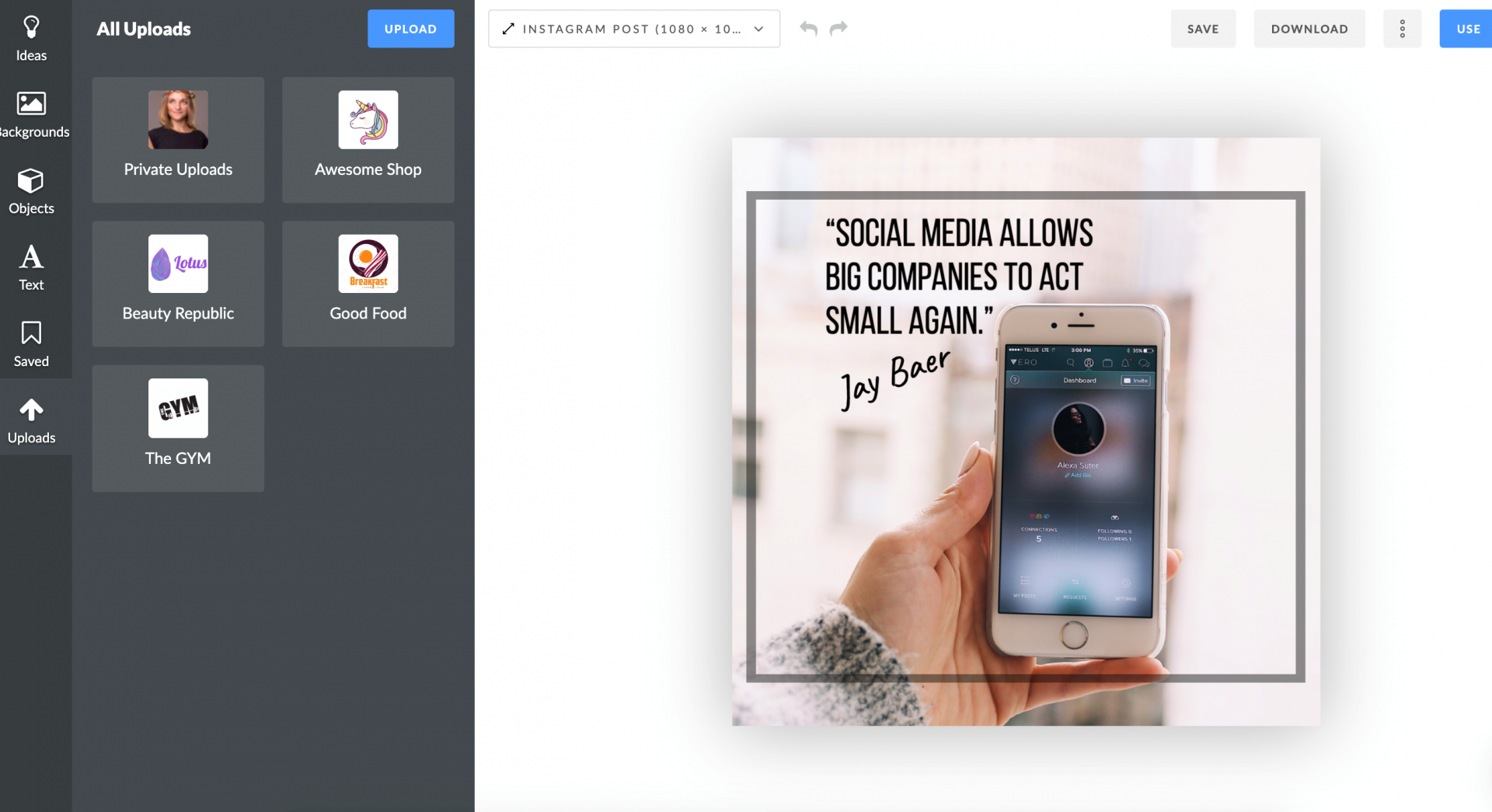
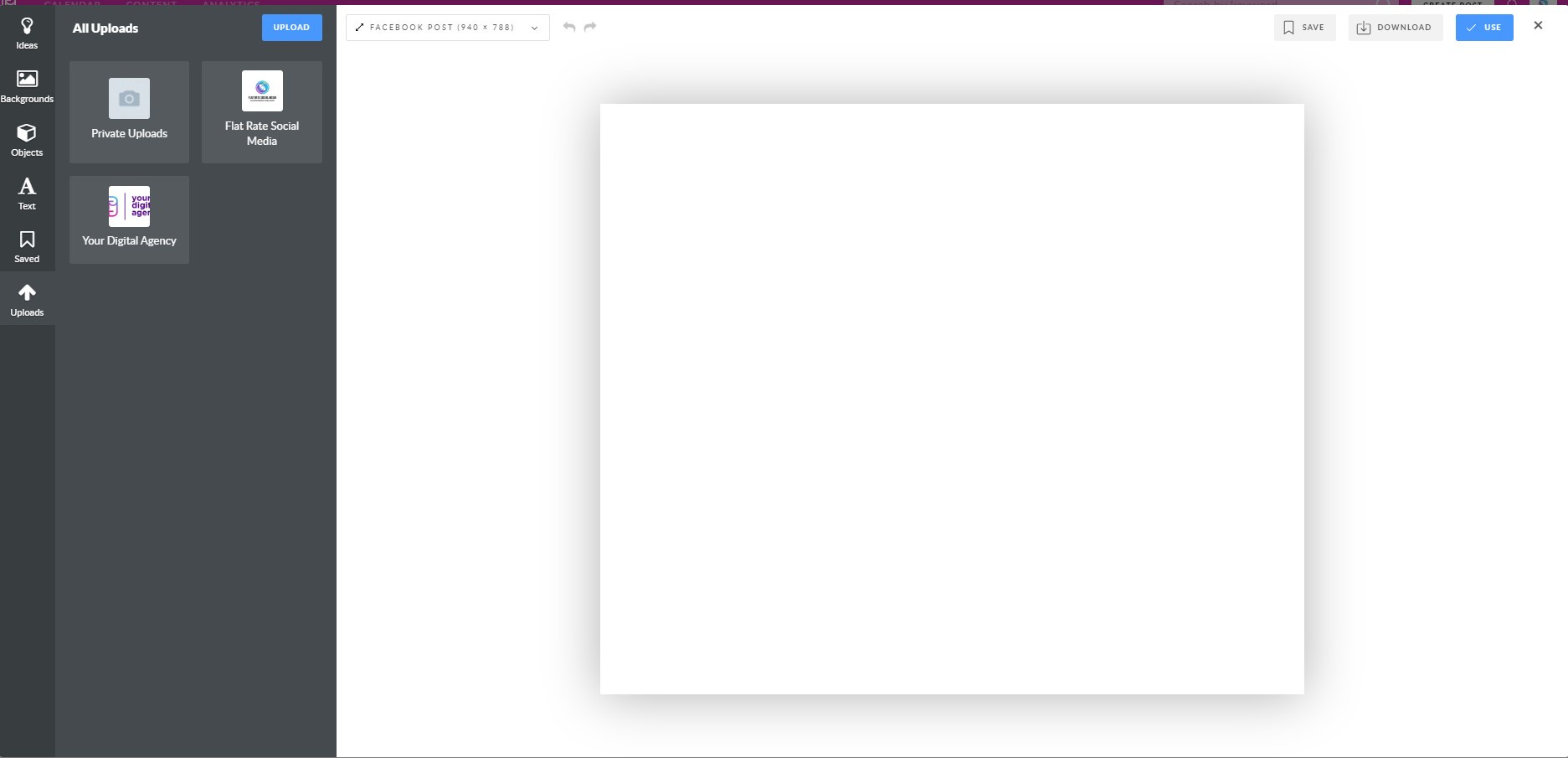
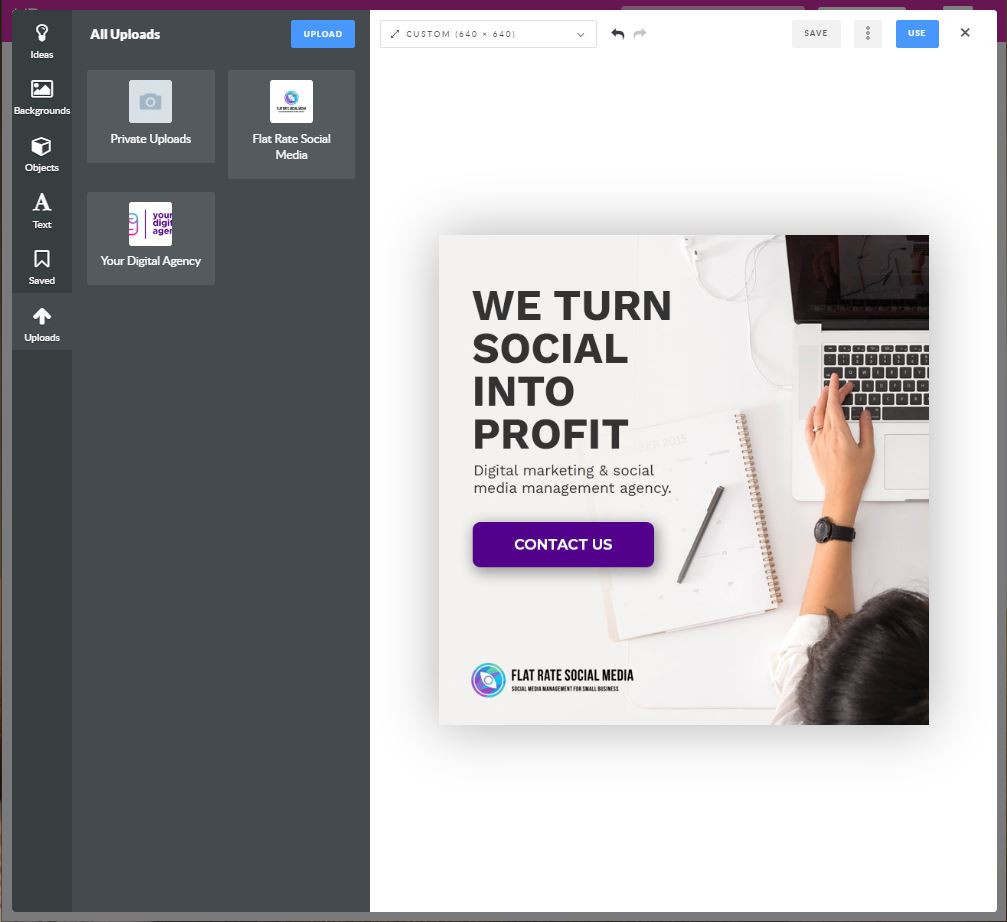
Go to Editor and click on Uploads - here you will find folders related to each Workspace that you’ve joined as well as the Personal Uploads Folder. </p><p>
<img src="https://support-hub--assets.s3.eu-west-2.amazonaws.com/assets/268/images/8Pvyja1WP4504Cz6mkgu0IqastnDEf3BeIPp4jKC.png" style="width:100%;" alt="8Pvyja1WP4504Cz6mkgu0IqastnDEf3BeIPp4jKC.png" /></p><p>
</p><p><b>The Workspace Uploads</b> folder appears automatically when you create or join the workspace - displaying the same name and logo. It is automatically shared and can be managed by all workspace members. 
</p><p>
</p><p><b>The Personal Uploads</b> Folder automatically saves all files uploaded to the Graphics Editor. All files stored in this folder are available and visible only to you. If you are not currently a member of a Workspace, this becomes your Uploads Section.
</p><p>
</p><p>If you do create or join a Workspace, the Uploads section gets divided into multiple folders - Personal Uploads and Workspaces (one folder per Workspace you participate in). Any uploads you may have unrelated to your workspace will be stored in Personal Uploads. 
</p><p>
</p><p><b>How Do I  Add Files to the Workspace Uploads Folder?
</b></p><p><b>
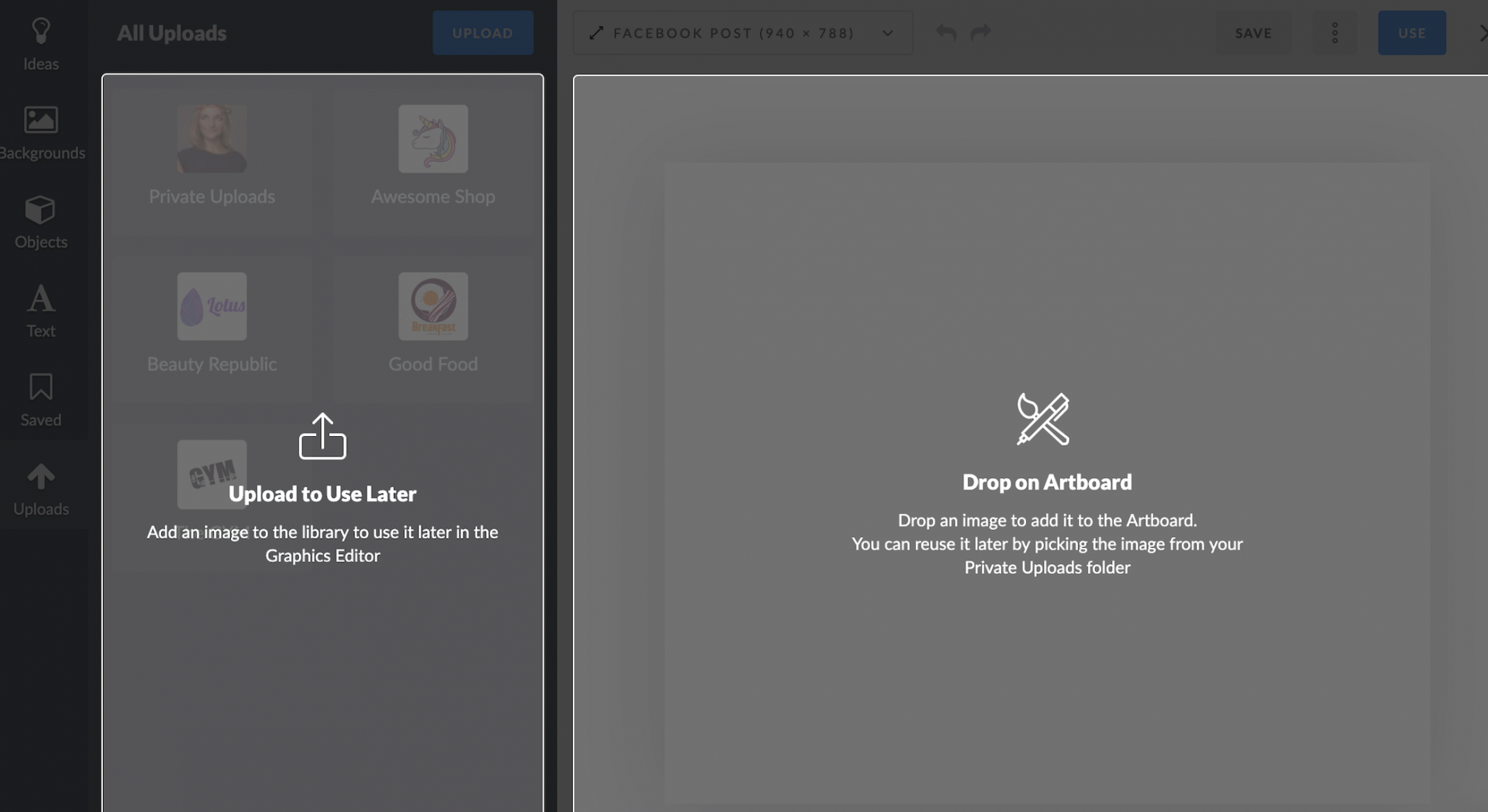
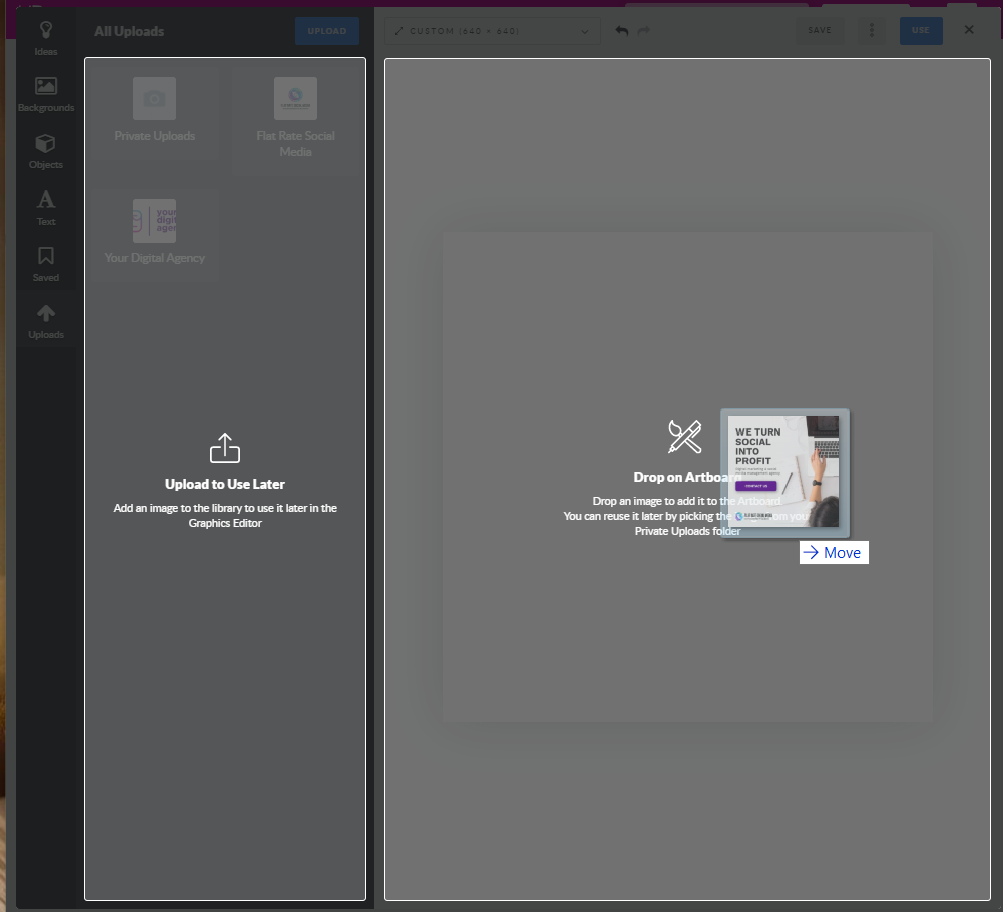
</b>Click on the Upload button or just drag and drop files to the Uploads section.  </p><p><i>You are allowed to upload an unlimited number of files, in .png, .jpg and .jpeg formats; maximum size of each file should be less than 15 Mb.   </i><br /></p><p>
<img src="https://support-hub--assets.s3.eu-west-2.amazonaws.com/assets/268/images/nKvODnsnSQPkTFEDw3ZjxsJ2m8IHGitDpQovf3dR.png" style="width:100%;" alt="nKvODnsnSQPkTFEDw3ZjxsJ2m8IHGitDpQovf3dR.png" /></p><p>
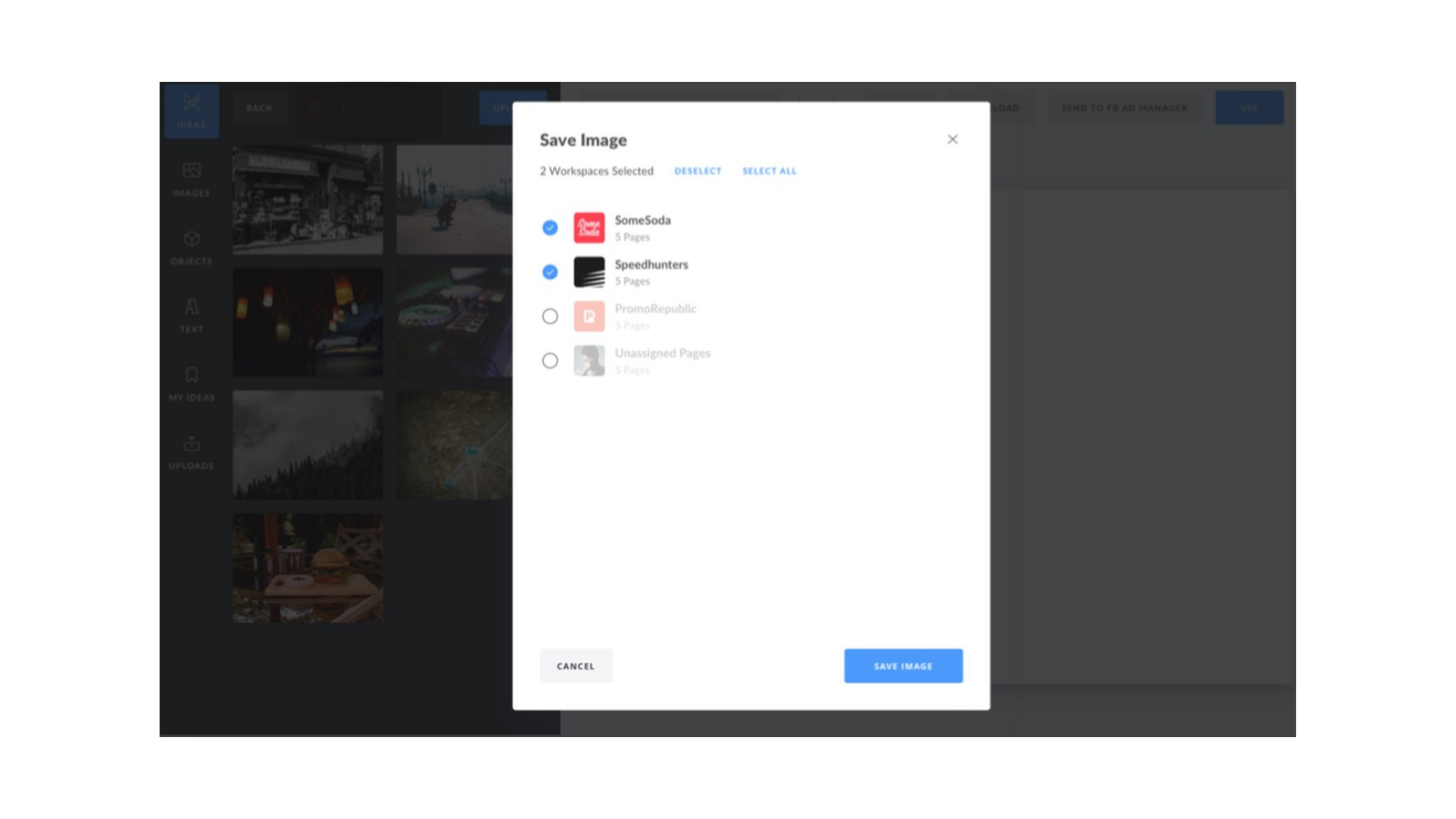
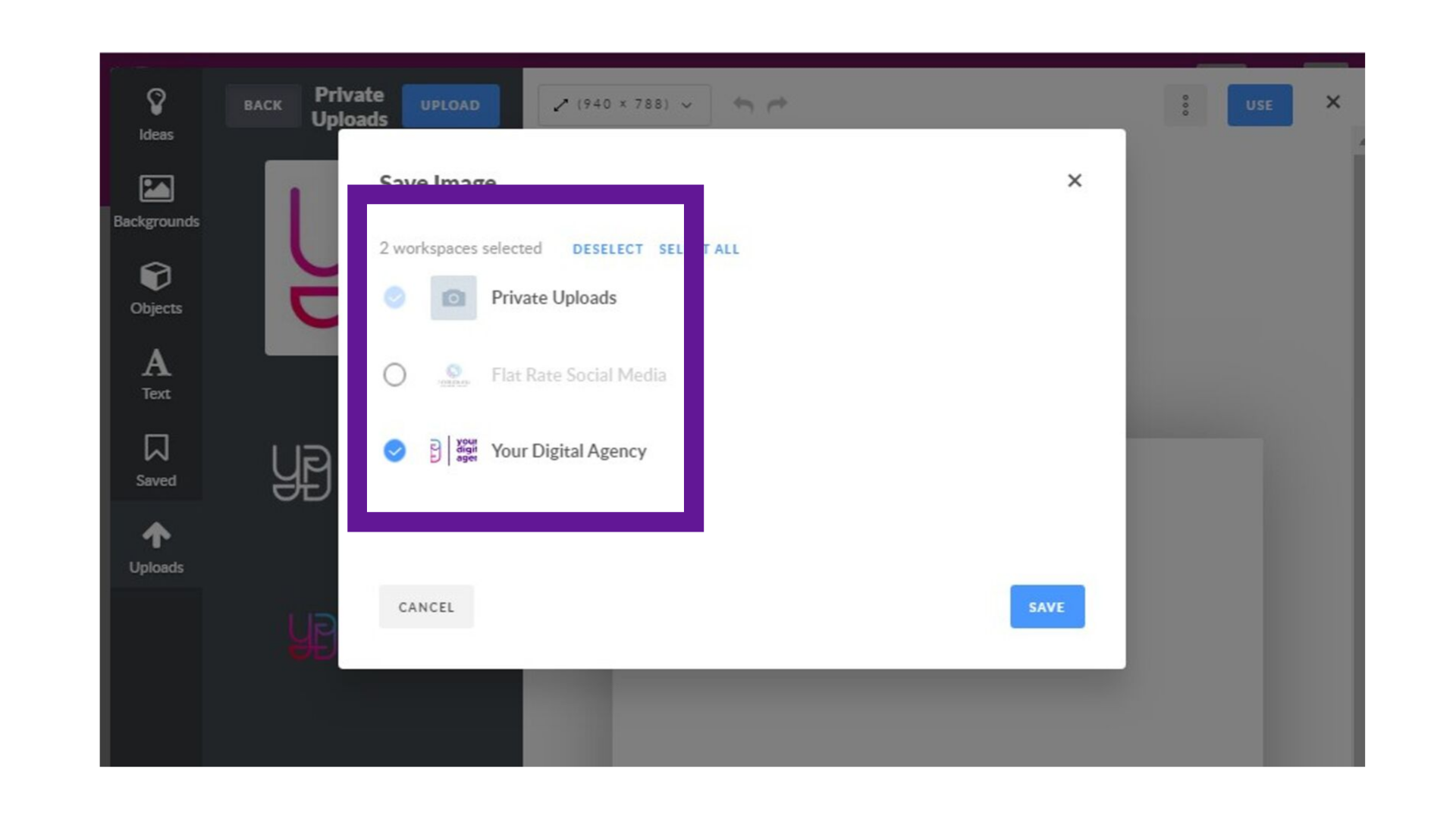
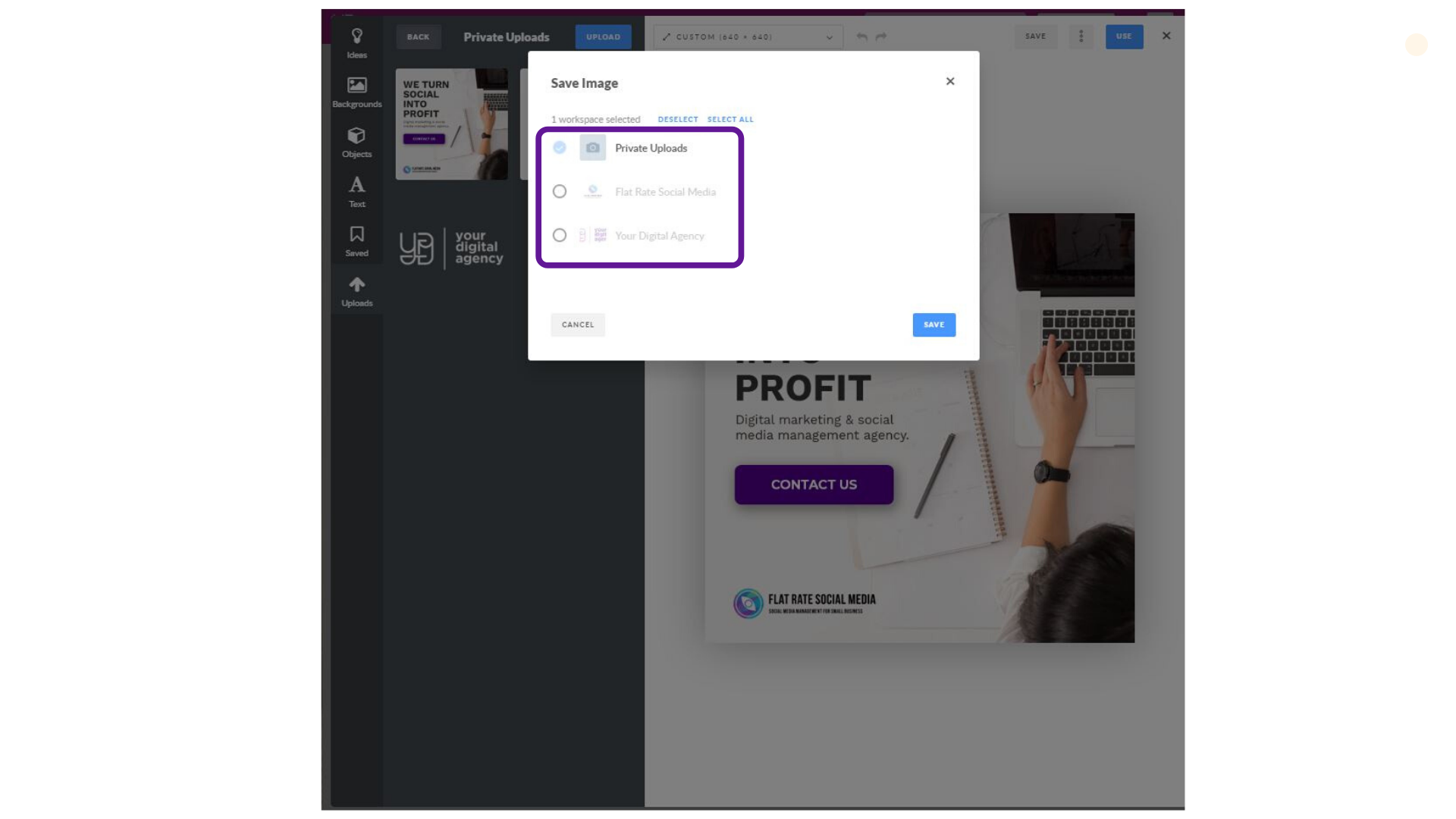
</p><p>If you’re already connected to at least 1 workspace,  the Save Image settings window will appear. Choose the required Workspace(s) to save to your file. 
</p><p>
<img src="https://support-hub--assets.s3.eu-west-2.amazonaws.com/assets/268/images/CsGsONvSbRtead1Le7Enz7O2AcJ5PeAwCtxNYWy8.png" style="width:100%;" alt="CsGsONvSbRtead1Le7Enz7O2AcJ5PeAwCtxNYWy8.png" /></p><p><b>How Can I Manage Workspace Uploads?</b> <br /></p><p>
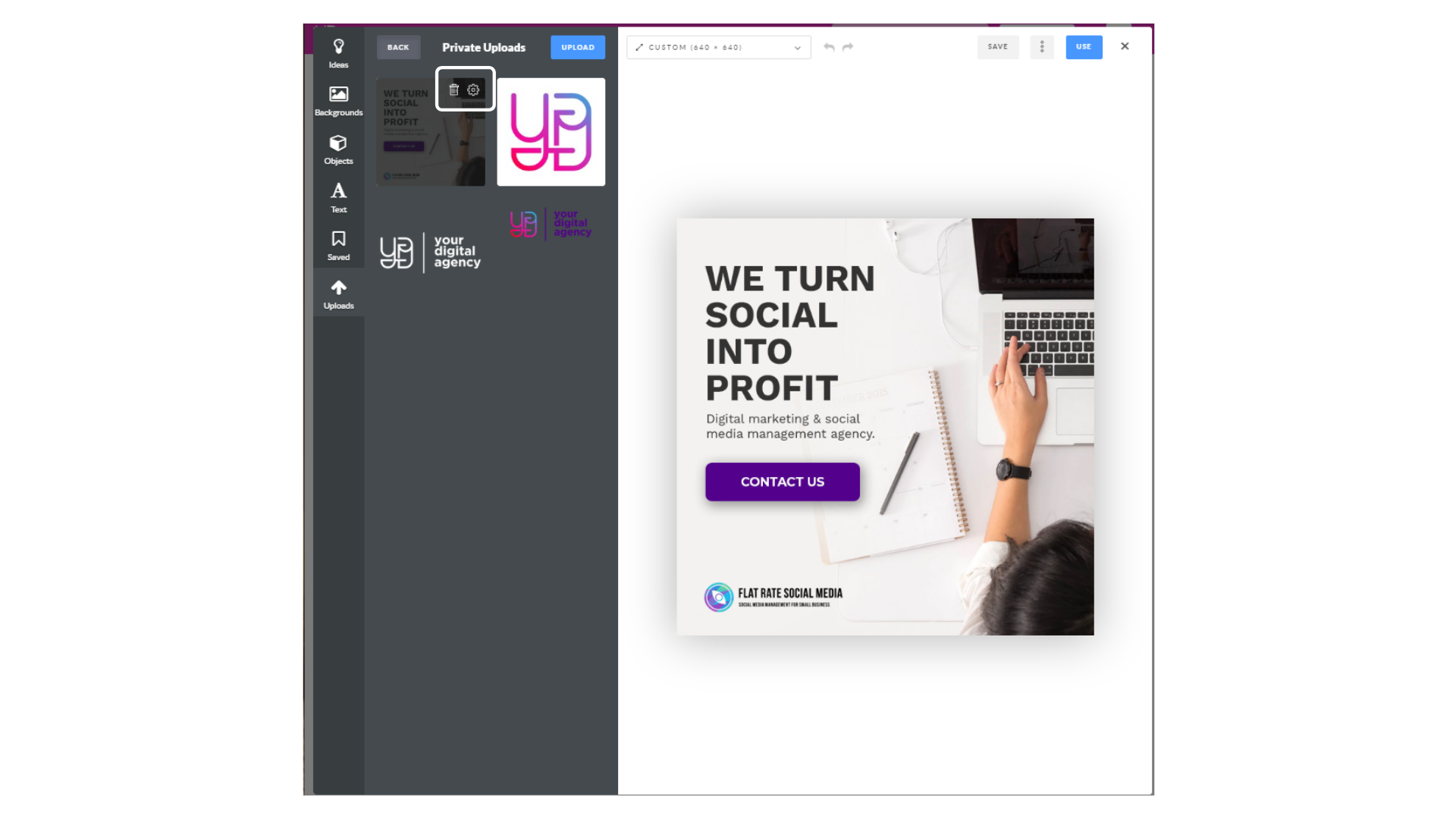
The Workspace Uploads files are sorted by date - with news always at the top. The Hovering file enables you to see 2 icons - Delete and Options. Click 'OPTIONS' to open the Save Image menu and choose Workspace to share a file. The copy on this file will be added to the selected Workspace.  </p><p>
</p><p><b>Workspace Uploads are available as an add on for all plans with the Workspaces Feature (Standard ($49month) </b></p>]]>
            </summary>
                                    <updated>2019-09-07T10:29:34+00:00</updated>
        </entry>
            <entry>
            <title><![CDATA[INTRODUCING MY IDEAS]]></title>
            <link rel="alternate" href="https://support.yourdigitalagency.com.au/articles/introducing-my-ideas-1304" />
            <id>https://support.yourdigitalagency.com.au/1304</id>
            <author>
                <name><![CDATA[Leah Gibbs]]></name>
            </author>
            <summary type="html">
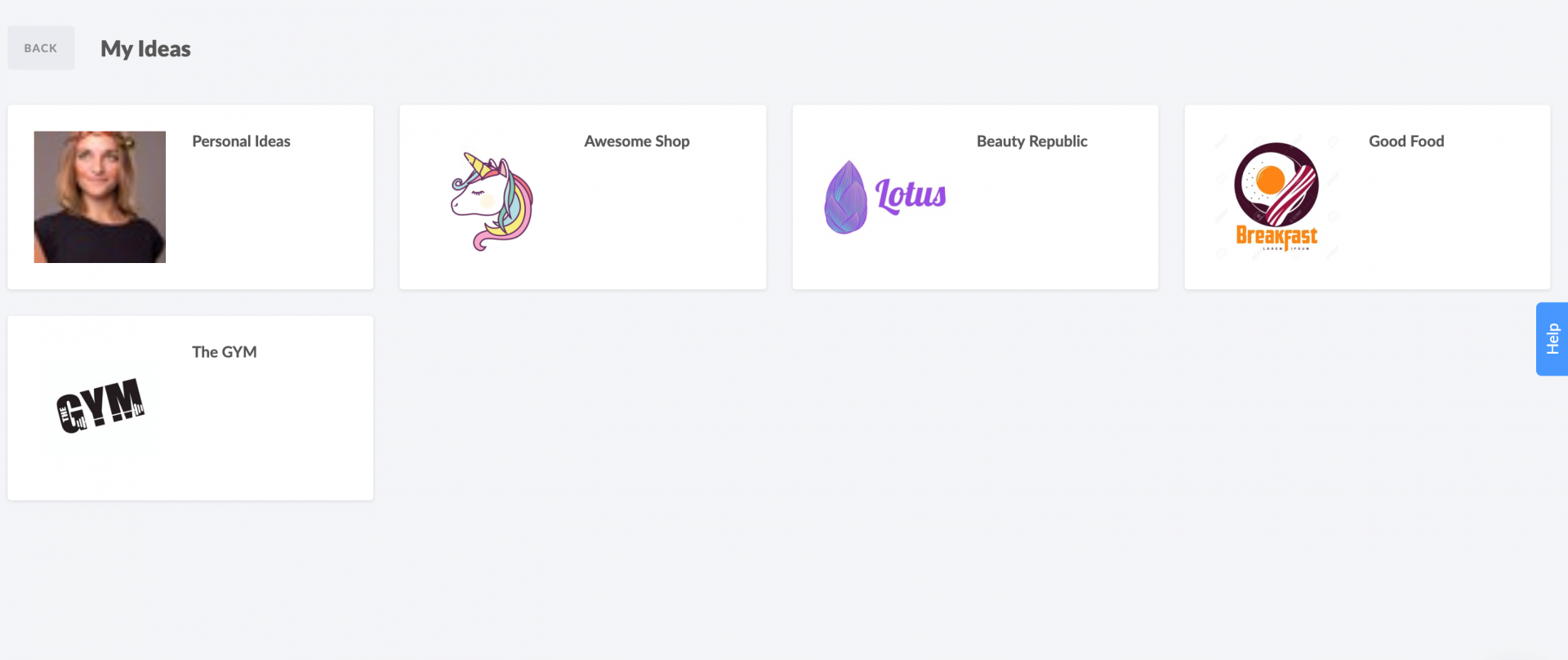
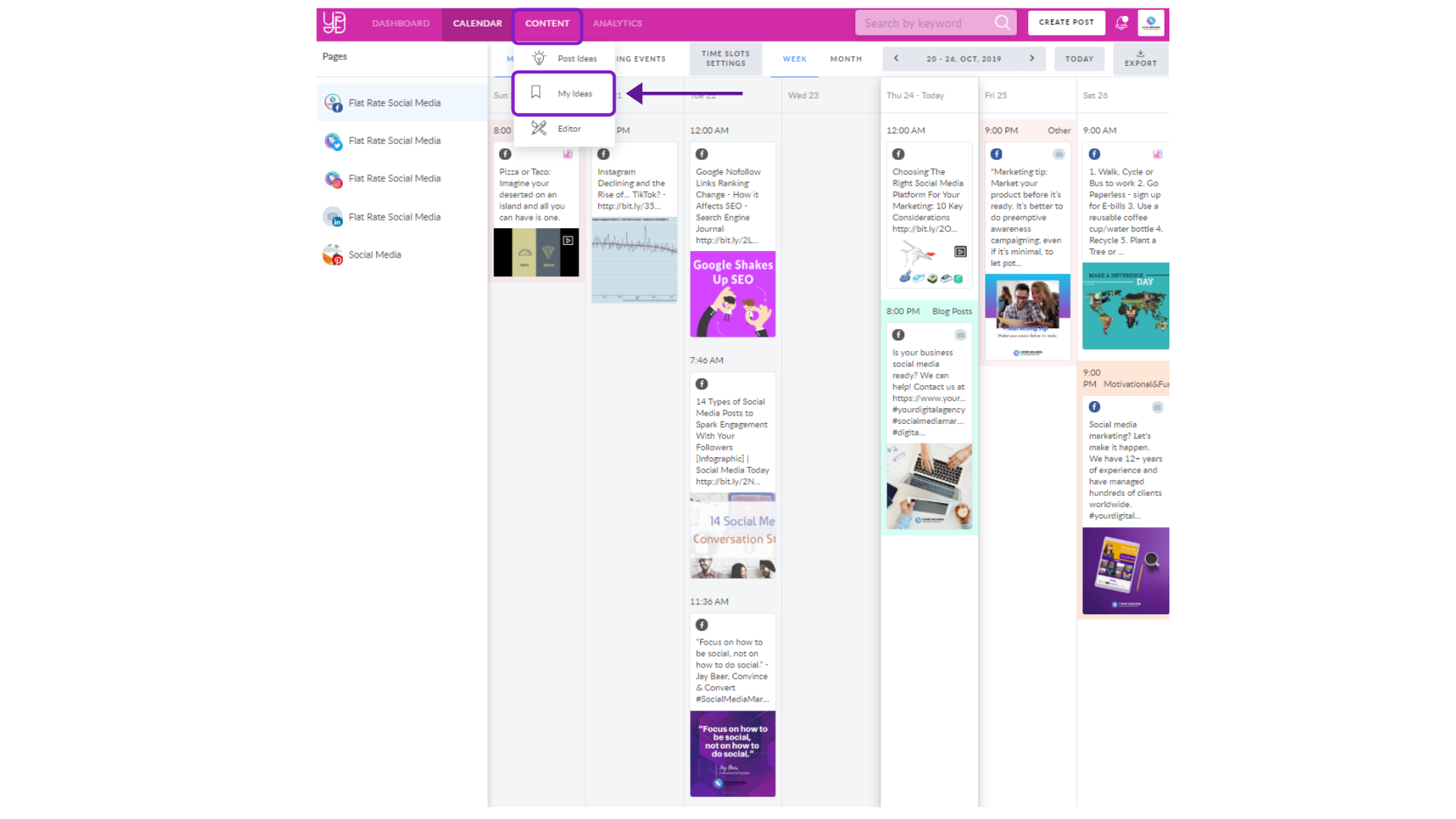
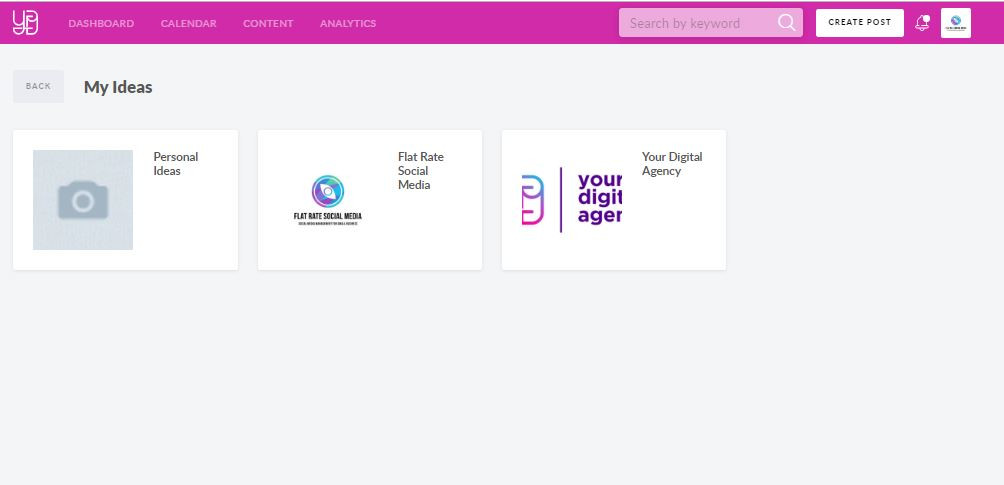
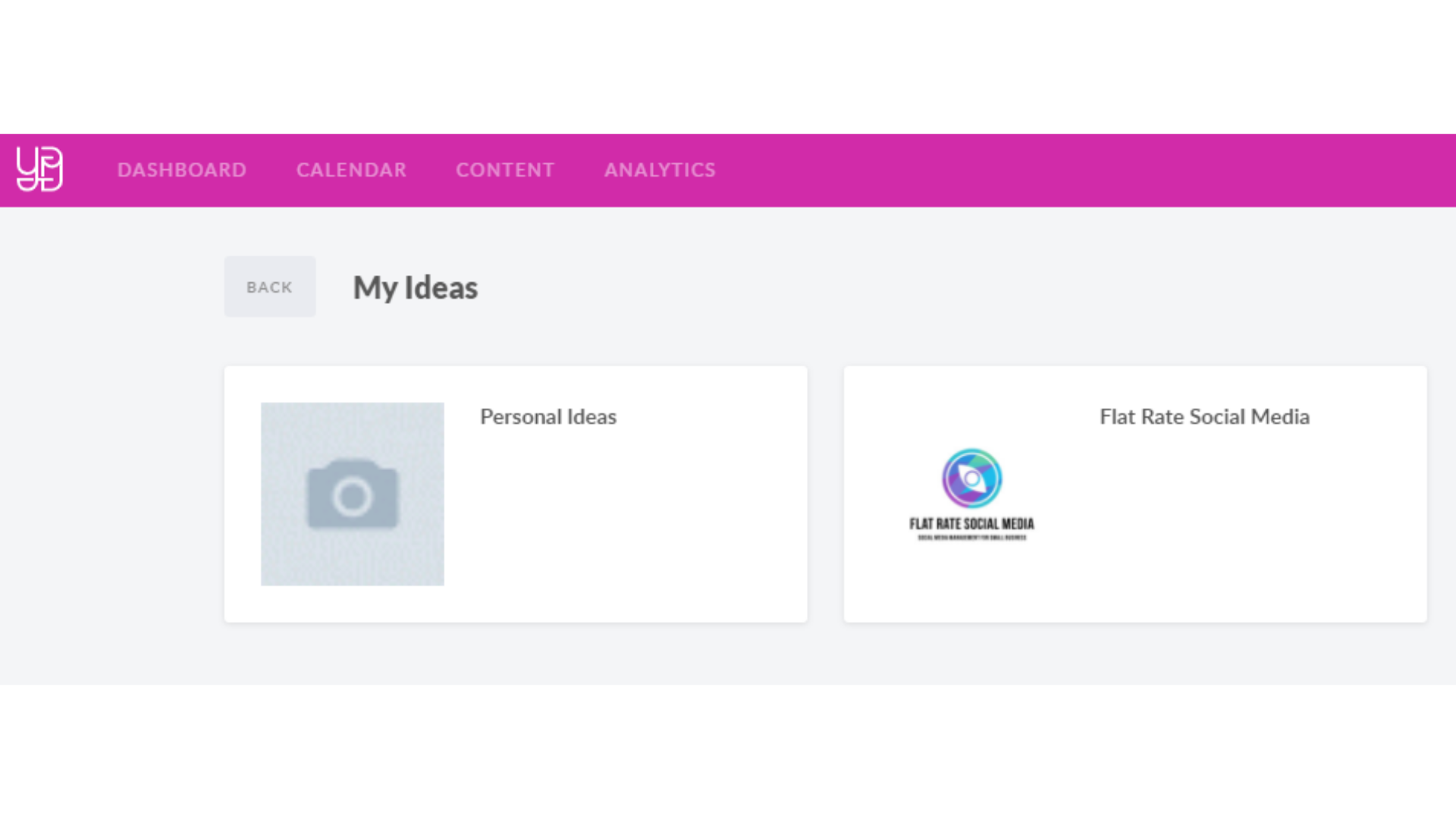
                <![CDATA[<p>To get started with My Ideas - Click on “Content” in the top-bar menu and choose “My Ideas” in the drop-down menu. In My Ideas you are able to see Workspace Ideas you are able to manage and Personal Ideas. 
</p><p>
<img src="https://support-hub--assets.s3.eu-west-2.amazonaws.com/assets/268/images/LFrdoJPzRabMu6LXu8VhcdUrylEfIJTACJFNnJuf.png" style="width:100%;" alt="LFrdoJPzRabMu6LXu8VhcdUrylEfIJTACJFNnJuf.png" /></p><p>
</p><p>Workspace's My Ideas are related to corresponding Workspaces. When you create or join a Workspace, Ideas folder will automatically appear in My Ideas section.
</p><p>The My Ideas folder is automatically shared with workspace members. 
</p><p>
Personal Ideas is a folder that is not related to any Workspace and visible only for you. You are not able to share the Personal Ideas folder. </p><p><b>
</b></p><p><b>How to add content to My Ideas? </b></p><p><b>
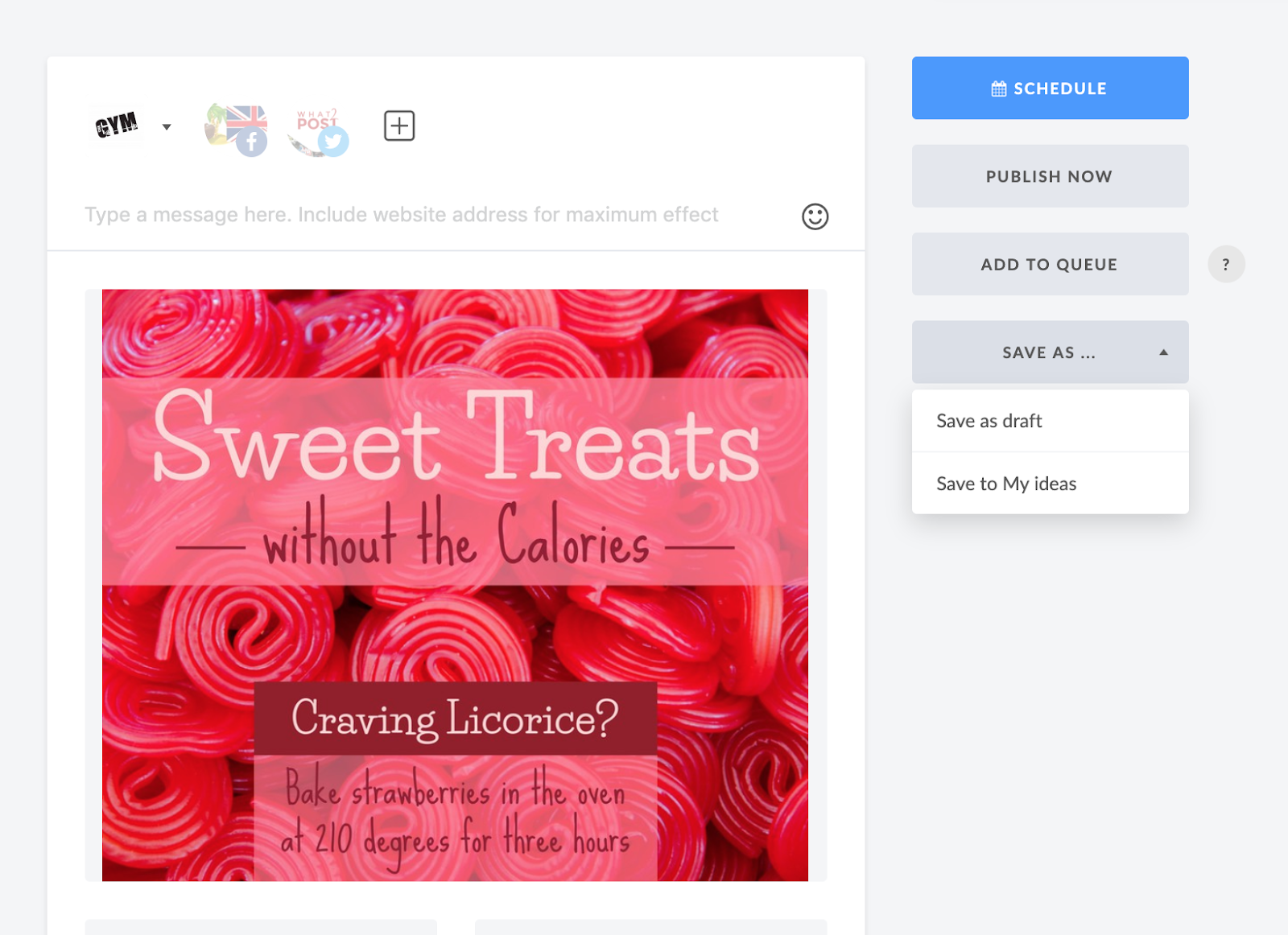
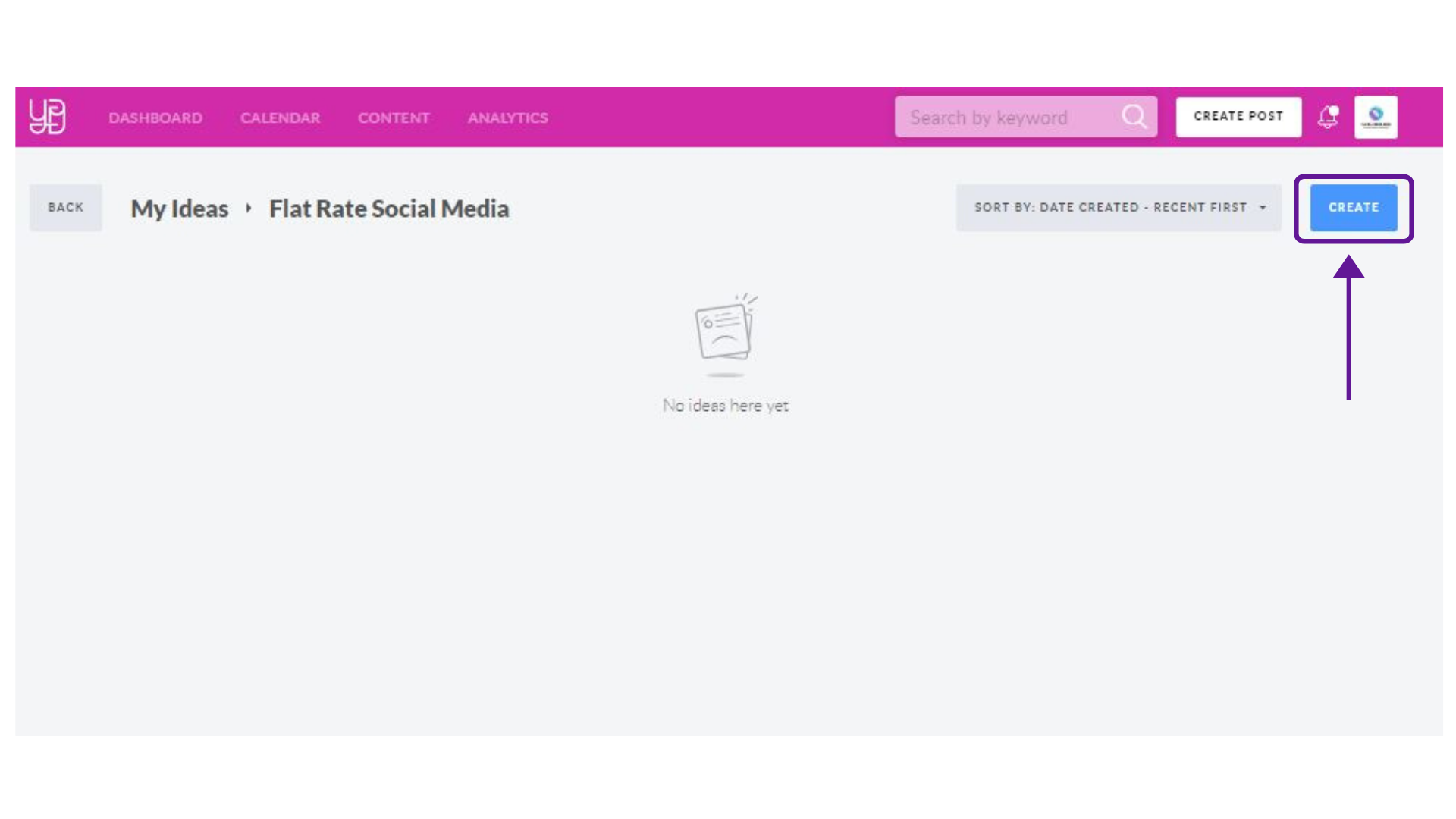
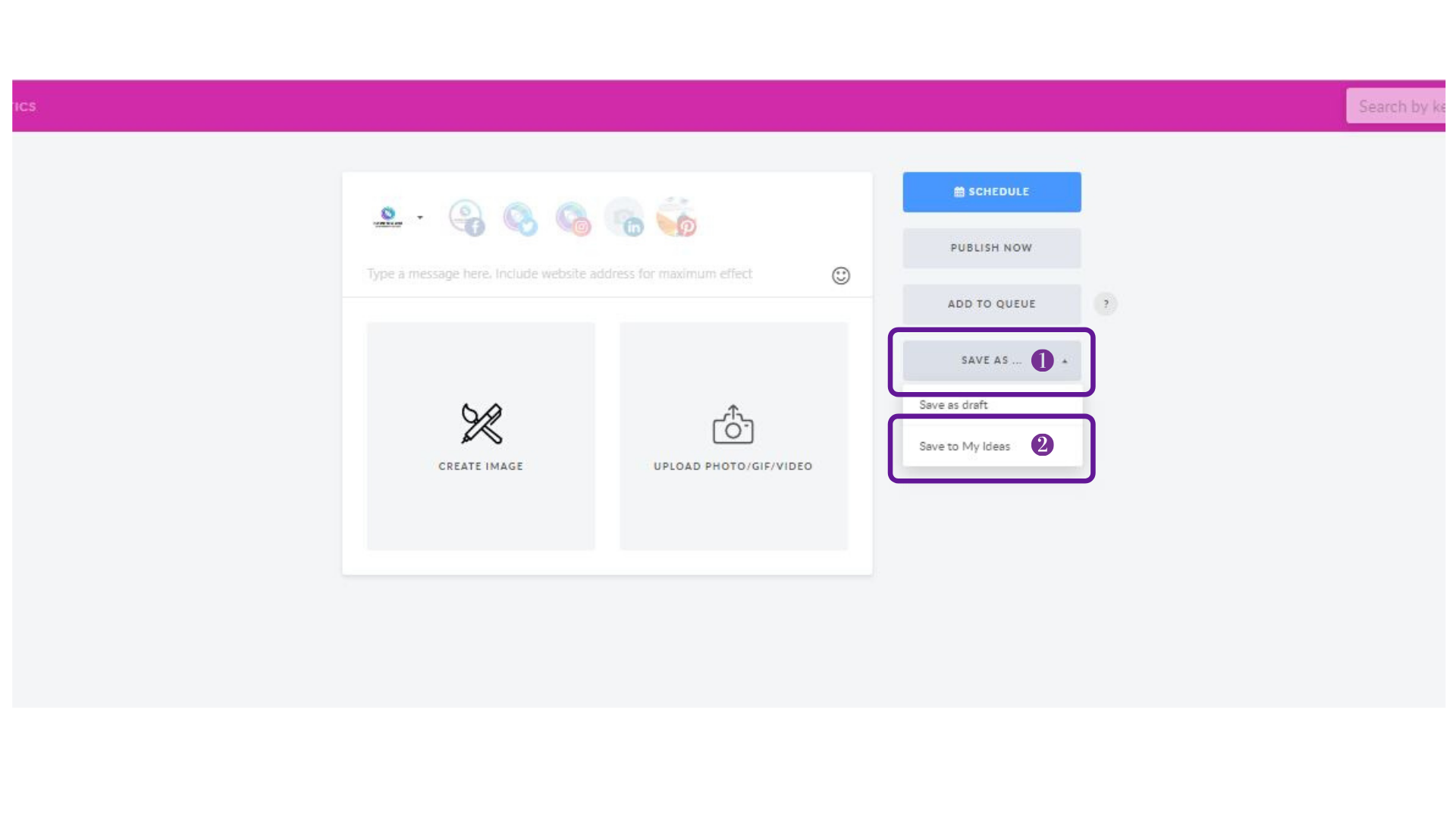
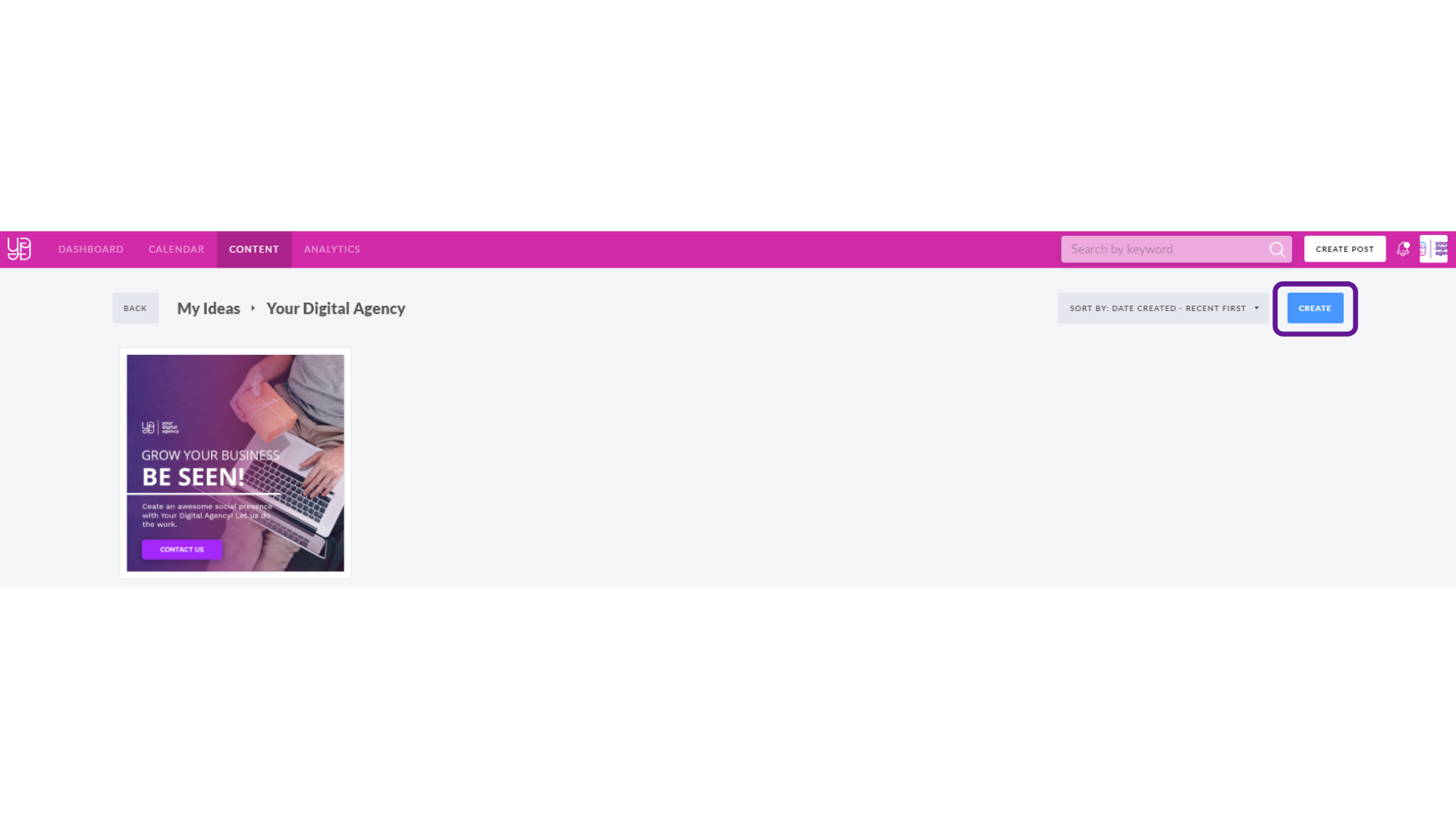
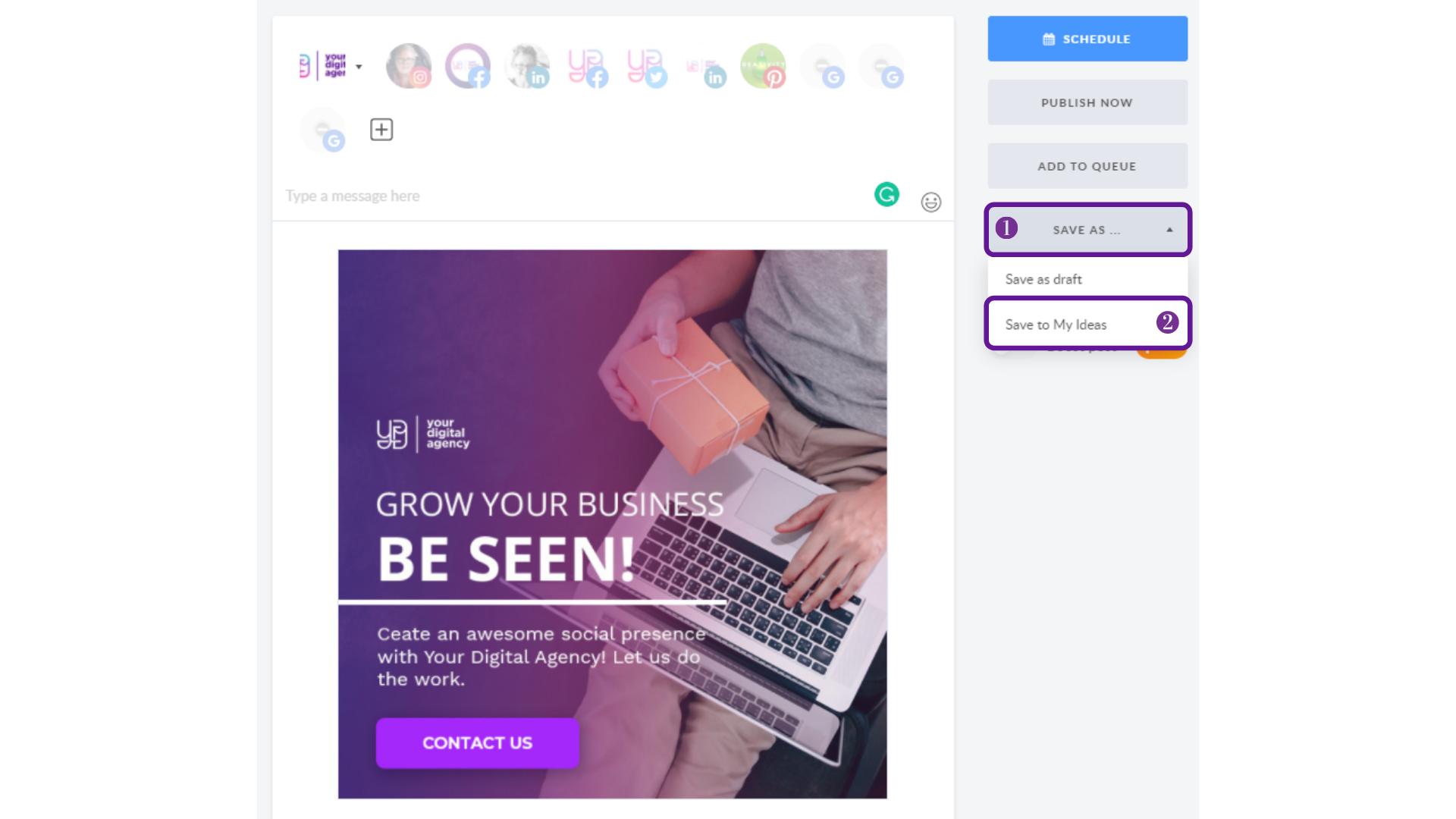
</b>Go to My Ideas, select the Workspace you want to create an idea for and create a post by clicking CREATE button. To save the post in the My Ideas simply click the "Save As" button, and choose "Save to My Ideas" in the drop-down menu.    </p><p>
<img src="https://support-hub--assets.s3.eu-west-2.amazonaws.com/assets/268/images/uVShBRWmkyjcqfX7pipiGr3EgDiutpRjkc3As2zg.png" style="width:100%;" alt="uVShBRWmkyjcqfX7pipiGr3EgDiutpRjkc3As2zg.png" /></p><p>
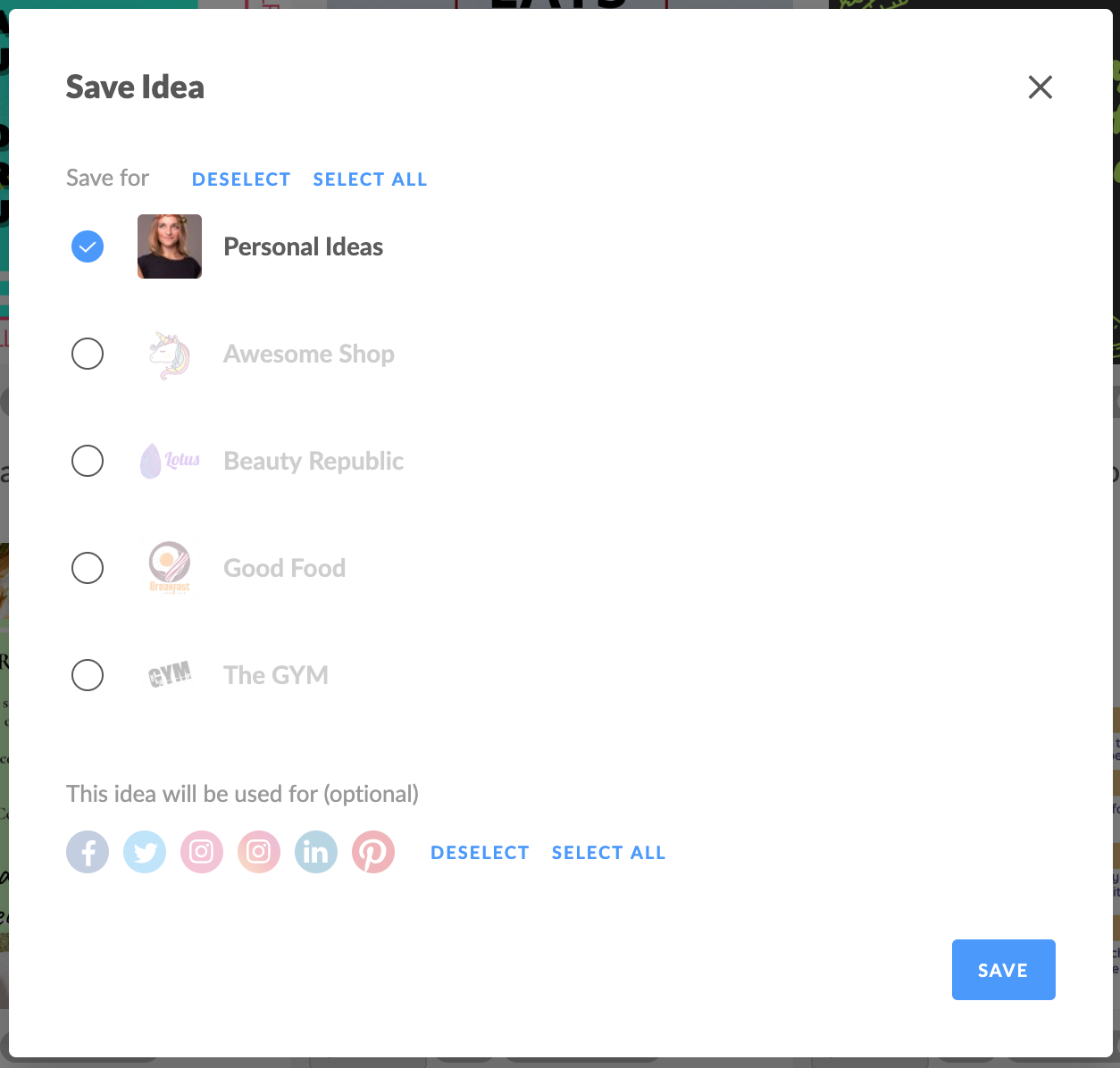
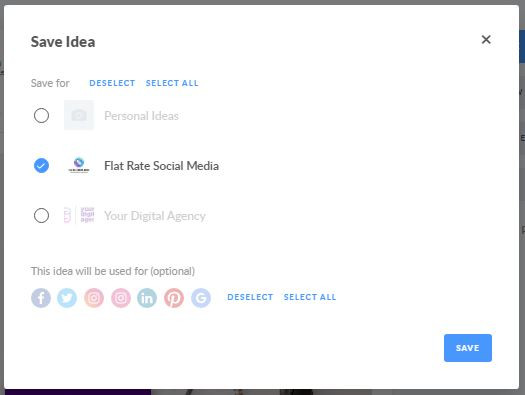
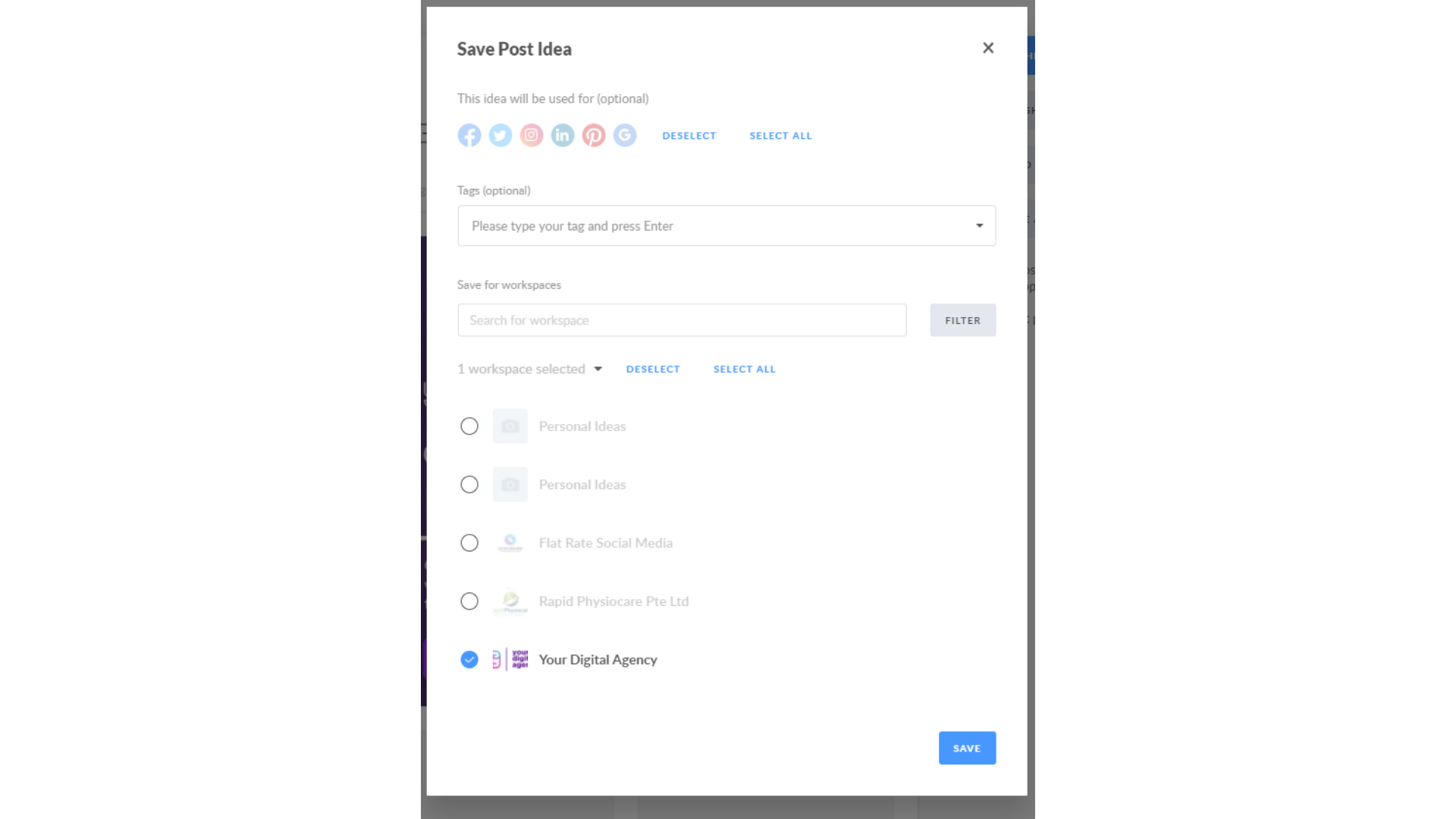
</p><p><i>Please note that you are able to save the post to one or multiple workspaces.  For each workspace, your posts will be saved as separate items. 
</i></p><p>
<img src="https://support-hub--assets.s3.eu-west-2.amazonaws.com/assets/268/images/96LTiPAqMPIBsIZ6Y9I9iyo6BFdvrlafjpnBqjXK.png" style="width:100%;" alt="96LTiPAqMPIBsIZ6Y9I9iyo6BFdvrlafjpnBqjXK.png" /></p><p>
</p><p><b>There a few more ways to add an idea to My Ideas:
</b></p><ul><li>
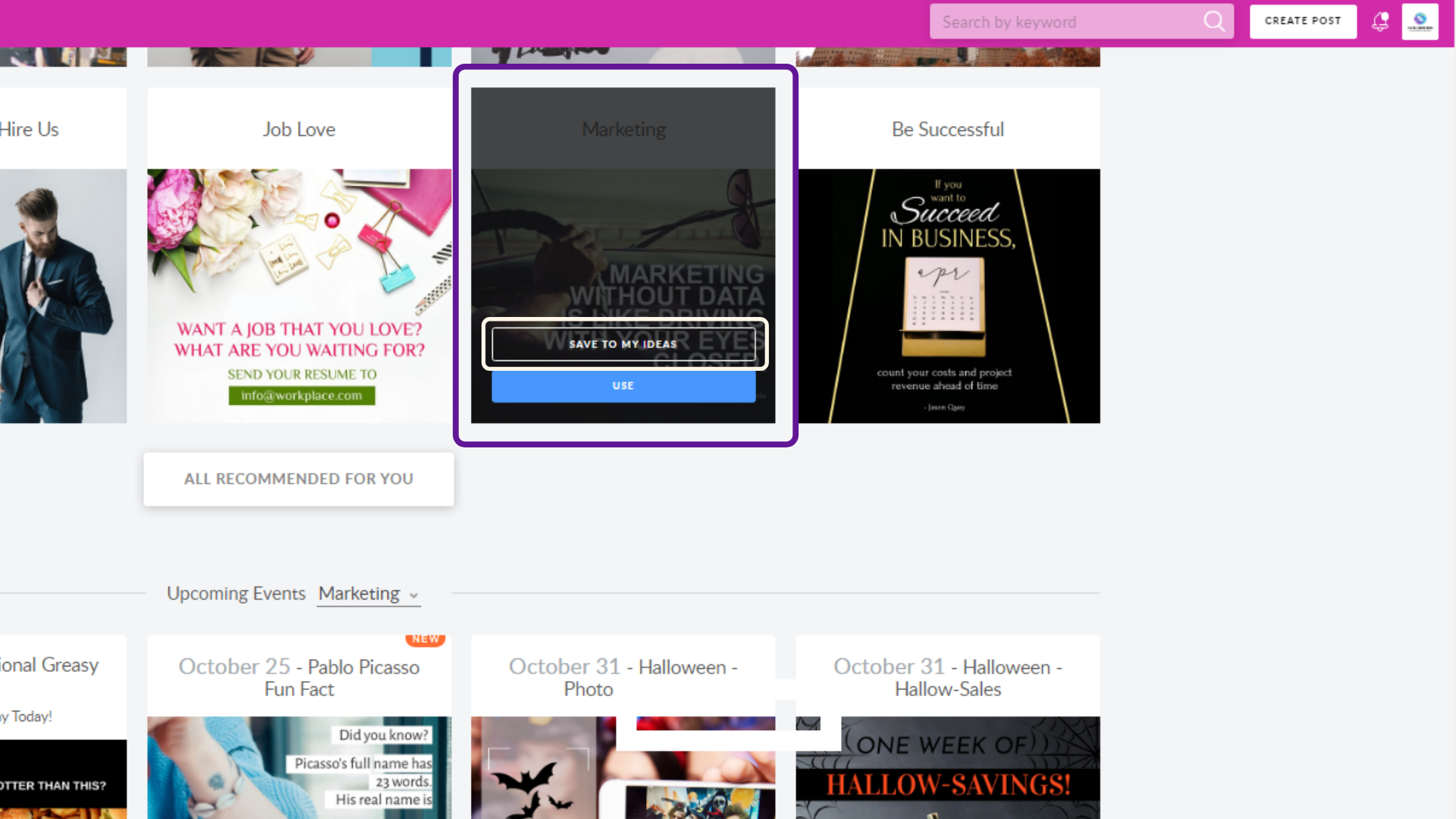
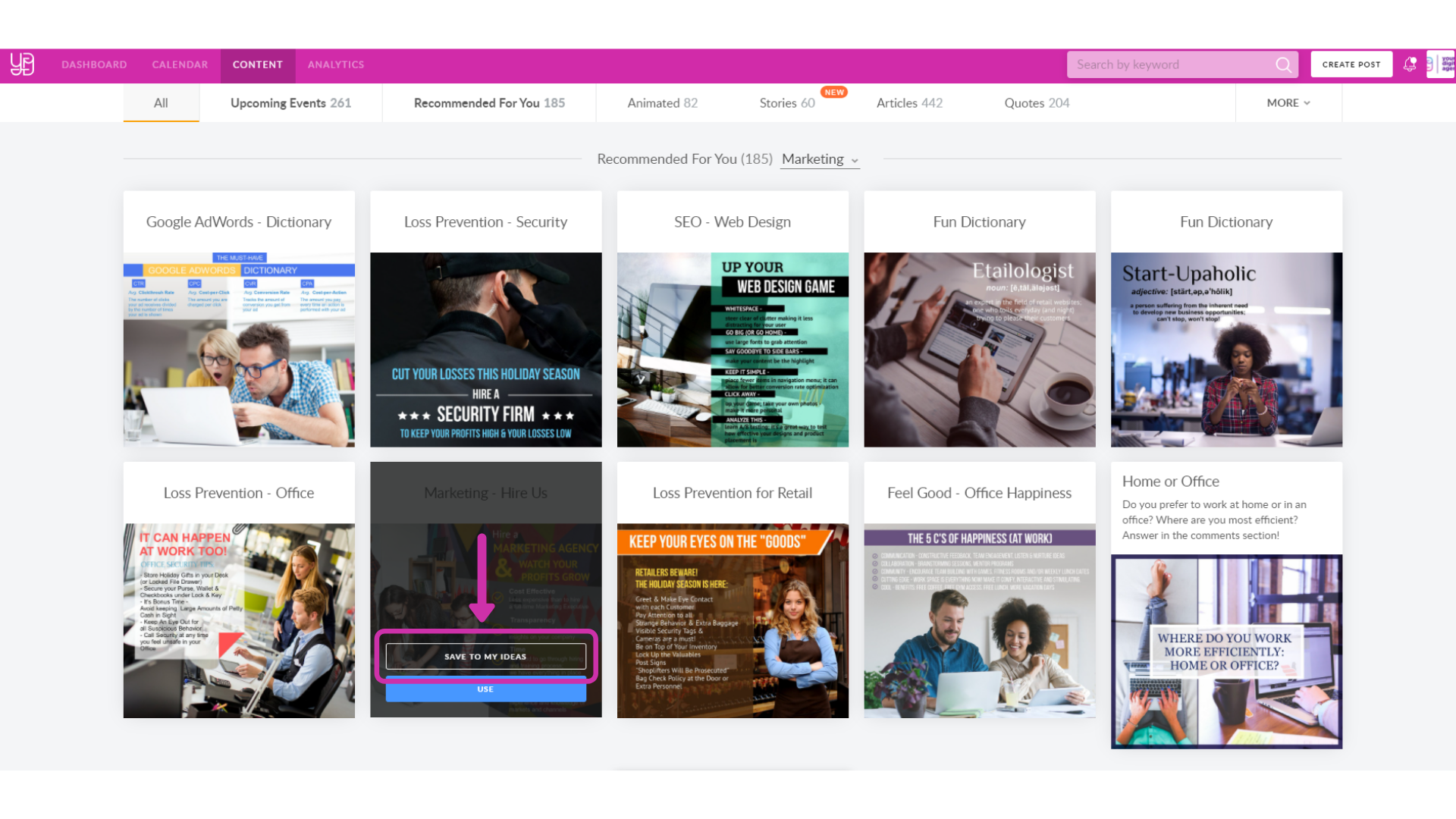
From Post Editor (click on "Save As" button and choose "Save to My Ideas" in drop-down) </li><li>From Post Ideas Library (hover over the needed template and click on "Save to my Ideas") 
</li></ul><p><br /></p><p><b>What can I storage in My Ideas? 
</b></p><p>
You are able to store all types of content available for publishing with YDA Social Dashboard and more: </p><ul><li>
Images <br /><br /></li><li>Multiple images (up to 4)
<br /><br /></li><li>Video
<br /><br /></li><li>Gif
<br /><br /></li><li>Text
<br /><br /></li><li>Links
<br /><br /></li><li>Drafts
<br /><br /></li><li>Templates from Post Ideas Library
<img src="https://support-hub--assets.s3.eu-west-2.amazonaws.com/assets/268/images/nusluxOmbqKVq0G0cWa5cRS0LZxnYtu91TNdulWj.png" style="width:100%;" alt="nusluxOmbqKVq0G0cWa5cRS0LZxnYtu91TNdulWj.png" /></li></ul><p><b>How can I view content in My Ideas?</b> 
</p><p>
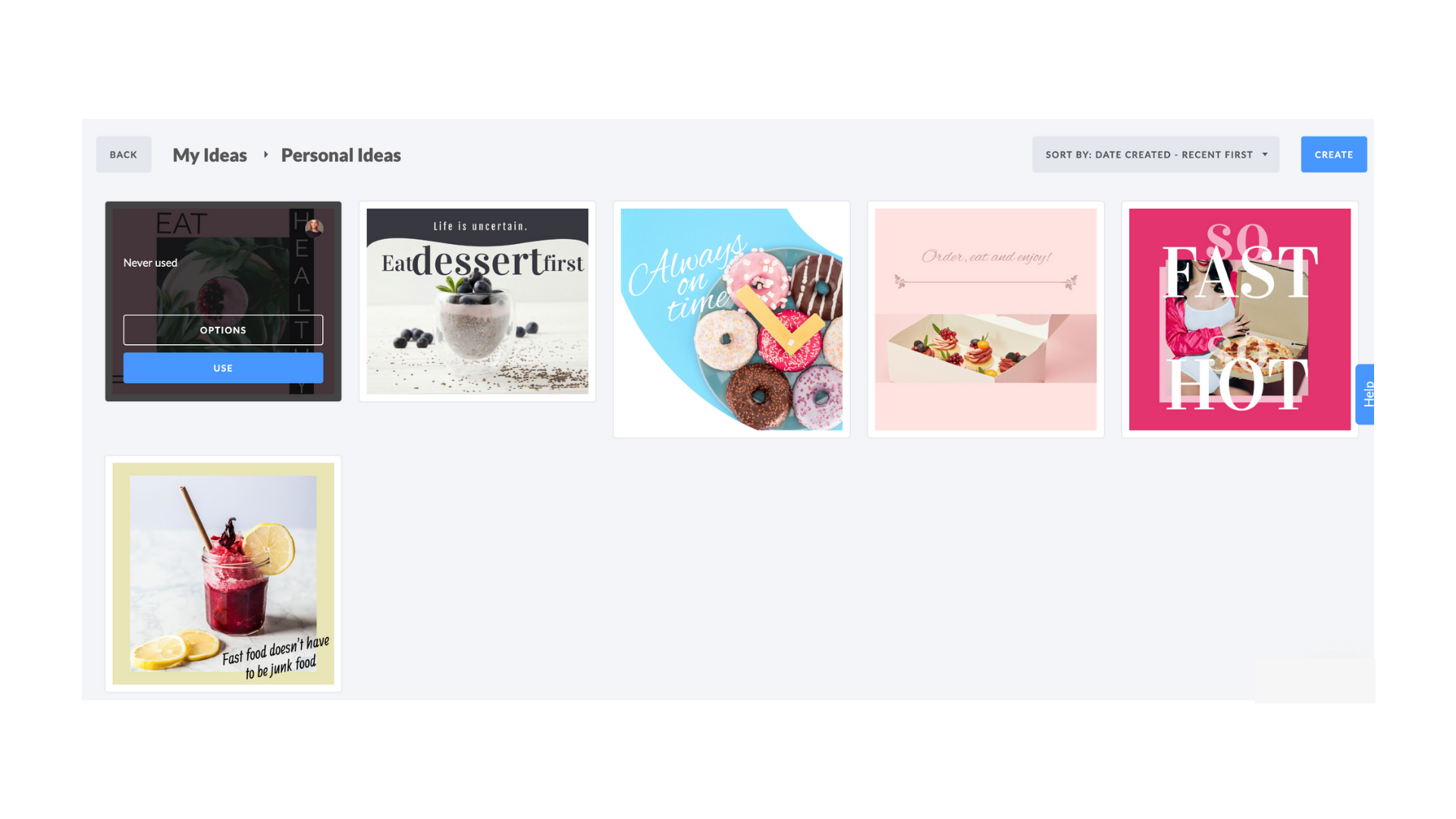
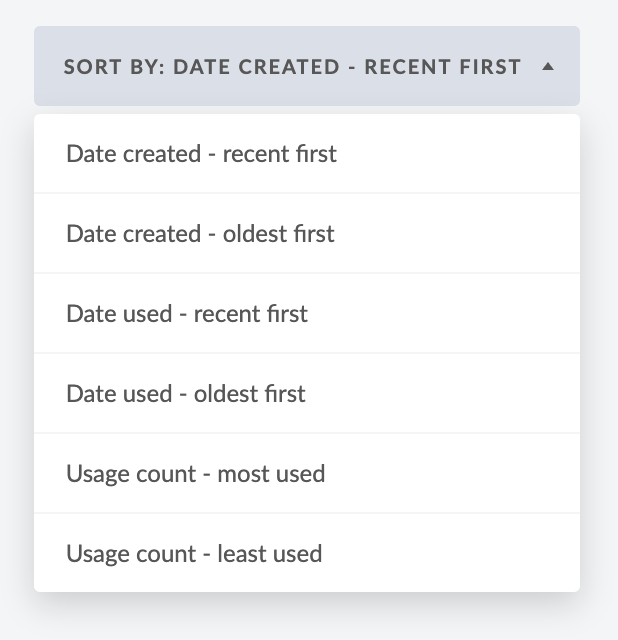
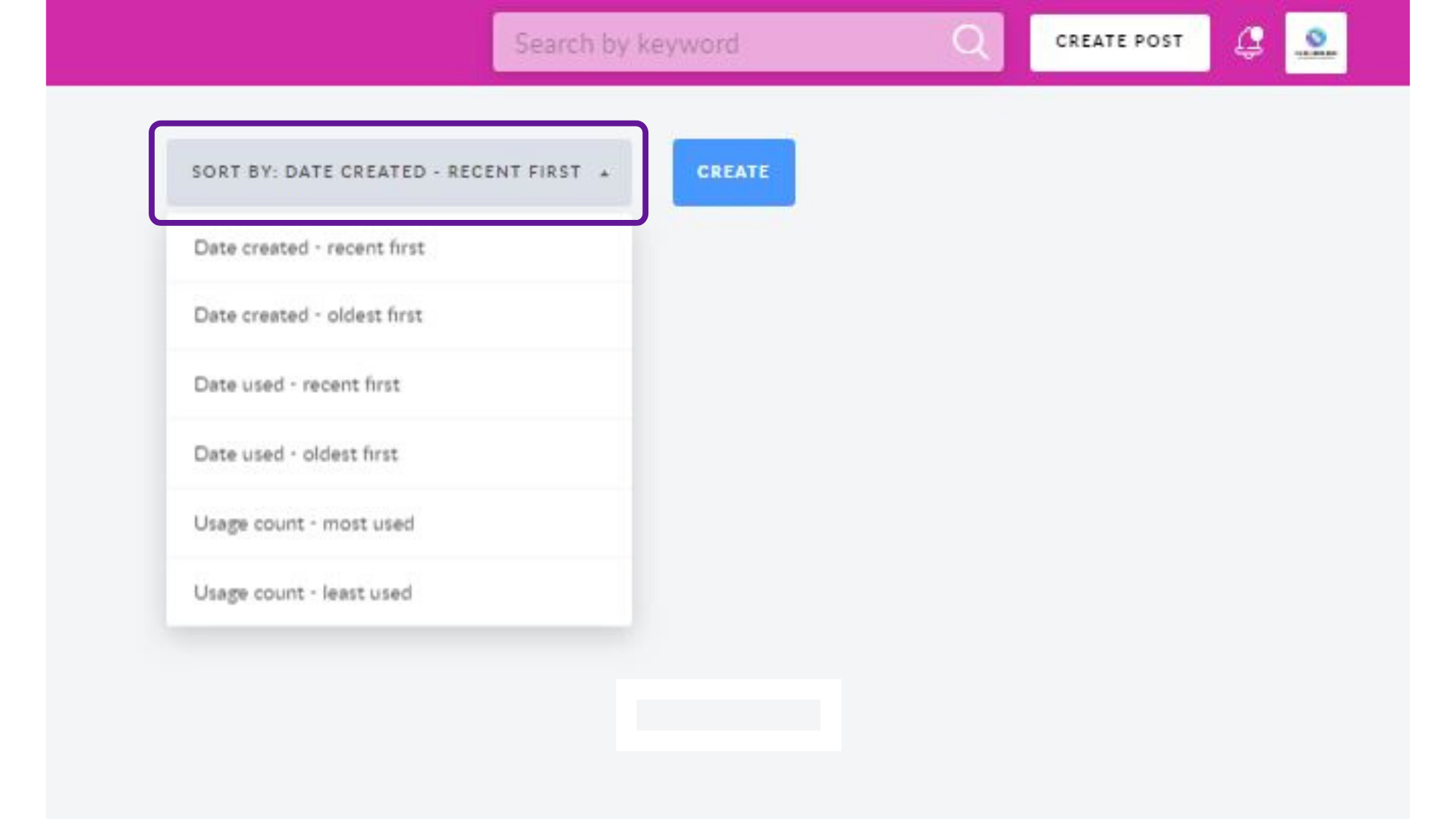
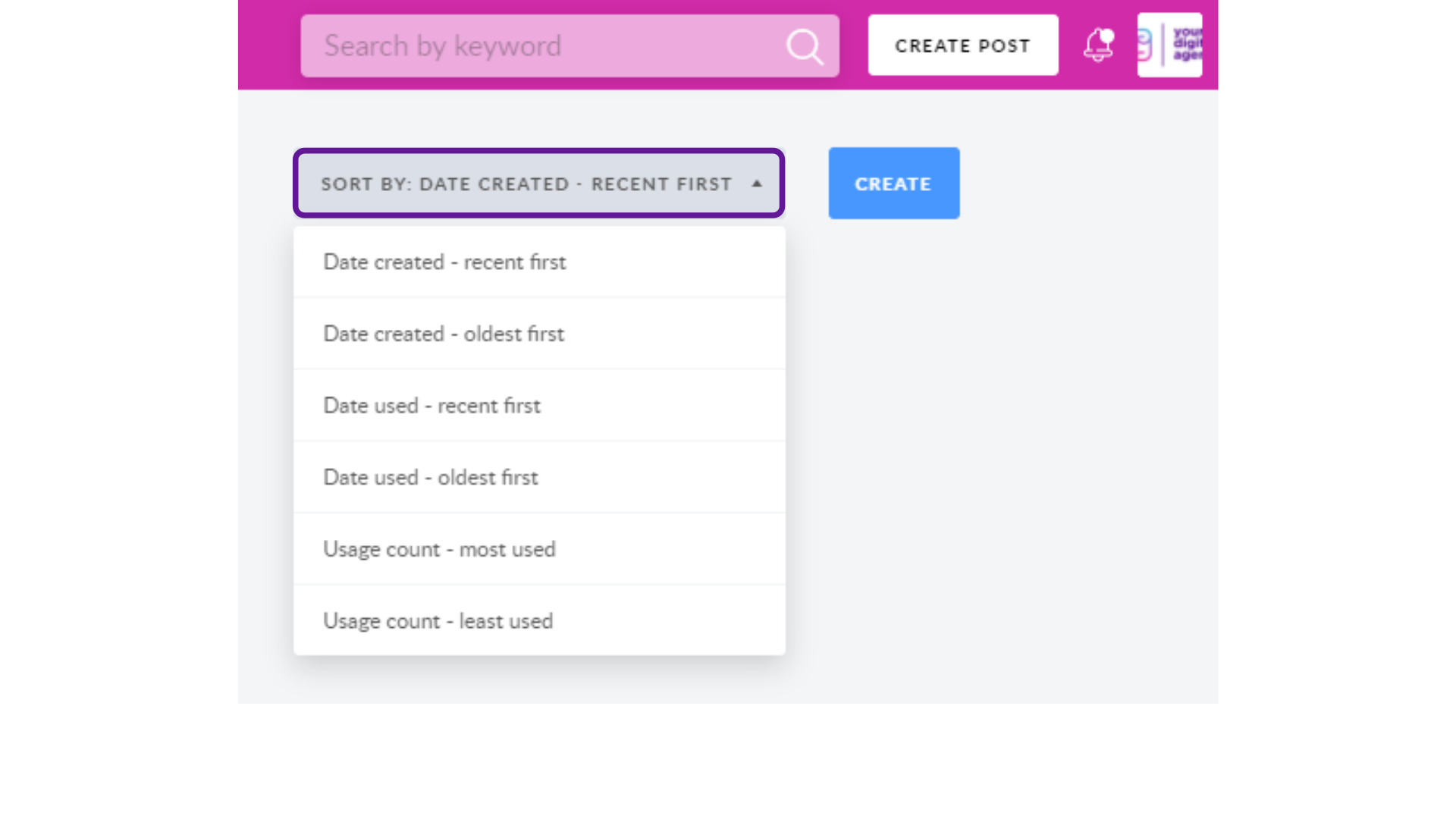
In My Ideas Folder, you are able to sort content by the creation and usage (from recent to oldest and vice versa) and a number of usages (most and least used). </p><p>
<img src="https://support-hub--assets.s3.eu-west-2.amazonaws.com/assets/268/images/ChVfAINIMECbiiAp8PqgqlCATuEzELvMEwcxnXev.png" style="width:100%;" alt="ChVfAINIMECbiiAp8PqgqlCATuEzELvMEwcxnXev.png" /></p><p>
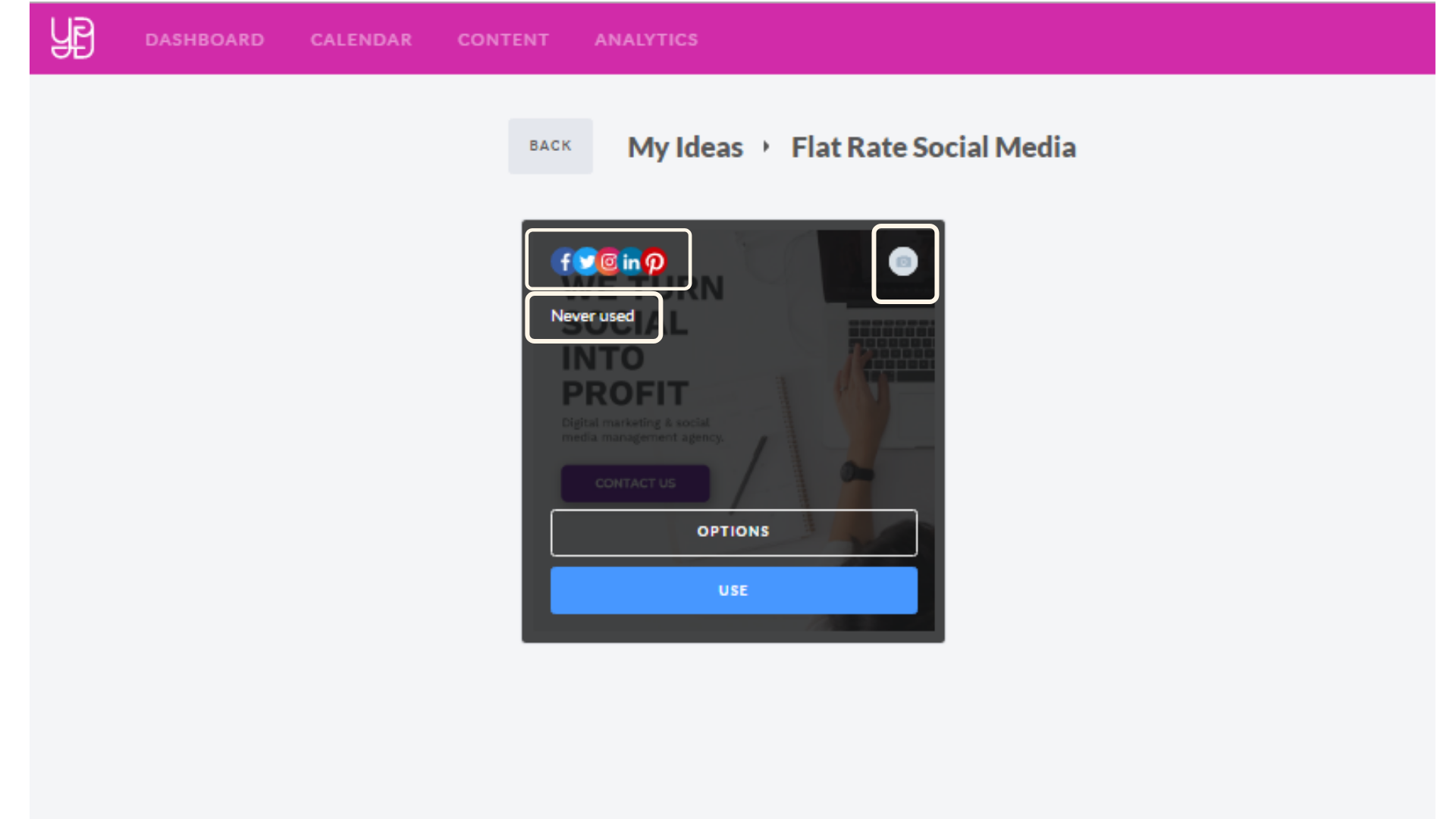
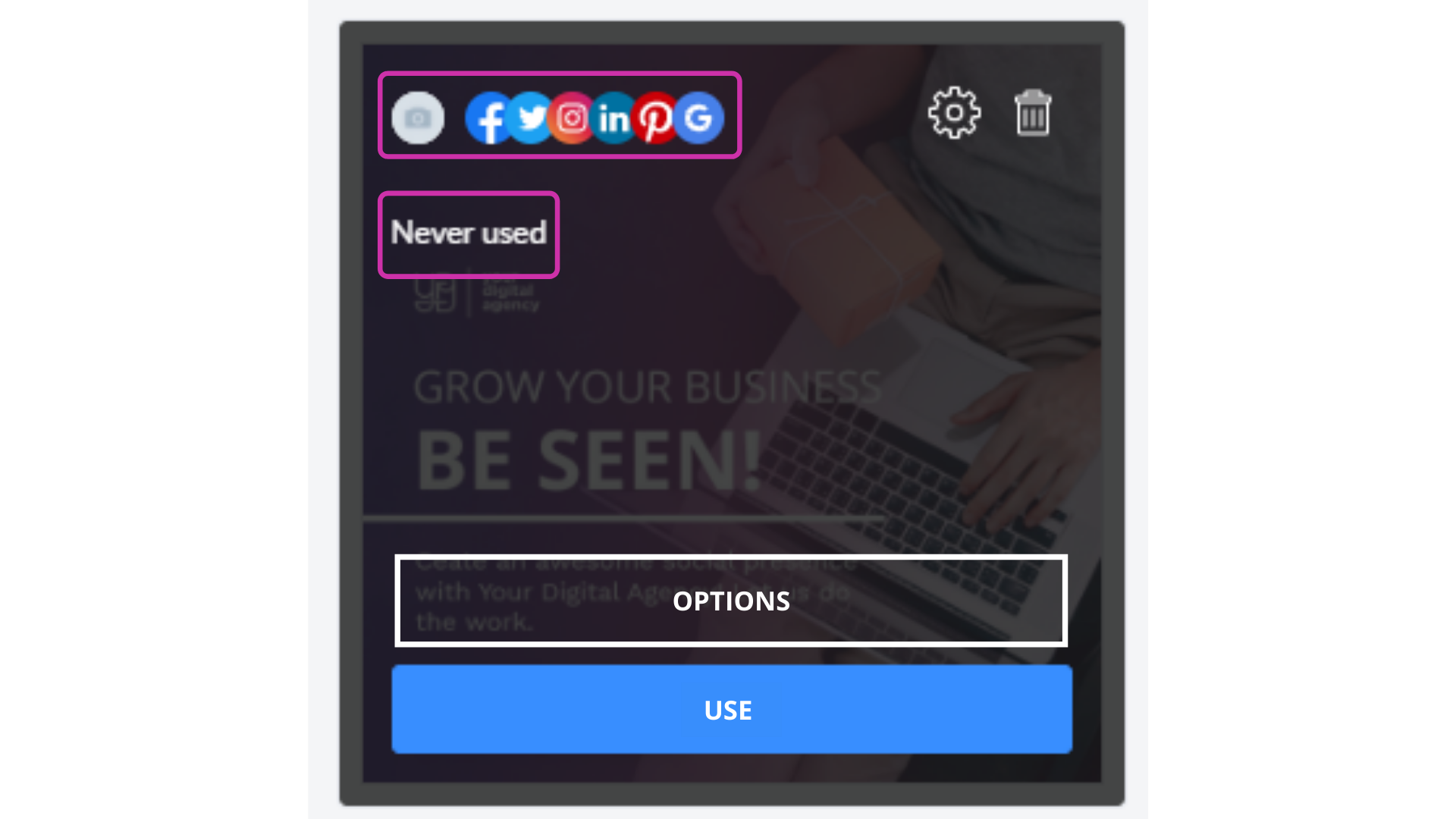
</p><p>When you hover on the content you store in My Ideas you are able to see:
</p><ul><li>
The user that added it  <br /><br /></li><li>Social networks 
<br /><br /></li><li>Number of usages
<br /><br /></li><li>Last used date
</li></ul><p><br /></p><p><b>How to use content from My Ideas?
</b></p><p><b>
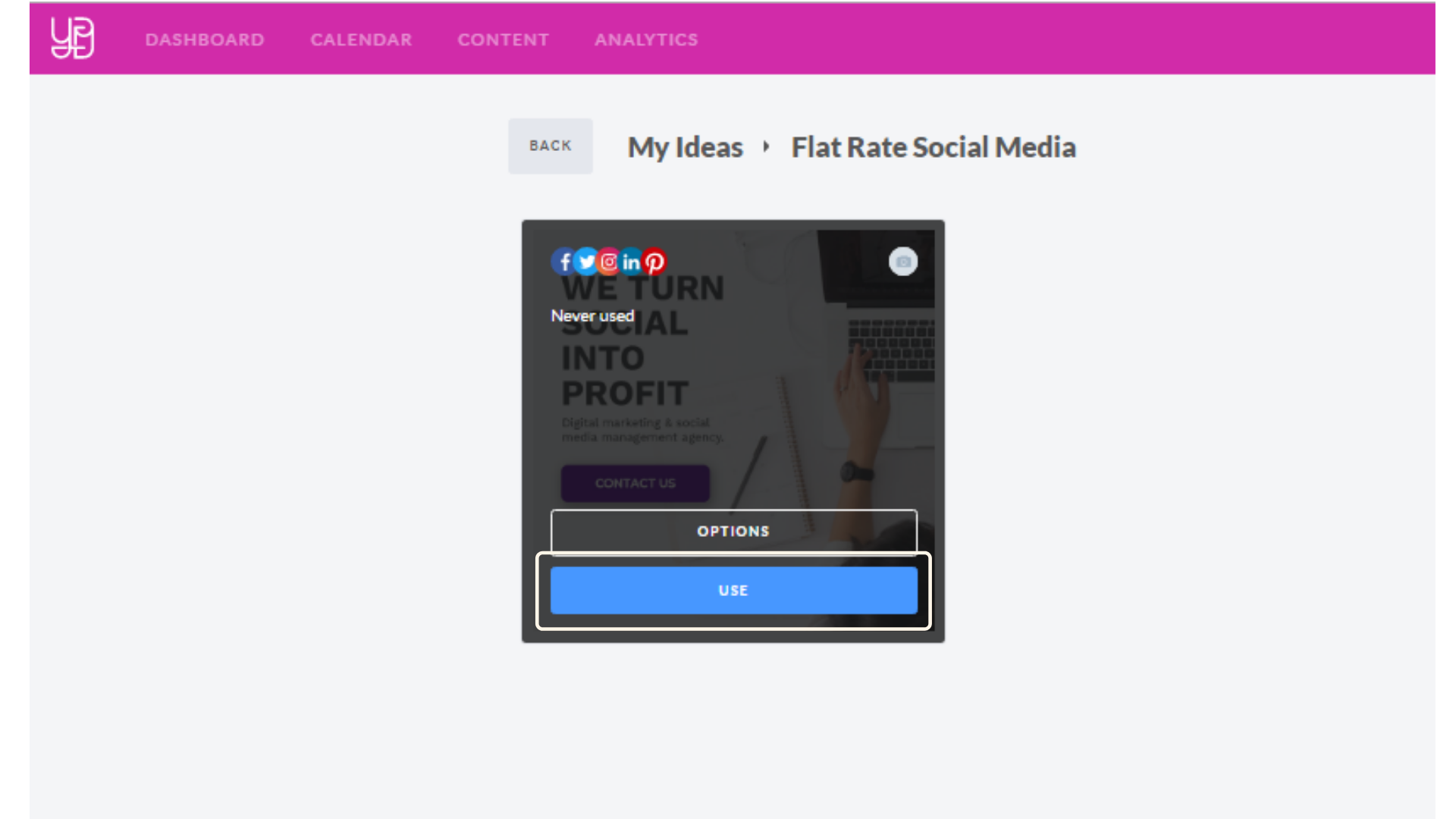
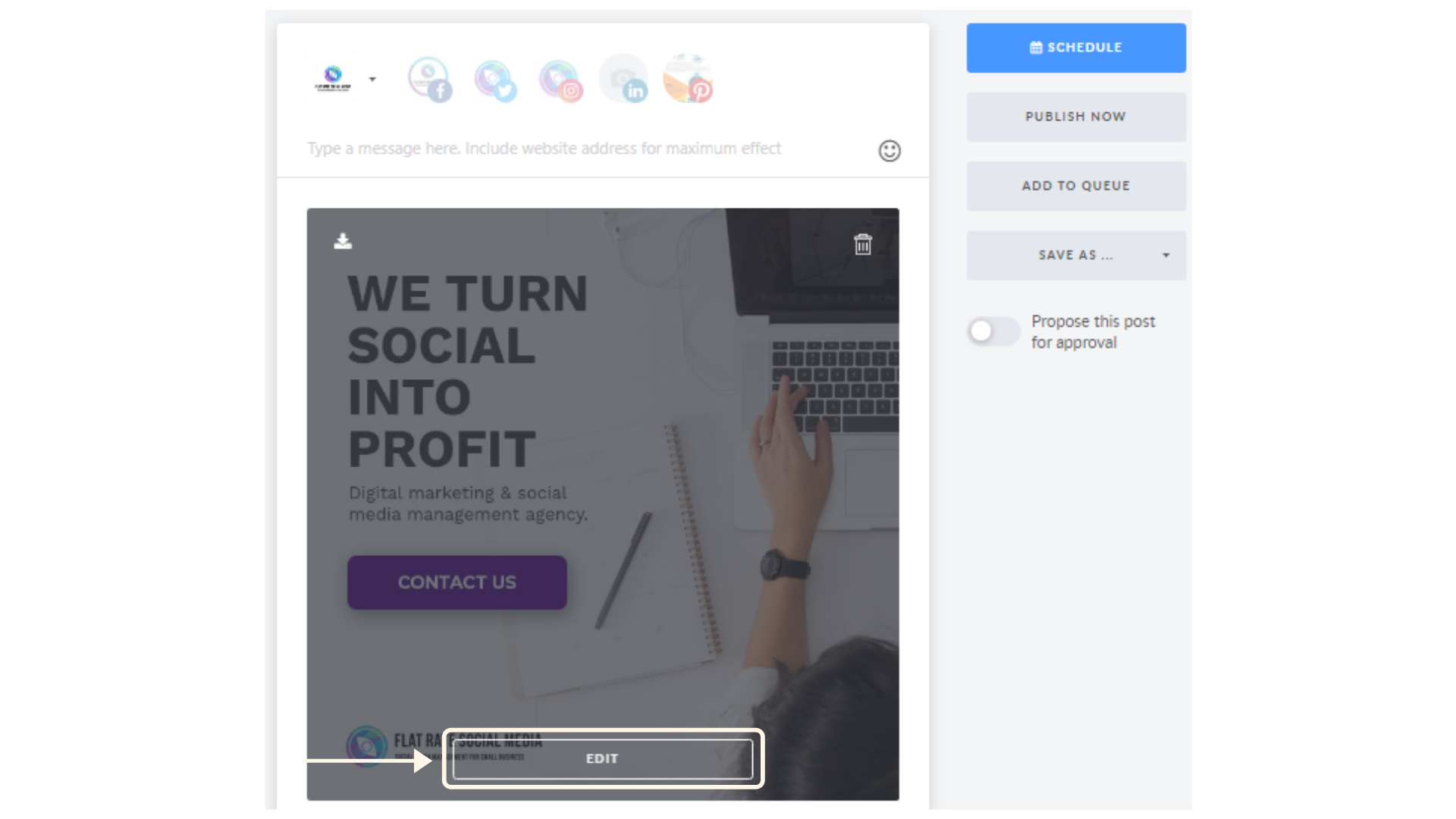
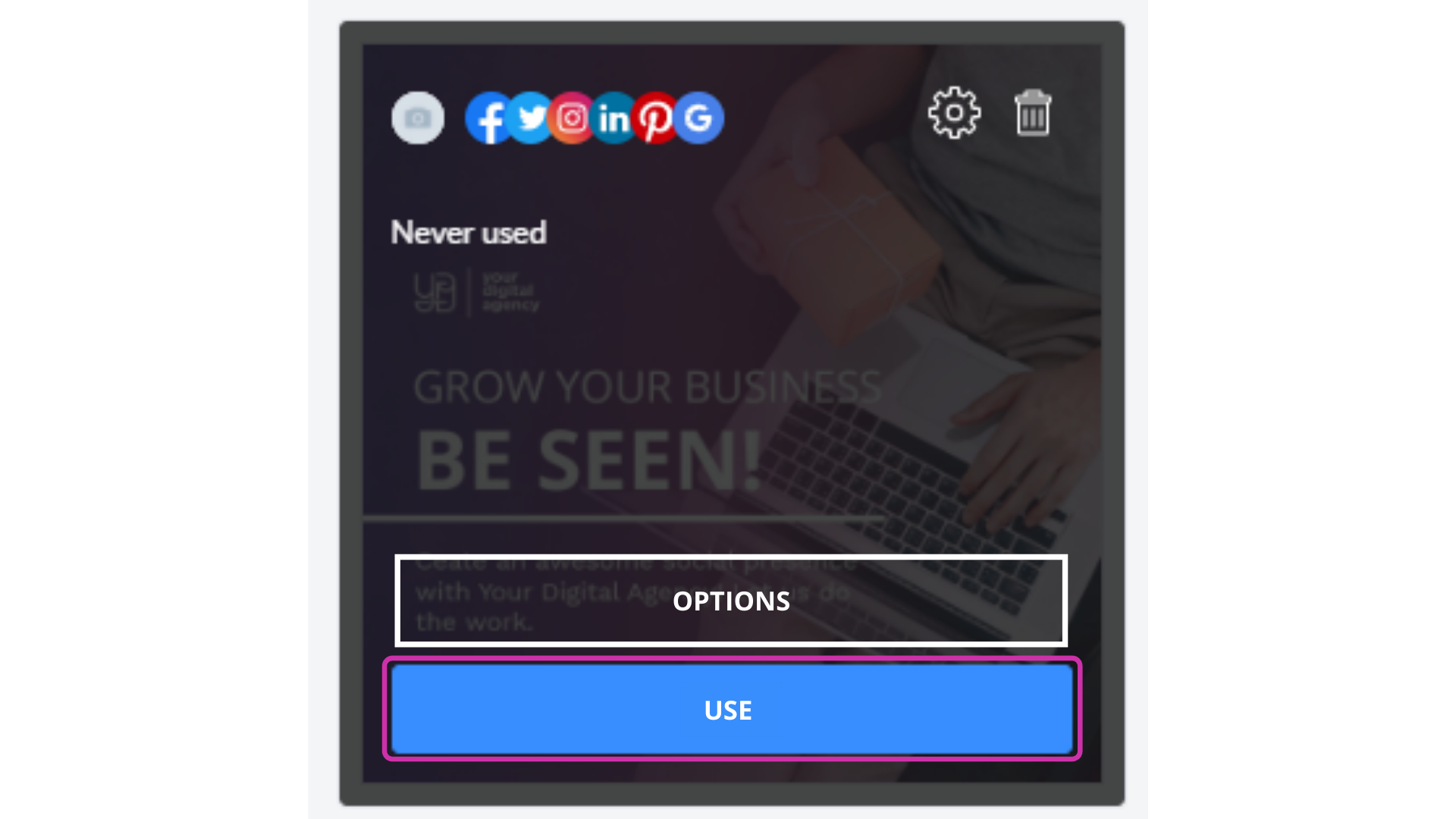
<i>To use content from My Ideas</i></b> hover on a needed idea and click USE' button - it will be opened with Post Editor.  </p><p><i><b>
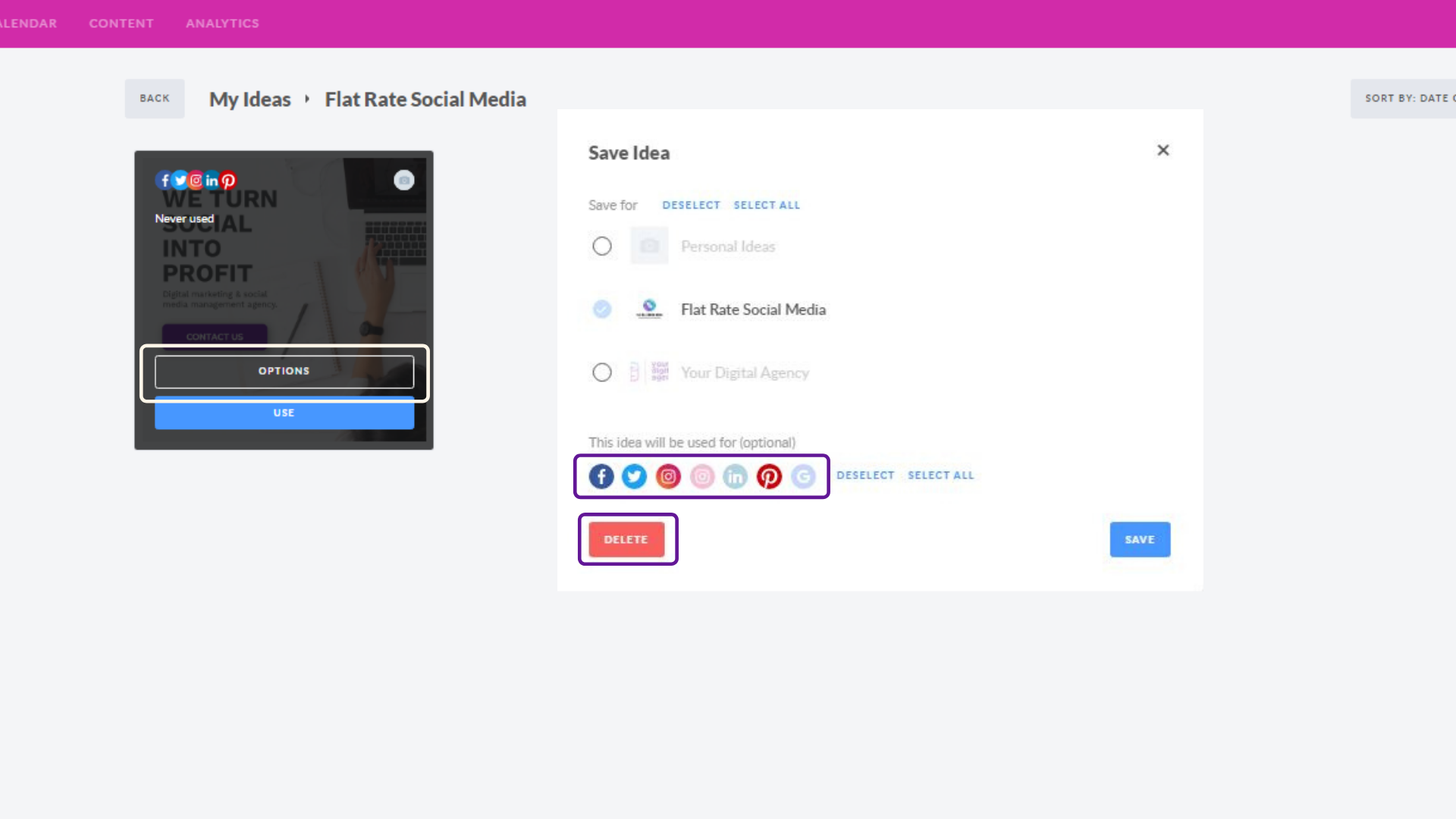
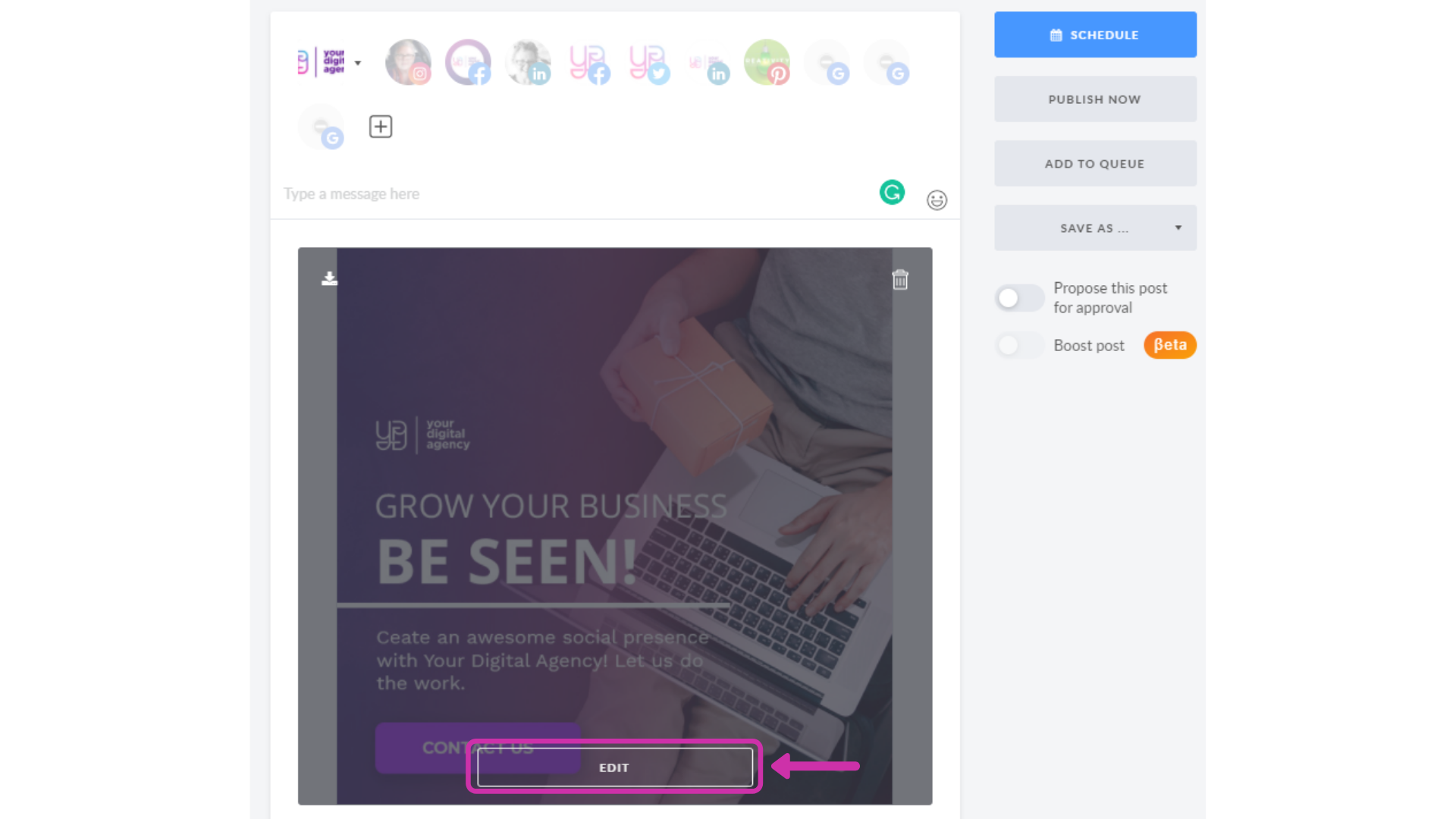
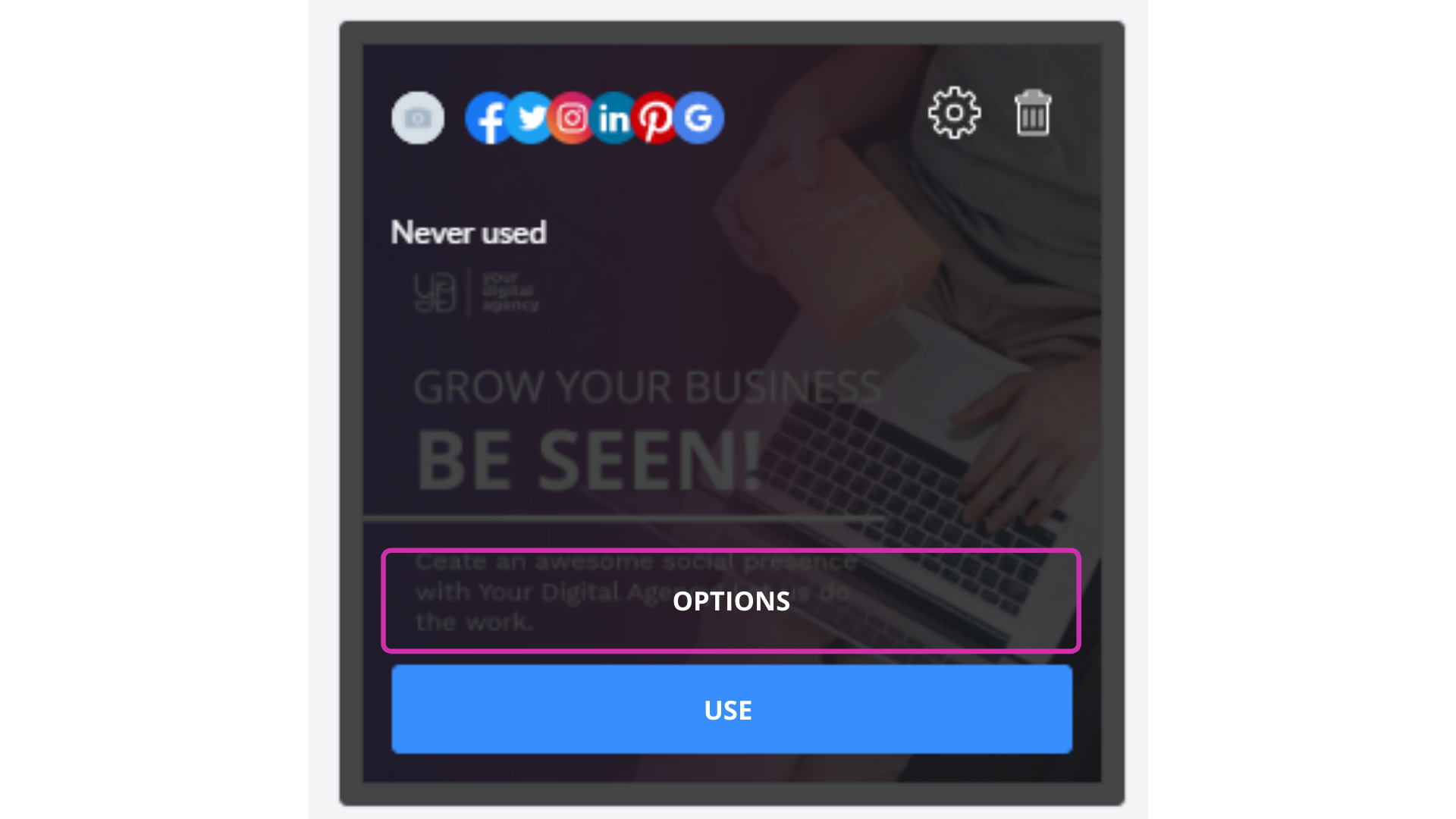
To edit content from My Ideas</b></i> hover on a needed idea and click the 'USE' button - it will be opened with Post Editor. Make edits and after you've done - click on Save as button in Post Editor and choose "Save to My Ideas" in drop-down menu. Your idea will be saved as a new one. You are able to edit saved ideas. </p><p><i><b>To manage content from My Ideas</b></i> hover on a needed idea and click on OPTIONS button, in appeared window you are able to:  <br /></p><ul><li>
Add idea to other workspaces (duplicate as a separate piece of content) <br /><br /></li><li>Add/delete social networks for the current idea
<br /><br /></li><li>Delete idea
</li></ul><p><br /></p><p><b>My Ideas Feature is available as an add on at $49.month.</b><br /></p>]]>
            </summary>
                                    <updated>2019-09-07T10:32:09+00:00</updated>
        </entry>
            <entry>
            <title><![CDATA[INTRODUCING CUSTOM TIME SLOTS]]></title>
            <link rel="alternate" href="https://support.yourdigitalagency.com.au/articles/introducing-custom-time-slots-1305" />
            <id>https://support.yourdigitalagency.com.au/1305</id>
            <author>
                <name><![CDATA[Leah Gibbs]]></name>
            </author>
            <summary type="html">
                <![CDATA[<p>Save time while achieving a well-balanced content plan. You can now set up your own content types, topics or promotional tools with the <b>Custom Time Slot Types</b> feature. 
</p><p>
</p><p>Start creating a Time Slot for your page keeping with the usual pattern: 
</p><p>
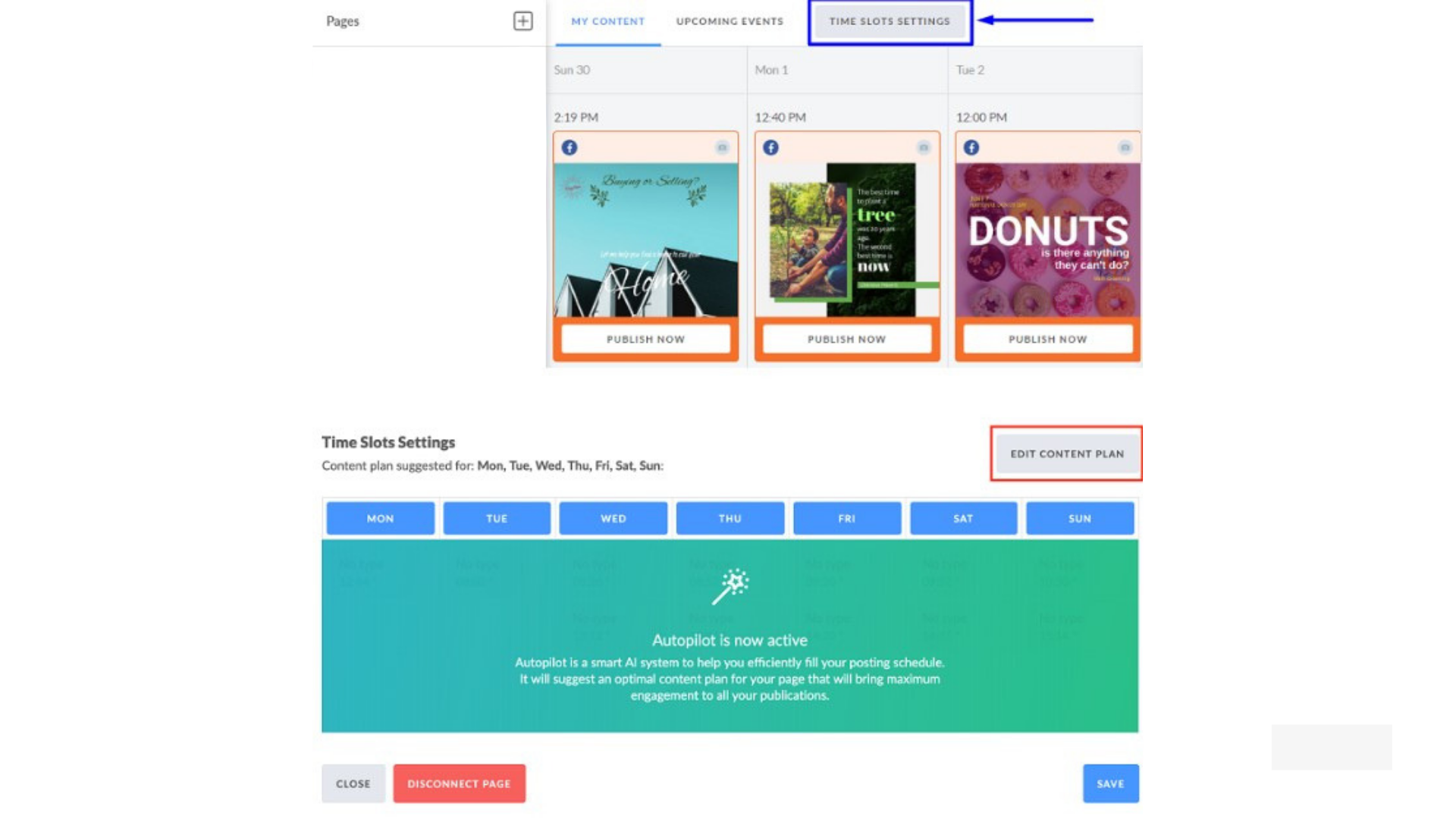
</p><p>1. Go to 'Time Slots Settings' in your Calendar and click 'Edit Content Plan' button to activate Manual Schedule Mode; 
</p><p>
<img src="https://support-hub--assets.s3.eu-west-2.amazonaws.com/assets/268/images/DKmBNYPjfpSOkYIjECRL6IHKdVaaKsvcaslXTrrJ.png" style="width:100%;" alt="DKmBNYPjfpSOkYIjECRL6IHKdVaaKsvcaslXTrrJ.png" /></p><p>
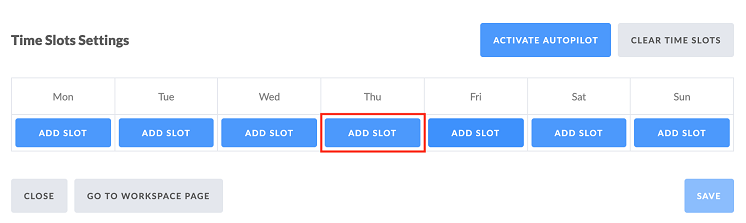
</p><p>2. Click on <b>'Add Slot'</b> to start setting up a custom time slot type;  <br /></p><p>
<img src="https://support-hub--assets.s3.eu-west-2.amazonaws.com/assets/268/images/S3NmVQWup2lwMa8KM7q3D7i8wmbJxVc7GExMkLTg.png" style="width:100%;" alt="S3NmVQWup2lwMa8KM7q3D7i8wmbJxVc7GExMkLTg.png" /></p><p><br /></p><p>
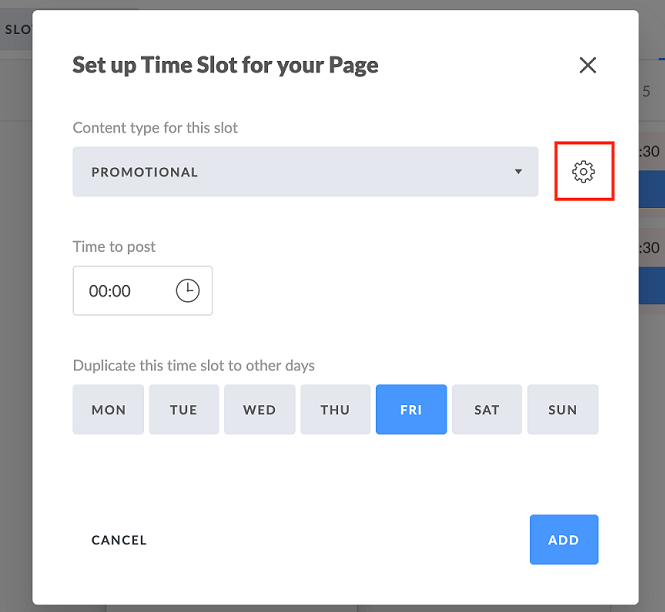
</p><p>3. Next, you're redirected to the Time Slot settings; 
</p><p><b>It is here where Custom Time Slot Type creation happens. <br /></b></p><p><b>
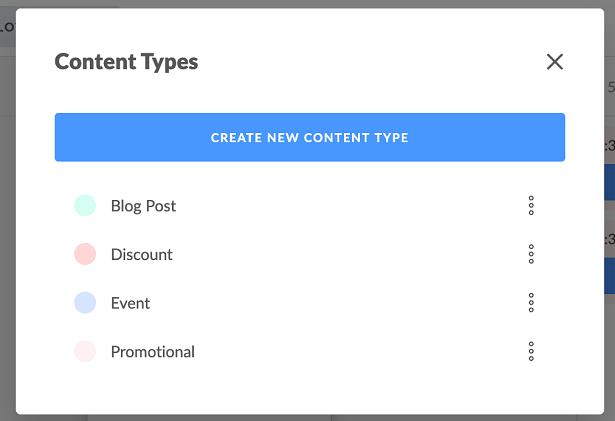
</b><img src="https://support-hub--assets.s3.eu-west-2.amazonaws.com/assets/268/images/CQNvjqtVS2f2HHhSTuRBgraeUzNW0MEroQGr0pG7.png" style="width:100%;" alt="CQNvjqtVS2f2HHhSTuRBgraeUzNW0MEroQGr0pG7.png" /></p><p><br /></p><p>4. Click on <i>'Create new time slot type'</i> button; 
</p><p>
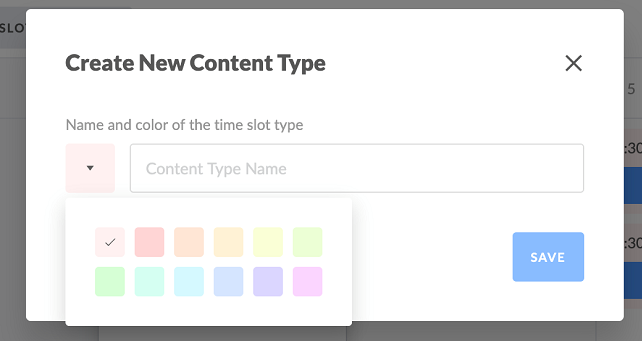
 <img src="https://support-hub--assets.s3.eu-west-2.amazonaws.com/assets/268/images/yRty6tMfeMrVlf4OKy84WWp5Oi7BrQRYtoEozFWl.png" style="width:100%;" alt="yRty6tMfeMrVlf4OKy84WWp5Oi7BrQRYtoEozFWl.png" /></p><p><br /></p><p>5. Add its name, choose color and click 'Save'.
</p><p>
<img src="https://support-hub--assets.s3.eu-west-2.amazonaws.com/assets/268/images/aNiHjAhsVKGkJxZhF4bM0LVLt9dtqV19jFfvGIv9.png" style="width:100%;" alt="aNiHjAhsVKGkJxZhF4bM0LVLt9dtqV19jFfvGIv9.png" /></p><p>
</p><p>6. Get back to the Time Slot Settings and select the day and time for this Time Slot.
</p><p>
</p><h5>How Does it Work?
</h5><ul><li>Your Custom Time Slot pertains to the <b>Workspace</b> you work in;
<br /><br /></li><li>Custom Time Slot creation is unavailable in <b>Unassigned Pages</b> mode; 
<br /><br /></li><li>Custom Time Slots can be edited (name, color) or deleted, unlike <b>Default</b> Time Slots; 
<br /><br /></li><li>Slot edits will be applied for <b>all posts</b> scheduled to the time slots of this type within <b>current Workspace</b>; 
<br /><br /></li><li>All Workspace admin and team members are able to manage (create, edit, delete) Workspace Time Slots; 
<br /><br /></li><li>Time Slots which type was deleted and all posts scheduled to these time slots will remain as they are; 
<br /><br /></li><li>Time slots which type was deleted will be renamed to <b>“No Type”</b> and you will still be able to set posts to these time slots;
<br /><br /></li><li>Number of Custom Time Slots for Workspace is <b>unlimited;
</b><br /><br /></li><li><b>This feature is available  as an add on</b></li></ul>]]>
            </summary>
                                    <updated>2019-09-07T10:33:56+00:00</updated>
        </entry>
            <entry>
            <title><![CDATA[CREATING DRAFTS IN YOUR CALENDAR]]></title>
            <link rel="alternate" href="https://support.yourdigitalagency.com.au/articles/creating-drafts-in-your-calendar-1306" />
            <id>https://support.yourdigitalagency.com.au/1306</id>
            <author>
                <name><![CDATA[Leah Gibbs]]></name>
            </author>
            <summary type="html">
                <![CDATA[<p>Improve internal collaboration with the ability to save posts as Drafts. You are now able to save posts you create as drafts to collaborate internally before making the post live for clients in your workspace.  
</p><p>
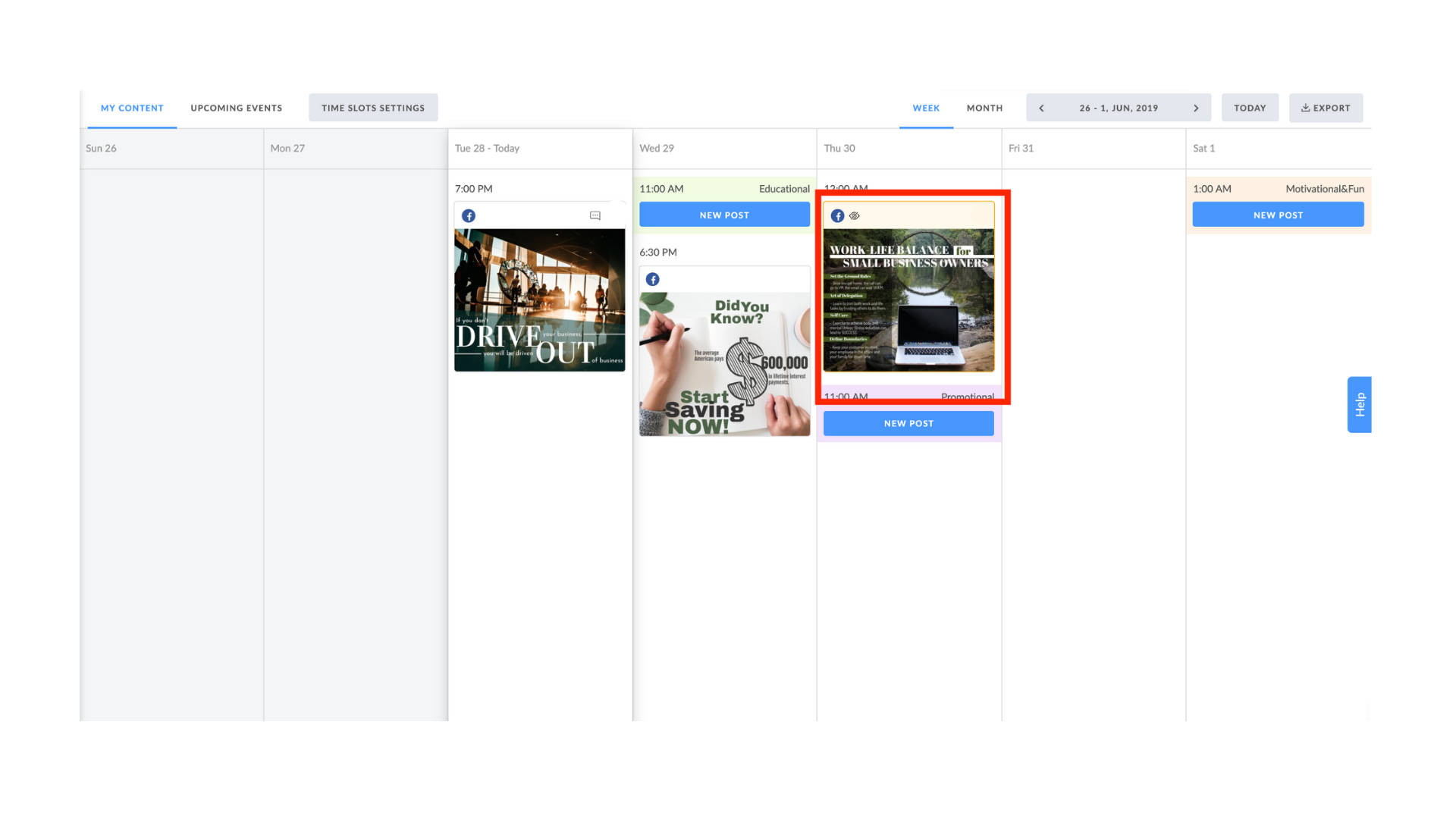
When you save a post as a Draft you are able to select the publishing date and time in your calendar and it will not be published nor visible to users with "Client"role permission. Drafts are highlighted in the calendar in yellow color. </p><p>
<img src="https://support-hub--assets.s3.eu-west-2.amazonaws.com/assets/268/images/CGOOXqDiLqr98HnnJHbhYpzSPkq7zFqkMB7xgCaJ.png" style="width:100%;" alt="CGOOXqDiLqr98HnnJHbhYpzSPkq7zFqkMB7xgCaJ.png" /></p><p>
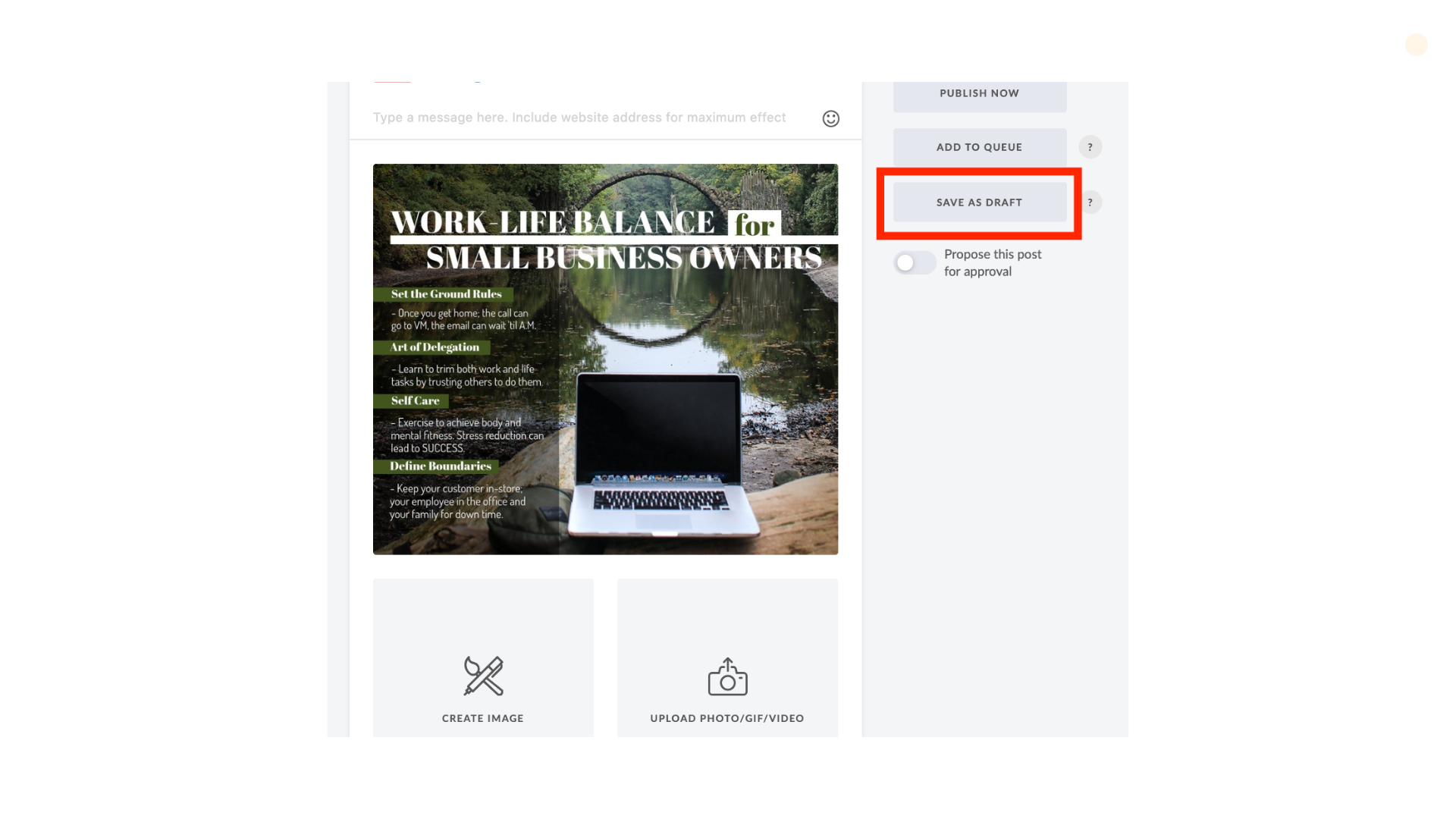
To create Draft post click "Save as Draft" button in Post Editor and schedule the draft post to your calendar. </p><p>
<img src="https://support-hub--assets.s3.eu-west-2.amazonaws.com/assets/268/images/7kTTdwLPDzIbktxFYEw9OcSZBG2SWWyxngE9UVpI.png" style="width:100%;" alt="7kTTdwLPDzIbktxFYEw9OcSZBG2SWWyxngE9UVpI.png" /></p><p>You can edit and reschedule a draft post just like a normal post. Choose the needed action in Post Editor after you complete your editing. <br /></p><p>Users with "Client" permission role are not able to see draft posts, comments on draft posts and will not receive notifications about drafts and activities on it.  <br /></p><p>Users with "Admin" and "Member" roles will receive notifications about all actions on draft posts the same as it works for traditional post comments <br /></p><p>Posts that are saved as Drafts will only become visible to clients when it is scheduled or scheduled for approval. <br /></p><p><br /></p>]]>
            </summary>
                                    <updated>2019-09-07T10:35:30+00:00</updated>
        </entry>
            <entry>
            <title><![CDATA[HOW TO ADD HIDDEN COMMENTS TO YOUR POST]]></title>
            <link rel="alternate" href="https://support.yourdigitalagency.com.au/articles/how-to-add-hidden-comments-to-your-post-1307" />
            <id>https://support.yourdigitalagency.com.au/1307</id>
            <author>
                <name><![CDATA[Leah Gibbs]]></name>
            </author>
            <summary type="html">
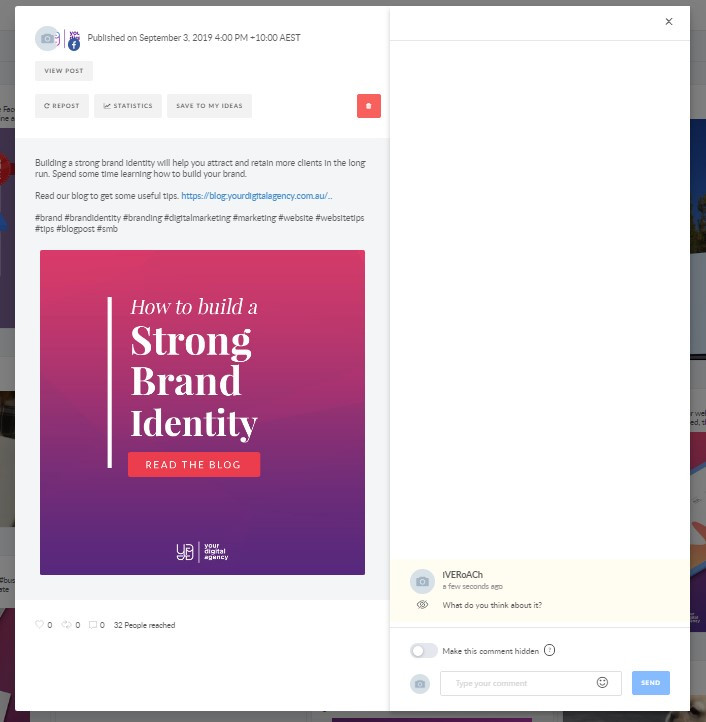
                <![CDATA[<p>Hidden Comments are an feature for internal collaboration on content where only “Admins” and “Members” will be able to view the comments within a Workspace  and are hidden for workspace members with the "Client" permission role.
</p><p>
<img src="https://support-hub--assets.s3.eu-west-2.amazonaws.com/assets/268/images/L4RoB7fM4IumUdVGaNkrNBsOKPtWXe4lqqkWNfqH.jpeg" style="width:100%;" alt="L4RoB7fM4IumUdVGaNkrNBsOKPtWXe4lqqkWNfqH.jpeg" /></p><p>
</p><p>Toggle "Make this comment hidden" before you send it to make your comment visible for members and admins only. After a comment is added you will not be able to change its visibility. 
</p><p>
You can use Hidden Comments for all types of post created with YDA Social Dashboard - published, scheduled and proposed for approval. </p><p>Hidden Comments can be deleted or resolved by the author (own comments only) or an admin (own and all other comments). Users with "Admin" and "Member" permission role will get notifications about all actions on hidden posts, the same as it works for traditional post comments (<a href="" target="_blank" rel="noreferrer noopener">learn more post comments here</a>). <br /></p><p><br /></p>]]>
            </summary>
                                    <updated>2019-09-07T10:36:59+00:00</updated>
        </entry>
            <entry>
            <title><![CDATA[COLLABORATE EASIER WITH NOTIFICATIONS]]></title>
            <link rel="alternate" href="https://support.yourdigitalagency.com.au/articles/collaborate-easier-with-notifications-1308" />
            <id>https://support.yourdigitalagency.com.au/1308</id>
            <author>
                <name><![CDATA[Leah Gibbs]]></name>
            </author>
            <summary type="html">
                <![CDATA[<p>Please note, our Notifications feature is exclusively available for those who are on our Pro Plan</p><p>
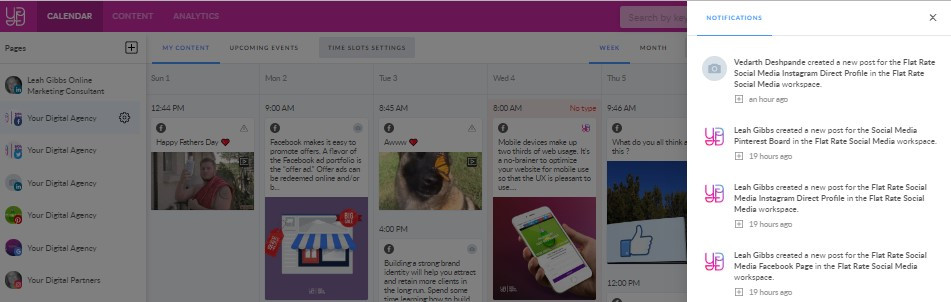
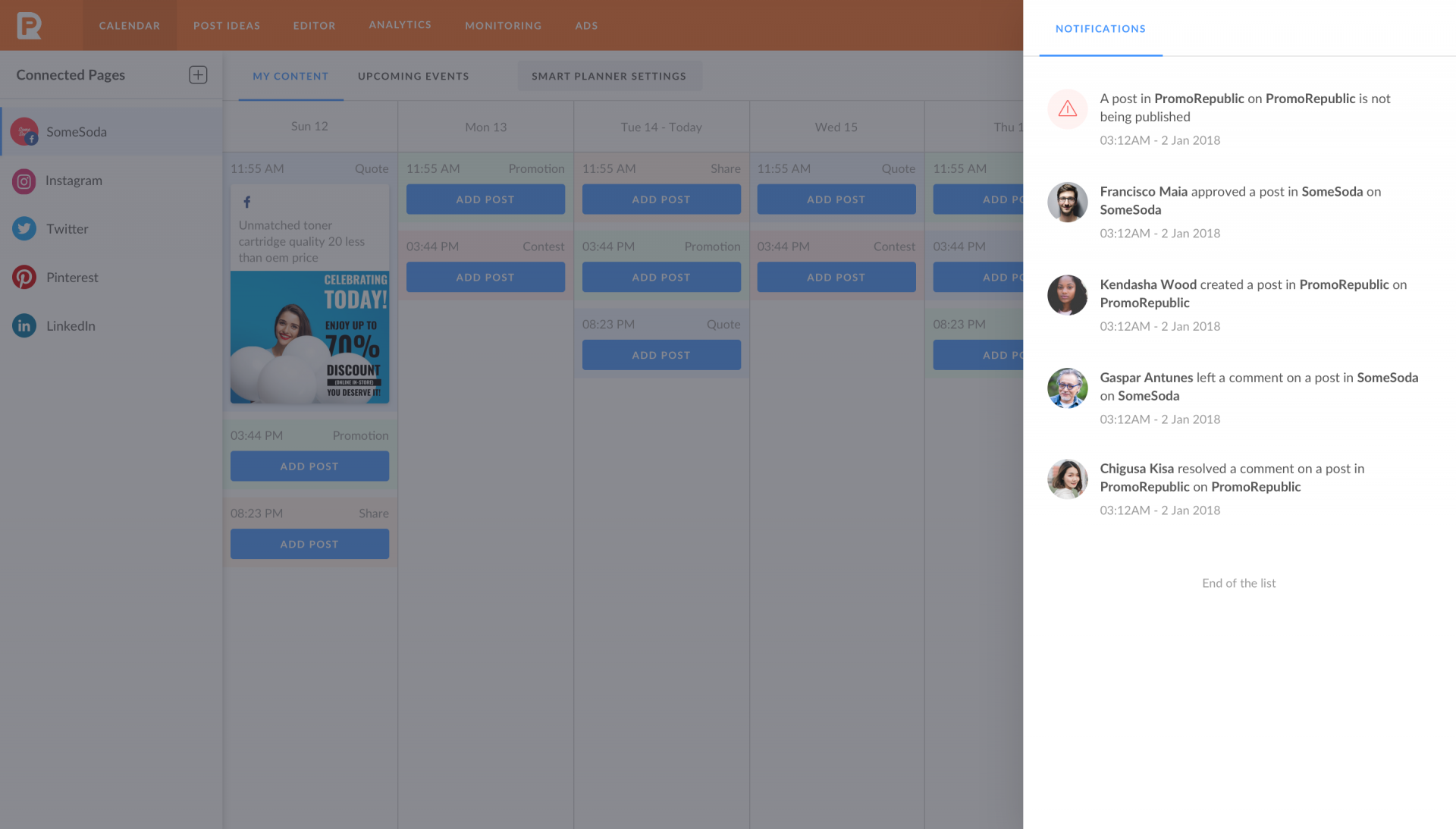
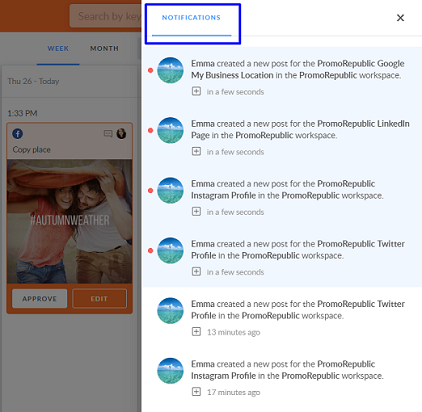
With Notifications, it will be a lot easier to collaborate with team members and clients, manage content creation, publishing and approval processes. You will be able to get notifications in YDA Social Dashboard about events happening in your calendar. </p><p>
<img src="https://support-hub--assets.s3.eu-west-2.amazonaws.com/assets/268/images/Gm4RhXtoZLJGl8k6xEyHHA5OG0MxjWwzQnxih0H9.jpeg" style="width:100%;" alt="Gm4RhXtoZLJGl8k6xEyHHA5OG0MxjWwzQnxih0H9.jpeg" /></p><p>
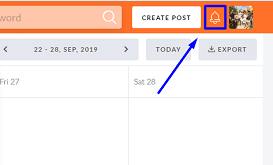
</p><p><b>How does it work? </b></p><p>Find the Notification icon in the top bar and click on it. Here you'll be able to see the following types of notifications:
</p><ul><li>
<b>New posts created in the calendar</b>  </li></ul><p><i>Who receives this type of Notification? Workspace Admin, Workspace Member, Workspace Client
</i></p><ul><li><b>
Post was edited </b></li></ul><p><i>Who receives this type of Notification? Post Author, Post Editor, Post Approver
</i></p><ul><li>
<b>Proposed post was approved </b></li></ul><p><i>Who receives this type of Notification? Workspace Admin, Workspace Member, Workspace Client, Post Author, Post Editor</i>
</p><ul><li>
New comments on your posts </li></ul><p><i>Who receives this type of Notification?  Workspace Admin, Workspace Member, Workspace Client, Post Author, Post Editor, Post Approver, Comment Author, Commentator
</i></p><ul><li><i>
</i>Resolved or Deleted comments  </li></ul><p><i>Who receives this type of Notification? Comment Author
</i></p><p>
</p><p>
With Notifications, you can see the Name of the person who took an action as well as the corresponding name of Workspace and Page. Simply click on the Notification to get to the post immediately.</p>]]>
            </summary>
                                    <updated>2019-09-07T10:37:52+00:00</updated>
        </entry>
            <entry>
            <title><![CDATA[SOCIAL MEDIA REPORTING]]></title>
            <link rel="alternate" href="https://support.yourdigitalagency.com.au/articles/social-media-reporting-1309" />
            <id>https://support.yourdigitalagency.com.au/1309</id>
            <author>
                <name><![CDATA[Leah Gibbs]]></name>
            </author>
            <summary type="html">
                <![CDATA[<p>Now, it will be a lot easier to present digestible reports of your social media performance based on the essential metrics. You will be able to monitor which of them have increased or decreased in any given period.
</p><h5>
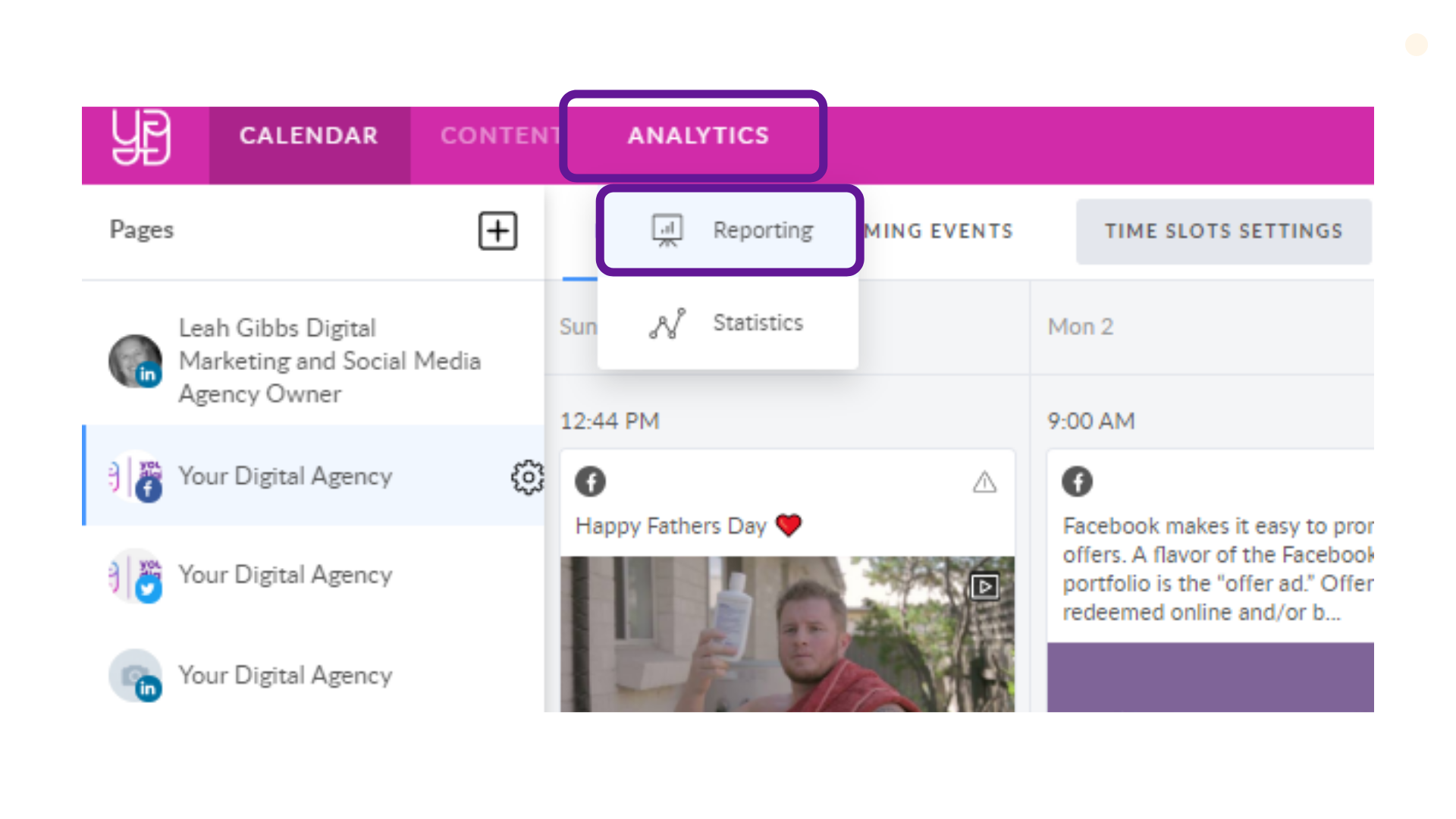
How does it work? </h5><p>Find the Analytics button in the top bar and select Reporting from the drop down menu.
</p><p>
<img src="https://support-hub--assets.s3.eu-west-2.amazonaws.com/assets/268/images/x5tCGNiGZCN2IVgs9yDWTQWg4ShVlhyOegIrQFG4.png" style="width:100%;" alt="x5tCGNiGZCN2IVgs9yDWTQWg4ShVlhyOegIrQFG4.png" /></p><p>Please note that Reporting is presented per one page, meaning that we do not provide total stats for all the connected pages. To access a report, simply choose a page you want report for and you will see the numbers to the right momentarily. <br /></p><p>
<img src="https://support-hub--assets.s3.eu-west-2.amazonaws.com/assets/268/images/0eQq46BbmuC1fka2pPcHEXDgauKgwUfPFanfUrQc.jpeg" style="width:100%;" alt="0eQq46BbmuC1fka2pPcHEXDgauKgwUfPFanfUrQc.jpeg" /></p><p>
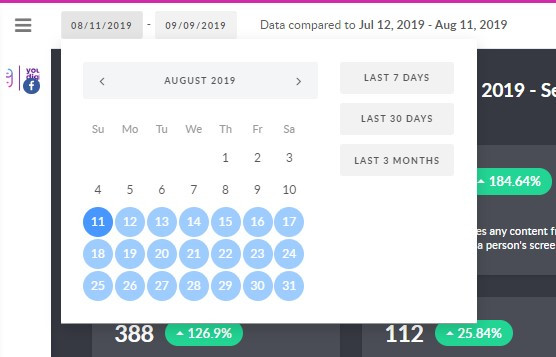
</p><p>Next, choose the period of time that your client requires it for:
</p><ul><li>custom
<br /><br /></li><li>last 7 days
<br /><br /></li><li>last 30 days
<br /><br /></li><li>last 3 months
</li></ul><p><img src="https://support-hub--assets.s3.eu-west-2.amazonaws.com/assets/268/images/3FlEIklVKGo8TYEKkfmzQdOv4UupdkFwwMruZth6.jpeg" style="width:100%;" alt="3FlEIklVKGo8TYEKkfmzQdOv4UupdkFwwMruZth6.jpeg" /></p><p><br /></p><p><b>What do the numbers mean?
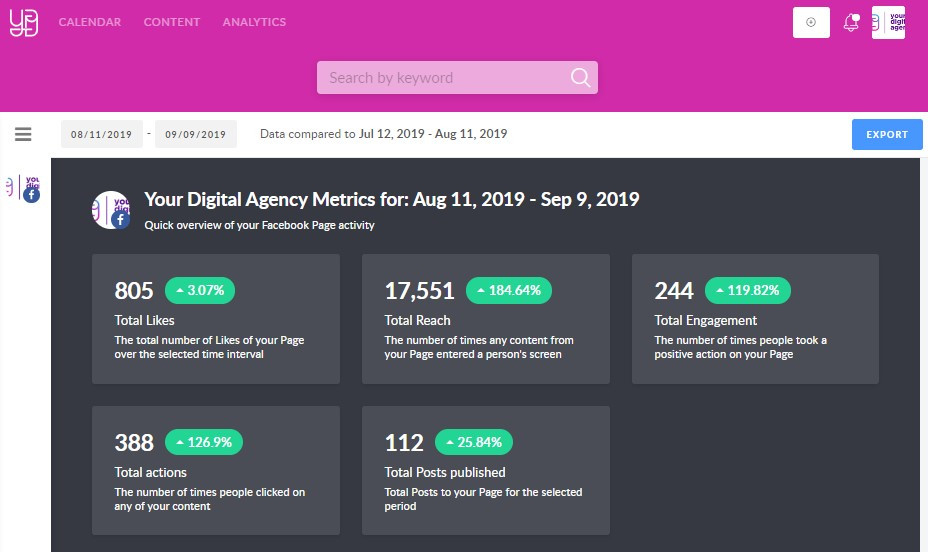
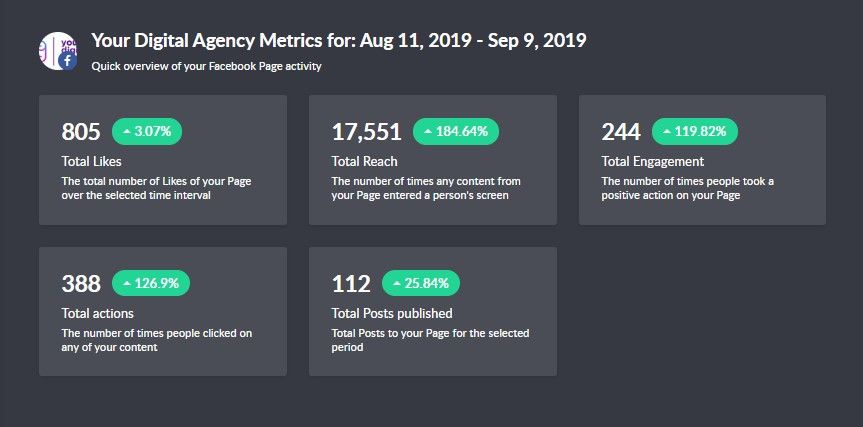
</b></p><p>Now that you chose the necessary period of time, you can see the data divided in 4 key metrics:
</p><ul><li>Total Likes
<br /><br /></li><li>Total Reach
<br /><br /></li><li>Total Engagement
<br /><br /></li><li>Total Posts Published
</li></ul><p><img src="https://support-hub--assets.s3.eu-west-2.amazonaws.com/assets/268/images/b68uNSN9pwCrpB5ORsq457RVFbxql5ubLTjgi6J5.jpeg" style="width:100%;" alt="b68uNSN9pwCrpB5ORsq457RVFbxql5ubLTjgi6J5.jpeg" /><br /></p><p>
</p><p>You see not only the numbers of the given period, but also previous time frame percents of the same duration for comparison. 
</p><p>For example, if you select last 7 days, percentage to the right will mean data of the previous 7 days.  <br /></p><p>
In order to get a detailed overview of the received numbers in each of the four sections, just scroll down the page. </p><p>
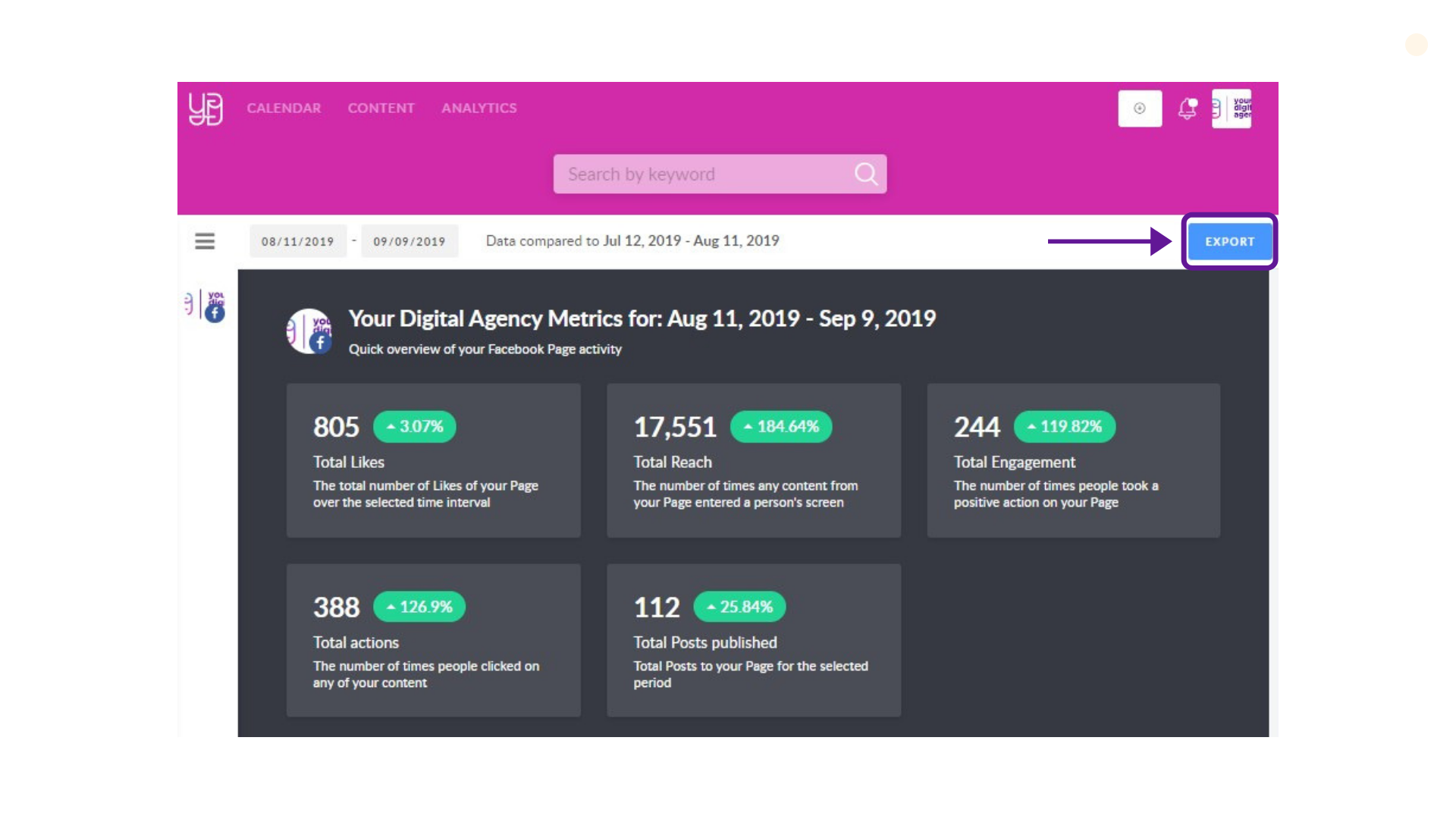
</p><h5>Export and download </h5><p>If you desire to export the report, click the appropriate button in the top right corner. 
</p><p>
<img src="https://support-hub--assets.s3.eu-west-2.amazonaws.com/assets/268/images/SlXim4FCTMXHI7fCBvpo6fhZUyG0fR6ZXlCMoPXx.png" style="width:100%;" alt="SlXim4FCTMXHI7fCBvpo6fhZUyG0fR6ZXlCMoPXx.png" /></p><p>
If you need to download the file, click 'Open as PDF' in the printing settings window. </p><p><br /></p><p><br /></p>]]>
            </summary>
                                    <updated>2019-09-13T02:28:21+00:00</updated>
        </entry>
            <entry>
            <title><![CDATA[HOW TO ADD PAGES TO YOUR WORKSPACE]]></title>
            <link rel="alternate" href="https://support.yourdigitalagency.com.au/articles/how-to-add-pages-to-your-workspace-1313" />
            <id>https://support.yourdigitalagency.com.au/1313</id>
            <author>
                <name><![CDATA[Leah Gibbs]]></name>
            </author>
            <summary type="html">
                <![CDATA[<p>The workspace's owner, as well as their admins, can add social pages to the workspace. How should you start? It's pretty simple!
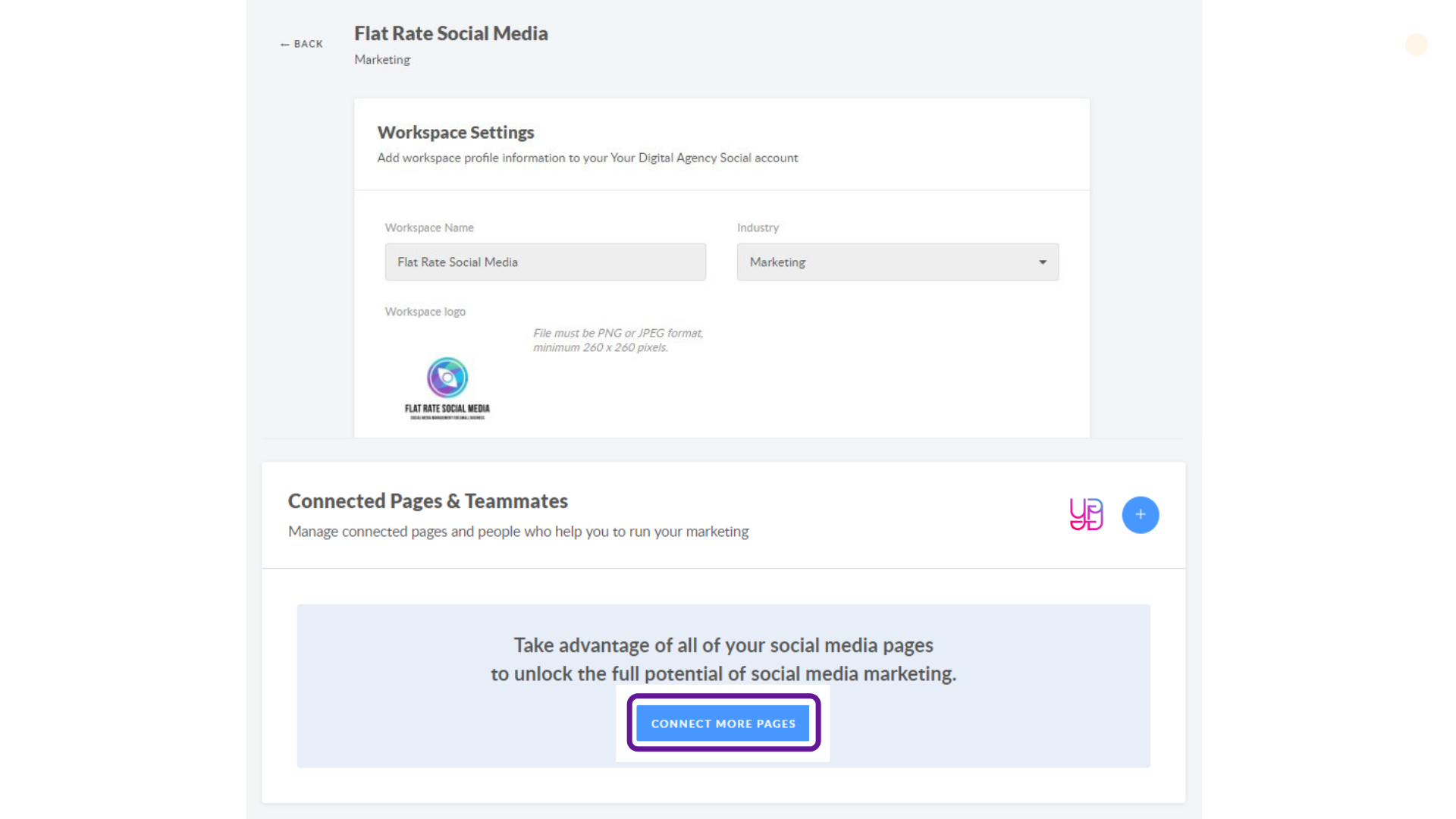
</p><p>1.  Go into the workspace settings and find the 'Connect more pages' button. </p><p><img src="https://support-hub--assets.s3.eu-west-2.amazonaws.com/assets/268/images/Yyopgm0gZmckQxLBler4nLSGJUVF1XNhk2wAfEsp.png" style="width:100%;" alt="Yyopgm0gZmckQxLBler4nLSGJUVF1XNhk2wAfEsp.png" /></p><p>2. Once clicked, you will be prompted with the social platforms to connect: <br /></p><ul><li>
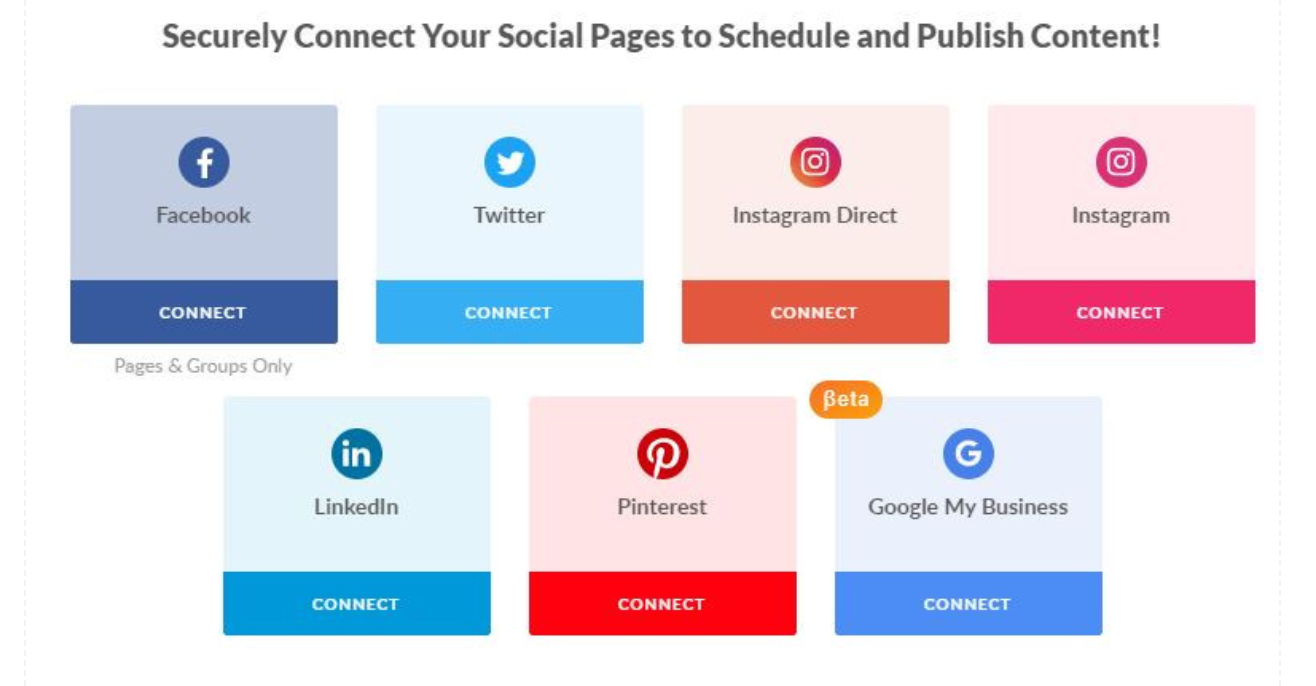
Facebook (business pages or groups) <br /><br /></li><li>Twitter<br /><br /></li><li>Instagram<br /><br /></li><li>LinkedIn (personal profile or business pages)<br /><br /></li><li>Pinterest boards</li></ul><p>
</p><p>    </p><p>3. After you click any one of these, a list of your pages will pop up, so choose the necessary one and it will be added to the workspace instantly.
</p><p>
You then see the page listed in the Workspace's Calendar. As an Owner or Admin you can see the page settings or disconnect it. </p><p><br /></p>]]>
            </summary>
                                    <updated>2019-09-13T02:29:41+00:00</updated>
        </entry>
            <entry>
            <title><![CDATA[HOW TO PROPOSE POSTS FOR CLIENT APPROVAL]]></title>
            <link rel="alternate" href="https://support.yourdigitalagency.com.au/articles/how-to-propose-posts-for-client-approval-1314" />
            <id>https://support.yourdigitalagency.com.au/1314</id>
            <author>
                <name><![CDATA[Leah Gibbs]]></name>
            </author>
            <summary type="html">
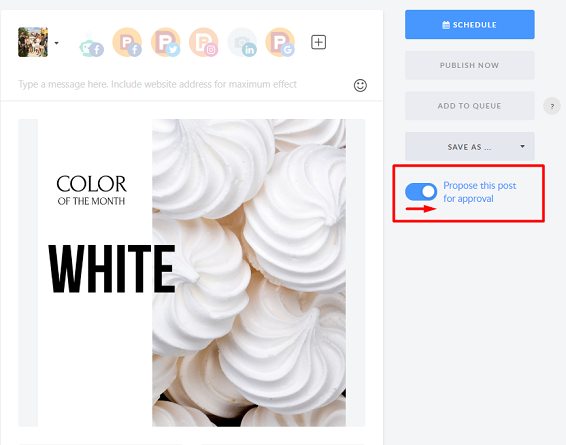
                <![CDATA[<p>Create your post </p><p><img src="https://support-hub--assets.s3.eu-west-2.amazonaws.com/assets/268/images/jJG9qiHLHPqZ0Qh31xnBh4eJfUXbTx6ClZs7Kn6Q.png" style="width:100%;" alt="jJG9qiHLHPqZ0Qh31xnBh4eJfUXbTx6ClZs7Kn6Q.png" /><br /></p><p>Move the button to the right to "Propose this Post for Approval" field before scheduling it or add it to the queue.
</p><p><img src="https://support-hub--assets.s3.eu-west-2.amazonaws.com/assets/268/images/8eDK4hL9D4k8vxZjTQOwfPsES4HgX5pmIS6w8Pgs.jpeg" style="width:100%;" alt="8eDK4hL9D4k8vxZjTQOwfPsES4HgX5pmIS6w8Pgs.jpeg" /><br /></p><p>
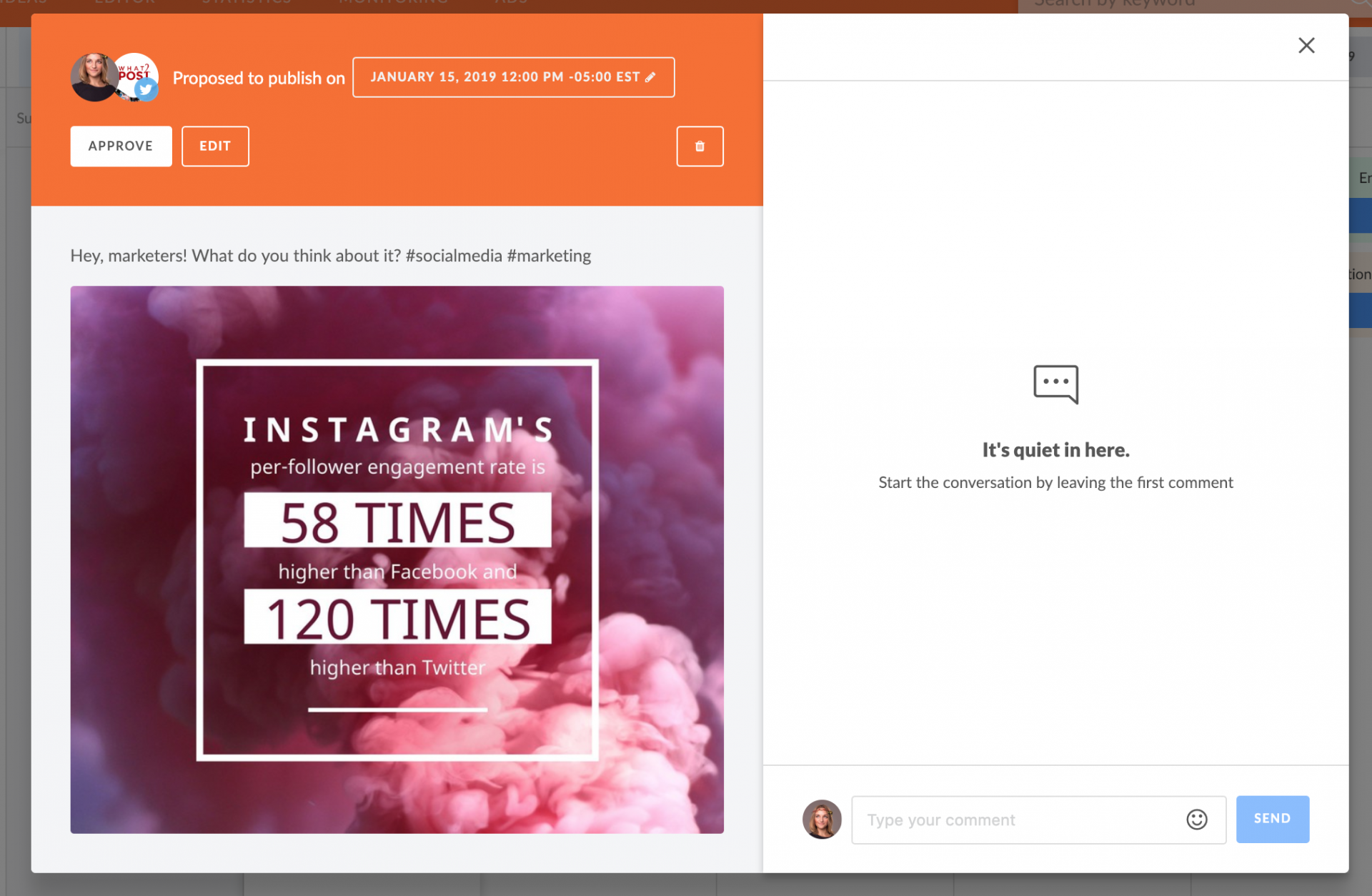
</p><p>The Proposed for Approval Post will immediately appear on the Client's page calendar. You will able to approve the post for publishing or Edit it before publishing. 
</p><p><b>Please connect a page to Workspace before creating a content plan. </b></p><p><img src="https://support-hub--assets.s3.eu-west-2.amazonaws.com/assets/268/images/8L3D9eYsYW1alhE6gEn3vukgLhECbodaZWuRyRuH.jpeg" style="width:100%;" alt="8L3D9eYsYW1alhE6gEn3vukgLhECbodaZWuRyRuH.jpeg" /><b><br /></b></p><p>
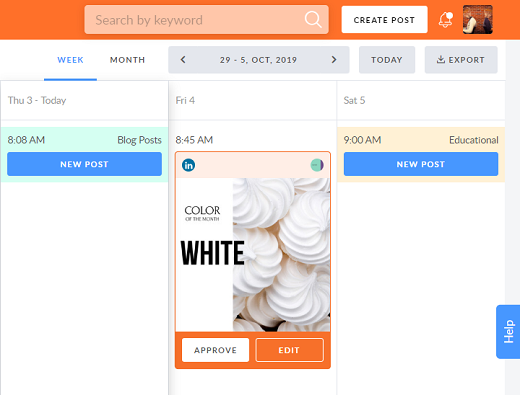
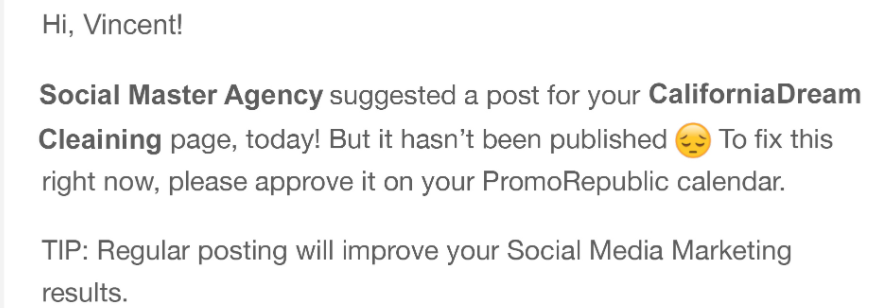
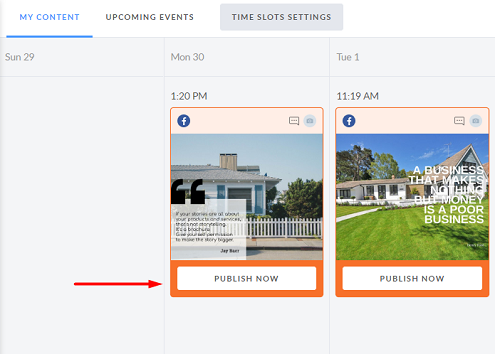
</p><p>Proposed for Approval Posts won’t be published without approval. If the post isn't approved before its suggested time, the client will receive an email notification.   <br /></p><p>When the suggested time button "APPROVE" is replaced with the "PUBLISH NOW” button, your post will still be available for editing or rescheduling. <br /></p><p>
</p><p><br /></p>]]>
            </summary>
                                    <updated>2019-09-13T02:31:28+00:00</updated>
        </entry>
            <entry>
            <title><![CDATA[HOW TO ADD COMMENTS TO YOUR POST]]></title>
            <link rel="alternate" href="https://support.yourdigitalagency.com.au/articles/how-to-add-comments-to-your-post-1316" />
            <id>https://support.yourdigitalagency.com.au/1316</id>
            <author>
                <name><![CDATA[Leah Gibbs]]></name>
            </author>
            <summary type="html">
                <![CDATA[<p>YDA Social Dashboard's Comments feature help teams to collaborate effectively on creation, scheduling, or content approval </p><p>Please note that you are only able to comment on posts that were created within YDA Social Dashboard platform. Other posts are not available for commenting and will be marked in your calendar. Comments can contain text, links or emojis.  <br /></p><p>
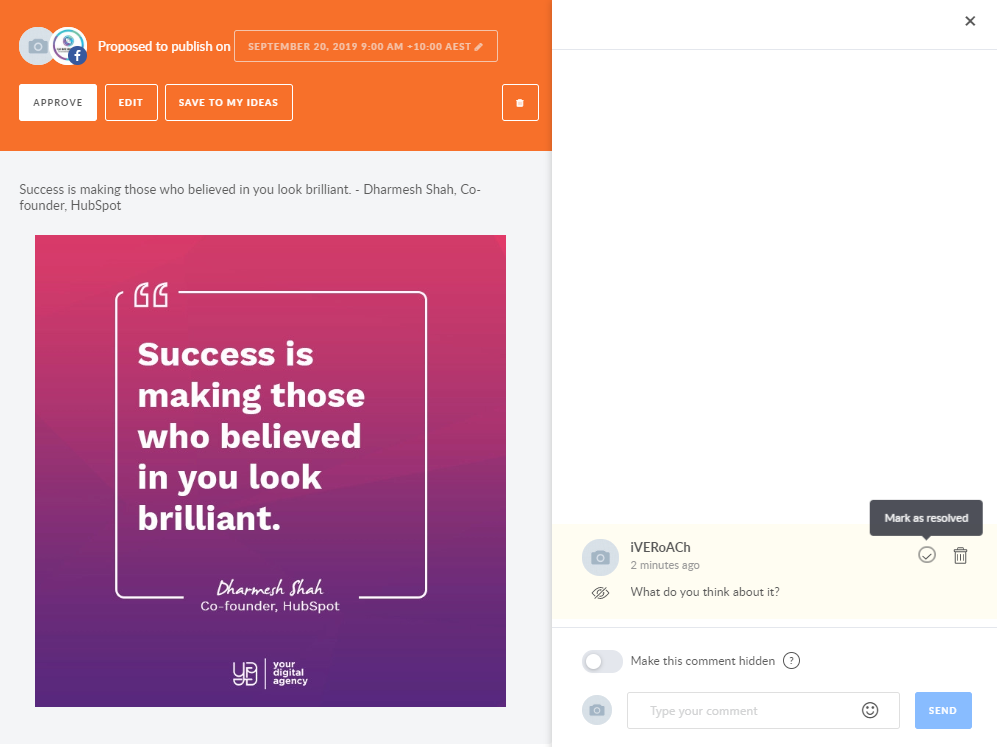
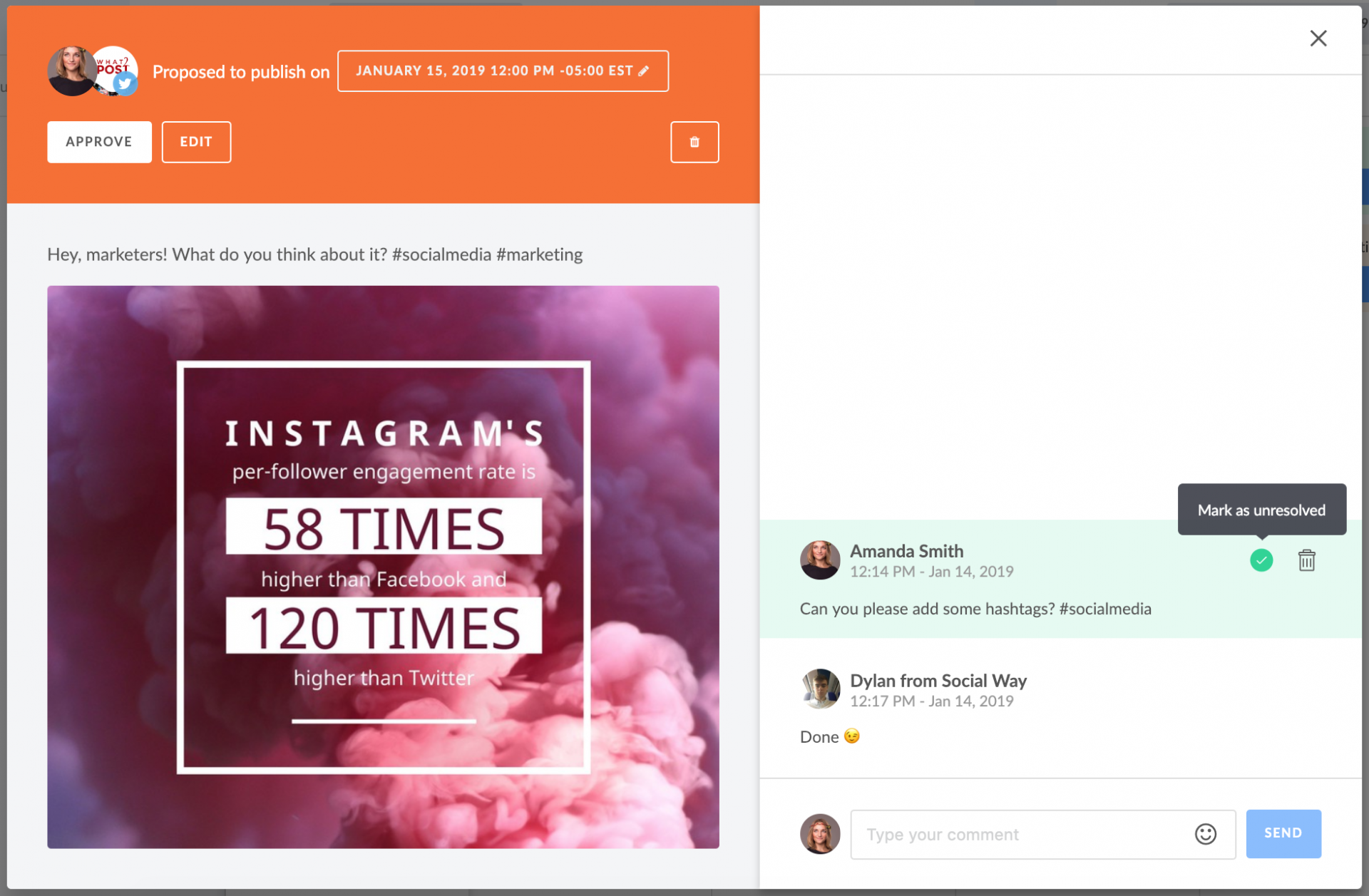
To leave a comment on a post, click on it in the Calendar and the commenting sidebar will appear, as shown below: </p><p>
<img src="https://support-hub--assets.s3.eu-west-2.amazonaws.com/assets/268/images/V6FsEvFSfR3zJViZnEZPi3NnPdR6X9ii0nA7pTxB.jpeg" style="width:100%;" alt="V6FsEvFSfR3zJViZnEZPi3NnPdR6X9ii0nA7pTxB.jpeg" /></p><p>
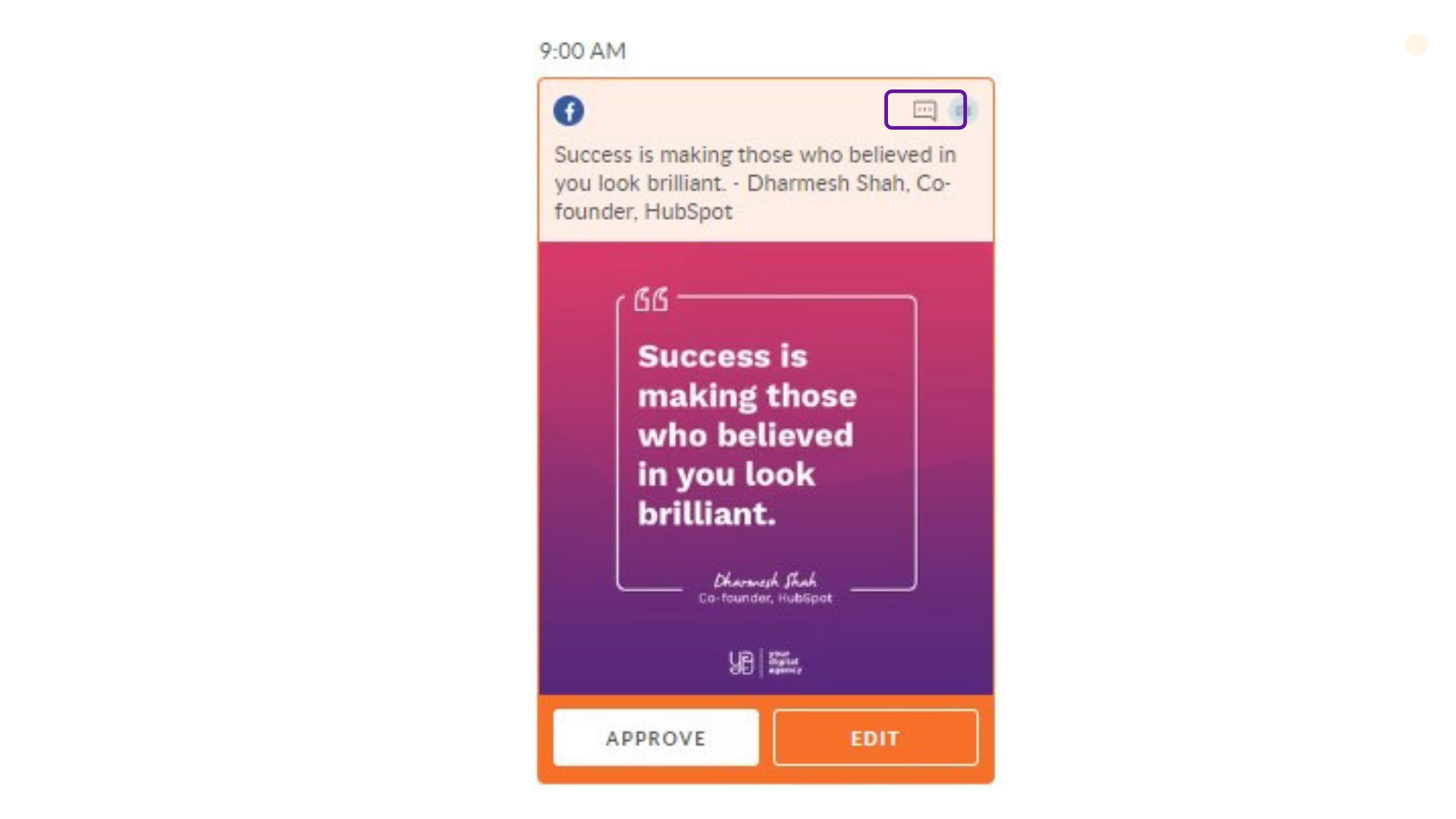
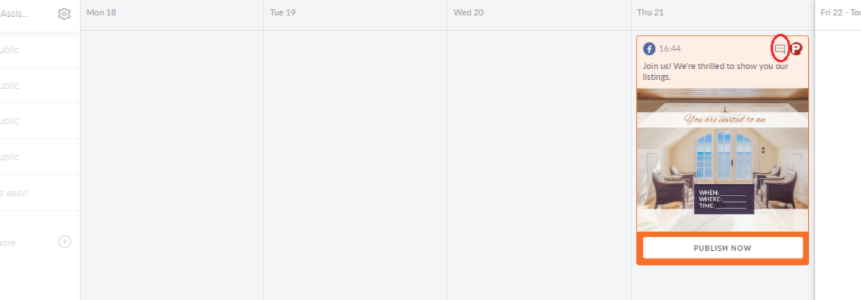
</p><p><br /></p><p>Posts with comments will be noted by the "comment icon" in the calendar view, as highlighted below:</p><p><img src="https://support-hub--assets.s3.eu-west-2.amazonaws.com/assets/268/images/KPGWEwd6P7UCunz70mXKNGVnJVCGhGnSj0ibJdAp.png" style="width:100%;" alt="KPGWEwd6P7UCunz70mXKNGVnJVCGhGnSj0ibJdAp.png" /><br /></p><p>
You can comment on posts when they are "Scheduled," "Published," "Proposed for Approval," or "Not approved" (not published). If the post with comments was rescheduled or recycled, comments will still be there. </p><p>
</p><p><b>Who can create and manage comments?
</b></p><p>
All Team roles within the Collaboration Platform (Admin, Member, Client) are able to create comments on all posts created within YDA Social Dashboard's Platform. You will be able to see the author of a comment and the time when it was created. </p><p>Comments can be deleted or resolved by the author (own comments only) or an admin (own and all other comments). To resolve or delete a comment, click on the “trash” icon. </p><p><img src="https://support-hub--assets.s3.eu-west-2.amazonaws.com/assets/268/images/mMetOMRN7lMdbuGXcmImXVVaWa1hP7dh0yq89r78.png" style="width:100%;" alt="mMetOMRN7lMdbuGXcmImXVVaWa1hP7dh0yq89r78.png" /><br /></p><p>Comments feature is available for Agency Collaboration Platform users only.<br /></p>]]>
            </summary>
                                    <updated>2019-09-13T02:32:46+00:00</updated>
        </entry>
            <entry>
            <title><![CDATA[HOW CAN I CREATE A POST?]]></title>
            <link rel="alternate" href="https://support.yourdigitalagency.com.au/articles/how-can-i-create-a-post-1318" />
            <id>https://support.yourdigitalagency.com.au/1318</id>
            <author>
                <name><![CDATA[Leah Gibbs]]></name>
            </author>
            <summary type="html">
                <![CDATA[<p>There are 4 ways to create a post in YDA Social Dashboard:
</p><p>
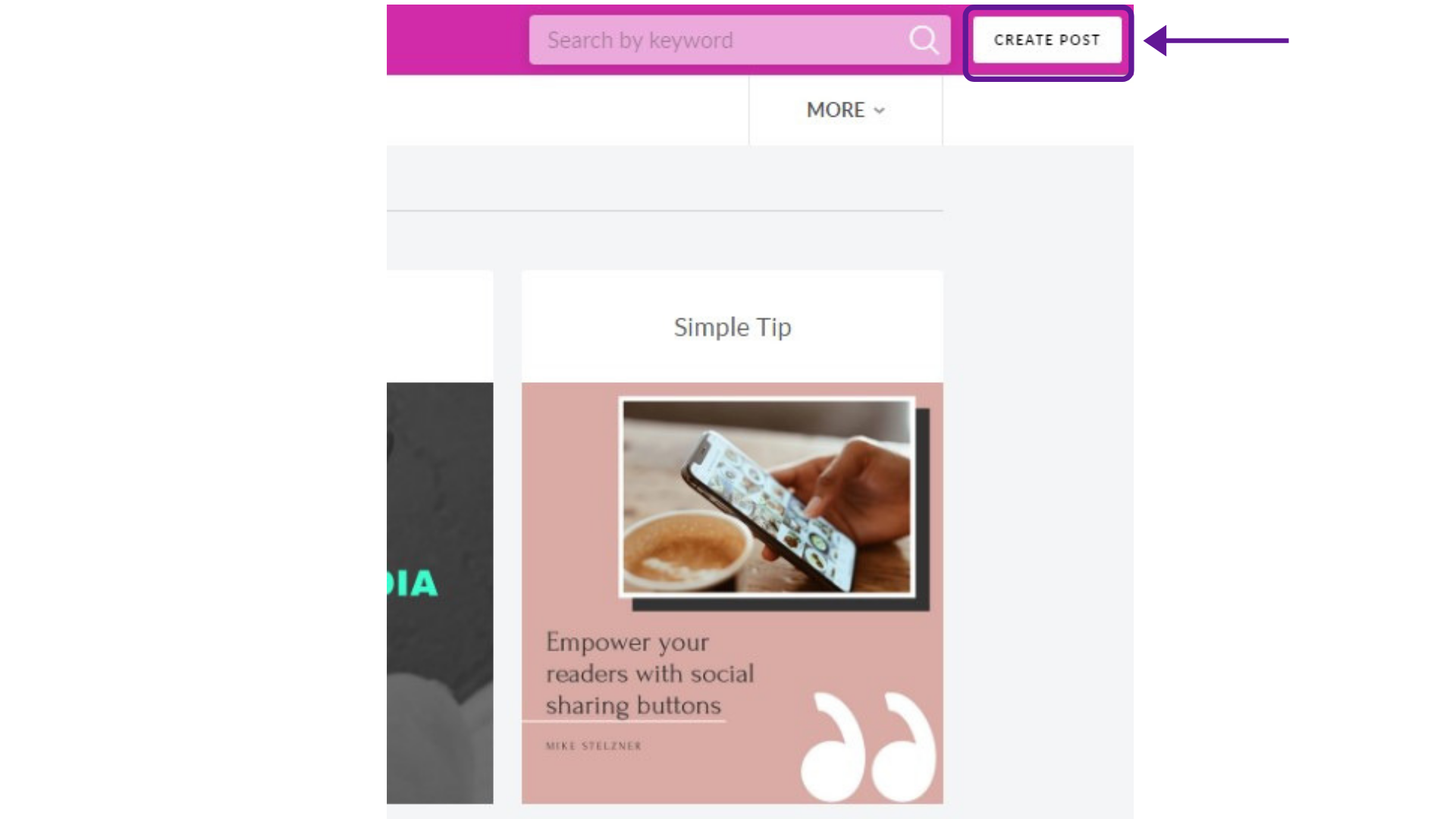
</p><p>1. Click on the <span>Create Post</span> button that can be accessed from any part of the service.</p><p><img src="https://support-hub--assets.s3.eu-west-2.amazonaws.com/assets/268/images/RQYIjlBkDjs64c9qpbEU052GlO7RwvLz8ePR82sD.png" style="width:100%;" alt="RQYIjlBkDjs64c9qpbEU052GlO7RwvLz8ePR82sD.png" /><br /></p><p>
</p><p>Create any type of posts available on YDA Social Dashboard that suits your needs and choose one of the scheduling options.
</p><p>
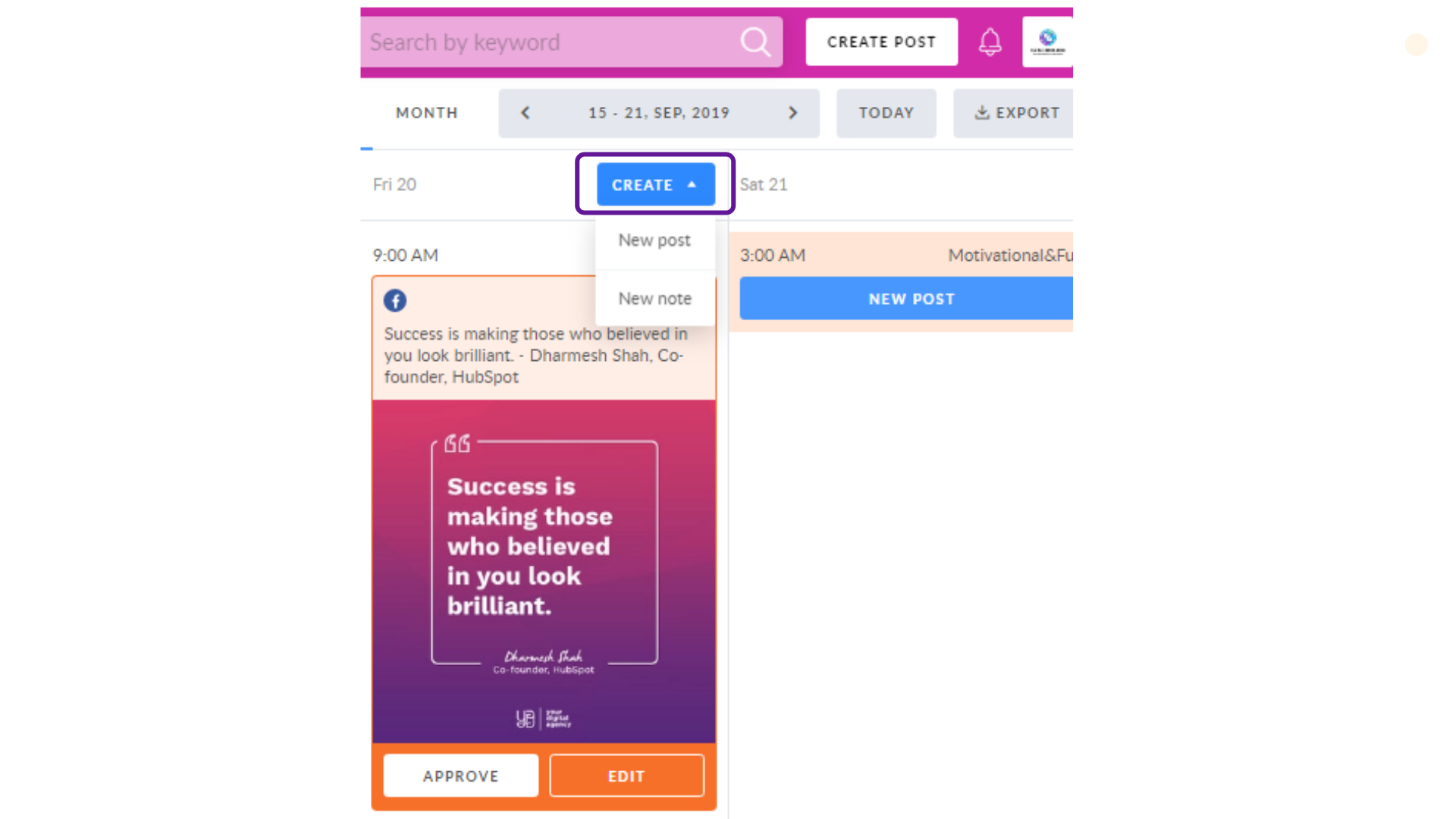
</p><p>2. In the <b>Calendar</b>, hit Create button and choose New Post in the drop down menu that appears when you hover over a particular day.</p><p><img src="https://support-hub--assets.s3.eu-west-2.amazonaws.com/assets/268/images/tJ1mM7C7P4XS6ma6wIZ85Zx7UfofAaO6mYDONxmC.png" style="width:100%;" alt="tJ1mM7C7P4XS6ma6wIZ85Zx7UfofAaO6mYDONxmC.png" /><br /></p><p>
</p><p>
</p><p>
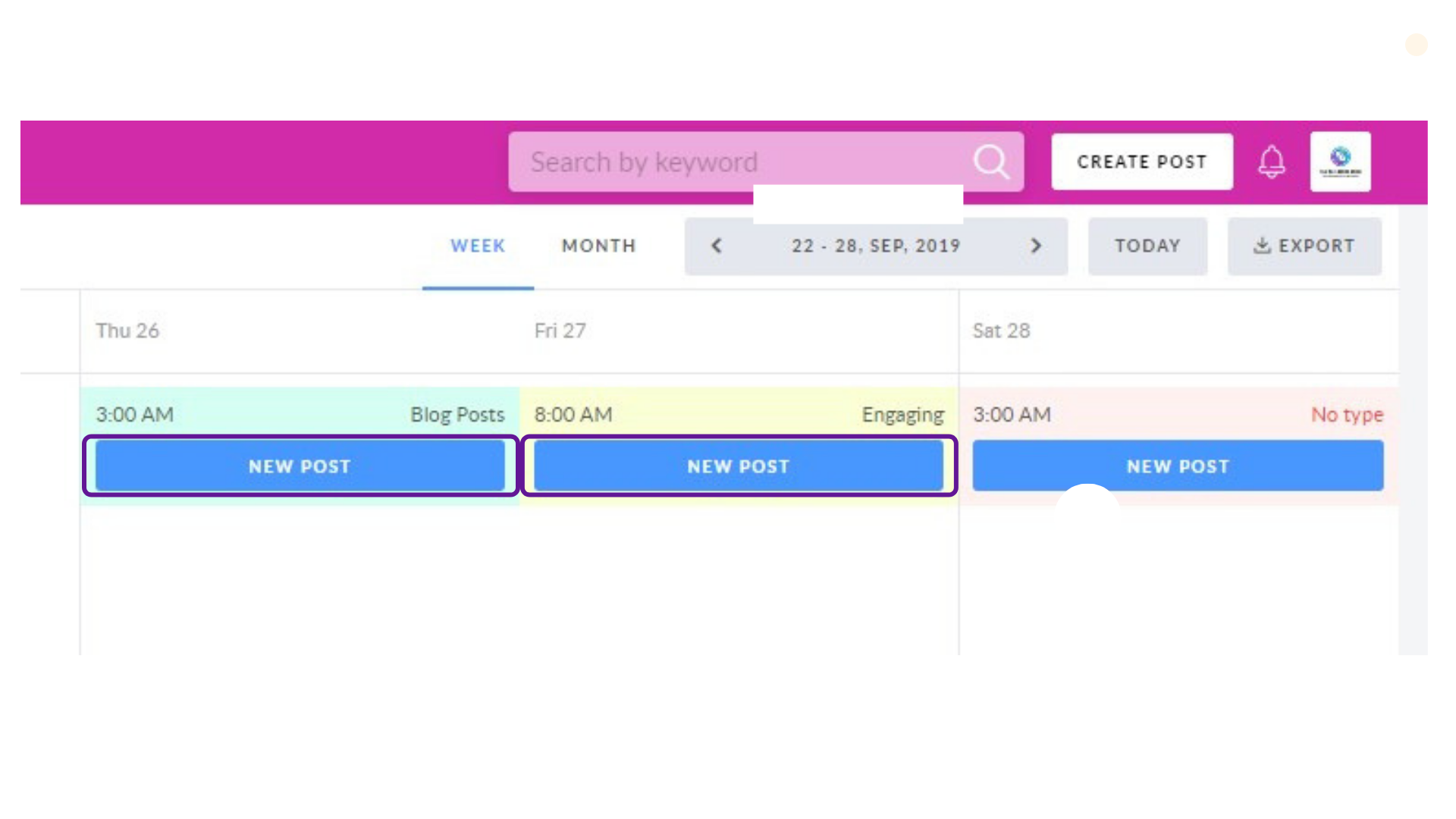
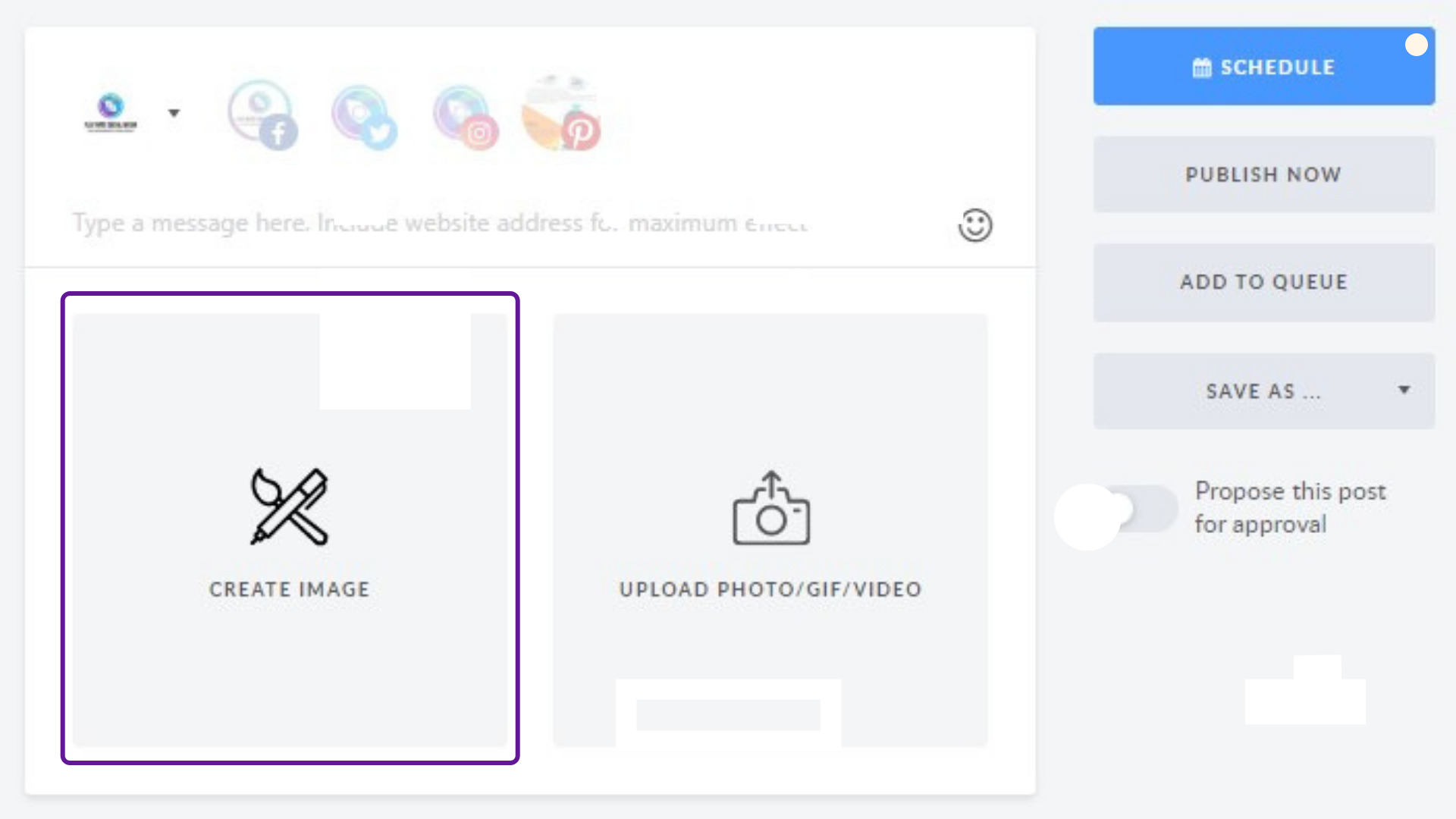
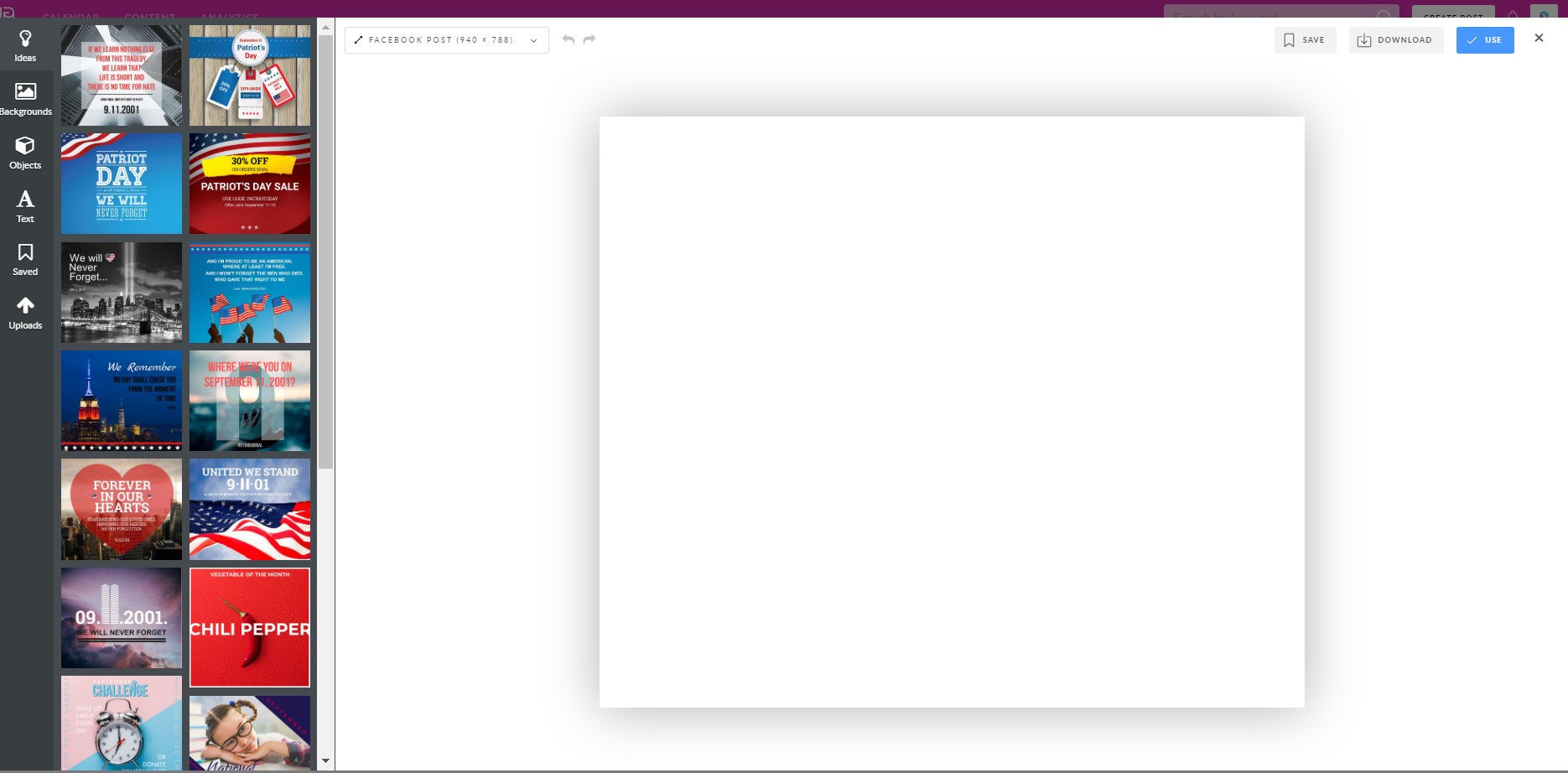
</p><p>If you want to create a post for a particular day and time, click on New Post button to select an appropriate <a href="" target="_blank" rel="noreferrer noopener">time slot</a>.</p><p><img src="https://support-hub--assets.s3.eu-west-2.amazonaws.com/assets/268/images/W9XmXVXkWWE7QMKG0muSkVVe4WtNga8EdmYc5ypH.png" style="width:100%;" alt="W9XmXVXkWWE7QMKG0muSkVVe4WtNga8EdmYc5ypH.png" /><br /></p><p>3. Go to Create Image and start creating your art work from scratch.</p><p><img src="https://support-hub--assets.s3.eu-west-2.amazonaws.com/assets/268/images/fJnNlklp3xGKQQbdCbE2QvNKYpGv8k8bSDJZ0pSC.png" style="width:100%;" alt="fJnNlklp3xGKQQbdCbE2QvNKYpGv8k8bSDJZ0pSC.png" /><br /></p><p>
</p><p>
</p><p>
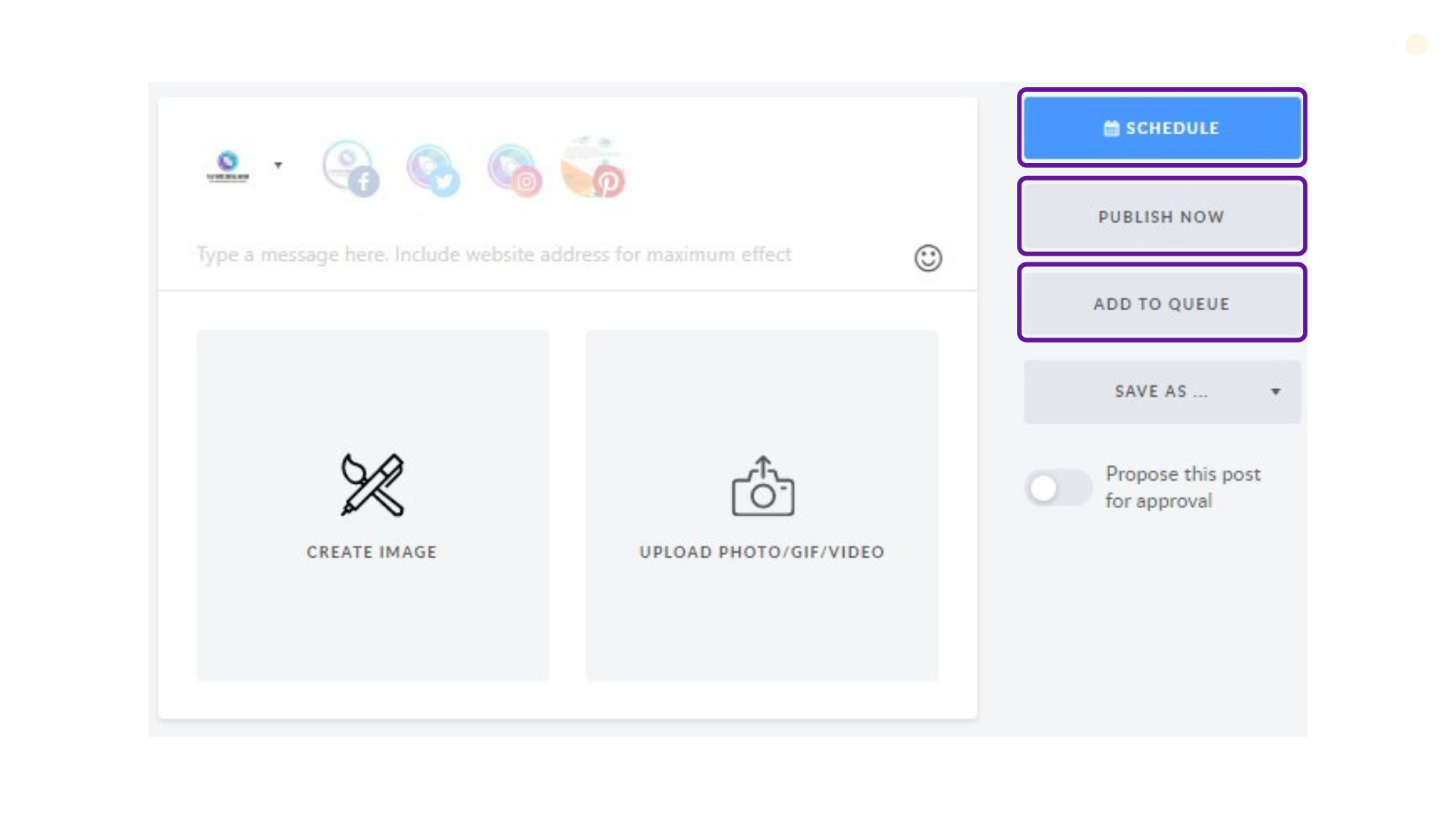
</p><p><img src="https://support-hub--assets.s3.eu-west-2.amazonaws.com/assets/268/images/lAcCp5vMjOnKpE0EbIIP7JQSr8R7FUdE46fRxpsp.jpeg" style="width:100%;" alt="lAcCp5vMjOnKpE0EbIIP7JQSr8R7FUdE46fRxpsp.jpeg" /><br /></p><p>Now, create your piece of content and choose one of the <span>publishing options</span>.<br /></p><p>
</p><p>
</p><p><img src="https://support-hub--assets.s3.eu-west-2.amazonaws.com/assets/268/images/O0Sc7EiDh7e9SKrFsvIsIE1ohset1c3dz2oTUtuJ.png" style="width:100%;" alt="O0Sc7EiDh7e9SKrFsvIsIE1ohset1c3dz2oTUtuJ.png" /><br /></p>]]>
            </summary>
                                    <updated>2019-09-13T02:34:08+00:00</updated>
        </entry>
            <entry>
            <title><![CDATA[WORKSPACE UPLOADS IN GRAPHICS EDITOR]]></title>
            <link rel="alternate" href="https://support.yourdigitalagency.com.au/articles/workspace-uploads-in-graphics-editor-1320" />
            <id>https://support.yourdigitalagency.com.au/1320</id>
            <author>
                <name><![CDATA[Leah Gibbs]]></name>
            </author>
            <summary type="html">
                <![CDATA[<p>With the YDA Social Dashboard Graphics Editor</p><p>
Go to Editor and click on the Uploads tab. You will find folders related to Workspace that you’ve joined, as well as the Personal Uploads folder. </p><p>
<img src="https://support-hub--assets.s3.eu-west-2.amazonaws.com/assets/268/images/8br2Q0tfOwVibYwlIT5EiNz4qQJzW9d7n1ig3svA.jpeg" style="width:100%;" alt="8br2Q0tfOwVibYwlIT5EiNz4qQJzW9d7n1ig3svA.jpeg" /></p><p>
</p><p><b>A new workspace</b> folder appears automatically when you create or join one - displaying the workspace name and logo. It is automatically shared and can be managed by all members.  </p><p>
<b>The name on the Personal Uploads</b> folder is pretty self-explanatory. Images that you upload from your computer are automatically saved there. All files stored in this folder are available and visible to only you. Until you join a workspace, this is the folder where you will find your visuals.   </p><p>Once you create or become a member of a workspace, the Uploads section is divided into Personal Uploads and Workspace folders you collaborate with. Any uploads unrelated to your workspaces will be stored in Personal Uploads.  <br /></p><p>
<b>How do I add files to the Workspace Uploads Folder? </b></p><p>
Click on the Upload button or just drag and drop files to the Uploads section.  </p><p>
<i>Please note: You are allowed to upload an unlimited number of files in .png, .jpg and .jpeg formats; maximum size of each file should be less than 15 Mb.   </i></p><p><img src="https://support-hub--assets.s3.eu-west-2.amazonaws.com/assets/268/images/yR47WUApAeIIS9dLIBvnKJiBDIYgecoauDpcKw2o.png" style="width:100%;" alt="yR47WUApAeIIS9dLIBvnKJiBDIYgecoauDpcKw2o.png" /><i><br /></i></p><p>
</p><p>If you already participate in at least one workspace, and your visual is ready to be used or saved, the Save Image window will appear. Just choose the Workspace you want to save it to.
</p><p>
<img src="https://support-hub--assets.s3.eu-west-2.amazonaws.com/assets/268/images/dZntsMJTwYHgbbEXCshNj4jc6WVYwV8wUpcROgLa.jpeg" style="width:100%;" alt="dZntsMJTwYHgbbEXCshNj4jc6WVYwV8wUpcROgLa.jpeg" /></p><p>
</p><p><b>How can I manage Workspace Uploads?</b>
</p><p>
The Workspace Uploads files are sorted by date - with the new ones always at the top.  </p><p>When you hover over a picture, you'll see two small icons emerge: 'Delete' and 'Options'.  <br /></p><p>
<img src="https://support-hub--assets.s3.eu-west-2.amazonaws.com/assets/268/images/gZ6ufDcYnyP7R34xXuG8hJbpgvB4dSh6gS2aUUIB.png" style="width:100%;" alt="gZ6ufDcYnyP7R34xXuG8hJbpgvB4dSh6gS2aUUIB.png" /></p><p>
</p><p>Clicking on 'Options' will open the Save Image menu. Feel free to select any other folder to share the file to. A copy of this file will be added to the selected Workspace.
</p><p>
<img src="https://support-hub--assets.s3.eu-west-2.amazonaws.com/assets/268/images/af5WNFigEuxALl6Oao7wtc0E68Tfg1OXs2Fwa859.png" style="width:100%;" alt="af5WNFigEuxALl6Oao7wtc0E68Tfg1OXs2Fwa859.png" /></p><p><br /></p>]]>
            </summary>
                                    <updated>2019-09-13T02:35:22+00:00</updated>
        </entry>
            <entry>
            <title><![CDATA[SMART POSTING: MANUAL MODE]]></title>
            <link rel="alternate" href="https://support.yourdigitalagency.com.au/articles/smart-posting-manual-mode-1321" />
            <id>https://support.yourdigitalagency.com.au/1321</id>
            <author>
                <name><![CDATA[Leah Gibbs]]></name>
            </author>
            <summary type="html">
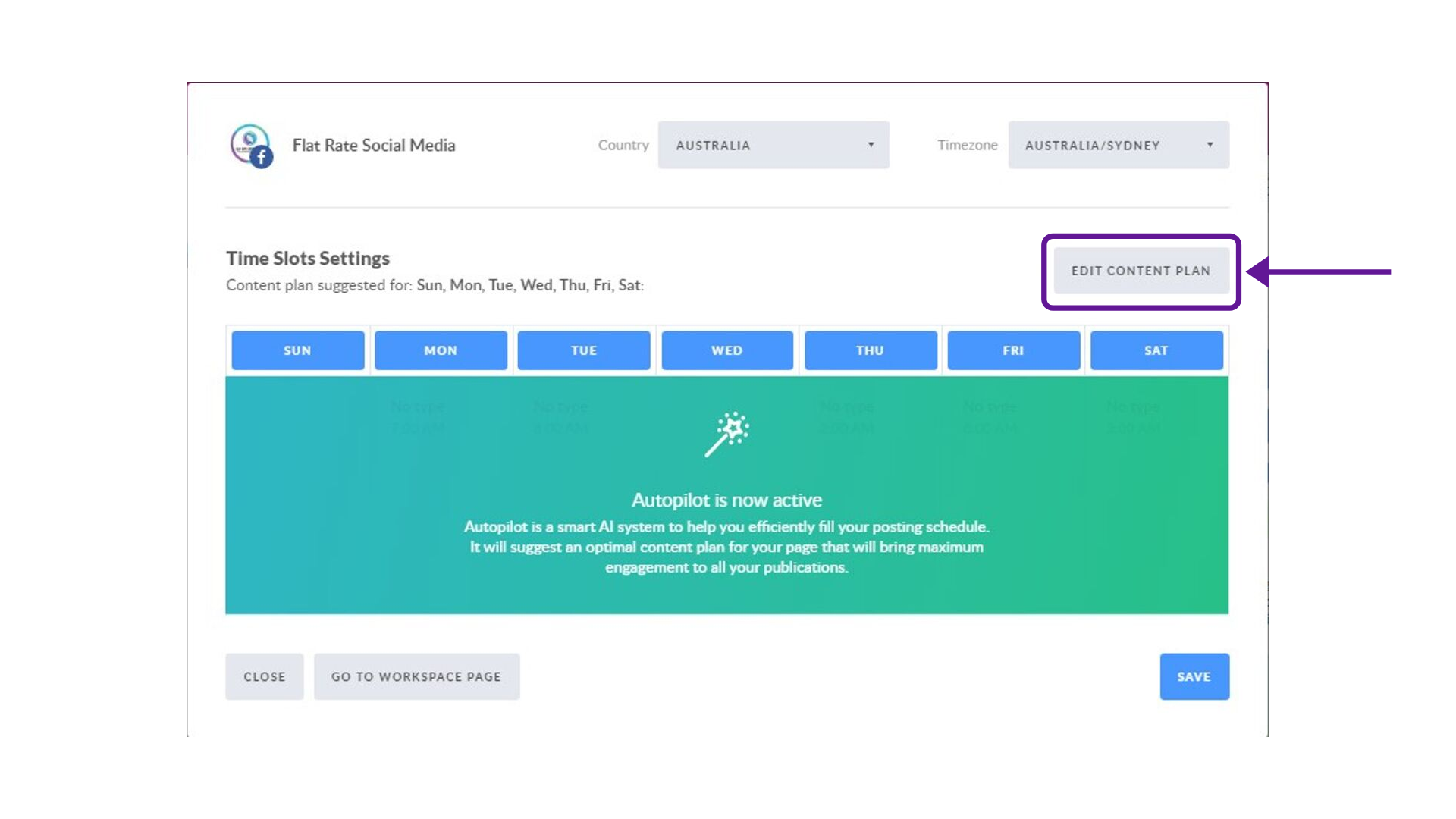
                <![CDATA[<p>If you wish to activate the manual mode choose a specific page within the connected ones and hit 'Edit Content Plan' (as shown below).
 </p><p><img src="https://support-hub--assets.s3.eu-west-2.amazonaws.com/assets/268/images/r7qkb97kihxDcjMulALkW4fCh7Y9g5RqA5sILjOX.png" style="width:100%;" alt="r7qkb97kihxDcjMulALkW4fCh7Y9g5RqA5sILjOX.png" /><br /></p><p>
Next you'll see the schedule with some slots listed already. </p><p>
<img src="https://support-hub--assets.s3.eu-west-2.amazonaws.com/assets/268/images/LDzZHCHZYaldSb3JBwCtDDXykwKdsLMtdN8crjMG.jpeg" style="width:100%;" alt="LDzZHCHZYaldSb3JBwCtDDXykwKdsLMtdN8crjMG.jpeg" /></p><p>
As you might know, Time Slots are slots for posts with a defined time and category. Basically, these are the time options for you to choose so posts are published accordingly. </p><p>
Time slots are divided into categories based on the types of content suggestions per your weekly content plan.  </p><ul><li>
Promotional <br /><br /></li><li>Engaging
<br /><br /></li><li>Educational
<br /><br /></li><li>Motivational &amp; Fun
<br /><br /></li><li>Article
</li></ul><p>Now that you have manual mode on to customise the scheme, add Time Slots manually. You can choose:
</p><ul><li>
Quantity of days: either 7 or just one;  <br /><br /></li><li>Types of content to post on a particular day; 
<br /><br /></li><li>How many posts to publish on the selected days;
<br /><br /></li><li>Accurate time in each time slot.
<br /><br /></li></ul><p>Click on 'Add Slot' button to get into Time Slots settings.  
</p><p><img src="https://support-hub--assets.s3.eu-west-2.amazonaws.com/assets/268/images/cp74v3olXz11gVmrHem7YysguqMnAHzMOqJuOlTK.png" style="width:100%;" alt="cp74v3olXz11gVmrHem7YysguqMnAHzMOqJuOlTK.png" /><br /></p><p>
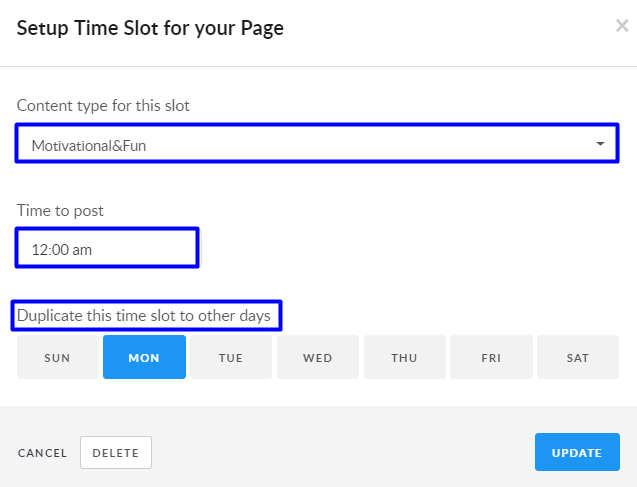
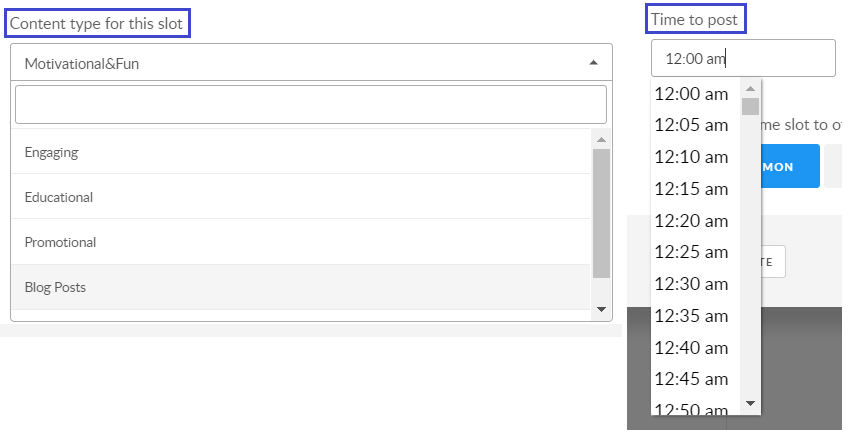
</p><p>In 'Content type' and 'Time to post' drop down menu you can choose the type of content and time of a particular slot.
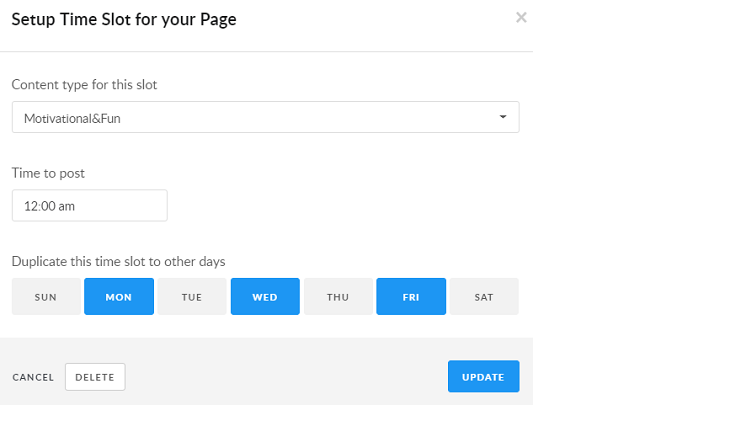
</p><p><img src="https://support-hub--assets.s3.eu-west-2.amazonaws.com/assets/268/images/GFlOIUvvSEdRnIqZUSN240aouWQ9Y9oQNnCEMN9y.png" style="width:100%;" alt="GFlOIUvvSEdRnIqZUSN240aouWQ9Y9oQNnCEMN9y.png" /><br /></p><p>Duplicating this slot to other days means that, for example, Motivational&amp;Fun piece of content is planned on 12:00 am on the days chosen. <br /></p><p>
<img src="https://support-hub--assets.s3.eu-west-2.amazonaws.com/assets/268/images/bLGWtSnwEBqsFOn9o0iNrEJzTpfGlhoUERSZMGhc.png" style="width:100%;" alt="bLGWtSnwEBqsFOn9o0iNrEJzTpfGlhoUERSZMGhc.png" /></p><p>
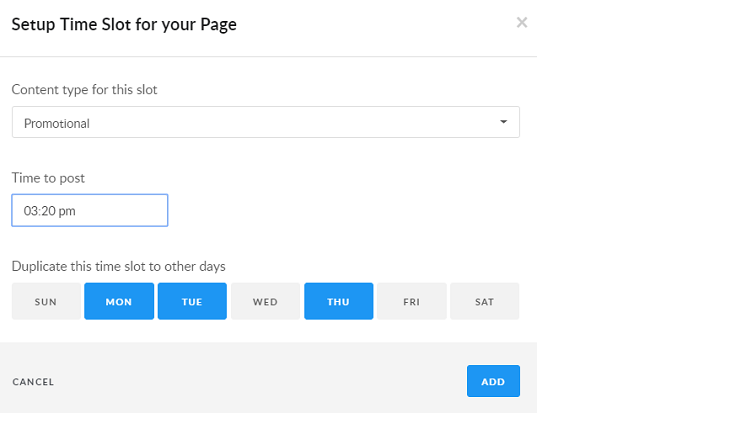
To add a different type of slot to other days or the same one, click on 'Add Slot' button once again. Choose the desired days and time and finish by clicking 'Add'. </p><p>
<img src="https://support-hub--assets.s3.eu-west-2.amazonaws.com/assets/268/images/12VO4DFaujjGrLZn1yt7njKE9mrqiDjGEk6OZsPm.png" style="width:100%;" alt="12VO4DFaujjGrLZn1yt7njKE9mrqiDjGEk6OZsPm.png" /></p><p>
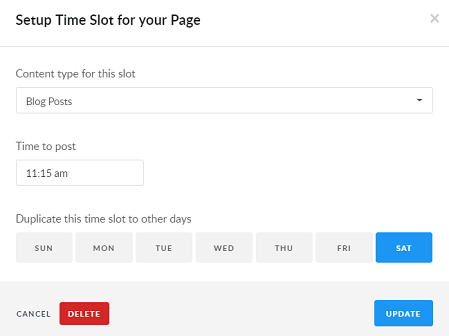
If you wish to delete a slot you are free to do that. </p><p>
<img src="https://support-hub--assets.s3.eu-west-2.amazonaws.com/assets/268/images/3yo4sQ97wwEPUjLXxl7Ix7AR4yPGbSkeDV3ceglJ.png" style="width:100%;" alt="3yo4sQ97wwEPUjLXxl7Ix7AR4yPGbSkeDV3ceglJ.png" /></p><p>
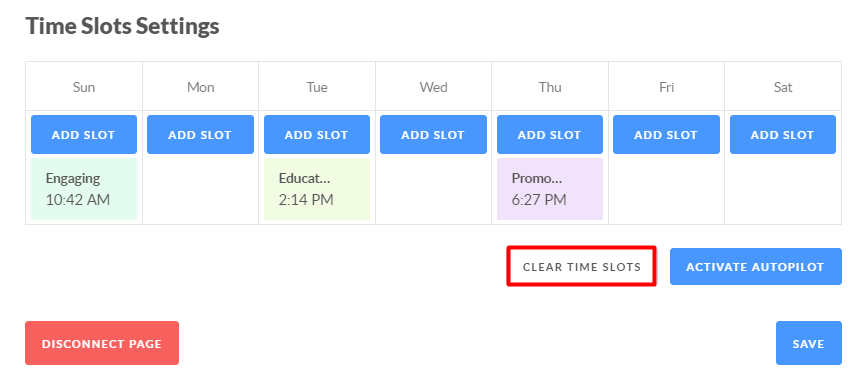
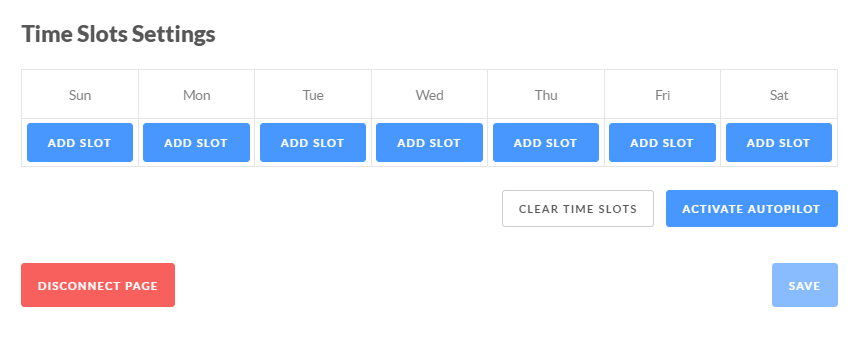
</p><p>If you wish to clear the slots, there is an appropriate button below the timetable. But please note that you need to have at least one slot turned on, otherwise you won't be able to save the schedule empty (the button will be grayed out).
</p><p>
<img src="https://support-hub--assets.s3.eu-west-2.amazonaws.com/assets/268/images/HBEobSo963kpMmxxR4sMKo7MPga5BRztJNcftIQb.png" style="width:100%;" alt="HBEobSo963kpMmxxR4sMKo7MPga5BRztJNcftIQb.png" /></p><p>
<img src="https://support-hub--assets.s3.eu-west-2.amazonaws.com/assets/268/images/PgPlBlG3IzHCiUt8I9Y2nTVno7UAYGkTc4nZKm5u.png" style="width:100%;" alt="PgPlBlG3IzHCiUt8I9Y2nTVno7UAYGkTc4nZKm5u.png" /></p><p>
Once you finished tuning up the timetable, it will be represented in the Calendar. </p><p>
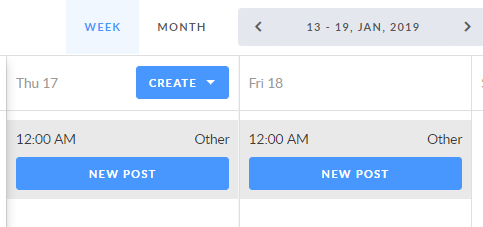
Now, there are two ways to use the tool: </p><ul><li> Hit 'New Post' button on a specific day and schedule the piece of content for that day; <br /><br /></li><li>Create a post from any other section apart from Calendar and hit  the 'Add To Queue' button. The post will then take the nearest available slot.</li></ul>]]>
            </summary>
                                    <updated>2019-09-13T02:36:37+00:00</updated>
        </entry>
            <entry>
            <title><![CDATA[INTRODUCING TIME SLOTS]]></title>
            <link rel="alternate" href="https://support.yourdigitalagency.com.au/articles/introducing-time-slots-1322" />
            <id>https://support.yourdigitalagency.com.au/1322</id>
            <author>
                <name><![CDATA[Leah Gibbs]]></name>
            </author>
            <summary type="html">
                <![CDATA[<p><b>What are the Time Slots?
</b></p><p>
We put together the best time to post and types of content to share so it is easier to expand your reach on Social Media. </p><p>
Through our proprietary AI tech, we are able to analyze your followers engagement and suggest you the best time to post based on their activity. We do this by analyzing your industry, page, and location. Based on your page industry, you are also prompted with the combination of the most relevant types of content to share with your followers.  </p><p>
Moreover, time slots are divided into categories based on the types of content that you are suggested to use for your weekly content plan: </p><ul><li>
Promotional <br /><br /></li><li>Engaging
<br /><br /></li><li>Educational
<br /><br /></li><li>Motivational&amp;Fun
<br /><br /></li><li>Article
</li></ul><p>Time slots provide you with more flexibility and help you plan efficiently.  <br /></p><p><b>
How do I use Time Slots?  </b></p><p>
There are several ways you can use Time Slots: </p><ol><li>
Schedule content to a particular slot in the Calendar; <br /><br /></li><li>Add posts to queue under Manual Schedule;
<br /><br /></li><li>Add posts to queue in Autopilot Mode.
</li></ol><p>Schedule directly to a time slot
</p><p>Right now, you can access Time Slots directly from the Calendar. By this we mean that you can schedule your content to a specific slot. 
</p><p>For example, on Wednesday, August 21, at 4:46 PM you want to share a Blog post with your followers. <br /></p><p>
You simply go to the Calendar, click the blue 'New Post' button, which signifies the best time to post and the most relevant content type to share at the selected time. </p><p>
<img src="https://support-hub--assets.s3.eu-west-2.amazonaws.com/assets/268/images/cEvB93HhlnfV6rLvXez2YyGVzvAcqb3nxSY4MQtu.png" alt="cEvB93HhlnfV6rLvXez2YyGVzvAcqb3nxSY4MQtu.png" /></p><p>
</p><p>The next step is to choose a template from the list.
</p><p>
</p><p>
<b>'Edit And Schedule'</b> prompts you to use Editor and schedule this post afterwards. </p><p><b>'Create Post From Scratch'</b> stands for creating a post from scratch by going to the Editor.
</p><p><br /></p><p>Regardless of the button you click on, the result will be the same:  <br /></p><ul><li>
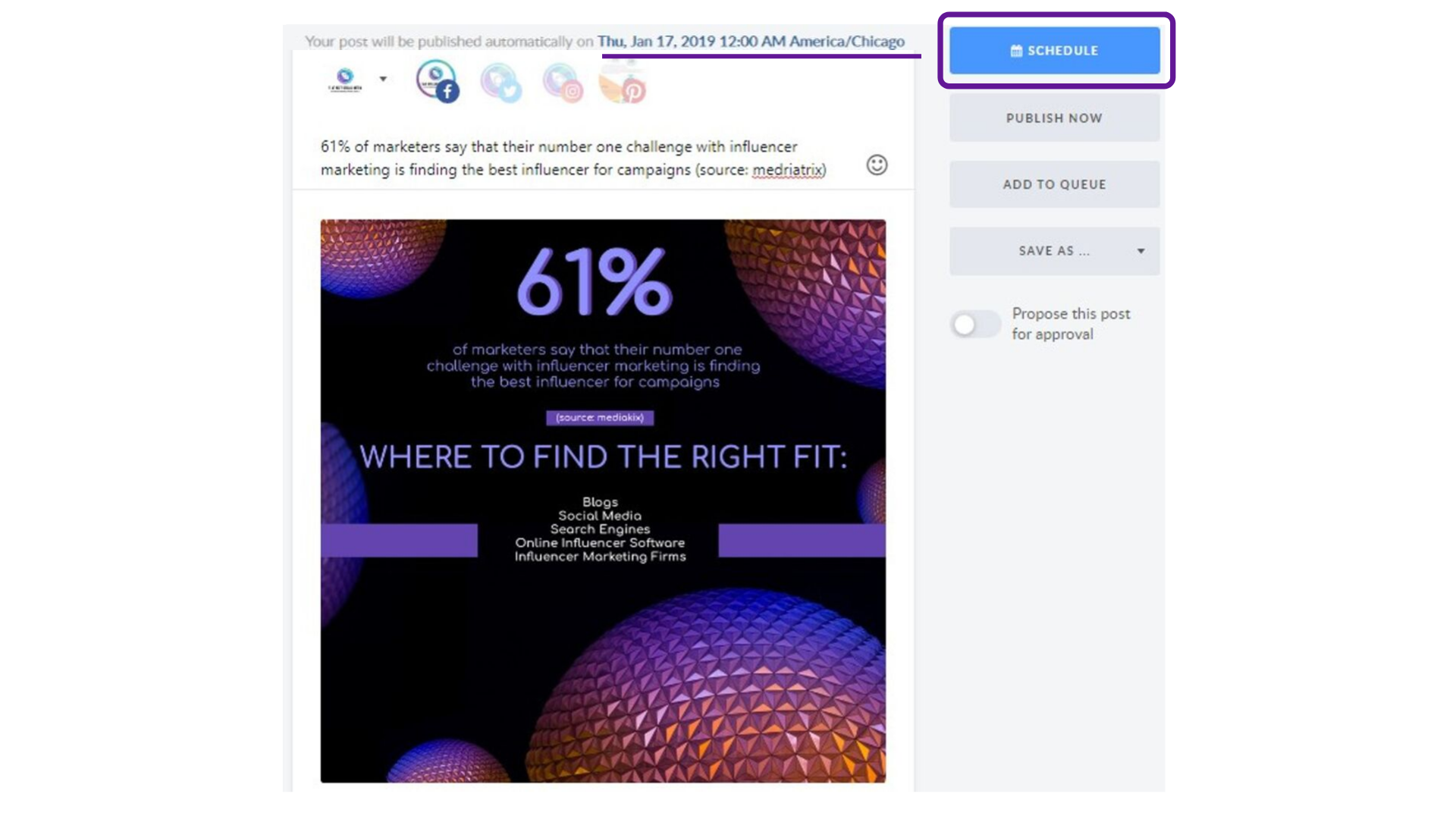
Time and date of the post to be published is highlighted under the image; <br /><br /></li><li>With a 'Schedule' button you are prompted to schedule the post for a particular time slot.
</li></ul><p>
<img src="https://support-hub--assets.s3.eu-west-2.amazonaws.com/assets/268/images/nnbNSioQXAd7ktXZS22XbiIcz7tuoBnVeXtL0cFd.png" style="width:100%;" alt="nnbNSioQXAd7ktXZS22XbiIcz7tuoBnVeXtL0cFd.png" /></p><p>This is it, you have scheduled the post! Now, check it in your calendar.</p>]]>
            </summary>
                                    <updated>2019-09-13T02:37:39+00:00</updated>
        </entry>
            <entry>
            <title><![CDATA[SOCIAL DASHBOARD ANALYTICS AND REPORTING]]></title>
            <link rel="alternate" href="https://support.yourdigitalagency.com.au/articles/workspace-dashboard-1512" />
            <id>https://support.yourdigitalagency.com.au/1512</id>
            <author>
                <name><![CDATA[Leah Gibbs]]></name>
            </author>
            <summary type="html">
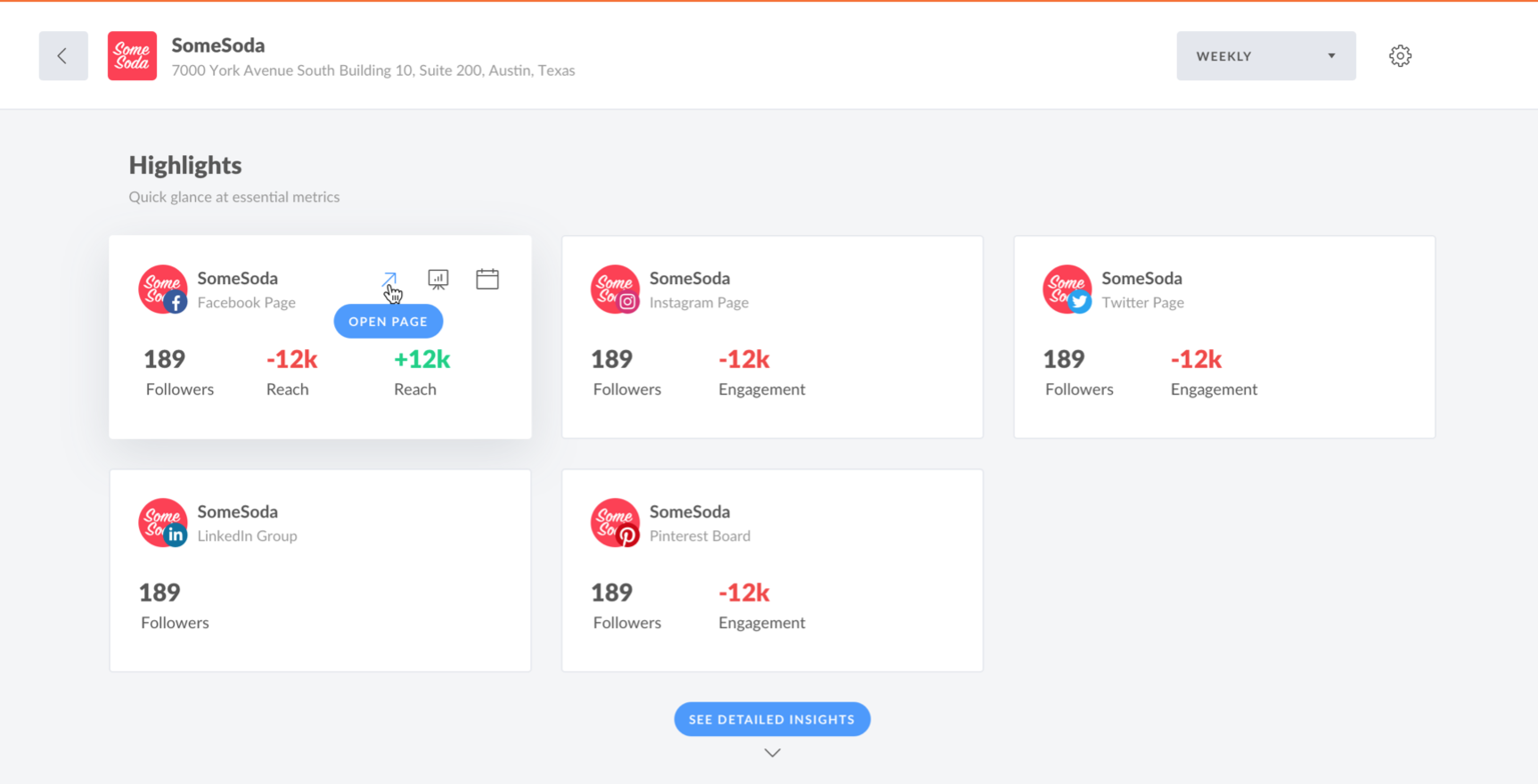
                <![CDATA[<p> Get a quick overview of performance and activity in all social pages connected workspaces - all within one dashboard. 
</p><p><b>
How does it work? </b></p><p>
Access the active workspace in the dashboard from the top bar menu. Click on the workspace icon to open a list of your workspaces. Select the required dashboard. Find the workspace settings and choose the period of time you would like to view.  </p><p>
You can compare data either week-over-week or month-over-month. The default settings will display the data for one week.  </p><p><b>What data is displayed in the Dashboard? </b><br /></p><p>
Highlights. The essential metrics of social media performance on each of the connected pages to the selected Workspace: </p><ul><li>
<i>Total Number of Followers; </i><br /><br /></li><li><i>Reach</i> - The number of times any content from the page was displayed on the user's screen (available for Facebook pages and LinkedIn Companies). Numbers of the given period are compared to the numbers of the previous period;
<br /><br /></li><li><i>Engagement</i> - The number of times people took positive action on your Page (likes, shares, comments). Numbers of the given period are compared to the numbers of the previous period.
</li></ul><p>
<img src="https://support-hub--assets.s3.eu-west-2.amazonaws.com/assets/268/images/0fcfcrBzuQIPAKmu74qnDW4tOX070CksOuLHvbRY.png" style="width:100%;" alt="0fcfcrBzuQIPAKmu74qnDW4tOX070CksOuLHvbRY.png" /></p><p>When you hover over each block of the page, you can see the link to the page on social, link to the Calendar and Reports. There is no Report link for LinkedIn profiles and Google My Business locations.
</p><p><b>How can I see the detailed information about the Page Performance? </b><br /></p><p>
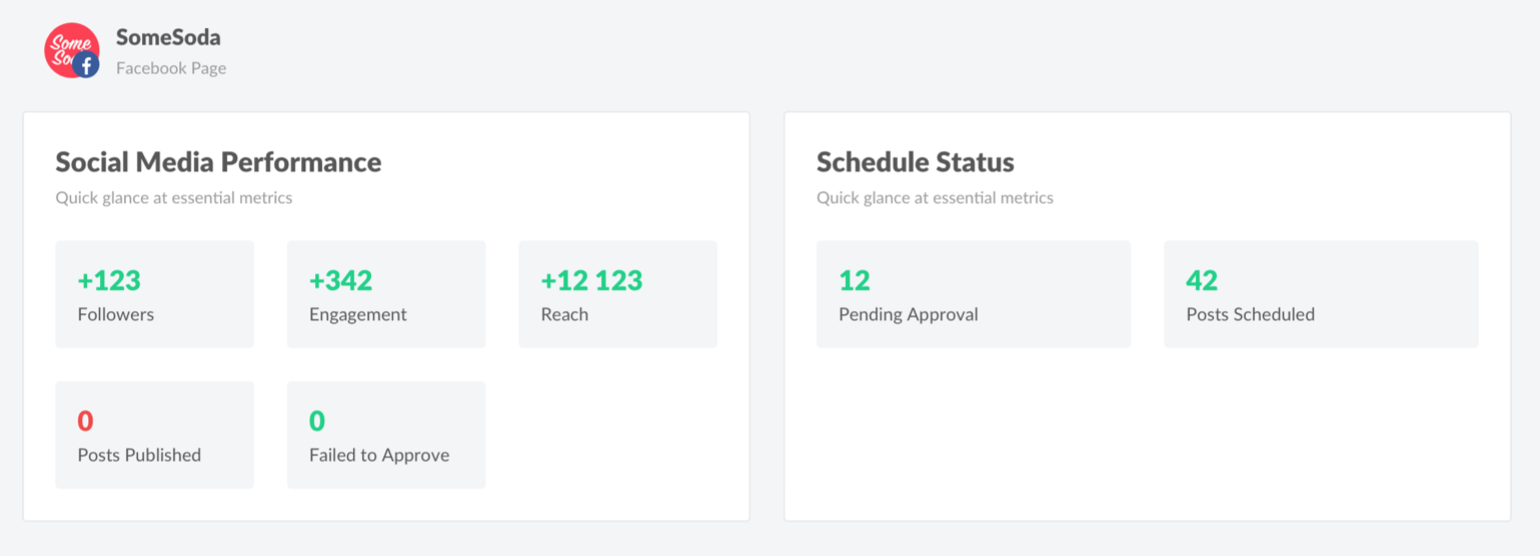
Scroll down in the Dashboard to see the detailed information. The statistics on page performance are divided into two blocks:  </p><ul><li>
<i>Social Media Performance</i> shows the data for a set period in the past; <br /><br /></li><li><i>Schedule Status</i> shows the planned activities for the page.
</li></ul><p>
<img src="https://support-hub--assets.s3.eu-west-2.amazonaws.com/assets/268/images/IOdYKPZ8SzkNOOwaoUMdNm4f8sAHvVDqAUdnoxDY.png" style="width:100%;" alt="IOdYKPZ8SzkNOOwaoUMdNm4f8sAHvVDqAUdnoxDY.png" /></p><p><b>Social Media Performance</b>
</p><p>
In this section, you can see a comparison of the number of new followers, engagement, and reach for the current week or month and the one before. The number of Posts Published and Not Approved Posts are also displayed here. Not Approved Posts are the posts that were not approved on time. </p><p>
When you connect the page for the first time, you will only see the total numbers. The rest of data will upload later, because system requires time to accumulate data in order to show you the performance progress. </p><p><b>
Schedule Status</b> </p><p>In this section, you can see the number of Posts Waiting for Approval and Scheduled Posts: <br /></p><p>
Posts Waiting for Approval are posts that haven't been approved yet; </p><p>Scheduled Posts are all the other posts, excluding Posts Waiting for Approval and drafts.
</p><p><b>Settings</b>
</p><p>At the bottom of the dashboard, you will find two sections where you can modify your pages and members' permissions. This can help you improve workspace efficiency.  <br /></p><p><b>
Important </b></p><p>
If you haven't created a workspace and/or haven't connected pages yet, you won't see the workspace performance. Check <a href="https://support.yourdigitalagency.com.au/articles/1513/edit" target="_blank" rel="noreferrer noopener">this article</a> to learn how you can create a workspace. </p><p>Statistics are not available for LinkedIn profiles and Google My Business locations, but still you will see the pages in the dashboard. <br /></p><p><br /></p><p><br /></p>]]>
            </summary>
                                    <updated>2019-10-28T03:26:51+00:00</updated>
        </entry>
            <entry>
            <title><![CDATA[WORKSPACES CREATION AND INVITING TO COLLABORATE ON SOCIAL DASHBOARD]]></title>
            <link rel="alternate" href="https://support.yourdigitalagency.com.au/articles/workspaces-creation-and-inviting-to-collaborate-1513" />
            <id>https://support.yourdigitalagency.com.au/1513</id>
            <author>
                <name><![CDATA[Leah Gibbs]]></name>
            </author>
            <summary type="html">
                <![CDATA[<p>The idea of the Workspace feature is to store your social media pages in folders (by businesses) . Per your permission, other people can have access to it. You can invite your clients and teammates to a workspace, add pages and collaborate on the content together.
</p><p>
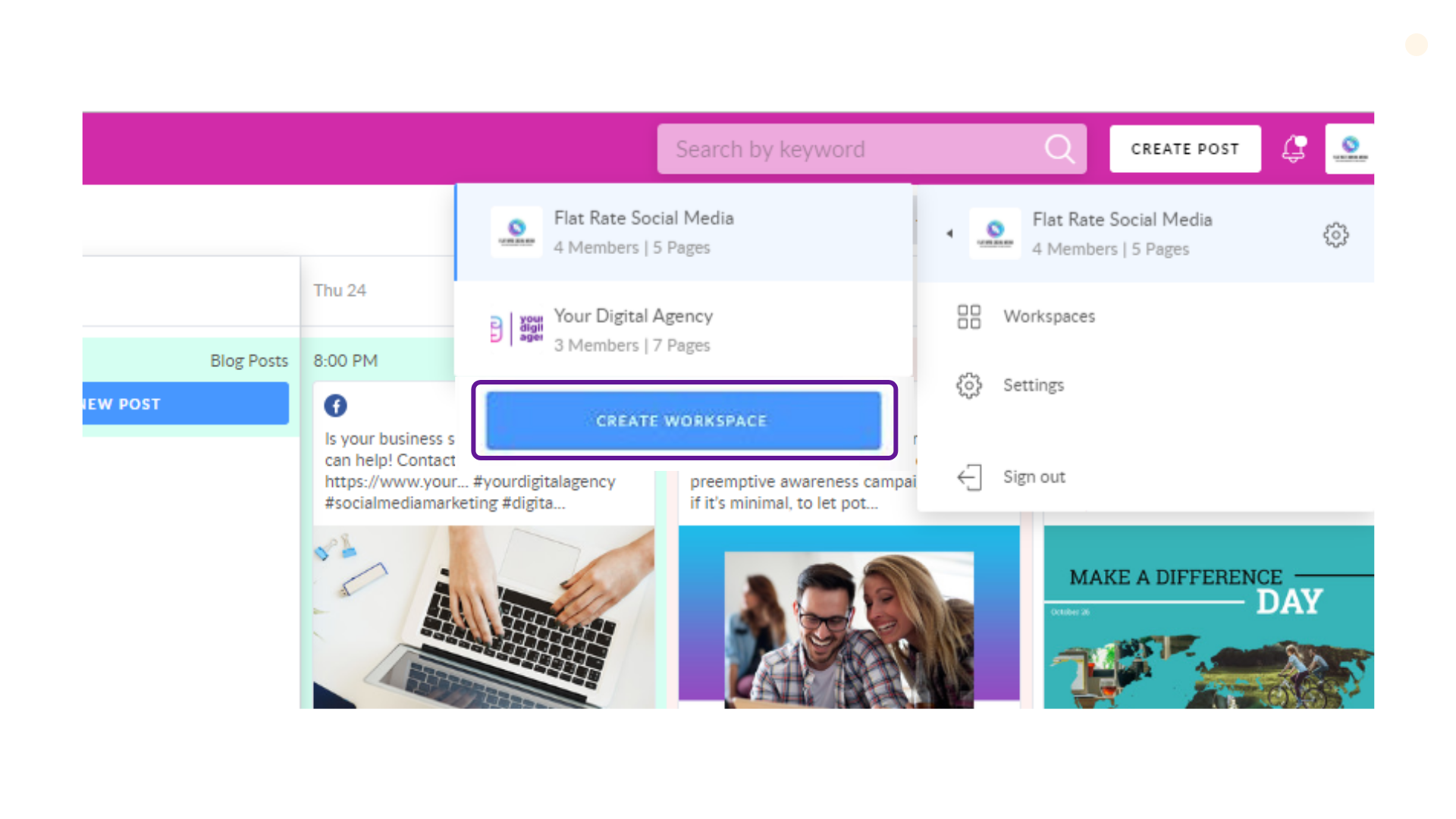
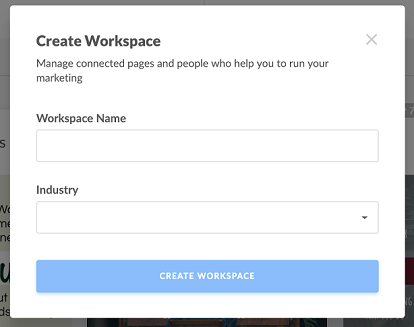
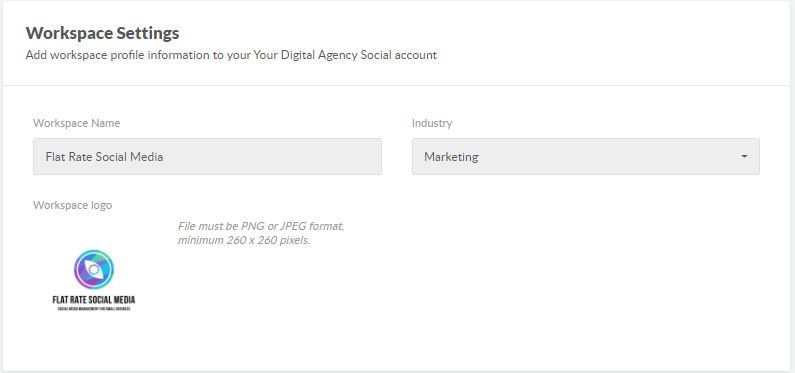
Follow this guide to create a workspace and tweak it the way you need. </p><p>1. Click on the top right corner in your YDA Social Dashboard and move cursor downwards. An additional window will emerge with the blue Create Workspace button. Go ahead and hit it! </p><p><img src="https://support-hub--assets.s3.eu-west-2.amazonaws.com/assets/268/images/YFemxkPSFa2tfzoKM8JHkGLBLYTT6TGN6fsmxWZa.png" style="width:100%;" alt="YFemxkPSFa2tfzoKM8JHkGLBLYTT6TGN6fsmxWZa.png" /><br /></p><p>2. Create a new workspace, adding its name and industry. </p><p><img src="https://support-hub--assets.s3.eu-west-2.amazonaws.com/assets/268/images/PYgaq83q0pq19Bgkq0U2EuZhxN2a989ALCeq3s4e.png" style="width:100%;" alt="PYgaq83q0pq19Bgkq0U2EuZhxN2a989ALCeq3s4e.png" /><br /></p><p>3. Then you will be redirected to the workspace settings, where you can: <br /></p><ul><li>
Adjust the its logo; <br /><br /></li><li>Add collaborators;
<br /><br /></li><li>Connect your social pages.
</li></ul><p>You can change the workspace name, industry and logo as often as necessary. We recommend uploading the company logo to identify your client easily. 
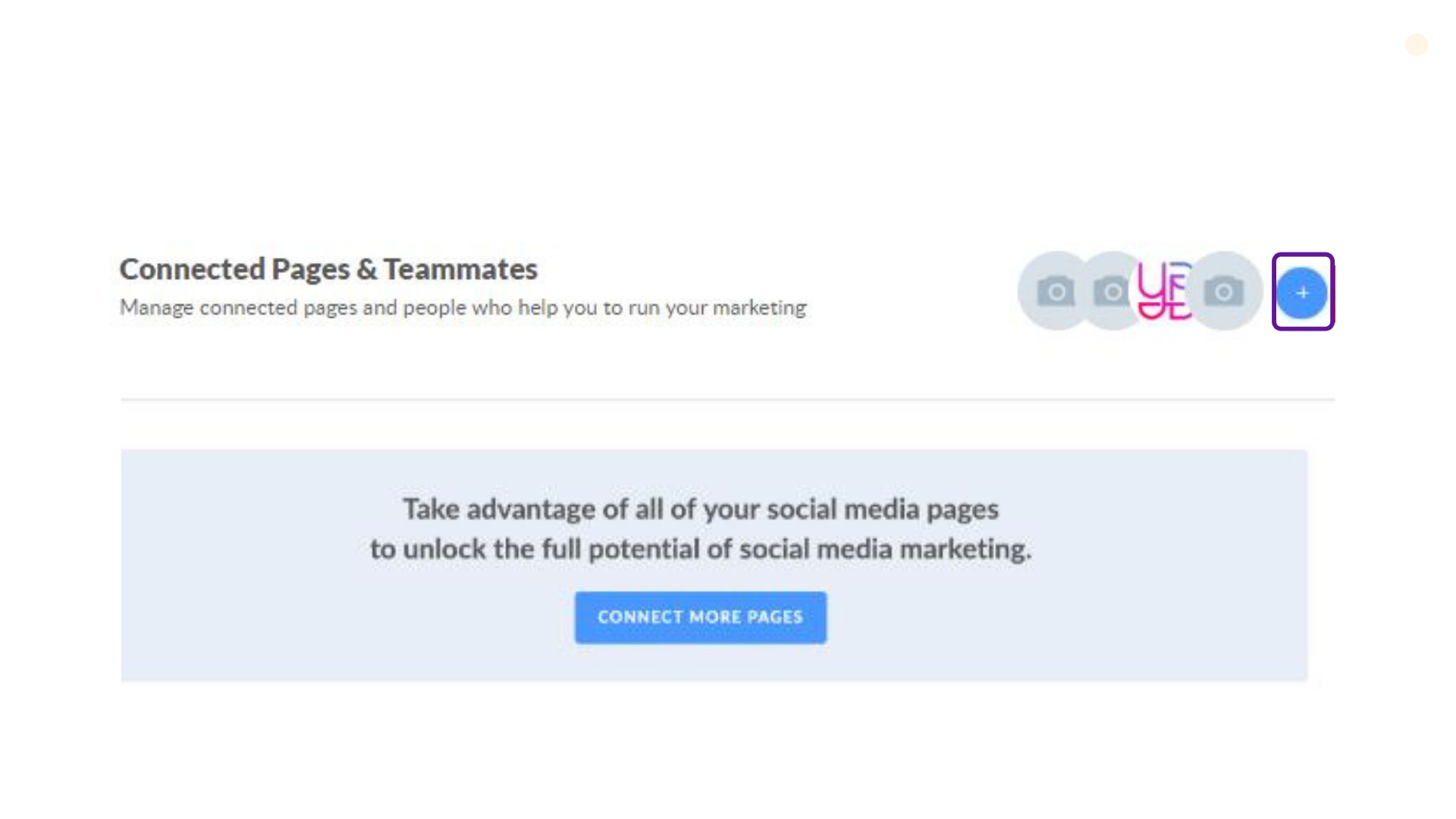
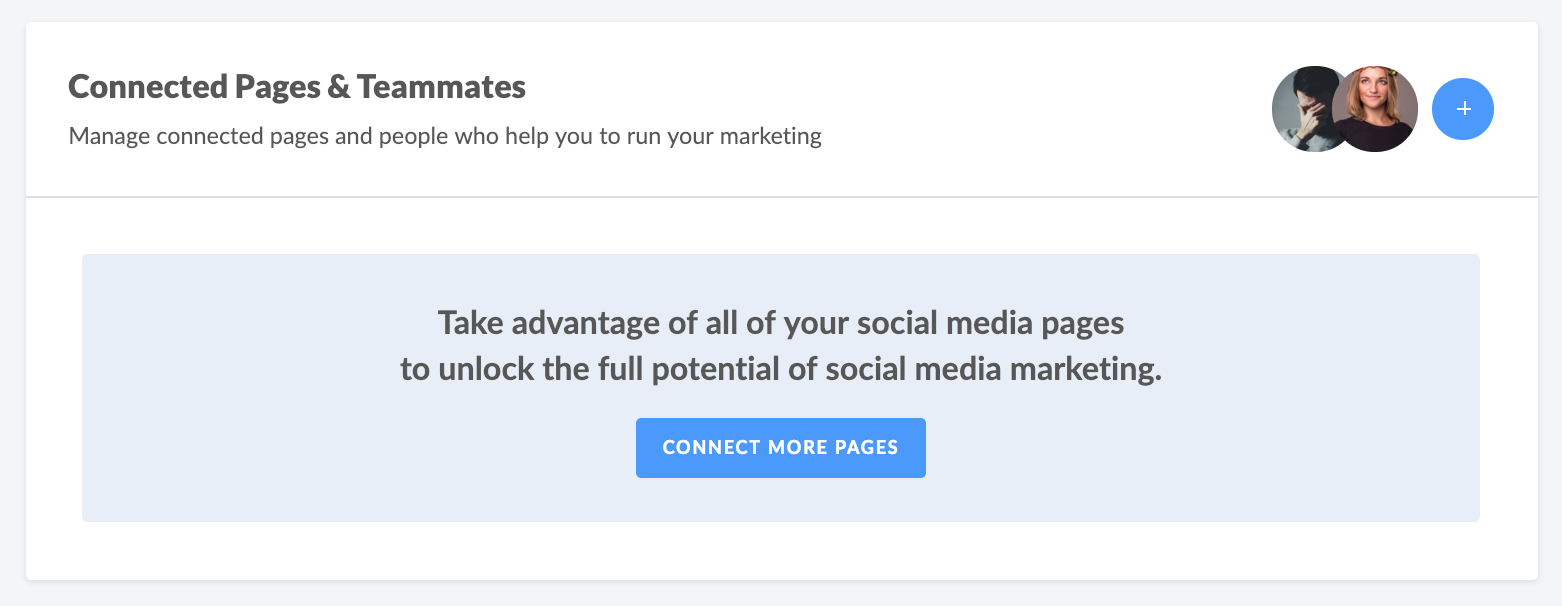
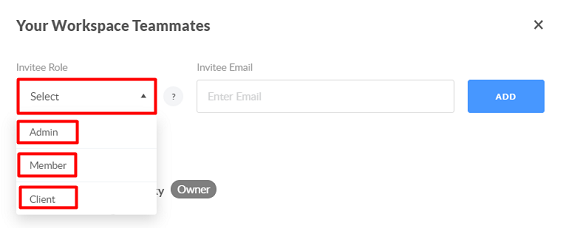
</p><p><img src="https://support-hub--assets.s3.eu-west-2.amazonaws.com/assets/268/images/E1L9EhGmW0nJFDprkPkqu5bXapHdvKN0fEEJvmBN.jpeg" style="width:100%;" alt="E1L9EhGmW0nJFDprkPkqu5bXapHdvKN0fEEJvmBN.jpeg" /><br /></p><p>In order to add a collaborator, click on the plus icon in the Connected Pages and Teammates section.  <img src="https://support-hub--assets.s3.eu-west-2.amazonaws.com/assets/268/images/mcrrW6L0hc4oX9CLACQ3FNKYvUtW8GxCIh6yIqUo.png" style="width:100%;" alt="mcrrW6L0hc4oX9CLACQ3FNKYvUtW8GxCIh6yIqUo.png" /></p><p>
Insert your collaborator's email in the appropriate box and hit Add. Also decide on the role you will assign: Member, Admin or Client. </p><p><i>Please note that the total number of the workspace participants regardless of their role is 5. It means that you, as the workspace owner, can add 4 participants.</i>  <br /></p><p>
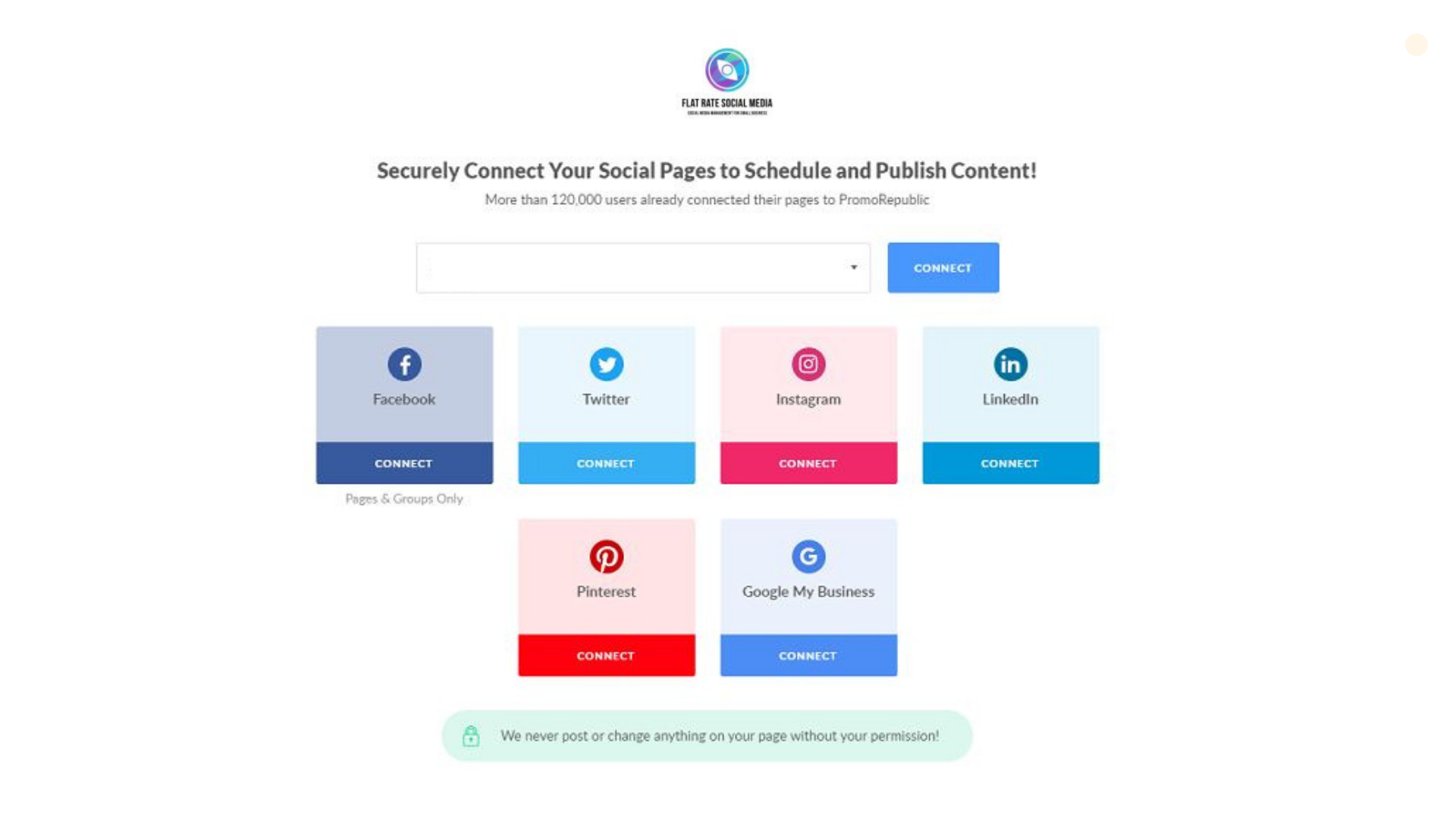
In order to add a page to the workspace, find the blue Connect More Pages button. Once clicked, you will be prompted with the social platforms to connect: </p><ul><li>
Facebook (business pages or groups); <br /><br /></li><li>Twitter;
<br /><br /></li><li>Instagram;
<br /><br /></li><li>LinkedIn (personal profile or business pages);
<br /><br /></li><li>Pinterest boards;
<br /><br /></li><li>Google My Business locations.
</li></ul><p><img src="https://support-hub--assets.s3.eu-west-2.amazonaws.com/assets/268/images/suOTlto0eNFbgp0ba4I99h4eP8RBr6yzdtnPJ8dH.png" style="width:100%;" alt="suOTlto0eNFbgp0ba4I99h4eP8RBr6yzdtnPJ8dH.png" /><br /></p><p><b>
There are 3 important factors to note when adding pages to a workspace:</b> </p><ul><li>Once a page is within a workspace, you can't connect it in Unassigned Pages. Or vice versa.
<br /><br /></li><li>The quantity of workspaces to create or participate in is unlimited, but limited by 5 members per workspace.
<br /><br /></li><li>If you participate in a workspace as a member or an admin, pages within there are counted as yours, so you can't connect more.</li></ul>]]>
            </summary>
                                    <updated>2019-10-28T03:28:00+00:00</updated>
        </entry>
            <entry>
            <title><![CDATA[WORKSPACES]]></title>
            <link rel="alternate" href="https://support.yourdigitalagency.com.au/articles/workspaces-1514" />
            <id>https://support.yourdigitalagency.com.au/1514</id>
            <author>
                <name><![CDATA[Leah Gibbs]]></name>
            </author>
            <summary type="html">
                <![CDATA[<p>Easily manage social media publishing with the Workspaces Update. Get an overview of all your Workspaces and activity in one place.
</p><p>
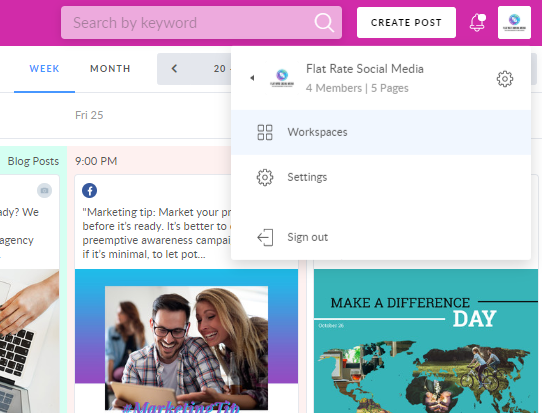
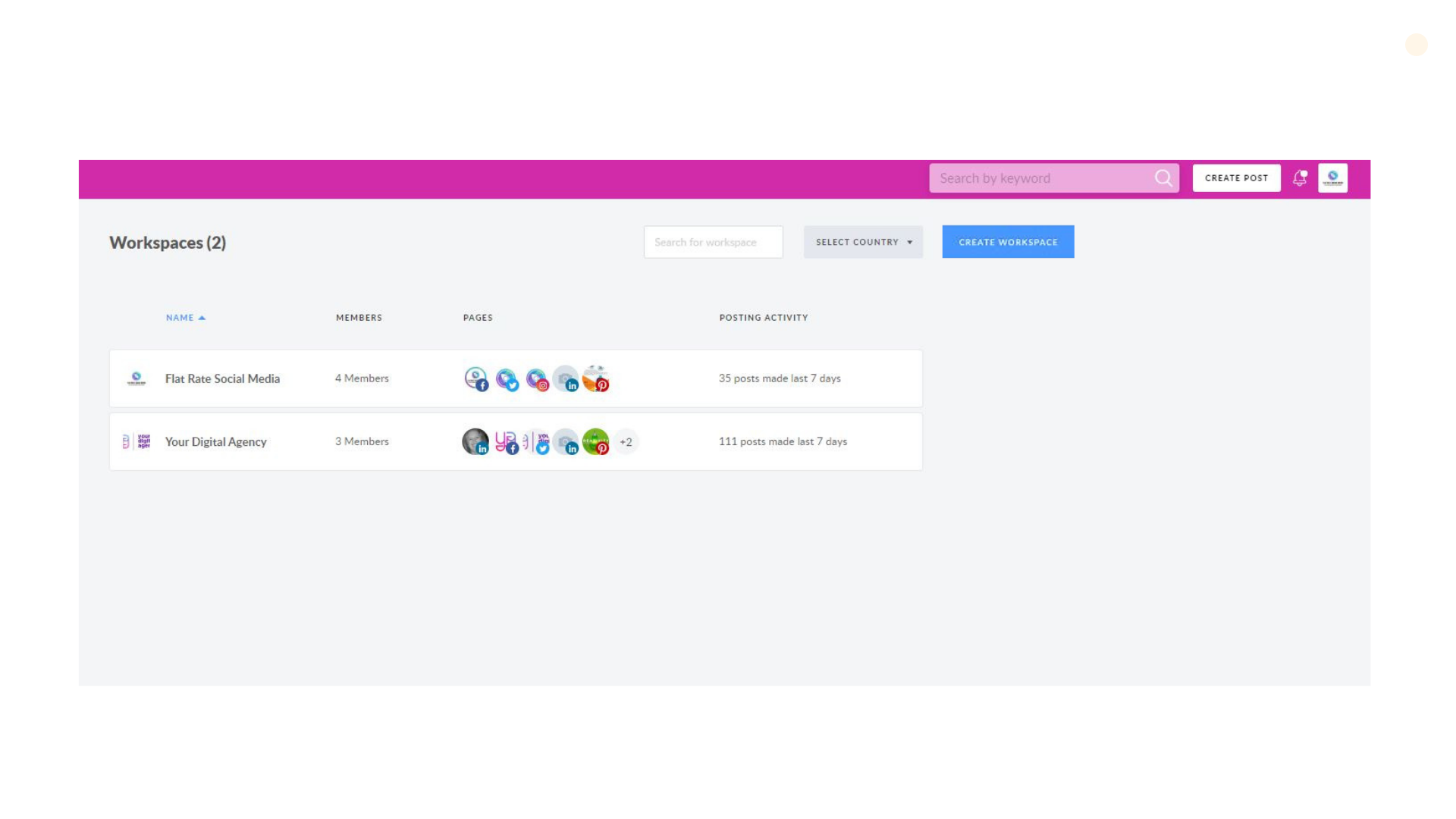
To get to Workspaces, click on Your profile and choose 'Workspaces' in the dropdown menu.   </p><p><img src="https://support-hub--assets.s3.eu-west-2.amazonaws.com/assets/268/images/0KnVxnMQBNIFeqj0Tc0l0UmCbftSLqv9v7Z4bYOG.png" style="width:100%;" alt="0KnVxnMQBNIFeqj0Tc0l0UmCbftSLqv9v7Z4bYOG.png" /><br /></p><p>Get an overview of a list of all your Workspaces that you manage, search, and filter. You can also switch between Workspaces.  <br /></p><p>
 <img src="https://support-hub--assets.s3.eu-west-2.amazonaws.com/assets/268/images/XBWxuc0BUYQrSYBbt6wbgqWXHKlr5RZdrZXh2egO.png" style="width:100%;" alt="XBWxuc0BUYQrSYBbt6wbgqWXHKlr5RZdrZXh2egO.png" /></p><p>Dashboard top menu:
</p><ul><li><b>Search bar</b> - search your Workspace Name for quick access   <br /><br /></li><li><b>Country Filter</b> - choose a country (or a few of them) to display on the dashboard. Clicking on Filter will open a dropdown with a list of countries from your Workspaces. (In case there are pages from a few countries in one Workspace, this Workspace will be displayed in each of these countries) 
<br /><br /></li><li><b>Create Workspace</b> - click to start a new Workspace. 
</li></ul><p>Dashboard columns: <br /></p><ul><li>
<b>Name</b> - displays Image and Name, click on the Workspace Name to redirect to Workspace Dashboard. (can be sorted by alphabet (from A-Z, Z-A) </li><li><b>Members</b> - displays the number of Members in the Workspace (can be sorted by the number of Workspace members (from larger to smaller and vice versa) 
</li><li><b>Pages</b> - displays icons of connected pages, click on the page icon to redirect to its content calendar (can be sorted by the number of connected pages in Workspace (from larger to smaller and vice versa) 
</li><li><b>Posting Activity</b> - displays the total number of published posts that were created from pages connected to Workspace during last week/month  (can be sorted by the number of connected pages in Workspace (from larger to smaller and vice versa)</li></ul><p>Workspaces list-view is available for Agency users only (Professional plan). Users with "client" role permissions are not able to see "Workspaces" tab in drop-down menu.<br /></p>]]>
            </summary>
                                    <updated>2019-10-28T03:28:39+00:00</updated>
        </entry>
            <entry>
            <title><![CDATA[BULK DELETING OF CONNECTED POSTS]]></title>
            <link rel="alternate" href="https://support.yourdigitalagency.com.au/articles/bulk-deleting-of-connected-posts-1515" />
            <id>https://support.yourdigitalagency.com.au/1515</id>
            <author>
                <name><![CDATA[Leah Gibbs]]></name>
            </author>
            <summary type="html">
                <![CDATA[<p><b>Now we have the ability to delete connected posts in bulk.</b>
</p><p>
As you know, with the multiposting feature, you can schedule posts to <a href="https://support.yourdigitalagency.com.au/articles/create?category=643&amp;collection=353" target="_blank" rel="noreferrer noopener">several social media pages</a> or <a href="https://support.yourdigitalagency.com.au/articles/create?category=643&amp;collection=353" target="_blank" rel="noreferrer noopener">several workspaces</a> at the same time.  </p><p>
Technically, scheduling a post to multiple pages within one or several workspaces, automatically creates a separate copy of this post for each of the selected pages. These are now connected posts. You'll get a prompt about this when you schedule this way for the first time (check the picture below). </p><p>
<img src="https://support-hub--assets.s3.eu-west-2.amazonaws.com/assets/268/images/ETxSqiDgFKnYGDDwYYGhji4q5zM4dhevpW9xrfyT.png" style="width:100%;" alt="ETxSqiDgFKnYGDDwYYGhji4q5zM4dhevpW9xrfyT.png" /></p><p><b>IMPORTANT: </b> <br /></p><p>Only the author of the posts can delete them in bulk. Other users can only remove the posts that they scheduled to the pages and/or workspaces that they manage. <br /></p><p><b>
So, how can you actually delete posts? It's pretty simple! </b></p><p>
1. Choose the post that you want to remove and click on the red delete button.  </p><p>
<img src="https://support-hub--assets.s3.eu-west-2.amazonaws.com/assets/268/images/u6HjEmfzftYjKNhJoVJsS8xny76yk4voZv9PK9Mc.png" style="width:100%;" alt="u6HjEmfzftYjKNhJoVJsS8xny76yk4voZv9PK9Mc.png" /></p><p>
2. Next, choose Delete All Connected Posts from the two options. </p><p>
<img src="https://support-hub--assets.s3.eu-west-2.amazonaws.com/assets/268/images/mUN1oioLPgwhiXRujq6DIHE8CHVwwJC2I0bF5SC2.png" style="width:100%;" alt="mUN1oioLPgwhiXRujq6DIHE8CHVwwJC2I0bF5SC2.png" /></p><p>
If you're not the author of the post, this button will be disabled, giving you the ability to Delete Only This Single Post. </p><p>
<b>IMPORTANT:</b> The bulk delete option is available for scheduled, proposed for approval, failed to approve and draft posts, but it is unavailable for published posts.</p>]]>
            </summary>
                                    <updated>2019-10-28T03:29:19+00:00</updated>
        </entry>
            <entry>
            <title><![CDATA[MULTIPOSTING]]></title>
            <link rel="alternate" href="https://support.yourdigitalagency.com.au/articles/multiposting-1516" />
            <id>https://support.yourdigitalagency.com.au/1516</id>
            <author>
                <name><![CDATA[Leah Gibbs]]></name>
            </author>
            <summary type="html">
                <![CDATA[<p>In order to publish a post to several social media networks at a time, Multiposting feature is at your service.
</p><p>
Regardless of the way you start - either from the Editor or Calendar or Post Ideas section - you finish at the pre-posting stage, where you are to select a social page. Feel free to tick more than one network at the top, as pictured below. </p><p>
<img src="https://support-hub--assets.s3.eu-west-2.amazonaws.com/assets/268/images/7BVlGzICcQI83dM7K6sXixevFCwMgfsrv84nHsT6.png" style="width:100%;" alt="7BVlGzICcQI83dM7K6sXixevFCwMgfsrv84nHsT6.png" /></p><p>
</p><p>Similarly you can choose several social platforms when reposting your content. But be advised that Multiposting can't be applied to scheduled posts, but only to the published ones. 
</p><p><b>
IMPORTANT: </b>Please keep in mind that visuals <b>do not resize automatically</b> when choosing various social platforms, because their post sizes are optimized differently. So pictures might not look the same in the feed as on the preview step in your YDA Social Dashboard dashboard.  </p><p>If you wish to duplicate a post in a different way, for instance, by doubling an existing piece of content, we're sorry to say, but we don't provide this feature as of now. In case you would prefer such an option, just let us know!<br /></p>]]>
            </summary>
                                    <updated>2019-10-28T03:29:44+00:00</updated>
        </entry>
            <entry>
            <title><![CDATA[WORKSPACE MULTI-POSTING]]></title>
            <link rel="alternate" href="https://support.yourdigitalagency.com.au/articles/workspace-multi-posting-1517" />
            <id>https://support.yourdigitalagency.com.au/1517</id>
            <author>
                <name><![CDATA[Leah Gibbs]]></name>
            </author>
            <summary type="html">
                <![CDATA[<p>Save time while managing several businesses' social media with Workspace Multi-Posting feature! Now, you can schedule posts to different Workspaces simultaneously and there is no need to choose each Workspace separately.
</p><p>
Follow this step-by-step tutorial to learn more: </p><p>
1. Once your template is ready, you get to the Post Editor menu, where you choose the pages to publish it to. </p><p>
<img src="https://support-hub--assets.s3.eu-west-2.amazonaws.com/assets/268/images/aHIHUvxIuO2RXYWvOZsjQqD6g1QUr6ZItynhG4Bq.jpeg" style="width:100%;" alt="aHIHUvxIuO2RXYWvOZsjQqD6g1QUr6ZItynhG4Bq.jpeg" /></p><p>
2. Click on a small arrow icon (as shown below), if you desire to publish your post to several Workspaces.  </p><p>
<img src="https://support-hub--assets.s3.eu-west-2.amazonaws.com/assets/268/images/IYiGNDopPheFLKDR6zw5sqFgHuusIJTqSfAizmn5.png" style="width:100%;" alt="IYiGNDopPheFLKDR6zw5sqFgHuusIJTqSfAizmn5.png" /></p><p>3. A pop-up window with list all the Workspaces and Unassigned Pages. <br /></p><p>
<img src="https://support-hub--assets.s3.eu-west-2.amazonaws.com/assets/268/images/PlANDeb013h5wKkNC90mLFryF9KtZXHOa6XYkJa8.jpeg" style="width:100%;" alt="PlANDeb013h5wKkNC90mLFryF9KtZXHOa6XYkJa8.jpeg" /></p><p>4. Hit a necessary page icon that you need to post the image to. </p><p><img src="https://support-hub--assets.s3.eu-west-2.amazonaws.com/assets/268/images/3UECxVv93hTImthBOG2aIgZ2grRjKocmwyoM6K8L.jpeg" style="width:100%;" alt="3UECxVv93hTImthBOG2aIgZ2grRjKocmwyoM6K8L.jpeg" /><br /></p><p>
</p><p><br /></p>]]>
            </summary>
                                    <updated>2019-10-28T03:30:08+00:00</updated>
        </entry>
            <entry>
            <title><![CDATA[INSTAGRAM DIRECT PUBLISHING VIA SOCIAL DASHBOARD]]></title>
            <link rel="alternate" href="https://support.yourdigitalagency.com.au/articles/instagram-direct-publishing-via-social-dashboard-1519" />
            <id>https://support.yourdigitalagency.com.au/1519</id>
            <author>
                <name><![CDATA[Leah Gibbs]]></name>
            </author>
            <summary type="html">
                <![CDATA[<p>Good news! You may be one of the first few users to receive access to Instagram direct posting via the Social Dashboard. <b> </b></p><p><b>We have figured out that some mobiles do not receive the codes directly from Instagram and there is nothing we can do.</b><br /></p><p><b>So the only way is to delete the mobile number from your Instagram profile and receive the verification code by email.
</b></p><p><b>This code is sent directly from Instagram.
</b></p><p><b>
Here are the steps to follow: </b></p><p><b>1. Go to your Instagram account on mobile and click "Edit Profile"
</b></p><p><img src="https://support-hub--assets.s3.eu-west-2.amazonaws.com/assets/268/images/W3Br1SH6lcZC8nMwW29leTeEVaQPjJohkqyUDzxC.jpeg" alt="W3Br1SH6lcZC8nMwW29leTeEVaQPjJohkqyUDzxC.jpeg" /><br /></p><p><b>2. Check the # of the mobile and if everything seems right just remove it from your profile and leave only the email, so the code would be sent to the email. After, you can add the mobile # again
</b></p><p><img src="https://support-hub--assets.s3.eu-west-2.amazonaws.com/assets/268/images/loqHYvIaNHdF2Y9ukynXOlcs1iJYUTEf6eXIeLez.jpeg" alt="loqHYvIaNHdF2Y9ukynXOlcs1iJYUTEf6eXIeLez.jpeg" /><br /></p><p><b>3. Try to reconnect Instagram Direct 
</b></p><p><b>Log in to social.yourdigitalagency.com.au </b></p><p><img src="https://support-hub--assets.s3.eu-west-2.amazonaws.com/assets/268/images/ln5FbyLZUwHA9FuZ5iaBY4Af5VOaA1LrYcKM8TVn.jpeg" alt="ln5FbyLZUwHA9FuZ5iaBY4Af5VOaA1LrYcKM8TVn.jpeg" /><b><br /></b></p><p><b>You'll see a pop-up window. You need to enter the login and password of the Instagram page and input the security code that will be sent to your email.</b></p><p><b>Please note that the security code will be needed just this once to connect the page to your platform.
</b></p><p><b>You are ready to direct post!</b></p><p><br /></p><p><br /></p><p><br /></p>]]>
            </summary>
                                    <updated>2020-11-21T05:53:20+00:00</updated>
        </entry>
            <entry>
            <title><![CDATA[WORKSPACE UPLOADS IN GRAPHICS EDITOR]]></title>
            <link rel="alternate" href="https://support.yourdigitalagency.com.au/articles/workspace-uploads-in-graphics-editor-1520" />
            <id>https://support.yourdigitalagency.com.au/1520</id>
            <author>
                <name><![CDATA[Leah Gibbs]]></name>
            </author>
            <summary type="html">
                <![CDATA[<p>With the YDA Social Dashboard Graphics Editor, you are not only able to upload your own visuals or customize ready-to-go templates from the Library, but you can also organize your uploads in other Workspaces.
</p><p>Go to the Editor and click on the Uploads tab. You will find folders related to each Workspace that you’ve joined, as well as the Personal Uploads folder. <br /></p><p>
<img src="https://support-hub--assets.s3.eu-west-2.amazonaws.com/assets/268/images/xdo7qOJ0CN5mQLTCPCIwtD3k2UsxUG4gPL6tuQGJ.jpeg" style="width:100%;" alt="xdo7qOJ0CN5mQLTCPCIwtD3k2UsxUG4gPL6tuQGJ.jpeg" /></p><p>
<b>A new workspace</b> folder appears automatically when you create or join one - displaying the workspace name and logo. It is automatically shared and can be managed by all members.  </p><p>
<b>The name on the Personal Uploads</b> folder is pretty self-explanatory. Images that you upload from your computer are automatically saved there. All files stored in this folder are available and visible to only you. Until you join a workspace, this is the folder where you will find your visuals.   </p><p>Once you create or become a member of a workspace, the Uploads section is divided into Personal Uploads and Workspace folders you collaborate with. Any uploads unrelated to your workspaces will be stored in Personal Uploads.  <br /></p><p>
</p><p><b><br /></b></p><p><b>How do I add files to the Workspace Uploads Folder?</b> </p><p>
Click on the Upload button or just drag and drop files to the Uploads section.  </p><p><i>
Please note: You are allowed to upload an unlimited number of files in .png, .jpg and .jpeg formats; maximum size of each file should be less than 15 Mb. </i>  </p><p>
<img src="https://support-hub--assets.s3.eu-west-2.amazonaws.com/assets/268/images/P7oPvu6NM1Mso8fKBaxALhhWuHaNrs1J61GB0Ucb.png" style="width:100%;" alt="P7oPvu6NM1Mso8fKBaxALhhWuHaNrs1J61GB0Ucb.png" /></p><p>
If you already participate in at least one workspace, and your visual is ready to be used or saved, the Save Image window will appear. Just choose the Workspace you want to save it to. </p><p>
</p><p><b>How can I manage Workspace Uploads? </b><br /></p><p>
The Workspace Uploads files are sorted by date - with the new ones always at the top.  </p><p>
When you hover over a picture, you'll see two small icons emerge: 'Delete' and 'Options'.  </p><p><img src="https://support-hub--assets.s3.eu-west-2.amazonaws.com/assets/268/images/9OCNGHHMMQhLrRLPVNQdR9tJRULLI5RBACIbSvVL.png" style="width:100%;" alt="9OCNGHHMMQhLrRLPVNQdR9tJRULLI5RBACIbSvVL.png" /></p><p>
Clicking on 'Options' will open the Save Image menu. Feel free to select any other folder to share the file to. A copy of this file will be added to the selected Workspace. </p><p><img src="https://support-hub--assets.s3.eu-west-2.amazonaws.com/assets/268/images/MTJbXEBhKPCsMKdbuESOQvj8uXeZfygeSPmW6Tmb.png" style="width:100%;" alt="MTJbXEBhKPCsMKdbuESOQvj8uXeZfygeSPmW6Tmb.png" /></p><p><b>
Workspace Uploads are available in the plans with the Workspaces Feature such as Standard and Professional.</b></p>]]>
            </summary>
                                    <updated>2019-10-28T03:32:30+00:00</updated>
        </entry>
            <entry>
            <title><![CDATA[INTRODUCING MY IDEAS]]></title>
            <link rel="alternate" href="https://support.yourdigitalagency.com.au/articles/introducing-my-ideas-9-wip-1521" />
            <id>https://support.yourdigitalagency.com.au/1521</id>
            <author>
                <name><![CDATA[Leah Gibbs]]></name>
            </author>
            <summary type="html">
                <![CDATA[<p>My Ideas is a space to save and share posts, drafts, and favorite templates between workspace members.
</p><p>To access My Ideas, click on Content in the top-bar menu and choose My Ideas. <br /></p><p>
<img src="https://support-hub--assets.s3.eu-west-2.amazonaws.com/assets/268/images/uH7JfzTOFjT59dofq0QyyB5cPoXOBpaCTjIiLfft.png" style="width:100%;" alt="uH7JfzTOFjT59dofq0QyyB5cPoXOBpaCTjIiLfft.png" /></p><p>
</p><p>Here you will find folders related to each Workspace you are a member of, as well as the Personal Uploads folder.
</p><p>
<img src="https://support-hub--assets.s3.eu-west-2.amazonaws.com/assets/268/images/nY5EfuODruIHFACyC0FS3JQQdlwo30zDlizXqeNd.jpeg" style="width:100%;float:none;" alt="nY5EfuODruIHFACyC0FS3JQQdlwo30zDlizXqeNd.jpeg" /></p><p>
Each folder's name corresponds to the name of a Workspace, where content is stored. When you join a Workspace, a folder will automatically appear in the My Ideas section. It is automatically shared and can be managed by all members, except users with a Client role.  </p><p>
Personal Ideas storage is pretty self-explanatory. All the files stored in this folder are visible to only you, and you can't share it with others. </p><p>
</p><p><b>How can I add content to My Ideas?
</b></p><p><b>
</b>Go to My Ideas, select the Workspace you want to create a template for and hit the 'Create' button.  </p><p>
<img src="https://support-hub--assets.s3.eu-west-2.amazonaws.com/assets/268/images/3GBEXh05Q0StCwYMP5RQJ32SB2CIXm9uU5Rhgjl8.png" style="width:100%;" alt="3GBEXh05Q0StCwYMP5RQJ32SB2CIXm9uU5Rhgjl8.png" /></p><p>You will be redirected to the post form, where one of the options is to save the image to My Ideas by clicking the appropriate button, as shown below. </p><p><img src="https://support-hub--assets.s3.eu-west-2.amazonaws.com/assets/268/images/XpNGvNcy0Ve0NbzfFawYQORqapHT7QPnyt4Ddb4H.png" style="width:100%;" alt="XpNGvNcy0Ve0NbzfFawYQORqapHT7QPnyt4Ddb4H.png" /><br /></p><p>Next, feel free to add the post to one or multiple workspaces. Note that the image will be saved as a separate item in each of the selected folders. </p><p><img src="https://support-hub--assets.s3.eu-west-2.amazonaws.com/assets/268/images/e6QvqOSusJkyFLpXqK5Z7NxKBFtBkEAT7lEzHN0w.jpeg" style="width:100%;" alt="e6QvqOSusJkyFLpXqK5Z7NxKBFtBkEAT7lEzHN0w.jpeg" /><br /></p><p>At this stage, you can decide which social platform size to assign to your visual.  <br /></p><p>Another way to add an idea to My Ideas folder is to hover over the template you like in the Library and click on the appropriate button, as shown below.  <br /></p><p>
</p><p>
</p><p><img src="https://support-hub--assets.s3.eu-west-2.amazonaws.com/assets/268/images/f8GxIB4vd2K7gzMNoFVVQyylqyty9nlbly66FsAX.png" style="width:100%;" alt="f8GxIB4vd2K7gzMNoFVVQyylqyty9nlbly66FsAX.png" /><br /></p><p><br /></p><p><b>What can I store in My Ideas? 
</b></p><p>
</p><p>You can store all types of content available for publishing via YDA Social Dashboard:
</p><ul><li>Images<br /><br /></li><li>Multiple images (up to 4)
<br /><br /></li><li>Videos
<br /><br /></li><li>GIFs
<br /><br /></li><li>Texts<br /><br /></li><li>Links<br /><br /></li><li>Drafts
<br /><br /></li><li>Templates from the Post Ideas Library</li></ul><p><br /></p><p>
</p><p><b>How can I view content in My Ideas? 
</b></p><p>
</p><p>You can sort content by creation (from recent to oldest and vice versa) and numbers of usage (most and least used).</p><p><img src="https://support-hub--assets.s3.eu-west-2.amazonaws.com/assets/268/images/D9tE69Rt2ak2h1G9Va7Ak9I6admNWkHQ6w4pFjQQ.png" style="width:100%;" alt="D9tE69Rt2ak2h1G9Va7Ak9I6admNWkHQ6w4pFjQQ.png" /><br /></p><p>
</p><p>
</p><p>
</p><p>When you hover over the images stored, you will see:
</p><p>
</p><ul><li>Which user added it;
<br /><br /></li><li>Social networks it is assigned to;
<br /><br /></li><li>Numbers of usage;
<br /><br /></li><li>Latest date when it was used.</li></ul><p><img src="https://support-hub--assets.s3.eu-west-2.amazonaws.com/assets/268/images/grXpR97qgDfGXxVzquC2JmblNt3RfdTqOmV91Pjk.png" style="width:100%;" alt="grXpR97qgDfGXxVzquC2JmblNt3RfdTqOmV91Pjk.png" /><br /></p><p>
</p><p>
</p><p><b><br /></b></p><p><b>How can I use the content from My Ideas?
</b></p><p>
</p><p>It's pretty simple! Move your cursor on the desired picture and hit the Use button.</p><p><img src="https://support-hub--assets.s3.eu-west-2.amazonaws.com/assets/268/images/4427V6MH5iFAvJBJSsW8Fx2obAoFQ9fCx4wHOqOS.png" style="width:100%;" alt="4427V6MH5iFAvJBJSsW8Fx2obAoFQ9fCx4wHOqOS.png" /><br /></p><p>
</p><p>
</p><p>
</p><p>If you need to edit this picture, find the Edit button when hovering over it, as shown below.</p><p><img src="https://support-hub--assets.s3.eu-west-2.amazonaws.com/assets/268/images/qmNH3DW98g2pacRHAYSe0np5nQKjLG1zIiBUo5xb.png" style="width:100%;" alt="qmNH3DW98g2pacRHAYSe0np5nQKjLG1zIiBUo5xb.png" /><br /></p><p> 
</p><p>
</p><p>
</p><p>Once editing is done, click on the Save As button and choose "Save to My Ideas". Your updated visual will be saved as a new one. 
</p><p>
</p><p>Lastly, with the Options button you can:
</p><p>
</p><ul><li>Add the idea to another Workspace;
<br /><br /></li><li>Add or delete social networks for the current idea;
<br /><br /></li><li>Delete the idea.</li></ul><p><img src="https://support-hub--assets.s3.eu-west-2.amazonaws.com/assets/268/images/vc4LQVwMkZsGW5i0JBLuTHOFikmMXxNVUhuwAWn8.png" style="width:100%;" alt="vc4LQVwMkZsGW5i0JBLuTHOFikmMXxNVUhuwAWn8.png" /><br /></p><p>
</p><p>
</p><p>My Ideas Feature is available for Agency Collaboration Platform users only.</p>]]>
            </summary>
                                    <updated>2019-10-28T03:33:53+00:00</updated>
        </entry>
            <entry>
            <title><![CDATA[I RECEIVED AN EMAIL TO THE SOCIAL DASHBOARD, WHAT DO I DO?]]></title>
            <link rel="alternate" href="https://support.yourdigitalagency.com.au/articles/i-received-an-email-to-the-social-dashboard-what-do-i-do-1523" />
            <id>https://support.yourdigitalagency.com.au/1523</id>
            <author>
                <name><![CDATA[Leah Gibbs]]></name>
            </author>
            <summary type="html">
                <![CDATA[<p><b>You may receive an email invitation to join the Social Dashboard </b></p><p><a href="http://www.social.yourdigitalagency.com.au/en_GB">www.social.yourdigitalagency.com.au/en_GB</a></p><p>The Email invites you to join the Your Digital Agency Social Dashboard.  </p><p><br /></p><p><b>NEXT STEPS</b><br /></p><p>
</p><p>1. Please accept the invitation
</p><p>
</p><p>2. Please connect all of your social media accounts to the Social Dashboard - This includes Facebook, Twitter, Google My Business, Pinterest, LinkedIn and Instagram Direct
. <b><i>Instagram must be an Instagram Business account. See screenshot</i></b></p><p><img src="https://support-hub--assets.s3.eu-west-2.amazonaws.com/assets/268/images/QjTaY1ZD6y6Q10dRj0maWpEFFQuYslHJId7rf7xZ.png" alt="QjTaY1ZD6y6Q10dRj0maWpEFFQuYslHJId7rf7xZ.png" /><b><i><br /></i></b></p><p>
</p><p>3. Please reply back to your Account Manager that this has been completed </p><p>
</p><p>4. Once all of the above has been completed we can then get started and posts scheduled</p><p>
</p><p><b><i>ANY PROBLEMS PLEASE REPLY WITH A SCREENSHOT OR VIDEO USING ZOOM</i></b><br /></p><p>
</p><p><b>ALSO, READ THESE ARTICLES</b></p><p><a target="_blank" href="https://support.yourdigitalagency.com.au/articles/instagram-direct-publishing-via-social-dashboard-1519" rel="noreferrer noopener">Instagram Direct Publishing via Social Dashboard</a></p><p><a href="https://support.yourdigitalagency.com.au/articles/how-to-add-pages-to-your-workspace-1313" target="_blank" rel="noreferrer noopener">How to add pages to my work space</a></p><p>*********</p><p><b>If an email invitation is not received - </b><b>Please check your spam or trash and add us to your safe sender's list. If you use Gmail, check Social, or Promotions Email Tabs.</b></p><p>
</p><p><br /></p>]]>
            </summary>
                                    <updated>2021-05-08T06:55:24+00:00</updated>
        </entry>
            <entry>
            <title><![CDATA[HOW TO GET VERIFIED ON ALL SOCIAL NETWORKS IN 2020]]></title>
            <link rel="alternate" href="https://support.yourdigitalagency.com.au/articles/how-to-get-verified-on-all-social-networks-in-2020-1532" />
            <id>https://support.yourdigitalagency.com.au/1532</id>
            <author>
                <name><![CDATA[Leah Gibbs]]></name>
            </author>
            <summary type="html">
                <![CDATA[<p>In a world of fake news and widespread media distrust, social media verification will be more important in 2020 than ever.
</p><p>
Many social networks now offer verification to large influencers and brands. In most cases, the social media site will request some of your personal info to verify that you are who you say you are, and in return will place a small 'official' badge next to your name. This badge gives your audience trust in your account, in turn improving interaction and helping you build your following. </p><p>However, over the past year, some platforms have changed their attitude about verification and those iconic checkmark badges. The unintended consequence is that some users end up believing that a verified account is endorsed by the platform. As you'll see, different platforms attempt to address the verification process and avoid a full blown endorsement of the individual or brand. </p><p><a href="" target="_blank" rel="noreferrer noopener">ORIGINAL SOURCE: SOCIAL REPORT</a></p><p>
In this article, we'll show you how to get verified on all of the major social networks <i>that you can</i>, and discuss the process and eligibility requirements. </p><h5>
Twitter </h5><p><img src="https://support-hub--assets.s3.eu-west-2.amazonaws.com/assets/268/images/cx6aesfwKMJc1tcbLTi9SAvn6ssTZIYWeh13QJp1.jpeg" style="width:100%;" alt="cx6aesfwKMJc1tcbLTi9SAvn6ssTZIYWeh13QJp1.jpeg" /><br /></p><p>Twitter was the first social network to start issuing verifications. Verified accounts show a small blue checkmark next to their name, and the process for becoming verified is pretty easy: just make sure your account is completely filled out and send over examples of your web properties.
</p><p>But we have some disappointing news for you.  <br /></p><p>
<img src="https://support-hub--assets.s3.eu-west-2.amazonaws.com/assets/268/images/k1lAXryPvd4VrQK2h5owOz7eVfZg42vP1HllsqbY.png" style="width:100%;" alt="k1lAXryPvd4VrQK2h5owOz7eVfZg42vP1HllsqbY.png" /></p><p><b>Twitter has paused all new account verifications since early 2018 😢 <br /></b></p><p><b>
</b>Yeah, you read that right. In February 2018, the micro-blogging network decided to pause verifications for new accounts while it worked on a new verification program. </p><p>
Since then, no further details have been released, so we'll have to sit tight and hope that 2020 brings the advent of a new Twitter verification program. </p><p>We'll keep you updated. <br /></p><h5><br /></h5><h5>
Facebook </h5><p>
<img src="https://support-hub--assets.s3.eu-west-2.amazonaws.com/assets/268/images/IeSJoalftPFYOWrltChx08a7wAfek7SbdVgaDcuT.jpeg" alt="IeSJoalftPFYOWrltChx08a7wAfek7SbdVgaDcuT.jpeg" /></p><p>Facebook is the largest (and arguably most important) social networks for business. So naturally, it has a relatively straightforward verification process.
</p><p><b>There are two types of Facebook verification: blue badges and gray badges. </b><br /></p><p>
<b>Blue badges</b> are only for the following categories of people: </p><ul><li>
Journalists <br /><br /></li><li>Popular Brand or Businesses
<br /><br /></li><li>Government Officials<br /></li><li>Celebrities<br /> <br /></li><li>Media
<br /><br /></li><li>Entertainment
<br /><br /></li><li>Sports Companies
</li></ul><p>If you have a compelling reason to be verified, high-quality content, and a large amount of press surrounding your brand, you can submit for verification.  <br /></p><p>Once you're verified, your brand will have a small blue checkbox next to its name. Unfortunately, however, this doesn't carry over to its sister social network, Instagram. <br /></p><p>To get verified, just do this: <br /></p><ol><li>Make sure your cover photo, logo, and profile info are completely up-to-date <br /><br /></li><li>Fill out <a href="https://www.facebook.com/help/contact/342509036134712" target="_blank" rel="noreferrer noopener">this form</a> and wait for a response from Facebook
</li></ol><p><b>Gray badges</b> are only for business pages, and were introduced in 2015 as a way for businesses to confirm they’re authentic. The approval process is much shorter (about 48 hours) and the requirements are a lot less stringent. <br /></p><p><b>Note:</b> Facebook is <i>phasing out</i> gray badges “based on user feedback,” so you can no longer apply for it. Instead, Facebook encourages businesses to authenticate their profiles by linking to them on official websites, updating profile imagery, and making sure contact information is accurate. <br /></p><p>
</p><h5>YouTube
</h5><p>Did you know YouTube has a verification process? 
</p><p>
It’s not as well known as some other platforms, and it’s different than the standard email verification process YouTube requires if you want to upload a video longer than 15 minutes.  </p><p>We’re talking about the gray check mark that official channels of creators, artists, companies, or public figures verified by YouTube to help, “<a href="https://support.google.com/youtube/answer/3046484?hl=en" target="_blank" rel="noreferrer noopener">distinguish official channels from other channels with similar names on YouTube</a>.”  </p><p><img src="https://support-hub--assets.s3.eu-west-2.amazonaws.com/assets/268/images/o8StkC9yYookR7eka1bGapkoQXfPbxSPvN3IJBW7.png" style="width:100%;" alt="o8StkC9yYookR7eka1bGapkoQXfPbxSPvN3IJBW7.png" /><br /></p><p>You can normally apply for verification once you’ve surpassed 100,000 subscribers, but the program is currently down until the winter. This happened after proposed some changes to the verification process that frustrated creators and fans so much that <a href="https://support.google.com/youtube/answer/9497830" target="_blank" rel="noreferrer noopener">the changes were promptly recalled.</a>  <br /></p><p>
The future of the verification program is currently a little up in the air. You can learn more about that <a href="https://support.google.com/youtube/answer/3046484?hl=en" target="_blank" rel="noreferrer noopener">here</a>, but until they announce the new program, you can’t apply for verification. Stay tuned!  </p><p><br /></p><h5>TikTok
</h5><p><img src="https://support-hub--assets.s3.eu-west-2.amazonaws.com/assets/268/images/kRycPDDiQzLGgicD5fnzu27mYgPgxoW5k5CVX7Af.gif" alt="kRycPDDiQzLGgicD5fnzu27mYgPgxoW5k5CVX7Af.gif" /><br /></p><p>As the successor to the now-defunct video platform Vine (RIP), TikTok blew up among the younger set for its fun, bite-sized videos. But it also attracted larger-than-life stars, which necessitated a verification program. <br /></p><p>
These days, there are two types of verification on TikTok: <b>verified users and popular users. </b>Becoming a <b>verified user</b> requires that you’re a person of note or an actual celebrity, so it’s probably out of your reach (for now!). </p><p>
Becoming a <b>popular user</b> is easier, but more mysterious. The TikTok support team needs to pick you out as someone who consistently makes great content on the site. There isn’t a page where you apply for the status, it simply happens to you. </p><p>
So, your best bet is to make fun content that people love and buzz about. Or, reach Rihanna-level stardom. Whichever comes first.  </p><p>
</p><p><b>Instagram
</b></p><p><img src="https://support-hub--assets.s3.eu-west-2.amazonaws.com/assets/268/images/lybQA46Q9iKwWIu3BpgqMMQRaTLhXQzgZrA04ESu.jpeg" style="width:100%;" alt="lybQA46Q9iKwWIu3BpgqMMQRaTLhXQzgZrA04ESu.jpeg" /><br /></p><p>Instagram launched its <a href="https://www.socialreport.com/insights/article/360015274191-You-Can-Now-Apply-to-Be-Verified-on-Instagram" target="_blank" rel="noreferrer noopener">verification program in mid-2018</a>. When you're verified, a small blue checkmark will appear next to your name on the Instagram website and mobile app like on Twitter and Facebook.
</p><p>Anyone can apply to be verified in the Instagram app, however, you must be a public figure, celebrity, or huge brand in order to be approved. <br /></p><p>The application process is process is pretty straightforward though, so it's worth a shot. Here's how to do it: </p><ol><li>Make sure you're logged in to the account you're requesting a verification for.
<br /><br /></li><li>Go to your profile and tap the <b>hamburger icon</b> at the top right-hand corner of the screen.
<br /><br /></li><li>Tap <b>Settings &gt; Request Verification</b>.
<br /><br /></li><li>Enter your full name and provide a form of identification (generally a ID card or drivers license)
</li></ol><p><br /></p><h5>Google My Business
</h5><p>
<img src="https://support-hub--assets.s3.eu-west-2.amazonaws.com/assets/268/images/9kJTNfn8HuagmY85Bc82X9WrxaxjosH8huxvRg3C.jpeg" style="width:100%;" alt="9kJTNfn8HuagmY85Bc82X9WrxaxjosH8huxvRg3C.jpeg" /></p><p>Getting verified on Google My Business is <i>super</i> important.
</p><p>
Once verified, your users will see a blue shield with a checkmark in it on your listing in Search and Maps. This is important because users will have no doubts that your hours, address, and other important info is up-to-date. </p><p>
This will make them more likely to swing by and check out your establishment. </p><p>To verify your account, do the following: </p><ol><li>Sign in to <a href="https://www.google.com/business/?ppsrc=GPDA2" target="_blank" rel="noreferrer noopener">Google My Business</a> and choose the business you'd like to verify
<br /><br /></li><li>Click <b>Verify now</b> and follow the on-screen prompts to request your verification postcard
<br /><br /></li><li>Once the card arrives, log back in and punch in the verification code on the postcard, and you're verified!
</li></ol><p><br /></p><h5>Pinterest </h5><p><img src="https://support-hub--assets.s3.eu-west-2.amazonaws.com/assets/268/images/klBqhTPQKQj0vQVgBk7TpGxTKGRskVrib5xneBPh.jpeg" style="width:100%;" alt="klBqhTPQKQj0vQVgBk7TpGxTKGRskVrib5xneBPh.jpeg" /><br /></p><p><br /></p><p>Verified accounts on Pinterest have a snazzy small red checkbox inside of their profile photo. This lets the world know that your Pins are indeed coming from your company.
</p><p>
It's really easy to get verified on the social network too. </p><p>
Just do the following: </p><ol><li>
Go to the <b>Settings</b> page on Pinterest <br /><br /></li><li>Change your profile picture to your business's logo
<br /><br /></li><li>And that's it!
</li></ol><p><br /></p><h5>Snapchat
</h5><p><img src="https://support-hub--assets.s3.eu-west-2.amazonaws.com/assets/268/images/NH19S2NmqnBZTscwO16K6IUL79CEox0cCtFQMWpB.jpeg" style="width:100%;" alt="NH19S2NmqnBZTscwO16K6IUL79CEox0cCtFQMWpB.jpeg" /><br /></p><p>Currently, Snapchat does not have a public verified program.
</p><p>
However, it does have a verification program for celebrities with <b>huge</b> (and we mean <b>huge</b>) Snapchat reach. Some users in the program include social media icons DJ Khaled, Ryan Seacrest, and Casey Neistat. </p><p>

<img src="https://support-hub--assets.s3.eu-west-2.amazonaws.com/assets/268/images/VklOmiC9jmB2eeV15k2gBbEDScQhYhiGATNrednx.jpeg" style="float:none;" alt="VklOmiC9jmB2eeV15k2gBbEDScQhYhiGATNrednx.jpeg" /></p><p>These users are invited to an invite-only verification program. Once verified, these accounts have a small emoji placed next to their name in the app. See the example above. <br /></p><p>
</p><h5>Now, it's time to get verified!
</h5><p><br /></p><p>That's all there is to it: how to get verified on all major social networks. If you're eligible, we highly recommend getting verified on as many social networks as possible. This will improve your audience's trust and bring in new followers and more engagement.</p>]]>
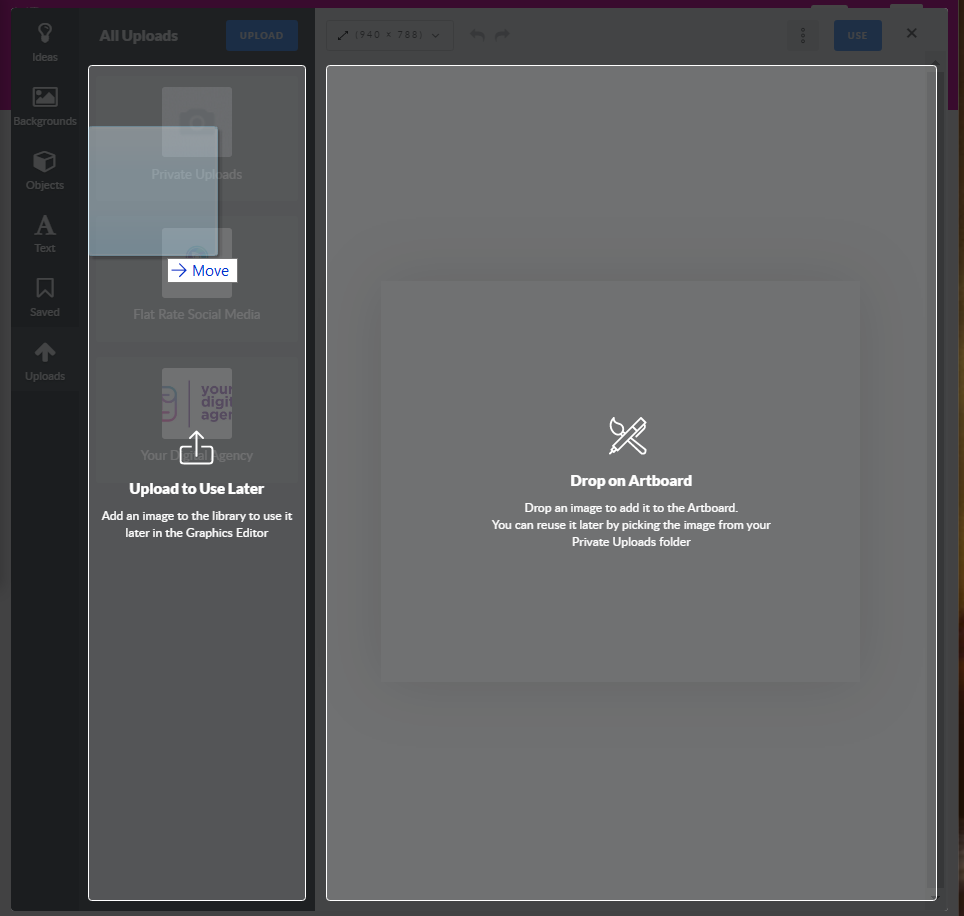
            </summary>
                                    <updated>2020-03-11T02:55:08+00:00</updated>
        </entry>
            <entry>
            <title><![CDATA[CONNECTING AN INSTAGRAM ACCOUNT TO A FACEBOOK PAGE]]></title>
            <link rel="alternate" href="https://support.yourdigitalagency.com.au/articles/connecting-an-instagram-account-to-a-facebook-page-1613" />
            <id>https://support.yourdigitalagency.com.au/1613</id>
            <author>
                <name><![CDATA[Leah Gibbs]]></name>
            </author>
            <summary type="html">
                <![CDATA[<p>To connect an Instagram account you must first connect the account to a Facebook page.
</p><p>
There are two methods of accomplishing this, and both are explained below. </p><p>
</p><h5>Using Facebook's Page interface
</h5><p>1.  On <a href="https://www.facebook.com/" target="_blank" rel="noreferrer noopener">Facebook</a>, navigate to the business' Facebook page.
</p><p>2.  Click <b>Settings</b>.
</p><p><img src="https://support-hub--assets.s3.eu-west-2.amazonaws.com/assets/268/images/T8VJf7vnmM23nqy97oCgKmMk1ih49bTf6KtbRMA9.png" style="width:100%;" alt="T8VJf7vnmM23nqy97oCgKmMk1ih49bTf6KtbRMA9.png" /><br /></p><p>3.  Click<b> Instagram</b> in the sidebar.  <br /></p><p><img src="https://support-hub--assets.s3.eu-west-2.amazonaws.com/assets/268/images/R9xgkrhYHLaCy6BKgEjm9buzytQsnC0uzVykSQyS.png" style="width:100%;" alt="R9xgkrhYHLaCy6BKgEjm9buzytQsnC0uzVykSQyS.png" /><br /></p><p>4.  Click <b>Log in</b>. <br /></p><p><img src="https://support-hub--assets.s3.eu-west-2.amazonaws.com/assets/268/images/2BgRl7bopjJUnttBt1sBK8DkOfXPKQqCZAeRGTRJ.png" style="width:100%;" alt="2BgRl7bopjJUnttBt1sBK8DkOfXPKQqCZAeRGTRJ.png" /><br /></p><p>5.  Enter your Instagram credentials. Click <b>Log In</b>. <br /></p><p><img src="https://support-hub--assets.s3.eu-west-2.amazonaws.com/assets/268/images/6kQvTE5xdPa5vsSmWSe4RaHGuoO3CsyZ6QXLllWt.png" style="width:100%;" alt="6kQvTE5xdPa5vsSmWSe4RaHGuoO3CsyZ6QXLllWt.png" /><br /></p><p><br /></p><h5>Using Facebook's Business Manager
</h5><p>1.  On Facebook's <a href="https://business.facebook.com/" target="_blank" rel="noreferrer noopener">Business Manager</a>, click <b>Business Settings</b>.
</p><p><img src="https://support-hub--assets.s3.eu-west-2.amazonaws.com/assets/268/images/JqXFIdX5iq9LOj6AWbmFpHbrxRJmxioaZcKFTl5F.png" style="width:100%;" alt="JqXFIdX5iq9LOj6AWbmFpHbrxRJmxioaZcKFTl5F.png" /><br /></p><p>2.  Click<b> Instagram</b> in the sidebar. <br /></p><p><img src="https://support-hub--assets.s3.eu-west-2.amazonaws.com/assets/268/images/tUOlp0j2miu9QvNV1x7QfRxbtah5eF7BwprePqFR.png" style="width:100%;" alt="tUOlp0j2miu9QvNV1x7QfRxbtah5eF7BwprePqFR.png" /><br /></p><p>3.  Click<b> Add</b>. <br /></p><p><img src="https://support-hub--assets.s3.eu-west-2.amazonaws.com/assets/268/images/iSt11zx4dtMhbeLbERwfinmKrD7YouXqgwcWoOSG.png" style="width:100%;" alt="iSt11zx4dtMhbeLbERwfinmKrD7YouXqgwcWoOSG.png" /><br /></p><p>4.  Enter the business' Instagram credentials. Click <b>Next</b>. </p><p><img src="https://support-hub--assets.s3.eu-west-2.amazonaws.com/assets/268/images/O62OgAVk7RuiE0cTlhEeIsOOFrTVBI0nu7V5LWBy.png" style="width:100%;" alt="O62OgAVk7RuiE0cTlhEeIsOOFrTVBI0nu7V5LWBy.png" /><i>Optional: Connect any relevant Ad accounts. If you do not wish to add one, click <b>Skip</b>. </i><br /></p><p>5.  Click <b>Done</b>.
</p><p><img src="https://support-hub--assets.s3.eu-west-2.amazonaws.com/assets/268/images/vozaGiNr11V6xZUimaFcR9cTjjHmPyLlw9VeQHTL.png" style="width:100%;" alt="vozaGiNr11V6xZUimaFcR9cTjjHmPyLlw9VeQHTL.png" /><br /></p>]]>
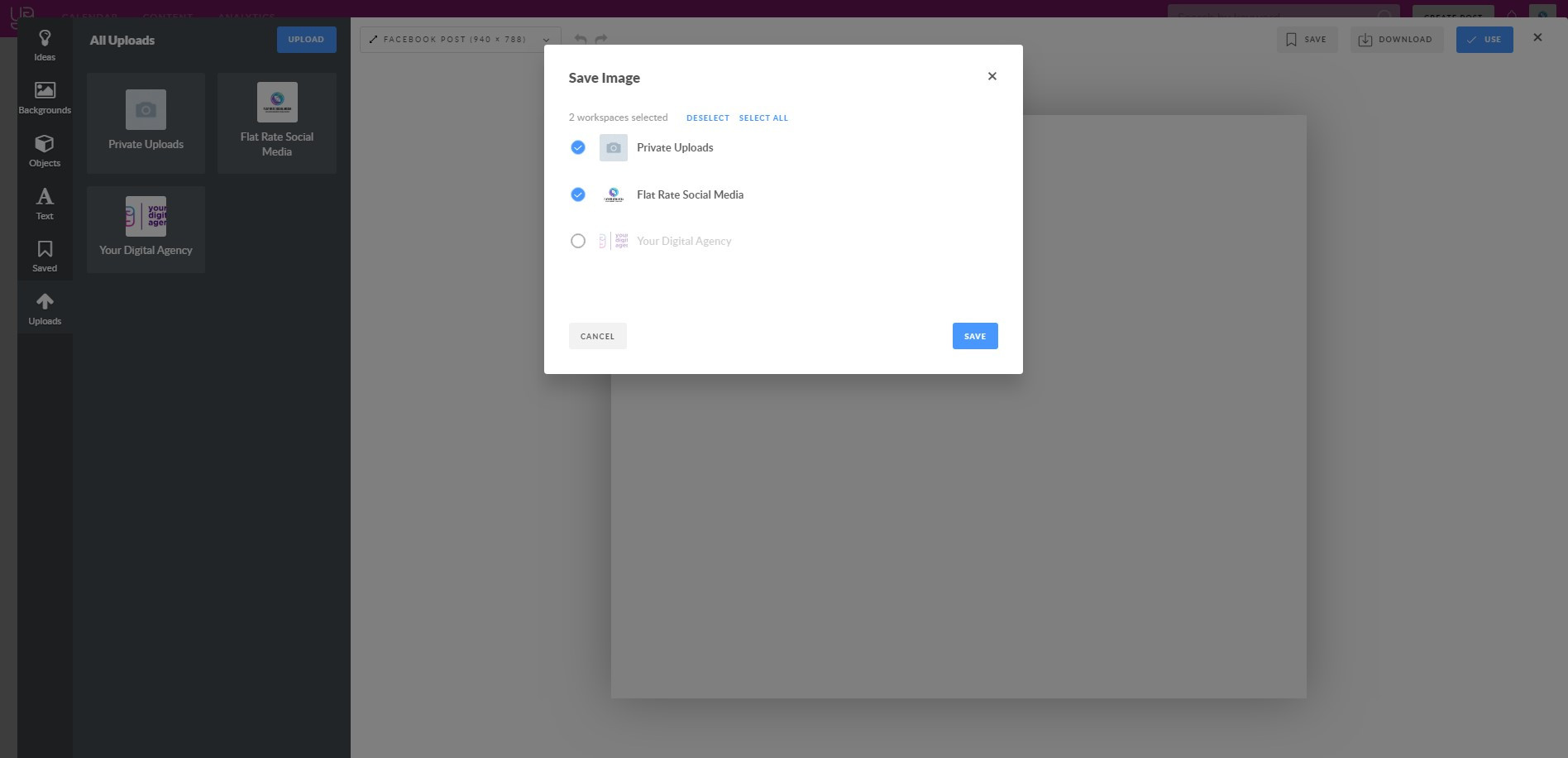
            </summary>
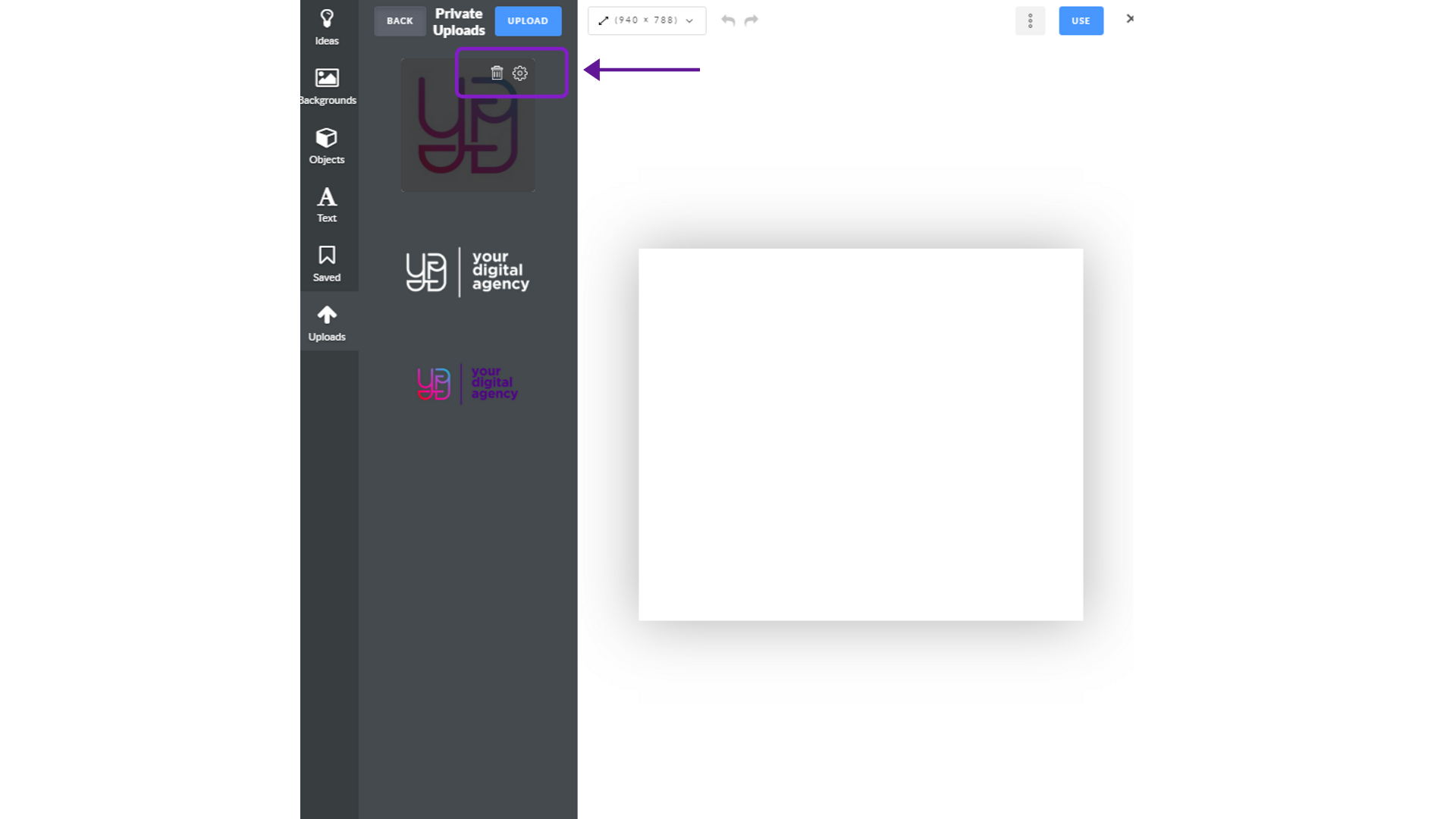
                                    <updated>2020-02-29T03:54:08+00:00</updated>
        </entry>
            <entry>
            <title><![CDATA[HOW DO I MAKE INSTAGRAM A BUSINESS ACCOUNT?]]></title>
            <link rel="alternate" href="https://support.yourdigitalagency.com.au/articles/how-do-i-make-instagram-a-business-or-professional-account-1614" />
            <id>https://support.yourdigitalagency.com.au/1614</id>
            <author>
                <name><![CDATA[Leah Gibbs]]></name>
            </author>
            <summary type="html">
                <![CDATA[<p>If your Instagram Social Marketing posts are failing with error <i>"user is not an Instagram business"</i> , these steps will help you make it a Business or Professional Account
</p><ul><li>Log in to the Instagram mobile app
</li><li>Go to your Profile
</li><li>Click on the 3 horizontal lines at the top right-hand corner of your profile page
</li><li>Click Settings at the bottom of the new page
</li><li>Click on Accounts
</li><li>Click on "Switch to Professional Account"
</li><li>Retry any failed posts <br /></li></ul>]]>
            </summary>
                                    <updated>2020-02-29T03:55:20+00:00</updated>
        </entry>
            <entry>
            <title><![CDATA[PINTEREST: HOW TO ADD A COLLABORATOR TO A BOARD]]></title>
            <link rel="alternate" href="https://support.yourdigitalagency.com.au/articles/pinterest-how-to-add-a-collaborator-to-a-board-1671" />
            <id>https://support.yourdigitalagency.com.au/1671</id>
            <author>
                <name><![CDATA[Leah Gibbs]]></name>
            </author>
            <summary type="html">
                <![CDATA[<p><b>Create a new business account
</b></p><p>If you don’t want to have your business account linked to your personal account, you can create a standalone business account. Keep in mind that you’ll have to sign in to your personal and business accounts separately.
</p><p>
If you have a personal account, log out </p><p>
Go to pinterest.com/business/create/ </p><p>
Fill out your email, password and business name then select a business type </p><p>Click Create account</p><p><br /></p><p><b>Convert a personal account to a business account
</b></p><p>Log in to your account
</p><p>Go to pinterest.com/business/convert/
</p><p>Fill out your business name and website then select a business type
</p><p>Click Create account</p><p><br /></p><p><b>Pinterest: Here’s How to Add a Collaborator to a Board.</b><br /></p><p>Did you know Pinterest allows you to add other users to your boards as collaborators, so that they can save Pins to the boards, as well? Our guide will show you how to add a collaborator to one of your boards.</p><p>Group boards are a great way to share ideas and plans. To create a group board, invite friends to one of your existing boards.
</p><p>
Invite friends to collaborate on your board </p><p>From your profile, click into a board <br /></p><p>Click Invite</p><p><img src="https://support-hub--assets.s3.eu-west-2.amazonaws.com/assets/268/images/hb2meMLyS8QGlCqeZlH2nXSn3otFvjwtVTVwoBj4.png" alt="hb2meMLyS8QGlCqeZlH2nXSn3otFvjwtVTVwoBj4.png" /><br /></p><p>
</p><p>Search by first and last name, username, or email address</p><p><img src="https://support-hub--assets.s3.eu-west-2.amazonaws.com/assets/268/images/gBSne8DBjwd9hYogYTVeNcirxlRBz8qWlMfoX6Qz.png" alt="gBSne8DBjwd9hYogYTVeNcirxlRBz8qWlMfoX6Qz.png" /><br /></p><p>
</p><p><b>OR  share the link</b></p><p><img src="https://support-hub--assets.s3.eu-west-2.amazonaws.com/assets/268/images/uBWqJ0umEWduedMjNcRP77GKsDEZhqhoZZRzKyzD.png" alt="uBWqJ0umEWduedMjNcRP77GKsDEZhqhoZZRzKyzD.png" /><br /></p><p>Click Invite next to the friends you want to add as collaborators
</p><p>Your friends will get an email or notification about your invite. To send an invitation off Pinterest, click Copy link. Your friends can accept or decline the invite after clicking the link.
</p><p>When using Pinterest on a computer, you can allow others to request to join your board. Some boards will allow you to request to join, based on the board owner's settings.
</p><p>
</p><p><b>Allow requests to join your board
</b></p><p>From your profile, click into a board <br /></p><p>Click Invite next to your profile picture  
</p><p>Click   next to “Invite group members”
</p><p>Turn on Group requests
</p><p>Click Done
</p><p>This will add a “Request to join” button to your board. You'll receive an email and a push notification when someone requests to join. You can accept or decline this request from your inbox.
</p><p>
</p><p><b>Request to join someone else's board </b><br /></p><p>Click into the board you'd like to join <br /></p><p>Click Request to join next to the board's “Follow” button
</p><p>If your request is approved, you'll receive an email and a push notification.</p><p><br /></p>]]>
            </summary>
                                    <updated>2020-02-28T09:34:13+00:00</updated>
        </entry>
            <entry>
            <title><![CDATA[WHAT TO DO IF YOU FORGET YOUR PASSWORD TO THE SOCIAL DASHBOARD?]]></title>
            <link rel="alternate" href="https://support.yourdigitalagency.com.au/articles/what-to-do-if-you-forget-your-password-to-the-social-dashboard-1672" />
            <id>https://support.yourdigitalagency.com.au/1672</id>
            <author>
                <name><![CDATA[Leah Gibbs]]></name>
            </author>
            <summary type="html">
                <![CDATA[<p>If you already are registered to a workspace you will not receive an email to join.
</p><p>
</p><p><b>An email is sent only once to create the account. The account is already created.
</b></p><p>
</p><p>Log in with your registered email address.
</p><p>
</p><p>Go to social.yourdigitalagency.com.au/en#
</p><p>
</p><p>If you do not remember the password then click "Forgot Password" and you will then receive instructions on the email to be sent.
</p><p>
<img src="https://support-hub--assets.s3.eu-west-2.amazonaws.com/assets/268/images/1jafeeZ8yXCHbrRHTd3n0Nu58OYY5A0vhrAT9j0i.png" alt="1jafeeZ8yXCHbrRHTd3n0Nu58OYY5A0vhrAT9j0i.png" /></p><p><b>If not received, check spam.</b></p>]]>
            </summary>
                                    <updated>2020-01-17T12:46:45+00:00</updated>
        </entry>
            <entry>
            <title><![CDATA[BOOST YOUR POSTS]]></title>
            <link rel="alternate" href="https://support.yourdigitalagency.com.au/articles/boost-your-posts-1702" />
            <id>https://support.yourdigitalagency.com.au/1702</id>
            <author>
                <name><![CDATA[Leah Gibbs]]></name>
            </author>
            <summary type="html">
                <![CDATA[<p>We're happy to share another huge update with you! Now you can boost your Facebook posts inside YDA Social Dashboard interface. Please explore the step-by-step tutorial below.
</p><p>Once your post is ready and you selected the Facebook pages where it will be promoted, you'll see the Boost Post button to the right.  <br /></p><p><img src="https://support-hub--assets.s3.eu-west-2.amazonaws.com/assets/268/images/awoStZBBS7NeyHZUJntBguVeoT1gtEDTsnK7y4Sz.png" style="width:100%;" alt="awoStZBBS7NeyHZUJntBguVeoT1gtEDTsnK7y4Sz.png" /></p><p>
After clicking it, you'll be redirected to the Boost setup menu. Fill out the necessary data following 3 major steps:  </p><ul><li>Campaign 
</li><li>Targeting 
</li><li>Budget
</li></ul><h5>Step 1: Campaign </h5><p>Choose the campaign mode: <b>Manage My Boosting</b> or <b>Propose Others To Boost</b>. Depending on the type, further requirements and settings will differ.
</p><p>
<img src="https://support-hub--assets.s3.eu-west-2.amazonaws.com/assets/268/images/NNcT810CRnfex3hCpBtgTcTJmtlSqRvUALS1jrgh.png" alt="NNcT810CRnfex3hCpBtgTcTJmtlSqRvUALS1jrgh.png" /></p><p><img src="https://support-hub--assets.s3.eu-west-2.amazonaws.com/assets/268/images/yXbJCMPv1TBN2RYP0UVN2sRNUxtvXGkZkdsFPJuZ.png" alt="yXbJCMPv1TBN2RYP0UVN2sRNUxtvXGkZkdsFPJuZ.png" />. In this mode you are the <b><i>Manage My Boosting.</i></b>  In this mode you are the one in charge of boosting settings and payments. Boosting will be charged from your Facebook Ads Manager account. When the post is published and approved by Facebook, boosting will be activated. </p><p><b><i>Propose Others To Boost.</i></b> In this mode the post will be proposed for approval along with the boosting settings. The person who approves the post has to add Facebook Ad account, select payment method and change boosting settings if needed. Boosting will be activated after the post is approved as well as moderated by Facebook. </p><p>
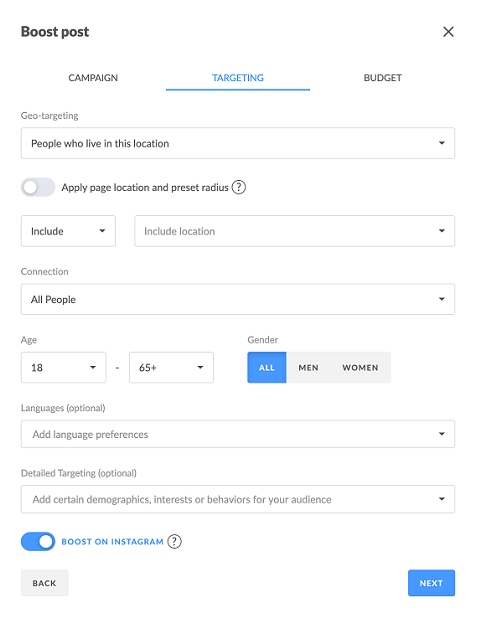
<b>Facebook Ad Account</b> </p><p>Choose one of your Ad Accounts connected to your Facebook profile. If there is no Ad Account connected to your Facebook profile, you'll be redirected to the Ads Manager to create an Ad account. <br /></p><p>If there is no Facebook personal profile associated with your YDA Social Dashboard account, you'll be asked to.  <br /></p><p>
<b>Payment Method</b> </p><p>
As for a payment method you can choose between a card or PayPal. After clicking the Change button, you'll be forwarded to the billing settings of your Facebook Ads Manager. If there is no card or PayPal account on file, you'll be asked to connect one.  </p><p><span><b>Step 2: Targeting </b></span></p><p>On this stage, you define the audience who are most likely to notice your ad.
</p><p><img src="https://support-hub--assets.s3.eu-west-2.amazonaws.com/assets/268/images/lnKQySzTnQUrygIU5AkBbOJ3prjS9jE7TFTdvhoh.png" alt="lnKQySzTnQUrygIU5AkBbOJ3prjS9jE7TFTdvhoh.png" /></p><p>
<b>Geo-targeting </b></p><p>
Here are the options in the Geo-targeting box: </p><ul><li>Everyone in this location;
</li><li>People who live in this location;
</li><li>People recently in this location;
</li><li>People travelling in this location.
</li></ul><p>'Everyone in this location' includes such categories as 'People who live in this location' and 'People recently in this location'. <br /></p><p>Depending on the number of pages chosen, address field will include additional options. If one page is selected, you can: <br /></p><ul><li>Use the location that is set up in your Facebook page. Don't forget to select the radius, hitting the appropriate button; <br /></li></ul><p>
<img src="https://support-hub--assets.s3.eu-west-2.amazonaws.com/assets/268/images/AQVNfgQhvEYBCcRwGtbTHlMnNnZielNg5T77mNWt.png" alt="AQVNfgQhvEYBCcRwGtbTHlMnNnZielNg5T77mNWt.png" /></p><ul><li>Choose the location manually including or excluding countries, cities, states, regions, but you can't select the exact address due to the API restriction.
</li></ul><p>
<img src="https://support-hub--assets.s3.eu-west-2.amazonaws.com/assets/268/images/4vxnFVsbFGPNsM71C4LquNVFHiayqqfOBg00oJjd.png" alt="4vxnFVsbFGPNsM71C4LquNVFHiayqqfOBg00oJjd.png" /></p><p>If several pages are selected, geo-targeting is set dynamically based on your Facebook page address.
</p><p>
<img src="https://support-hub--assets.s3.eu-west-2.amazonaws.com/assets/268/images/ldIc2fmqmGqe5lvUzXxRMU4AHayx3WRlZKkUw2e1.png" alt="ldIc2fmqmGqe5lvUzXxRMU4AHayx3WRlZKkUw2e1.png" /></p><p>
Radius in the Page Location section can range from 1 to 50 miles or 80 km depending on the language of your YDA Social Dashboard account.  </p><p><b>Connection <br /></b></p><p>
Here are the options to choose from in this category: </p><ul><li>All people;
</li><li>People who like your page;
</li><li>Exclude people who like your page;
</li><li>Friends of people who like your page.
</li></ul><p><b>Detailed Targeting  <br /></b></p><p>
In this category you can specify the interests of your audience. Just start typing and you'll get some suggestions. But note that in the Propose Others To Boost mode this won't be an option.  </p><p><b>Boost on Instagram <br /></b></p><p>It means the post will be shown on Instagram as well. If your Instagram page is connected to your Facebook account, the ad will lead to it. If not, it will lead to your Facebook page.
</p><h5>
Step 3: Budget </h5><p><img src="https://support-hub--assets.s3.eu-west-2.amazonaws.com/assets/268/images/Zz5y6gjduWTr97GyjKXtxNCEfhyLy74RbnuWiBVE.png" alt="Zz5y6gjduWTr97GyjKXtxNCEfhyLy74RbnuWiBVE.png" /></p><p><b>Budget</b>
</p><p>It's mandatory to fill out the budget limit. The minimum should be more than $1 multiplied by the number of the campaign days. The budget limit can be changed by that user who has access to the Ad account.  <br /></p><p>If you want to change the currency, it can be done in Facebook Ad account settings, but not in the YDA Social Dashboard interface. If you choose Propose Others To Boost, currency doesn't matter, since another person will set the budget limit and actually pay. <br /></p><p><b>Start Boosting <br /></b></p><p>Once the post is published, its promotion will start when Facebook moderates it. There may be some delays ranging from 10 minutes to 2 days. <br /></p><p><b>Finish Boosting <br /></b></p><p>This field is mandatory. The number listed here means the number of campaign days. The post-promotion will end at the same time when it started. For example, if boosting started on January 14th at 6 pm and you want the campaign to last for 14 days, then the promotion will finish on January 24th at 6 pm. <br /></p><p>IMPORTANT <br /></p><p><b>If for any reason you want to delete the boosted post, its promotion will stop automatically.  <br /></b></p><p><b>If you suggested a boosted post for several pages and you want to edit the post settings, you'll have to make the edits on each page separately. As a workaround, delete the post with the Bulk Delete option and repeat the flow making the necessary changes.  <br /></b></p><p><br /></p><p>
</p><p><br /></p>]]>
            </summary>
                                    <updated>2020-10-24T10:01:41+00:00</updated>
        </entry>
            <entry>
            <title><![CDATA[BOOSTED POSTS: BASICS]]></title>
            <link rel="alternate" href="https://support.yourdigitalagency.com.au/articles/boosted-posts-basics-1703" />
            <id>https://support.yourdigitalagency.com.au/1703</id>
            <author>
                <name><![CDATA[Leah Gibbs]]></name>
            </author>
            <summary type="html">
                <![CDATA[<p>In this article we'd like to explain what boosted posts' icons and statuses mean. <br /></p><p>To start, choose the boosting type: <b><i>Manage My Boosting</i></b> or <b><i>Propose Others To Boost.</i></b> Depending on it, further requirements and settings will differ. <br /></p><p>
Under Manage My Boosting, a boosted post is marked with the blue rocket icon in the Calendar as shown below. </p><p><img src="https://support-hub--assets.s3.eu-west-2.amazonaws.com/assets/268/images/1ggXXop3kyokLbXSicwVY0oFnJqEMrpOeEY9TwxR.png" style="width:100%;" alt="1ggXXop3kyokLbXSicwVY0oFnJqEMrpOeEY9TwxR.png" /></p><p>
</p><p>Under Propose Others To Boost, a boosted post will be proposed for approval, so it will be highlighted in orange color and it will be marked with the pink rocket icon as pictured below. 
</p><p><img src="https://support-hub--assets.s3.eu-west-2.amazonaws.com/assets/268/images/gfHR2tTaT14RmKoGjyFBjh8WpXbhL9iGaUxaz4sm.png" style="width:100%;" alt="gfHR2tTaT14RmKoGjyFBjh8WpXbhL9iGaUxaz4sm.png" /><br /></p><p>Hitting on Approve, you will be informed that the post is suggested for boosting, so a  payment method must be added. <br /></p><p>
<img src="https://support-hub--assets.s3.eu-west-2.amazonaws.com/assets/268/images/yJE6FuJ7pT55jYXj3tXxbD88RXpLKrD7kuA8iP3I.png" alt="yJE6FuJ7pT55jYXj3tXxbD88RXpLKrD7kuA8iP3I.png" /></p><p>
If for any reason you want to decline the boosting, click the <b><i>Approve post without boosting</i></b> button. Thus, the boosting settings will be discarded, but the post will be approved and, as a result, published. </p><p>Upon clicking on <b><i>Add Payment Method</i></b>, you will be redirected to the billing form.  <br /></p><p>If you approve the suggested settings for boosting, feel free to proceed with the payment. In case you want to change any of the settings offered, you can do it. <br /></p><p>Once the boosting setup is completed, both the post and its promotion will be considered as approved on YDA Social Dashboard end. Once the post is moderated by Facebook, that may take maximum up to 2 days, it will be live.  <br /></p><p>IMPORTANT: <br /></p><p><b>If for any reason you want to delete the boosted post, its promotion will stop automatically.  <br /></b></p><p><b>If you suggested a boosted post for several pages and you want to edit the post settings, you'll have to make the edits on each page separately. As a work around, delete the post with the Bulk Delete option and repeat the flow making the necessary changes.</b> <br /></p><p>Here is a list of statuses that boosted post can be assigned. Please, be familiar with them: <br /></p><p><b>Waiting for setup</b> - the post's set up is to be completed; <br /></p><p><b>Waiting for payment method</b> - the post hasn't been approved yet (under the Propose Others To Boost mode);
</p><p><b>Waiting for publishing</b> - the boost setup is complete, but the post hasn't been saved yet or it may be scheduled, but not actually published yet.  
</p><p><b>Post wasn’t boosted due to an error</b> - there was an error caused by many reasons, so you need to reach out to the Customer Support Service for investigation;
</p><p><b>Active </b>- the post promotion is up an running smoothly;
</p><p><b>Paused, Adset paused, Campaign paused</b> - the post promotion has been paused. Note that it can be done in the Facebook Ads Manager, but not yet in YDA Social Dashboard interface;
</p><p><b>Adset paused</b> - this status means the same as the one above;
</p><p><b>Deleted</b> - either the boosting settings or the post itself were deleted;
</p><p><b>Archived</b> - the ad has been archived;
</p><p><b>Pending Review</b> - the post is being moderated by Facebook;
</p><p><b>Disapproved</b> - the post has been declined by Facebook. Head over to your Ads Manager to know the reason;
</p><p><b>Preapproved</b> - the post will be approved by Facebook;
</p><p><b>Pending billing info</b> - the payment is being processed;
</p><p><b>In process</b> - the boosting settings are being saved in Facebook;
</p><p><b>With issue</b> - there's something wrong with the post. Head over to the Ads Manager to know the reason.
</p><p>In order to see the boosting settings of the post, click on it and it will expand to a larger view as pictured below.  <br /></p><p>
<img src="https://support-hub--assets.s3.eu-west-2.amazonaws.com/assets/268/images/2LXRE4UKOEYaWiSjRaRbjQioLtTk7T1JLm48mb9J.png" alt="2LXRE4UKOEYaWiSjRaRbjQioLtTk7T1JLm48mb9J.png" /></p><p>
If you have any further questions, please email us at hello@yourdigitalagency.com.au. </p>]]>
            </summary>
                                    <updated>2020-02-28T00:51:13+00:00</updated>
        </entry>
            <entry>
            <title><![CDATA[WHAT ARE THE DIFFERENT FACEBOOK PAGE ROLES AND WHAT CAN THEY DO?]]></title>
            <link rel="alternate" href="https://support.yourdigitalagency.com.au/articles/what-are-the-different-page-roles-and-what-can-they-do-1708" />
            <id>https://support.yourdigitalagency.com.au/1708</id>
            <author>
                <name><![CDATA[Leah Gibbs]]></name>
            </author>
            <summary type="html">
                <![CDATA[<p>There are 6 different types of roles for people who manage Pages. When you create a Page, you automatically become the Page's admin, which means you can change how the Page looks and publish as the Page. Only an admin can <a href="https://support.yourdigitalagency.com.au/articles/1709/edit" target="_blank" rel="noreferrer noopener">assign roles and change others' roles</a>.
</p><p>Learn more about <a href="https://support.yourdigitalagency.com.au/articles/1710/edit" target="_blank" rel="noreferrer noopener">Page roles for connected Pages and Instagram accounts</a>.
</p><p>Keep in mind that multiple people can have roles on a Page, but each person needs their own personal Facebook account.
</p><p>The table below outlines the 6 Page roles (across) and what they're able to do (down):
</p><table class="table table-bordered"><tr><td><br /></td><td>Admin</td><td>Editor</td><td>Moderator</td><td>Advertiser</td><td>Analyst</td><td>Jobs Manager</td></tr><tr><td>Manage Page roles and settings </td><td>✔️</td><td><br /></td><td><br /></td><td><br /></td><td><br /></td><td><br /></td></tr><tr><td>Edit the Page and add apps </td><td>✔️</td><td>✔️</td><td><br /></td><td><br /></td><td><br /></td><td><br /></td></tr><tr><td>Create and delete posts as the Page</td><td>✔️</td><td>✔️</td><td><br /></td><td><br /></td><td><br /></td><td><br /></td></tr><tr><td>Send messages as the Page </td><td>✔️</td><td>✔️</td><td>✔️</td><td><br /></td><td><br /></td><td><br /></td></tr><tr><td>Respond to and delete comments and posts to the Page </td><td>✔️</td><td>✔️</td><td>✔️</td><td><br /></td><td><br /></td><td><br /></td></tr><tr><td>Remove and ban people from the Page </td><td>✔️</td><td>✔️</td><td>✔️</td><td><br /></td><td><br /></td><td><br /></td></tr><tr><td>Create ads, promotions or boosted posts </td><td>✔️</td><td>✔️</td><td>✔️</td><td>✔️</td><td><br /></td><td>✔️</td></tr><tr><td>View insights</td><td>✔️</td><td>✔️</td><td>✔️</td><td>✔️</td><td>✔️</td><td>✔️</td></tr><tr><td>View Page Quality tab </td><td>✔️</td><td>✔️</td><td>✔️</td><td>✔️</td><td>✔️</td><td>✔️</td></tr><tr><td>See who published as the Page</td><td>✔️</td><td>✔️</td><td>✔️</td><td>✔️</td><td>✔️</td><td>✔️</td></tr><tr><td>Publish and manage jobs</td><td>✔️</td><td>✔️</td><td><br /></td><td><br /></td><td><br /></td><td>✔️</td></tr><tr><td>Turn on job features for a post </td><td>✔️</td><td>✔️</td><td><br /></td><td><br /></td><td><br /></td><td>✔️</td></tr></table><p><br /></p>]]>
            </summary>
                                    <updated>2020-02-28T09:31:32+00:00</updated>
        </entry>
            <entry>
            <title><![CDATA[HOW DO I MANAGE ROLES FOR MY FACEBOOK PAGE?]]></title>
            <link rel="alternate" href="https://support.yourdigitalagency.com.au/articles/how-do-i-manage-roles-for-my-facebook-page-1709" />
            <id>https://support.yourdigitalagency.com.au/1709</id>
            <author>
                <name><![CDATA[Leah Gibbs]]></name>
            </author>
            <summary type="html">
                <![CDATA[<p>You'll need to be an admin to manage roles for your Page. Learn how to <a href="https://support.yourdigitalagency.com.au/articles/1711/edit" target="_blank" rel="noreferrer noopener">see what your role is</a>.
</p><p>There's no limit to the number of people who can have a role on a Page. Learn more about <a href="https://support.yourdigitalagency.com.au/articles/1708/edit" target="_blank" rel="noreferrer noopener">what each Page role can do</a>.
</p><h5>Give Someone a Role </h5><p>If you're an admin:
</p><ol><li>Click <b>Settings</b> at the top of your Page.
</li><li>Click <b>Page Roles</b> in the left column.
</li><li>Type a name or email in the box and select the person from the list that appears.
</li><li>Click <b>Editor </b>to select a role from the dropdown menu.
</li><li>Click <b>Add</b> and enter your password to confirm.
</li></ol><p>Keep in mind that if you're not friends with the person you're adding, they'll have to accept your invite before they can start helping you manage your Page. <br /></p><h5>Remove Someone Who Has a Role </h5><p>If you're an admin:
</p><ol><li>Click <b>Settings</b> at the top of your Page.
</li><li>Click <b>Page Roles</b> in the left column.
</li><li>Click <b>Edit</b> next to the person you want to remove, and then click <b>Remove</b>.
</li><li>Click <b>Confirm</b>. You may need to enter your password.
</li></ol><p>You can always remove yourself from a Page, but if you're Page's only admin, you'll need to add another admin first. <br /></p><h5>
Change Someone's Role </h5><p>If you're an admin:
</p><ol><li>Click <b>Settings</b> at the top of your Page.
</li><li>Click <b>Page Roles</b> in the left column.
</li><li>Click <b>Edit</b> next to the name of the person whose role you want to change and then select a new role from the dropdown menu.
</li><li>Click <b>Save</b>. You may need to enter your password to confirm.
</li></ol><p>Note: If you're a new admin, keep in mind that you may need to wait 7 days before you can remove or demote another admin. <br /></p><p><br /></p>]]>
            </summary>
                                    <updated>2021-06-29T02:44:07+00:00</updated>
        </entry>
            <entry>
            <title><![CDATA[WHAT HAPPENS WHEN I CONNECT MY FACEBOOK PAGE AND INSTAGRAM ACCOUNT?]]></title>
            <link rel="alternate" href="https://support.yourdigitalagency.com.au/articles/what-happens-when-i-connect-my-facebook-page-and-instagram-account-1710" />
            <id>https://support.yourdigitalagency.com.au/1710</id>
            <author>
                <name><![CDATA[Leah Gibbs]]></name>
            </author>
            <summary type="html">
                <![CDATA[<p>You must be an admin or editor to connect or disconnect your Facebook Page and Instagram account. Keep in mind that when an editor connects your Page to an Instagram account you may not see all of these options.
</p><p>Learn about connecting your Page to a WhatsApp account.
</p><p>When you connect your Facebook Page and Instagram account,
</p><ul><li>Page admins, editors and moderators can read and respond to Instagram comments and Direct messages from their Facebook Page Inbox.
</li><li>Page admins, editors, moderators and advertisers can create Instagram ads from Facebook, manage comments on those ads.
</li><li>Anyone logged into the connected Instagram account can share Instagram posts to your Page.
</li><li>Page admins, editors and moderators can view and manage customers’ Instagram contact information in the contacts tab on Facebook.
</li></ul><p>If you connected your Facebook Page to an Instagram business account: <br /></p><ul><li>Page admins and editors can share Facebook Page posts to Instagram.
</li><li>Page admins and editors can add to your Page’s story from Instagram.
</li><li>Page admins can promote posts and create Instagram ads using Instagram Promote.
</li><li>Page admins and editors and anyone logged into the connected Instagram account can add a button to Instagram for booking appointments on Facebook.
</li><li>Page admins and editors can sync business contact info, such as email address, phone number and business address, between their Facebook Page and an Instagram business account. Updates made on one app (example: Facebook) will appear on the other app (example: Instagram).
</li><li>If the Page is enrolled with Facebook's Charitable Giving Tools, anyone with a role on the Page can let people add donation stickers to Instagram Stories.
</li></ul><p>You can disconnect your Facebook Page and Instagram account from your Page settings. <br /></p><p><br /></p>]]>
            </summary>
                                    <updated>2020-03-10T23:39:30+00:00</updated>
        </entry>
            <entry>
            <title><![CDATA[HOW DO I SEE WHAT MY ROLE IS ON A FACEBOOK PAGE?]]></title>
            <link rel="alternate" href="https://support.yourdigitalagency.com.au/articles/how-do-i-see-what-my-role-is-on-a-facebook-page-1711" />
            <id>https://support.yourdigitalagency.com.au/1711</id>
            <author>
                <name><![CDATA[Leah Gibbs]]></name>
            </author>
            <summary type="html">
                <![CDATA[<p>Your role determines what you can do on a Page. To see your role:
</p><ol><li>Click <b>Settings</b> at the top of your Page.
</li><li>Click <b>Page Roles</b> in the left column.
</li></ol><p>From here, you can see your role listed below your name. <br /></p><p><br /></p>]]>
            </summary>
                                    <updated>2020-02-28T09:32:57+00:00</updated>
        </entry>
            <entry>
            <title><![CDATA[CLAIM YOUR WEBSITE]]></title>
            <link rel="alternate" href="https://support.yourdigitalagency.com.au/articles/claim-your-website-1738" />
            <id>https://support.yourdigitalagency.com.au/1738</id>
            <author>
                <name><![CDATA[Leah Gibbs]]></name>
            </author>
            <summary type="html">
                <![CDATA[<p>Claim your website to get access to website analytics and let people know where they can find more of your content. Your profile picture will show up next to any Pins that come from your site, and a small globe icon will appear next to your website URL on your profile.
</p><p>
To claim your website, you’ll need to add a meta tag or upload an HTML file to your website’s HTML code. You can claim one website on your profile and a website can only be claimed by one Pinterest account. </p><p><a href="https://support.yourdigitalagency.com.au/articles/1748/edit" target="_blank" rel="noreferrer noopener">Learn how to claim your Instagram, Etsy, or YouTube accounts</a>. <br /></p><h4>Before you begin </h4><p>You or your business must own the second-level domain (like example.com) or a subdomain (like ads.example.com). Unless the subdomain routes to the same place as the second-level domain (if <a href="http://www.example.com" target="_blank" rel="noreferrer noopener">www.example.com</a> is the same as example.com), it will be treated as a separate domain in our system.
</p><h5>
Add a meta tag to your website </h5><ol><li>Log in to Pinterest from a web browser and click  to open your menu
</li><li>Select <b>Settings</b>
</li><li>Click <b>Claim</b>
</li><li>In the “Claim website” section, enter your website URL and click <b>Claim</b> 
</li><li>Select “Add HTML tag”
</li><li>Copy the tag and click <b>Next</b>
</li><li>Go to the index.html file of your website and add the tag to the &lt;head&gt; section before the &lt;body&gt; section
</li><li>Go back to Pinterest and click <b>Submit</b>
</li><li>Click <b>Done
</b></li></ol><h5>Upload an HTML file to your website </h5><ol><li>Log in to Pinterest from a web browser and click  to open your menu
</li><li>Select <b>Settings</b>
</li><li>Click <b>Claim</b>
</li><li>In the “Claim website” section, enter your website URL and click <b>Claim</b> 
</li><li>Select “Upload HTML file”
</li><li>Click <b>Download</b> then click <b>Next</b>
</li><li>Upload the HTML file to your web server at the root folder - if you upload to a subfolder we won’t be able to access it
</li><li>Go back to Pinterest and click <b>Submit</b>
</li><li>Click <b>Done
</b></li></ol><p>After you click <b>Submit</b>, we’ll automatically check for the meta tag and claim your website. Once your site has been claimed, you can remove the HTML tag or file. Only making changes to your website in your Pinterest settings will remove the claim. <br /></p><h5>Instructions for popular website hosts</h5><table class="table table-bordered"><tr><td><b>Host</b></td><td><b>Method</b></td><td><b>Instructions</b></td></tr><tr><td>Big Cartel</td><td>Meta tag</td><td><a href="https://help.bigcartel.com/edit-your-theme-code" target="_blank" rel="noreferrer noopener">https://help.bigcartel.com/edit-your-theme-code</a></td></tr><tr><td>Big Commerce</td><td>Meta tag</td><td><a href="https://support.bigcommerce.com/articles/Public/Advertising-with-Pinterest" target="_blank" rel="noreferrer noopener">https://support.bigcommerce.com/articles/Public/Advertising-with-Pinterest</a></td></tr><tr><td>Blogspot</td><td>Meta tag</td><td><a href="https://blog.tailwindapp.com/pinterest-site-verification-a-step-by-step-guide/" target="_blank" rel="noreferrer noopener">https://blog.tailwindapp.com/pinterest-site-verification-a-step-by-step-guide/</a></td></tr><tr><td>Bluehost</td><td>HTML file</td><td><a href="https://my.bluehost.com/hosting/help/2237" target="_blank" rel="noreferrer noopener">https://my.bluehost.com/hosting/help/2237</a></td></tr><tr><td>FatCow</td><td>HTML file</td><td><a href="http://www.fatcow.com/help/article/ftp-how-to-connect-using-file-manager" target="_blank" rel="noreferrer noopener">http://www.fatcow.com/help/article/ftp-how-to-connect-using-file-manager</a></td></tr><tr><td>GoDaddy</td><td>HTML file</td><td><a href="https://www.godaddy.com/help/upload-files-3239" target="_blank" rel="noreferrer noopener">https://www.godaddy.com/help/upload-files-3239</a></td></tr><tr><td>HostGator</td><td>HTML file</td><td><a href="https://support.hostgator.com/articles/cpanel/how-to-upload-a-file-using-the-file-manager" target="_blank" rel="noreferrer noopener">https://support.hostgator.com/articles/cpanel/how-to-upload-a-file-using-the-file-manager</a></td></tr><tr><td>HostMetro</td><td>HTML file</td><td><a href="https://secure.hostmetro.com/billing/knowledgebase.php?action=displayarticle&amp;id=11" target="_blank" rel="noreferrer noopener">https://secure.hostmetro.com/billing/knowledgebase.php?action=displayarticle&amp;id=11</a></td></tr><tr><td>iPage</td><td>HTML file</td><td><a href="http://members.ipage.com/knowledgebase/read_article.bml?kbid=7410" target="_blank" rel="noreferrer noopener">http://members.ipage.com/knowledgebase/read_article.bml?kbid=7410</a></td></tr><tr><td>Prestashop</td><td>Meta tag</td><td><a href="https://dh42.com/blog/free-prestashop-pinterest-verification-module/" target="_blank" rel="noreferrer noopener">https://dh42.com/blog/free-prestashop-pinterest-verification-module/</a></td></tr><tr><td>StoreEnvy</td><td>Meta tag</td><td><a href="https://support.storenvy.com/customer/portal/articles/1090698-how-do-i-edit-the-html-and-css-for-my-store" target="_blank" rel="noreferrer noopener">https://support.storenvy.com/customer/portal/articles/1090698-how-do-i-edit-the-html-and-css-for-my-store</a></td></tr><tr><td>Shopify</td><td>Meta tag or HTML file</td><td><a href="https://help.shopify.com/themes/customization/store/verify-domain-with-third-party-services" target="_blank" rel="noreferrer noopener">https://help.shopify.com/themes/customization/store/verify-domain-with-third-party-services</a></td></tr><tr><td>SiteGround</td><td>HTML file</td><td><a href="https://www.siteground.com/tutorials/cpanel/file-manager/" target="_blank" rel="noreferrer noopener">https://www.siteground.com/tutorials/cpanel/file-manager/</a></td></tr><tr><td>Squarespace</td><td>Connect accounts</td><td><a href="https://support.squarespace.com/hc/en-us/articles/206543577-Using-Pinterest-with-Squarespace#toc-connect-your-pinterest-account" target="_blank" rel="noreferrer noopener">https://support.squarespace.com/hc/en-us/articles/206543577-Using-Pinterest-with-Squarespace#toc-connect-your-pinterest-account</a></td></tr><tr><td>Tumblr</td><td>Meta tag or HTML file</td><td><a href="https://tumblr.zendesk.com/hc/articles/230778847-Custom-HTML" target="_blank" rel="noreferrer noopener">https://tumblr.zendesk.com/hc/articles/230778847-Custom-HTML</a></td></tr><tr><td>Weebly</td><td>Meta tag</td><td><a href="https://hc.weebly.com/hc/articles/202015948-Verify-Your-Site-with-Pinterest" target="_blank" rel="noreferrer noopener">https://hc.weebly.com/hc/articles/202015948-Verify-Your-Site-with-Pinterest</a></td></tr><tr><td>Wix</td><td>Meta tag</td><td><a href="https://support.wix.com/article/verifying-your-domain-with-pinterest" target="_blank" rel="noreferrer noopener">https://support.wix.com/article/verifying-your-domain-with-pinterest</a></td></tr><tr><td>Wordpress</td><td>Meta tag</td><td><a href="https://support.wordpress.com/webmaster-tools/#pinterest-site-verification" target="_blank" rel="noreferrer noopener">https://support.wordpress.com/webmaster-tools/#pinterest-site-verification</a></td></tr><tr><td>Zenfolio</td><td>Meta tag</td><td><a href="https://www.zenfolio.com/z/help/support-center#/customer/portal/articles/1462731" target="_blank" rel="noreferrer noopener">https://www.zenfolio.com/z/help/support-center#/customer/portal/articles/1462731</a></td></tr></table><p><br /></p>]]>
            </summary>
                                    <updated>2020-03-04T09:57:26+00:00</updated>
        </entry>
            <entry>
            <title><![CDATA[TRACK CONVERSIONS WITH PINTEREST TAG]]></title>
            <link rel="alternate" href="https://support.yourdigitalagency.com.au/articles/track-conversions-with-pinterest-tag-1740" />
            <id>https://support.yourdigitalagency.com.au/1740</id>
            <author>
                <name><![CDATA[Leah Gibbs]]></name>
            </author>
            <summary type="html">
                <![CDATA[<p>The Pinterest tag is a piece of JavaScript code you put on your website to gather conversion insights and build audiences to target based on actions they’ve taken on your site.
</p><p>Learn how to setup your Pinterest tag with <a href="https://support.yourdigitalagency.com.au/articles/1749/edit" target="_blank" rel="noreferrer noopener">this guide</a>. If you use the Pinterest tag, you'll need to disclose your use of conversion tracking on your website, as described in our <a href="https://policy.pinterest.com/en/advertising-guidelines?collapsible-element=17" target="_blank" rel="noreferrer noopener">Advertising Standards</a>. <br /></p><p>If you are a user of the following websites, click on the name to see the site specific guide: <br /></p><ul><li><a href="https://support.yourdigitalagency.com.au/articles/1750/edit" target="_blank" rel="noreferrer noopener">Google tag manager</a> <br /></li><li><a href="https://business.pinterest.com/sub/business/guides/Pinterest-Tag-on-Tealium.pdf" target="_blank" rel="noreferrer noopener">Tealium</a> <br /></li><li><a href="https://support.yourdigitalagency.com.au/articles/1751/edit" target="_blank" rel="noreferrer noopener">Shopify</a> <br /></li><li><a href="https://support.yourdigitalagency.com.au/articles/1752/edit" target="_blank" rel="noreferrer noopener">Squarespace</a> <br /></li><li><a href="https://support.yourdigitalagency.com.au/articles/1753/edit" target="_blank" rel="noreferrer noopener">BigCommerce</a> <br /></li><li><a href="https://www.apptrian.com/pinterest-pixel-for-magento" target="_blank" rel="noreferrer noopener">Magento (Apptrian)</a> <br /></li><li><a href="https://docs.woocommerce.com/document/pinterest-for-woocommerce/?_ga=2.72805587.1746652699.1564400410-653765742.1556003998" target="_blank" rel="noreferrer noopener">WooCommerce</a> <br /></li><li><a href="https://support.ecwid.com/hc/en-us/articles/360000583185-Pinterest-Tag" target="_blank" rel="noreferrer noopener">Ecwid</a> <br /></li></ul><p>If you're using Wordpress or Woocommerce, you can download the <a href="https://www.pixelyoursite.com/how-to-add-your-pinterest-tag-with-pixelyoursite" target="_blank" rel="noreferrer noopener">free "PixelYourSite" extension</a> to add the Pinterest tag to your website. <br /></p><h5>Track conversions with Pinterest Tag </h5><p>You can define a conversion event by a specific action someone takes on your website, like signing up for your newsletter or buying a product. You can get conversion reporting for 9 types of activity on your website.
</p><ul><li><b>PageVisit</b>: Record views of primary pages, such as product pages and article pages 
</li><li><b>ViewCategory</b>: Record views of category pages
</li><li><b>Search</b>: Record searches on your website 
</li><li><b>AddToCart</b>: Record when items are added to shopping carts
</li><li><b>Checkout</b>: Record completed transactions
</li><li><b>WatchVideo</b>: Record video views
</li><li><b>Signup</b>: Record sign ups for your products or services
</li><li><b>Lead</b>: Record interest in product or service
</li><li><b>Custom</b>: Use this event name to track a special event that you want to include in your conversion reporting.
</li></ul><p>See the full <a href="https://support.yourdigitalagency.com.au/articles/1749/edit" target="_blank" rel="noreferrer noopener">implementation guide</a> on how to set up specific events in your Pinterest Tag. Double check that the base code and corresponding event code is on every page that you want to track conversions, and that the base code fires first before the event code. Once the codes are added, give it 5 minutes and then confirm in Conversion Manager that the tags are properly implemented. <br /></p><h5>Verify traffic </h5><p>Click into your Pinterest Tag at <a href="https://ads.pinterest.com/conversion_tags/" target="_blank" rel="noreferrer noopener">https://ads.pinterest.com/conversion_tags/</a>. On the left you’ll see a section for ‘Tag Event History’. Here you’ll see all event codes you’ve successfully added. Next to the event code you’ll see how many times we’ve seen the tag fire in the last 24 hours as well as the timestamp of the most recent event fire in UTC time. The data in the tag event history is updated every 5 minutes.
</p><p>
Keep in mind these metrics are total tag fires — every time someone loads the page where your tag is placed, the tag should fire and one event should be counted. These metrics do not necessarily represent Pinterest conversions, as conversions can only be counted on tag fires that were made by Pinterest users that we can identify based on their Pinterest cookie or through enhanced match. </p><p>Thus, if you don’t get page visits every day to the pages you’ve placed the Pinterest tag, the last 24 hour count might be 0 for some days. You can still confirm the last time the event code fired in the far right column. <br /></p><h5>Enhanced Match </h5><p>An optional addition to the base code is our recently improved feature Enhanced Match: an additional hashed email parameter you can add to your Pinterest Tag that matches conversion data with the responsible Pinterest user. This way you send hashed emails to Pinterest to match site events when a cookie is not present. You can accurately see more conversions in Ads Manager reporting as a result. New cookie-based features will supplement the cookie-less capabilities of Enhanced Match.
</p><p>For privacy, emails are hashed and deleted within 24 hours. <br /></p><p><a href="https://support.yourdigitalagency.com.au/articles/1754/edit" target="_blank" rel="noreferrer noopener">The Enhanced Match guide</a> covers how to implement enhanced match and addresses any security/privacy concerns you may have. <br /></p><h5>Additional Visibility Features </h5><p>The Pinterest tag will create and access cookies in a first party context on your domain, providing better visibility into the Pinterest traffic you’re getting on your site. 
</p><p>Using Smart Match (browser signals), we can more effectively  use cookies for matching to increase reach and accuracy. <br /></p><p>Pinterest has data partnerships that help match your conversions to Pinterest users. For example, if a user is browsing your site on their phone, but chooses to buy your product from their web browser, our backend software is able to connect the devices to one another and better capture conversions you are receiving on any device.  <br /></p><p>To opt in to these features: </p><ul><li>New (first party) cookie: No action needed
</li><li>Cross-device matching: No action needed
</li><li>Enhanced Match: Send these instructions to your developer team
</li><li>In-app conversions: Consult your Pinterest account team
</li><li>Smart Match: No action needed
</li></ul><p>We are committed to continually improving our matching algorithm and refining our models to provide a more precise view of the conversions that your campaigns are generating. If you have questions or concerns, please reach out to your account team or contact us.<br /></p>]]>
            </summary>
                                    <updated>2020-03-07T08:17:31+00:00</updated>
        </entry>
            <entry>
            <title><![CDATA[HOW DO I DOWNLOAD A HTML FILE?]]></title>
            <link rel="alternate" href="https://support.yourdigitalagency.com.au/articles/how-do-i-download-a-html-file-1741" />
            <id>https://support.yourdigitalagency.com.au/1741</id>
            <author>
                <name><![CDATA[Leah Gibbs]]></name>
            </author>
            <summary type="html">
                <![CDATA[<p>1. Right-click on the file and open up your Chrome Browser <br /></p><p>
</p><p>2. This opens the page
</p><p>
</p><p>3. Right-click on the document - File &gt; Save Page As
</p><p>
</p><p>4. Save it as "Web Page, Complete" and save on your hard drive on your computer
</p><p>
</p><p>5. You'll get an HTML file and a folder full of images and content for your business
</p><p> </p><p>
</p><p><br /></p>]]>
            </summary>
                                    <updated>2020-03-04T09:09:37+00:00</updated>
        </entry>
            <entry>
            <title><![CDATA[THIRD-PARTY AND DYNAMIC TRACKING]]></title>
            <link rel="alternate" href="https://support.yourdigitalagency.com.au/articles/third-party-and-dynamic-tracking-1742" />
            <id>https://support.yourdigitalagency.com.au/1742</id>
            <author>
                <name><![CDATA[Leah Gibbs]]></name>
            </author>
            <summary type="html">
                <![CDATA[<p>You can add third-party tracking to your ads to track your Pinterest activity via other platforms. For example, you can track clicks with third-party URLs, like Google DoubleClick Campaign Manager (DCM) or Kenshoo, to verify campaign delivery and gather reporting data.
</p><h4>Add third-party tracking to your ads </h4><p>We support impression tracking and two types of click tracking: cross-domain redirect click-tracking and parallel click-tracking.
</p><h5>
Cross-domain (X-domain) 3rd party click-tracking </h5><p>There are several 3rd party providers of click tracking: Google[Doubleclick], Adobe[DTM], Facebook, Flashtalking, etc. These URLs begin with the 3rd party’s domain and redirect to your domain and landing page. The user’s browser will momentarily load a 3rd party tracking domain before loading your final landing page. Common issues are broken links and percent-encoding issues.
</p><p>
These URLs are placed in the “Promoted Pin destination URL” field in Ads Manager or column in bulk editor. </p><h5>Parallel click-tracking </h5><p>With parallel click-tracking, Pinterest pings a click-tracking URL in parallel with the promoted Pin's destination URL. This decreases the time between when a user clicks on Pinterest and when the advertiser's landing page loads. Parallel click tracking URLs aren’t loaded by the user’s browser and don't redirect to the final landing page, they're only pinged to track events.
</p><p>Parallel click-tracking URLs are placed in the “Third party tracking URLs” column in bulk editor along with impression tracking URLs. <br /></p><h5>
Impression Tracking </h5><p>With impression tracking, you can verify the serving of your ads on Pinterest. We support these impression tracking partners:
</p><ul><li>Doubleclick (DCM)
</li><li>Atlas
</li><li>Sizmek
</li><li>Flashtalking
</li><li>Trueffect
</li></ul><p> 
You can add impression tracking links to your campaigns via the ‘Tracking URLs’ field in ad creation. Select “impressions” and paste the URL from your third party in the text box. </p><p>To add impression URLs via bulk editor, use the ‘Promoted Pin Third Party Tracking Urls’ column.
</p><h4>
Add dynamic tracking parameters </h4><p>You can add dynamic tracking parameters to your URLs directly or in addition to your third-party tracking URLs. We also support dynamic tracking parameters, which allow advertisers to collect additional information from Pinterest on a click for campaign tracking purposes. They are placeholder text that start and end in curly brackets and can be added to URLs.
</p><h5>Supported dynamic parameters for promoted pin destination URLs: </h5><ul><li>{campaignid}
</li><li>{campaign_name}, {campaignname} <br /></li><li>{adgroupid} <br /></li><li>{adgroup_name}, {adgroupname} <br /></li><li>{keyword} <br /></li><li>{keyword_id} <br /></li><li>{creative_id} - the pin promotion id <br /></li><li>{adid} - the pin promotion id <br /></li><li>{device} - ‘t’, ‘c’, or ‘m’ for tablet, computer or mobile <br /></li></ul><h5>
Supported dynamic parameters for (server-side) parallel click tracking and impression tracking: </h5><p><br /></p><ul><li>{campaignid}, {campaign_id}
</li><li>{campaign_name}, {campaignname} <br /></li><li>{adgroupid}, {ad_group_id} <br /></li><li>{adgroupname}, {ad_group_name} <br /></li><li>{adid}, {ad_id}, {creativeid}, {creative_id}  - the pin promotion id <br /></li><li>{itemid}, {iterm_id} - the pin promotion’s item id <br /></li><li>{insertionid}, {insertion_id} - the pin promotion’s insertion id <br /></li><li>{creative_name} - the pin promotion name <br /></li><li>{device} - ‘t’, ‘c’, or ‘m’ for tablet, computer or mobile <br /></li><li>{device_platform} - mobile device type, ‘iOS’, ‘Android’ or empty string <br /></li><li>{publisher} - hardcoded it as ‘Pinterest’ <br /></li><li>
{timestamp}, {click_timestamp},  </li></ul><p>
For example, a landing URL provided by a retailer may look like this: retailer.com/mens-clothing/?cid={campaignid}. If the Pinterest campaign id is 1234, we will serve this URL as retailer.com/mens-clothing/?cid=1234. </p><p>
<span>Specific dynamic parameters for Search Campaigns: </span></p><ul><li>{keyword} - the percent-encoded keyword string (e.g. running%20shoes) that matched the promoted pin
</li><li>{keyword_id} - the keyword ID that matched the promoted pin </li></ul><p>Dynamic parameters we don’t support will be ignored. For example, if the retailer provides the URL retailer.com/mens-clothing/?cid={CAMPAIGN-ID}, we will ignore the tracking parameter and just serve the URL as retailer.com/mens-clothing/?cid={CAMPAIGN-ID}.
</p><h5>Specific dynamic parameters for Shopping Campaigns: </h5><ul><li>{product_partition_id} - product group ID
</li><li>
{product_id} - product ID </li><li>{lpurl} - Used only in the campaign structure it will be replaced by the URL from either “adwords_redirect” or “link” field in the feed. * {lpurl} will automatically be encoded as well as encode the following characters: ?, =, ", #, \t, ', and [space] when placed after or in a tracking URL. ** When placed before any tracking {lpurl} will not be encoded. <br /></li></ul><p>
           Example: </p><p>            - link field URL:  <a href="http://hello.world.com/shoes-sneakers" target="_blank" rel="noreferrer noopener">http://hello.world.com/shoes-sneakers</a></p><p>            - Tracking URL: <a href="https://ad.tracker.com">https://ad.tracker.com</a></p><p>            - {lpurl}?<a href="http://ad.tracker.com" target="_blank" rel="noreferrer noopener">http://ad.tracker.com</a> becomes <a href="http://hello.world.com/shoes-sneakers?https://ad.tracker.com" target="_blank" rel="noreferrer noopener">http://hello.world.com/shoes-sneakers?https://ad.tracker.com</a> </p><p>            - <a href="https://ad.tracker.com" target="_blank" rel="noreferrer noopener">https://ad.tracker.com</a>?{lpurl} becomes <a href="https://ad.tracker.com?http%3A%2F%2Fwww.helloworld.com%2Fshoes-sneakers" target="_blank" rel="noreferrer noopener">https://ad.tracker.com?http%3A%2F%2Fwww.helloworld.com%2Fshoes-sneakers</a> </p><ul><li>{unescapedlpurl} - Does not encode the the link URL or any additional characters after the URL regardless of placement
</li></ul><p>
Please note that the {keyword} parameter isn't supported for tracking links on any Promoted Shopping Pins.</p>]]>
            </summary>
                                    <updated>2020-03-07T08:17:44+00:00</updated>
        </entry>
            <entry>
            <title><![CDATA[SET UP THE PINTEREST TAG]]></title>
            <link rel="alternate" href="https://support.yourdigitalagency.com.au/articles/set-up-the-pinterest-tag-1749" />
            <id>https://support.yourdigitalagency.com.au/1749</id>
            <author>
                <name><![CDATA[Leah Gibbs]]></name>
            </author>
            <summary type="html">
                <![CDATA[<h5>How the tag works
</h5><p>The Pinterest tag tracks actions people take on your website after they view your ads. Install the Pinterest tag on your site to get audience insights and measure your return on ad spend (RoAS).
</p><p>When you add the Pinterest tag to your website, you can learn which ads lead to more conversions and how people engage with your website. If you use the Pinterest tag, you need to disclose your use of conversion tracking on your website, as described in our <a href="https://policy.pinterest.com/en/advertising-guidelines" target="_blank" rel="noreferrer noopener">Advertising guidelines</a>. <br /></p><h5>Choose how to install the tag </h5><ol><li><a href="https://support.yourdigitalagency.com.au/articles/1757/edit" target="_blank" rel="noreferrer noopener">Install the Pinterest tag yourself</a> - You'll need to get into your website's HTML to place the base code and event code.
</li><li>Use a tag manager or platform integration (you may already be working with one!)
</li></ol><h5>Tag managers and platforms </h5><ul><li><a href="https://support.yourdigitalagency.com.au/articles/1750/edit" target="_blank" rel="noreferrer noopener">Google tag manager</a>
</li><li><a href="https://business.pinterest.com/sub/business/guides/Pinterest-Tag-on-Tealium.pdf" target="_blank" rel="noreferrer noopener">Tealium</a> <br /></li><li><a href="https://support.yourdigitalagency.com.au/articles/1751/edit" target="_blank" rel="noreferrer noopener">Shopify</a> <br /></li><li><a href="https://support.yourdigitalagency.com.au/articles/1752/edit" target="_blank" rel="noreferrer noopener">Squarespace</a> <br /></li><li><a href="https://support.yourdigitalagency.com.au/articles/1753/edit" target="_blank" rel="noreferrer noopener">BigCommerce</a> <br /></li><li><a href="https://www.apptrian.com/pinterest-pixel-for-magento" target="_blank" rel="noreferrer noopener">Magento (Apptrian)</a> <br /></li><li><a href="https://docs.woocommerce.com/document/pinterest-for-woocommerce/?_ga=2.72805587.1746652699.1564400410-653765742.1556003998" target="_blank" rel="noreferrer noopener">WooCommerce</a> <br /></li><li><a href="https://support.ecwid.com/hc/en-us/articles/360000583185-Pinterest-Tag" target="_blank" rel="noreferrer noopener">Ecwid</a><br /></li></ul>]]>
            </summary>
                                    <updated>2020-03-07T08:18:43+00:00</updated>
        </entry>
            <entry>
            <title><![CDATA[GOOGLE TAG MANAGER AND PINTEREST TAG]]></title>
            <link rel="alternate" href="https://support.yourdigitalagency.com.au/articles/google-tag-manager-and-pinterest-tag-1750" />
            <id>https://support.yourdigitalagency.com.au/1750</id>
            <author>
                <name><![CDATA[Leah Gibbs]]></name>
            </author>
            <summary type="html">
                <![CDATA[<h5>Implement base code
</h5><p>1.  Go to Google Tag Manager and click <b>Add a new tag</b>. </p><p>
<img src="https://support-hub--assets.s3.eu-west-2.amazonaws.com/assets/268/images/uCJURIGFMr49K2jh4qpsaooocKbvi0LPido6wK9v.png" style="width:100%;" alt="uCJURIGFMr49K2jh4qpsaooocKbvi0LPido6wK9v.png" /></p><p>2.  At the top, name your tag.
</p><p>3.  Click <b>Tag configuration</b>. </p><p>
<img src="https://support-hub--assets.s3.eu-west-2.amazonaws.com/assets/268/images/rtlMIM4qBjLfvXeoPM1EEfH547FzYPFjDkcStFe2.png" style="width:100%;" alt="rtlMIM4qBjLfvXeoPM1EEfH547FzYPFjDkcStFe2.png" /></p><p>4.  Search for Pinterest Tag in the search bar. </p><p>
<img src="https://support-hub--assets.s3.eu-west-2.amazonaws.com/assets/268/images/lCwn8g8o9W9PL0yKrQ8O5ND0cGUjhLLsaGYLRLKQ.png" style="width:100%;" alt="lCwn8g8o9W9PL0yKrQ8O5ND0cGUjhLLsaGYLRLKQ.png" /></p><p>5.  Enter your tag ID from your account's Conversions page. You can also choose a variable to reuse by clicking the brick icon for your Pinterest Tags. </p><p><img src="https://support-hub--assets.s3.eu-west-2.amazonaws.com/assets/268/images/1pss9OyfWUECAQeod5nGRcvvy1nP1U89e2yaX1AW.png" style="width:100%;" alt="1pss9OyfWUECAQeod5nGRcvvy1nP1U89e2yaX1AW.png" /></p><p>6.  To use Enhanced Match, click the brick icon under "Hashed Email" and choose your website’s data layer variable for email or create a new one.
</p><p>7.  Click <b>Triggering</b> and choose the trigger that will track every page of your site, such as "All Pages". </p><p>8.  Click <b>Save</b>. </p><h5>Implement event code </h5><p>Before you implement your first event code, you have to install the base code.
</p><p>1. Go to the "Event to Fire" drop-down menu and select the event that you'd like to track on your website. </p><p><img src="https://support-hub--assets.s3.eu-west-2.amazonaws.com/assets/268/images/DcMIRZ9hlL9LE5CPthYUaVTQEzJNxn0lAJFmANIE.png" style="width:100%;" alt="DcMIRZ9hlL9LE5CPthYUaVTQEzJNxn0lAJFmANIE.png" /><br /></p><p>
2.  Depending on what you choose, optional inputs will appear. You can enter a static value or click the brick icon and choose the data layer variable for the relevant event data. </p><ul><li>
For addtocart, checkout, and pagevisit event tags, you can add a dynamic variable for product_id event data for audience creation and retargeting. </li></ul><p>        -  The product_id dynamic variable doesn't need any extra syntax, it just needs to populate the ID that matches your inventory. <br /></p><p>
        -  If you expect or want to send multiple product_ids at the same time, you’ll need to set up a data layer variable to use our line_items syntax; see below for the structure and an example of a line_items array. </p><p>
3.  If you’d like, choose custom parameters for audience targeting.  </p><p>
4.  Click <b>Triggering</b> and select the specific action or page where you'd like your event to fire. </p><p>
5.  Click <b>Save</b>. </p><p>To verify your tag and view reporting, download the Pinterest Tag helper or view your event history. Check out Google's page on the Tag Manager for more information. <br /></p><h5>How to send in multiple product IDs </h5><p>1.  After selecting an event from the "Event to Fire" drop-down, select Custom Parameters. Leave "Product ID" and "Product Category" under "Line Items" blank in the event you want to edit the fields. </p><p><img src="https://support-hub--assets.s3.eu-west-2.amazonaws.com/assets/268/images/zuB1I4BjeV9BAnANkNg5ZtCjyoYwPpH64Nj7DE2X.png" style="width:100%;" alt="zuB1I4BjeV9BAnANkNg5ZtCjyoYwPpH64Nj7DE2X.png" /><br /></p><p>2.  Click <b>Add Row</b> to add a variable.
</p><p>3.  Choose an existing variable or click <img src="https://support-hub--assets.s3.eu-west-2.amazonaws.com/assets/268/images/ZXmDOtq5FktNMpsBXKXd6Lr6aDhlmAC5hSBBeOXC.png" alt="ZXmDOtq5FktNMpsBXKXd6Lr6aDhlmAC5hSBBeOXC.png" /> in the top-right to create a new variable.
</p><p>4.  Create a new data-layer variable called items (you can use any name you like, we’re just calling it items for this example).
</p><p><img src="https://support-hub--assets.s3.eu-west-2.amazonaws.com/assets/268/images/5yKWRsyosv7x8agruZiRj8tS0TKktMOGzVrAUoqu.png" alt="5yKWRsyosv7x8agruZiRj8tS0TKktMOGzVrAUoqu.png" /><br /></p><p>5.  When you save, the custom parameters should look like this: </p><p><img src="https://support-hub--assets.s3.eu-west-2.amazonaws.com/assets/268/images/TVItcHOssla6wZow1iO0jpYYSdhE0ZI8SGO9dB42.png" style="width:100%;" alt="TVItcHOssla6wZow1iO0jpYYSdhE0ZI8SGO9dB42.png" /></p><p>6.  Click <b>Triggering</b> to set any triggers needed for your site (this is up to you), and then click <b>Save</b>.
</p><p>In order for this to work, you'll also need to create a data layer variable called "items" on any page you want to set the product IDs and product categories. You can set all of them here:
</p><p>
&lt;script&gt; </p><p>  dataLayer = [{ 
</p><p>    items : [
</p><p>      {
</p><p>        product_id: '1414',
</p><p>        product_category: 'Shoes'
</p><p>      },
</p><p>      {
</p><p>        product_id: 'ABC',
</p><p>        product_category: 'Toys'
</p><p>      }
</p><p>     ]
</p><p>    }];
</p><p>&lt;/script&gt;
</p><p>Once you've added the data layer, deploy or save your website's code.
</p><h5>Content security policies </h5><p>If you’re using a content security policy with your Google Tag Manager tag container, add these domains as exceptions to any rule preventing code from accessing scripts:
</p><ul><li>s.pinimg.com
</li><li>ct.pinterest.com
</li></ul><p><br /></p><p><br /></p>]]>
            </summary>
                                    <updated>2020-03-07T08:19:00+00:00</updated>
        </entry>
            <entry>
            <title><![CDATA[MANUALLY ADD THE PINTEREST TAG TO SHOPIFY]]></title>
            <link rel="alternate" href="https://support.yourdigitalagency.com.au/articles/manually-add-the-pinterest-tag-to-shopify-1751" />
            <id>https://support.yourdigitalagency.com.au/1751</id>
            <author>
                <name><![CDATA[Leah Gibbs]]></name>
            </author>
            <summary type="html">
                <![CDATA[<p>If you don't have the Pinterest for Shopify app, these are the instructions for installing the tag manually.
</p><h5>Step 1: Base code </h5><p>1.  From your Shopify admin, click <b>Online Store</b>, and then <b>Themes</b>​
</p><p>2.  Navigate to the theme you want to edit and click <b>Actions</b> then <b>Edit Code</b> <br /></p><p>3.  Click <b>theme.liquid</b>. <br /></p><p>4.  Scroll until you see “ &lt;/head&gt;” and paste this code above it: <br /></p><p>&lt;script type="text/javascript"&gt;
</p><p>!function(e){if(!window.pintrk){window.pintrk=function()
</p><p>{window.pintrk.queue.push(Array.prototype.slice.call(arguments))};var
</p><p>n=window.pintrk;n.queue=[],n.version="3.0";var
</p><p>t=document.createElement("script");t.async=!0,t.src=e;var
</p><p>r=document.getElementsByTagName("script")[0];r.parentNode.insertBefore(t,r)}}
</p><p>("https://s.pinimg.com/ct/core.js"); 
</p><p>
pintrk('load','YOUR_TAG_ID', { em: '{{ customer.email }}', }); </p><p>pintrk('page');
</p><p>&lt;/script&gt; 
</p><p>&lt;noscript&gt; 
</p><p>&lt;img height="1" width="1" style="display:none;" alt=""
</p><p>src="https://ct.pinterest.com/v3/?tid=YOUR_TAG_ID&amp;noscript=1" /&gt; 
</p><p>&lt;/noscript&gt;</p><p>5.  Replace “YOUR_TAG_ID” with your own unique tag ID
</p><p>6.  To find this, navigate to Ads Manager and click on <b>Ads</b>, then find <b>Conversion Tracking</b> and click <b>Generate Pinterest Tag </b></p><p>7.  Navigate to your conversion tracking overview and find the details section </p><p>
8.  Copy the 13 digit number below “Unique Tag ID” and paste it in place of “YOUR_TAG_ID” in the code </p><h5>
Step 2: Checkout code <br /></h5><p>1.  From your Shopify admin, click <b>Settings</b> and then click <b>Checkout</b>
</p><p>
2.  In the “Order processing” section, find the “Additional scripts ” text box </p><p>
3.  Paste the following tracking code into the text box; if there is already code in this box, paste your tracking code after it </p><p>
{% if first_time_accessed %} </p><p>&lt;script type="text/javascript"&gt;
</p><p>!function(e){if(!window.pintrk){window.pintrk=function()
</p><p>{window.pintrk.queue.push(Array.prototype.slice.call(arguments))};var
</p><p>n=window.pintrk;n.queue=[],n.version="3.0";var
</p><p>t=document.createElement("script");t.async=!0,t.src=e;var
</p><p>r=document.getElementsByTagName("script")[0];r.parentNode.insertBefore(t,r)}}
</p><p>("https://s.pinimg.com/ct/core.js");
</p><p>
</p><p>pintrk('load','YOUR_TAG_ID', { em: '{{ customer.email }}', }); 
</p><p>pintrk('page'); 
</p><p>&lt;/script&gt; 
</p><p>&lt;noscript&gt; 
</p><p>&lt;img height="1" width="1" style="display:none;" alt=""
</p><p>src="https://ct.pinterest.com/v3/?tid=YOUR_TAG_ID&amp;noscript=1" /&gt; 
</p><p>&lt;/noscript&gt;
</p><p>
</p><p>&lt;script&gt;
</p><p>pintrk('track', 'checkout',{
</p><p>value: {{ total_price | money_without_currency }}, 
</p><p>currency: '{{ currency }}',
</p><p>order_quantity: 1,
</p><p>order_id: {{ checkout.id }}
</p><p>});
</p><p>&lt;/script&gt;
</p><p>&lt;noscript&gt;
</p><p>&lt;img height="1" width="1" style="display:none;" alt=""
</p><p>src="https://ct.pinterest.com/v3/?tid=YOUR_TAG_ID&amp;event=checkout&amp;noscript=1"/&gt;
</p><p>&lt;/noscript&gt;
</p><p>{% endif %}
</p><p>
4.  Remember to replace “YOUR_TAG_ID” with the unique tag ID that was generated in Ads Manager </p><h5>
Step 3: Addtocart code </h5><p>1.  From your Shopify admin, click <b>Online Store</b> then <b>Themes</b>.
</p><p>
2.  In the current theme you’re using, click <b>Actions</b> and <b>Edit code</b>. </p><p>
3.  Under ‘Templates’ look for code files named “product.liquid”, or “product-template.liquid”, or “product-form.liquid” and open it. Note that this may vary depending on the theme you have installed, but it’s most common to see add to cart button code in the products.liquid file or equivalent. </p><p>
4.  Search the file for "addtocart" by pressing and holding <b>command+f</b> on Mac or <b>control+f</b> on PC. </p><p>
5.  Place the following code within the ending <img src="https://support-hub--assets.s3.eu-west-2.amazonaws.com/assets/268/images/Y0OrOUfKEcZIe6Ng6U2FiFg1nhw9xcLyR73GXFEB.png" alt="Y0OrOUfKEcZIe6Ng6U2FiFg1nhw9xcLyR73GXFEB.png" />caret of the &lt;button&gt; or &lt;input&gt; element </p><p>
onclick="pintrk('track', 'addtocart');" </p><p> 
6.  Click <b>Save</b> in the top right corner.</p>]]>
            </summary>
                                    <updated>2020-03-07T08:19:13+00:00</updated>
        </entry>
            <entry>
            <title><![CDATA[GET A BUSINESS ACCOUNT]]></title>
            <link rel="alternate" href="https://support.yourdigitalagency.com.au/articles/get-a-business-account-1755" />
            <id>https://support.yourdigitalagency.com.au/1755</id>
            <author>
                <name><![CDATA[Leah Gibbs]]></name>
            </author>
            <summary type="html">
                <![CDATA[<p>Set up a Pinterest business profile for free to access Pinterest Analytics and other tools that help grow your professional presence on Pinterest. Business profiles can be linked to a personal Pinterest account so you can easily switch between business and personal. You can link up to 4 business profiles to a personal Pinterest account.
</p><p>If you're creating a business account to access an ad account, we recommend you use your work email address and your real name instead of your business name. This helps advertisers identify and validate the people who have access to their account. Select <b>Other</b> for “Business type.” <br /></p><p>Adding a new business profile while logged into a personal account will create a linked account. You'll be able to log in to your business profile with the same login info as your personal account. <br /></p><h5>
Add a business profile to your Pinterest account </h5><p>1.  Log in to your personal Pinterest account and click  in the top right corner
</p><p>
2.  Click <b>Add a free business profile </b></p><p>3.  Follow the prompts to create your business account: </p><ul><li>
Required: </li></ul><p>          - Choose at least 1 topic that describes your business
</p><p>
          - Interest in advertising - we’ll recommend which of your content to promote and provide suggestions for how to get started with your first ad </p><p>
          - Business type </p><p>          - Business name
</p><ul><li>
Optional: </li></ul><p>          - Business email
</p><p>
          - Business website </p><p>
         - Claim your Instagram, Etsy, or Youtube accounts </p><p>
         - Download the Pinterest browser button </p><p>
         - Copy boards from your personal profile </p><p>
If you migrate some of your boards, you'll be taken directly to your new business profile. If not, you'll be prompted to create your first Pin. </p><p>
Creating an account means you accept Pinterest’s Business Terms of Service and Privacy Policy. </p><h5>Create a new business account </h5><p>If you don’t want to have your business account linked to your personal account, you can create a standalone business account. Keep in mind that you’ll have to sign in to your personal and business accounts separately.
</p><ol><li>If you have a personal account, log out <br /></li><li>Go to pinterest.com/business/create/ <br /></li><li>Fill out your email, password and business name then select a business type <br /></li><li>Click <b>Create account</b> <br /></li></ol><p>
Creating an account means you accept Pinterest’s Business Terms of Service and Privacy Policy. </p><p>
If you accidentally created a personal account but want a business profile, you can add one so to the personal account so that you can access your personal and business profiles with a single login. Alternatively, if you created a personal account for business purposes and now have a lot of content that you’d like to migrate to a business profile, you can convert your personal account to a business one. </p><h5>Convert a personal account to a business account </h5><ol><li>Log in to your account
</li><li>Go to pinterest.com/business/convert/
</li><li>Fill out your business name and website then select a business type
</li><li>Click Create account
</li></ol><p>Creating an account means you accept Pinterest’s Business Terms of Service and Privacy Policy.
</p>]]>
            </summary>
                                    <updated>2020-03-07T08:20:07+00:00</updated>
        </entry>
            <entry>
            <title><![CDATA[CLAIMED ACCOUNT ANALYTICS]]></title>
            <link rel="alternate" href="https://support.yourdigitalagency.com.au/articles/claimed-account-analytics-1756" />
            <id>https://support.yourdigitalagency.com.au/1756</id>
            <author>
                <name><![CDATA[Leah Gibbs]]></name>
            </author>
            <summary type="html">
                <![CDATA[<p>Claim your Instagram, Etsy, or Youtube account to let people know where to find more of your content and to get deeper insights into how your Pins are performing.
</p><p>
Similar to a claimed website, your Pinterest account will be displayed on any Pins created from your Instagram, Etsy or YouTube account. People can click through to these accounts to see and save more of your content. Note that your Instagram account must be public in order for us to attribute Pins from that account to you. </p><p>When someone creates a Pin from one of your claimed accounts, the Pin will be attributed to you and your profile picture will show on all the Pins saved from these accounts. You'll get access to analytics to see what people are saving from your accounts and how these Pins are performing. Pins created from your account will also be counted as part of the business account ‘monthly viewer’ number on your profile, just like claimed website Pins. <br /></p><p>You can claim accounts in your settings on your computer and your iOS or Android device. Once claimed, any existing Pins from your claimed accounts should be attributed to you within a few days. All Pins created from these accounts in the future will be attributed to you. <br /></p><p>We'll use claimed account information to help distribute your content and offer you additional Pinterest features and content. <br /></p><p>When you unclaim an account, you will no longer have attribution on the Pin or access to the Pin's analytics. Note that unclaiming your account removes the data associated with the Pin. If you choose to claim your account again, you will see different data than what you saw previously. </p><p><a href="https://support.yourdigitalagency.com.au/articles/1748/edit" target="_blank" rel="noreferrer noopener">Learn how to claim your Instagram, Etsy and Youtube accounts.</a></p>]]>
            </summary>
                                    <updated>2020-03-07T08:20:20+00:00</updated>
        </entry>
            <entry>
            <title><![CDATA[INSTALL THE BASE CODE]]></title>
            <link rel="alternate" href="https://support.yourdigitalagency.com.au/articles/install-the-base-code-1757" />
            <id>https://support.yourdigitalagency.com.au/1757</id>
            <author>
                <name><![CDATA[Leah Gibbs]]></name>
            </author>
            <summary type="html">
                <![CDATA[<p>The base code is the foundation of the Pinterest tag. It needs to be added to every page of your website. in order for event codes to function and to build audience data from all the traffic on your site.
</p><h5>Add the Pinterest tag to your website </h5><p>1.  Log in to your Pinterest business account and open Ads manager. <br /></p><p>2.  Generate your Pinterest tag
</p><p>3.  When you generate your tag, we'll provide the base code for you. Click <b>Copy code</b> to copy the base code to your clipboard.
</p><ul><li>Want to use enhanced match? Replace &lt;user_email_address&gt; in the base code with your specific information. If not, don't make any changes to the base code.
</li></ul><p>4.  Paste the base code in the global header of your website between the &lt;head&gt; and &lt;/head&gt; tags so that it fires on every page.
</p><h5>What is enhanced match?
</h5><p>
You can add enhanced match to see more conversions by tracking website actions when there's no Pinterest cookie present. Enhanced match sends back secure, hashed email addresses with your conversions. </p><h5>What's the next step? </h5><p>Add your event codes</p>]]>
            </summary>
                                    <updated>2020-03-07T08:20:33+00:00</updated>
        </entry>
            <entry>
            <title><![CDATA[SOCIAL DASHBOARD REPORTS AND ANALYTICS]]></title>
            <link rel="alternate" href="https://support.yourdigitalagency.com.au/articles/social-dashboard-reports-amp-analytics-1771" />
            <id>https://support.yourdigitalagency.com.au/1771</id>
            <author>
                <name><![CDATA[Leah Gibbs]]></name>
            </author>
            <summary type="html">
                <![CDATA[<p>Log in at any time to https://social.yourdigitalagency.com.au/en_GB
</p><p>- Go to the analytics tab
</p><p><img src="https://support-hub--assets.s3.eu-west-2.amazonaws.com/assets/268/images/AK3sQaSQXkNagy5Ep4ilh2Y4G6Ih8qh2b0gf3xp0.jpeg" alt="AK3sQaSQXkNagy5Ep4ilh2Y4G6Ih8qh2b0gf3xp0.jpeg" /><br /></p><p><br /></p><p>- Choose the Social Media Profile you would like to run the report for</p><p><img src="https://support-hub--assets.s3.eu-west-2.amazonaws.com/assets/268/images/GbHT8dPTwFnbItrsvRhc7NIl1RPoNAhf3HeB4bG1.jpeg" alt="GbHT8dPTwFnbItrsvRhc7NIl1RPoNAhf3HeB4bG1.jpeg" /><br /></p><p><br /></p><p>- Select the dates you want to run the report for<br /></p><p><img src="https://support-hub--assets.s3.eu-west-2.amazonaws.com/assets/268/images/N60trngE3BM9p83OKh0JvvV88t0fi6Qed5o1X6Bn.jpeg" alt="N60trngE3BM9p83OKh0JvvV88t0fi6Qed5o1X6Bn.jpeg" /><br /></p><p><br /></p><p>You can view the analytics on the dashboard</p><p><img src="https://support-hub--assets.s3.eu-west-2.amazonaws.com/assets/268/images/pormu6jtpEDLIEZ18V6WBfx1yqTma3bfWnNyXCy1.jpeg" alt="pormu6jtpEDLIEZ18V6WBfx1yqTma3bfWnNyXCy1.jpeg" /><br /></p><p><br /></p><p>-  Go to the top right-hand side and choose export </p><p><img src="https://support-hub--assets.s3.eu-west-2.amazonaws.com/assets/268/images/noRjkRXo88oGSkrYanoGRkuiA9Vhved8LbY1VFNW.jpeg" alt="noRjkRXo88oGSkrYanoGRkuiA9Vhved8LbY1VFNW.jpeg" /></p><p><br /></p><p>- or you can generate a Social media report as a PDF for your files and records</p><p><img src="https://support-hub--assets.s3.eu-west-2.amazonaws.com/assets/268/images/pgFYdd1HON1Mc9npIFQk9NiLjX9N1olpYN8rHgIb.jpeg" alt="pgFYdd1HON1Mc9npIFQk9NiLjX9N1olpYN8rHgIb.jpeg" /><br /></p><p><br /></p><p><br /></p><p><br /></p>]]>
            </summary>
                                    <updated>2020-03-10T23:33:13+00:00</updated>
        </entry>
            <entry>
            <title><![CDATA[FREE APPS FOR PLANNING YOUR INSTAGRAM CONTENT]]></title>
            <link rel="alternate" href="https://support.yourdigitalagency.com.au/articles/free-apps-for-planning-your-instagram-content-1775" />
            <id>https://support.yourdigitalagency.com.au/1775</id>
            <author>
                <name><![CDATA[Leah Gibbs]]></name>
            </author>
            <summary type="html">
                <![CDATA[<p>Free Instagram Planner Tools
</p><p>
</p><p>https://www.plannthat.com <br /></p><p>
</p><p>https://thepreviewapp.com
</p><p>
</p><p>https://www.planoly.com
</p><p>
</p><p>https://unum.la
</p><p>
</p><p>
</p><p>Neat freaks, rejoice! here is a list of some very cool app that has FREE basic features for organising images into the Instagram grid and playing about with their placement. 
</p><p>
</p><p>
</p><p>Resources for serious Instagrammers to create a beautiful design.
</p><p>
</p><p><br /></p>]]>
            </summary>
                                    <updated>2020-03-30T00:01:58+00:00</updated>
        </entry>
            <entry>
            <title><![CDATA[INVITE FRIENDS TO COLLABORATE ON PINTEREST BOARD]]></title>
            <link rel="alternate" href="https://support.yourdigitalagency.com.au/articles/invite-friends-to-collaborate-on-pinterest-board-1839" />
            <id>https://support.yourdigitalagency.com.au/1839</id>
            <author>
                <name><![CDATA[Leah Gibbs]]></name>
            </author>
            <summary type="html">
                <![CDATA[<p>From your profile, click into a board <br /></p><p>Click Invite
</p><p>Search by first and last name, username, or email address
</p><p>Click Invite next to the friends you want to add as collaborators
</p><p>Your friends will get an email or notification about your invite. To send an invitation off Pinterest, click Copy link. Your friends can accept or decline the invite after clicking the link.</p>]]>
            </summary>
                                    <updated>2020-05-02T06:05:12+00:00</updated>
        </entry>
            <entry>
            <title><![CDATA[I FORGOT MY PASSWORD TO THE SOCIAL DASHBOARD?]]></title>
            <link rel="alternate" href="https://support.yourdigitalagency.com.au/articles/i-forgot-my-password-to-the-social-dashboard-1859" />
            <id>https://support.yourdigitalagency.com.au/1859</id>
            <author>
                <name><![CDATA[Leah Gibbs]]></name>
            </author>
            <summary type="html">
                <![CDATA[<p><b>I  forgot my password to the Social Dashboard, what do I do? Not to worry there is an easy fix.</b></p><p><b>Please follow these instructions,</b></p><p>1. Go to the Social Dashboard via this link
 - <a href="https://social.yourdigitalagency.com.au/en_GB" target="_blank" rel="noreferrer noopener">https://social.yourdigitalagency.com.au/en_GB </a></p><p><b>2. Choose  forget password (see screenshot below)</b></p><p><br /></p><p><img src="https://support-hub--assets.s3.eu-west-2.amazonaws.com/assets/268/images/erbJgPnL5DjqTlK8AHvJYfEft5BT6Y6Uv3riqZfD.png" alt="erbJgPnL5DjqTlK8AHvJYfEft5BT6Y6Uv3riqZfD.png" /></p><p><br /></p><p><b>3. Enter your email and continue. </b><b>You will then see a screen that looks like this</b></p><p><b><br /></b></p><p><img src="https://support-hub--assets.s3.eu-west-2.amazonaws.com/assets/268/images/su9RkIs4rzY0L8aS0ZDAXuBpccAGBZmFmm7I1SPN.png" alt="su9RkIs4rzY0L8aS0ZDAXuBpccAGBZmFmm7I1SPN.png" /><b><br /></b></p><p><b>4. Go to your In Box. You will receive an email that looks like this (CHECK SPAM IF NOT RECEIVED). Choose reset the password.</b></p><p><img src="https://support-hub--assets.s3.eu-west-2.amazonaws.com/assets/268/images/w167oYyfQEZlsGBbGUaEjVx51hif999yGkSmbAui.png" alt="w167oYyfQEZlsGBbGUaEjVx51hif999yGkSmbAui.png" /><b><br /></b><br /></p><p><b>5 CLICK THE LINK TO RESET YOUR PASSWORD. </b><b>THEN RESET YOUR PASSWORD. You will see a screen that looks like this. </b></p><p><img src="https://support-hub--assets.s3.eu-west-2.amazonaws.com/assets/268/images/3pDsikaQfRV04KjYU0GGyyKJx9R4JE36oH5ij8pr.png" alt="3pDsikaQfRV04KjYU0GGyyKJx9R4JE36oH5ij8pr.png" /></p><p><br /></p><p><b>6.  Return to the Social Dashboard and log in with the new password  https://social.yourdigitalagency.com.au/en_GB </b></p><p><b>7. When you are logged back in you will see your social calendar. On the left-hand side, you will see all of the pages that are currently connected and an option to connect further social media profiles (see attached screenshot)</b></p><p>    <a href="https://your-digital-agency.dubb.com/v/piuXFD" target="_blank" rel="noreferrer noopener">VIDEO FOR FURTHER EXPLANATION, CLICK HERE</a></p><p><br /></p><p><img src="https://support-hub--assets.s3.eu-west-2.amazonaws.com/assets/268/images/Yt4pwglFleM2awRBaZ53sasqqnE5EfN4xHX9Aqe1.png" alt="Yt4pwglFleM2awRBaZ53sasqqnE5EfN4xHX9Aqe1.png" /><br /></p><p><br /></p><p><br /></p><p><b>8. Choose to connect more and follow the instructions. Then you are DONE!</b></p><p></p><p><br /></p><p><img src="https://support-hub--assets.s3.eu-west-2.amazonaws.com/assets/268/images/ZpCmgmhyd4Jg0iEyXGwExmdbvVPCMFT6pGkxCec1.png" alt="ZpCmgmhyd4Jg0iEyXGwExmdbvVPCMFT6pGkxCec1.png" /><br /></p>]]>
            </summary>
                                    <updated>2020-05-08T02:02:01+00:00</updated>
        </entry>
            <entry>
            <title><![CDATA[RECONNECT YOUR PAGE AND REAUTHORIZE THE SOCIALPOST APP]]></title>
            <link rel="alternate" href="https://support.yourdigitalagency.com.au/articles/reconnect-your-page-amp-reauthorize-the-socialpost-app-1951" />
            <id>https://support.yourdigitalagency.com.au/1951</id>
            <author>
                <name><![CDATA[Leah Gibbs]]></name>
            </author>
            <summary type="html">
                <![CDATA[<p>All social networks require the user to log in and reconnect API and security keys and tokens every 30 to 60 days. When this happens, social media posts fail. </p><p>So this means</p><p>1. You will receive an email like this (below)</p><p>2. You will need to reconnect your profiles</p><p><img src="https://support-hub--assets.s3.eu-west-2.amazonaws.com/assets/268/images/8cZ0Xb4C7z3yN5D2DgiMkDakknsRy3n1rPqffEN9.png" alt="8cZ0Xb4C7z3yN5D2DgiMkDakknsRy3n1rPqffEN9.png" /><br /></p><p><br /></p><p><b>Here are the instructions on how to reconnect your pages &amp; re-authorize the Social Post App on the Social Dashboard. </b></p><p><b>Login to the Social Dashboard https://social.yourdigitalagency.com.au</b></p><p><img src="https://support-hub--assets.s3.eu-west-2.amazonaws.com/assets/268/images/9cDj0zS27yOIIaSFssWix62BtdgEXswKHR3m9ibz.png" alt="9cDj0zS27yOIIaSFssWix62BtdgEXswKHR3m9ibz.png" /></p><p><br /></p><p></p><p>1. Go to your Settings and click "Disconnect Facebook" </p><p>SCROLL DOWN</p><p><img src="https://support-hub--assets.s3.eu-west-2.amazonaws.com/assets/268/images/6Fe1UYBpJXodSC5saSzpcnvpKJV4Xz7qQ25tCfJK.png" style="width:100%;" alt="6Fe1UYBpJXodSC5saSzpcnvpKJV4Xz7qQ25tCfJK.png" /><img src="https://support-hub--assets.s3.eu-west-2.amazonaws.com/assets/268/images/FY9b559PBcRvRK5MnOQLIzmiV5RktwJXpl2HjmgY.png" style="width:100%;" alt="FY9b559PBcRvRK5MnOQLIzmiV5RktwJXpl2HjmgY.png" /><br /></p><p>2. Sign out of the platform and then sign back in<br /></p><p><img src="https://support-hub--assets.s3.eu-west-2.amazonaws.com/assets/268/images/TIg3cy6fxHnOl0PxQAO7ZGx01IwhmEZ7ZzCqNl5e.png" style="width:100%;" alt="TIg3cy6fxHnOl0PxQAO7ZGx01IwhmEZ7ZzCqNl5e.png" /><br /></p><p>3. Navigate to the top left and go to Calendar</p><p> <img src="https://support-hub--assets.s3.eu-west-2.amazonaws.com/assets/268/images/Arc28KgJX7sCs4UHmLKxHza6lgpxliWQVoNj6pvu.png" alt="Arc28KgJX7sCs4UHmLKxHza6lgpxliWQVoNj6pvu.png" /></p><p><b>Go to the Calendar and click "Connect" Facebook  or Linked In or whatever social network needs to be reconnected</b></p><p><b>ACCEPT ALL PERMISSIONS</b></p><p><img src="https://support-hub--assets.s3.eu-west-2.amazonaws.com/assets/268/images/B9yp0aDAJEqOUmaOVq4cC7EbdNHX8KniT3JgZzCk.png" style="width:100%;" alt="B9yp0aDAJEqOUmaOVq4cC7EbdNHX8KniT3JgZzCk.png" /><br /></p><p>4. Please connect your FB personal profile with your platform account. Make sure all the business pages and groups you own are TICKED. <b>Do not untick anything. </b><br /></p><p>5. Please repost the red post. (The person who reconnected the page needs to make the first action on the page to make sure the shared token will work properly for everyone else in the workspace who does not have admin rights). </p><p><br /></p><p>There is also another way to reconnect, please watch this video</p><p><a href="https://www.loom.com/share/8ecb0ee54ad744a39f882447554bb731">https://www.loom.com/share/8ecb0ee54ad744a39f882447554bb731</a></p><p><br /></p><p><br /></p><p>
</p><p>
</p><p><br /></p><p><br /></p>]]>
            </summary>
                                    <updated>2020-10-03T00:52:39+00:00</updated>
        </entry>
            <entry>
            <title><![CDATA[INTRODUCING MY IDEAS]]></title>
            <link rel="alternate" href="https://support.yourdigitalagency.com.au/articles/introducing-my-ideas-2333" />
            <id>https://support.yourdigitalagency.com.au/2333</id>
            <author>
                <name><![CDATA[Leah Gibbs]]></name>
            </author>
            <summary type="html">
                <![CDATA[<p>My Ideas is a space to save and share posts, drafts, and favourite templates between workspace members.
</p><p>To access My Ideas, click on Content in the top-bar menu and choose My Ideas. Here you will find folders related to each Workspace that you participate in, as well as, the Personal Ideas folder.</p><p>
<img src="https://support-hub--assets.s3.eu-west-2.amazonaws.com/assets/268/images/TbSwQ9yXWZQUk71vfBjDEljdxkKC8UDSQbJ1RYMf.png" style="width:100%;" alt="TbSwQ9yXWZQUk71vfBjDEljdxkKC8UDSQbJ1RYMf.png" /><img src="https://support-hub--assets.s3.eu-west-2.amazonaws.com/assets/268/images/05V7hR4IrWLDEolompyT850WsBeHptSXpEopS8bt.png" style="width:100%;" alt="05V7hR4IrWLDEolompyT850WsBeHptSXpEopS8bt.png" /></p><p>Each folder's name corresponds to the name of a Workspace, where content is stored. When you join a Workspace, a folder will automatically appear in My Ideas. It is automatically shared and can be managed by all members, except users with a Client role. 
</p><p>
The Personal Ideas storage is pretty self-explanatory. All the files stored in this folder are visible only to you, and you can't share it with others. </p><p><br /></p><h5>How can I add content to My Ideas? </h5><p>
Go to My Ideas, select the Workspace you want to send a template to and hit the Create button in the top right corner. <img src="https://support-hub--assets.s3.eu-west-2.amazonaws.com/assets/268/images/uPGGnXxjFFlBbvCcGJZpWLYrGKiONm2ePJZXLnx3.png" style="width:100%;" alt="uPGGnXxjFFlBbvCcGJZpWLYrGKiONm2ePJZXLnx3.png" /></p><p>You will be redirected to the post form, where one of the options is to save the image to My Ideas by clicking the appropriate button, as shown below.</p><p><img src="https://support-hub--assets.s3.eu-west-2.amazonaws.com/assets/268/images/xSH2v00uPWlgzagQexytjYpA3MrJfRxjx3JfLHxj.png" style="width:100%;" alt="xSH2v00uPWlgzagQexytjYpA3MrJfRxjx3JfLHxj.png" /></p><p>Next, feel free to add the post to one or multiple workspaces. Note that the image will be saved as a separate item in each of the selected folders.</p><p><img src="https://support-hub--assets.s3.eu-west-2.amazonaws.com/assets/268/images/rRHk8QC7DaDfoKuhMKYse8ZXiVJfWjGanRoGGVD0.png" style="width:100%;" alt="rRHk8QC7DaDfoKuhMKYse8ZXiVJfWjGanRoGGVD0.png" /></p><p><br /></p><p>At this stage, you can decide which social platform size to assign to this visual and also you can add a tag to it.
</p><p>Another way to save an idea to My Ideas folder is to hover over the template you like in the Library and click on the appropriate button, as shown below. <img src="https://support-hub--assets.s3.eu-west-2.amazonaws.com/assets/268/images/HHrBA8A7q50NqHkA6OVVoBmigvU51eCTPxEaSvA1.png" style="width:100%;" alt="HHrBA8A7q50NqHkA6OVVoBmigvU51eCTPxEaSvA1.png" /></p><h5>How can I view content in My Ideas? 
</h5><p>
You can sort content by creation (from recent to oldest and vice versa) and number of usage (most and least used).<img src="https://support-hub--assets.s3.eu-west-2.amazonaws.com/assets/268/images/1c2ZuFm8OyeS4Urx2L2Eag4qhpittUe9VAdonDXb.png" style="width:100%;" alt="1c2ZuFm8OyeS4Urx2L2Eag4qhpittUe9VAdonDXb.png" /></p><p>When you hover over the images stored, you will see:
</p><ul><li>
Which user added it; </li><li>Social networks it is assigned to;
</li><li>Number of usage;
 or </li><li>Latest date when it was used.<img src="https://support-hub--assets.s3.eu-west-2.amazonaws.com/assets/268/images/fC6GjhgSi8Fyx7K7SdiGZDZjrz6t72hMHftT5aJd.png" style="width:100%;" alt="fC6GjhgSi8Fyx7K7SdiGZDZjrz6t72hMHftT5aJd.png" /></li></ul><h5><br /></h5><h5>How can I use the content from My Ideas?
</h5><p>
It's pretty simple! Move your cursor on the desired picture and hit the Use button.</p><p><img src="https://support-hub--assets.s3.eu-west-2.amazonaws.com/assets/268/images/rPHsm5MQXC0zLTPwCLXQvZqqGuhr282Thd4OEbIz.png" style="width:100%;" alt="rPHsm5MQXC0zLTPwCLXQvZqqGuhr282Thd4OEbIz.png" /></p><p><br /></p><p>If you need to edit, find the Edit button when hovering over it.</p><p><img src="https://support-hub--assets.s3.eu-west-2.amazonaws.com/assets/268/images/VnjLyFtwxxJns3ZHUpla8cApO3heBbtFApBrCJ9j.png" style="width:100%;" alt="VnjLyFtwxxJns3ZHUpla8cApO3heBbtFApBrCJ9j.png" /></p><p><br /></p><p>Once editing is done, click on the Save As button and choose Save to My Ideas. Your updated visual will be saved as a new one.</p><p>Lastly, with the Options button you can:
</p><ul><li>
Add the idea to another Workspace; </li><li>Add or delete social networks for the current idea;
</li><li>Delete the idea.</li></ul><p><img src="https://support-hub--assets.s3.eu-west-2.amazonaws.com/assets/268/images/9RAkmQaHT7DioMxU4pdxQwi5rsYS1hQkZ18j7wr3.png" style="width:100%;" alt="9RAkmQaHT7DioMxU4pdxQwi5rsYS1hQkZ18j7wr3.png" /></p><p><br /></p><p><br /></p>]]>
            </summary>
                                    <updated>2020-09-22T01:28:44+00:00</updated>
        </entry>
            <entry>
            <title><![CDATA[MOBILE APP]]></title>
            <link rel="alternate" href="https://support.yourdigitalagency.com.au/articles/mobile-app-2343" />
            <id>https://support.yourdigitalagency.com.au/2343</id>
            <author>
                <name><![CDATA[Leah Gibbs]]></name>
            </author>
            <summary type="html">
                <![CDATA[<p>🙋‍♂️Just a heads up 
</p><p>You can now approve content from a mobile device. 
</p><p>Download the app on your phone, log in to your account, and go to the Collaboration section.
</p><p>You can also:
</p><p>- access your workspaces and pages connected to your  account
</p><p>- see the scheduled and published content form in the calendar
</p><p>I'm adding the links to <a href="https://play.google.com/store/apps/details?id=com.promorepublic.socialpost&amp;fbclid=IwAR0qeowybI15dItDj5PGrULChiSRuKl7TcVu2sRVqb2oFj-WbIRuMdOgI_E" target="_blank" rel="noreferrer noopener">App Store</a> and <a href="https://play.google.com/store/apps/details?id=com.promorepublic.socialpost&amp;fbclid=IwAR0qeowybI15dItDj5PGrULChiSRuKl7TcVu2sRVqb2oFj-WbIRuMdOgI_E" target="_blank" rel="noreferrer noopener">Google Play</a></p><p>I'd love to hear your feedback on this app to pass it over to our product team, so you're more than welcomed to share your opinion 😊 <br /></p><p>We're working on improving our mobile app and adding more features to it, so stay tuned 🧡</p><p><br /></p><p><img src="https://support-hub--assets.s3.eu-west-2.amazonaws.com/assets/268/images/XqOUDpNinKoSrtdVeacPDjb5EW9U1TCcEmuKfYUL.jpeg" alt="XqOUDpNinKoSrtdVeacPDjb5EW9U1TCcEmuKfYUL.jpeg" /></p><p><img src="https://support-hub--assets.s3.eu-west-2.amazonaws.com/assets/268/images/2wWaVfyHhTPDoqn7NbYOYteFv5bucWjM3k5WKHgR.jpeg" alt="2wWaVfyHhTPDoqn7NbYOYteFv5bucWjM3k5WKHgR.jpeg" /></p><p><img src="https://support-hub--assets.s3.eu-west-2.amazonaws.com/assets/268/images/1CZZkfHw9JVZeVHhB6vNkzXOJLhHqDmLMEm2mbYd.jpeg" alt="1CZZkfHw9JVZeVHhB6vNkzXOJLhHqDmLMEm2mbYd.jpeg" /></p><p><br /></p><p><br /></p>]]>
            </summary>
                                    <updated>2020-10-07T11:46:19+00:00</updated>
        </entry>
            <entry>
            <title><![CDATA[I WANT AN EDIT OR A REWRITE]]></title>
            <link rel="alternate" href="https://support.yourdigitalagency.com.au/articles/i-want-an-edit-or-rewrite-2344" />
            <id>https://support.yourdigitalagency.com.au/2344</id>
            <author>
                <name><![CDATA[Leah Gibbs]]></name>
            </author>
            <summary type="html">
                <![CDATA[<p>Something not quite right?</p><p>Did we miss the mark? or not understand something in the creative brief? If so, we are happy to offer a single rewrite at no charge. </p><p>For small changes like Shop vs. Buy, or Get vs. Download, you can make those when copying into the platform of choice or add a full stop etc</p><p>Tying up our writers to make simple changes like that will only cause price increases.</p>]]>
            </summary>
                                    <updated>2021-03-10T01:22:17+00:00</updated>
        </entry>
            <entry>
            <title><![CDATA[CONNECT YOUR FACEBOOK PAGE TO SYNC TO YOUR INSTAGRAM ACCOUNT]]></title>
            <link rel="alternate" href="https://support.yourdigitalagency.com.au/articles/connect-your-facebook-page-amp-instagram-account-2356" />
            <id>https://support.yourdigitalagency.com.au/2356</id>
            <author>
                <name><![CDATA[Leah Gibbs]]></name>
            </author>
            <summary type="html">
                <![CDATA[<p>How do I connect my Facebook Page and Instagram account?</p><p>You must be an admin or editor to connect or disconnect your Facebook Page and Instagram account. Keep in mind that when an editor connects your Page to an Instagram account you may not see everything that can happen when you connect your account
</p><p>
<b>Connect Your Facebook Page and Instagram Account </b></p><p>To connect your Facebook Page and Instagram account:
</p><p>From your News Feed, click Pages in the left menu.
</p><p>Go to your Page and click Page Settings in the bottom left.
</p><p>Click Instagram in the left column.
</p><p>Click Connect Account.
</p><p>Enter your username and password and click Log In.
</p><p>Learn what happens when you connect your Facebook Page and Instagram account.
</p><p>
</p><p><b>Sync Business Contact Info
</b></p><p>You can sync your business contact info between your Facebook Page and Instagram account. To sync your info you'll need to have a business profile on Instagram.
</p><p>From your News Feed, click Pages in the left menu.
</p><p>Go to your Page and click Page Settings in the bottom left.
</p><p>Click Instagram in the left column.
</p><p>Click Connect Account.
</p><p>Follow the prompts on the screen.
</p><p><img src="https://support-hub--assets.s3.eu-west-2.amazonaws.com/assets/268/images/Hw8QWx8eEb6qd518Lwz6al7dfWAvYMNyRhOJw4AJ.png" alt="Hw8QWx8eEb6qd518Lwz6al7dfWAvYMNyRhOJw4AJ.png" /><br /></p><p>
</p><p><b>Disconnect Your Facebook Page and Instagram Account
</b></p><p>To disconnect your Facebook Page and Instagram account:
</p><p>From your News Feed, click Pages in the left menu.
</p><p>Go to your Page and click Page Settings in the bottom left.
</p><p>Click Instagram in the left column.
</p><p>Scroll down and click Disconnect.</p>]]>
            </summary>
                                    <updated>2020-10-21T09:25:43+00:00</updated>
        </entry>
            <entry>
            <title><![CDATA[MULTIPOSTING]]></title>
            <link rel="alternate" href="https://support.yourdigitalagency.com.au/articles/multiposting-2361" />
            <id>https://support.yourdigitalagency.com.au/2361</id>
            <author>
                <name><![CDATA[Leah Gibbs]]></name>
            </author>
            <summary type="html">
                <![CDATA[<p>In order to publish a certain post to several social media networks at a time, Multiposting feature is at your service.
</p><p>
Regardless of the way you start - either from the Graphics Editor or Post Ideas section - you get directed to the post editor form, where you need to select a social page. Feel free to tick more than one network. </p><p>
<img src="https://support-hub--assets.s3.eu-west-2.amazonaws.com/assets/268/images/7yx4H1WJhgLI87NpokQ0hYqwboFaImht4Dx1sdi1.png" style="width:100%;" alt="7yx4H1WJhgLI87NpokQ0hYqwboFaImht4Dx1sdi1.png" /></p><p>
</p><p>On this stage you are able to assign the right image size as well as type different captions with our recent update - ability to Customize Post For Each Platform. </p><p>Similarly you can choose several social platforms when reposting your content. But be advised that Multiposting can't be applied to scheduled posts (posts that are not published yet), but only to the published ones. </p>]]>
            </summary>
                                    <updated>2020-11-01T04:34:28+00:00</updated>
        </entry>
            <entry>
            <title><![CDATA[TAG PAGES]]></title>
            <link rel="alternate" href="https://support.yourdigitalagency.com.au/articles/product-updates-2362" />
            <id>https://support.yourdigitalagency.com.au/2362</id>
            <author>
                <name><![CDATA[Leah Gibbs]]></name>
            </author>
            <summary type="html">
                <![CDATA[<p><img src="https://support-hub--assets.s3.eu-west-2.amazonaws.com/assets/268/images/zbL9B0Wjqf9ClUv3o5Bmm14EVyCM4OX0PW7OT6LM.png" style="width:566.703px;height:492px;float:none;" alt="zbL9B0Wjqf9ClUv3o5Bmm14EVyCM4OX0PW7OT6LM.png" /><br /></p><p><br /></p><p>Mentions. Boost your visibility and engagement on social media with another cool feature we delivered recently - Mentions. Now you can tag FB business pages, Twitter accounts, and your cat’s Instagram directly </p>]]>
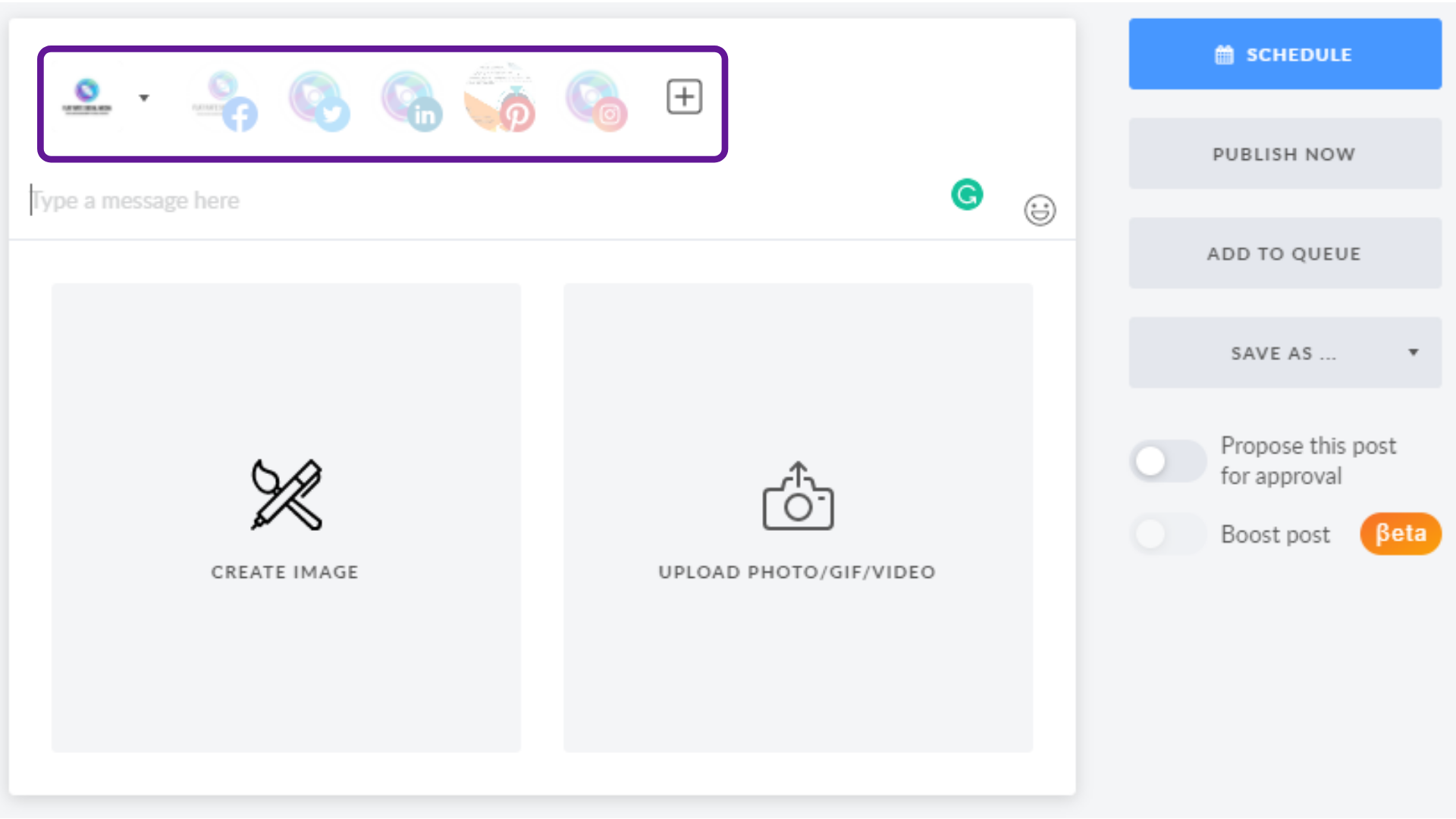
            </summary>
                                    <updated>2020-11-01T04:35:55+00:00</updated>
        </entry>
            <entry>
            <title><![CDATA[DRAG AND DROP]]></title>
            <link rel="alternate" href="https://support.yourdigitalagency.com.au/articles/drag-amp-drop-2363" />
            <id>https://support.yourdigitalagency.com.au/2363</id>
            <author>
                <name><![CDATA[Leah Gibbs]]></name>
            </author>
            <summary type="html">
                <![CDATA[<p>It’s now possible to reschedule posts in your calendar via simple drag and drop on both weekly and monthly view. Just grab any post and drag it to the other day in your calendar.</p><p><img src="https://support-hub--assets.s3.eu-west-2.amazonaws.com/assets/268/images/Y5ucW0lkQklKCW60sJouFvsoh0CDHLeVpKz5CRc7.gif" alt="Y5ucW0lkQklKCW60sJouFvsoh0CDHLeVpKz5CRc7.gif" /><br /></p>]]>
            </summary>
                                    <updated>2020-11-01T04:36:33+00:00</updated>
        </entry>
            <entry>
            <title><![CDATA[HOW TO CREATE A PINTEREST BOARD]]></title>
            <link rel="alternate" href="https://support.yourdigitalagency.com.au/articles/how-to-create-a-pinterest-board-2365" />
            <id>https://support.yourdigitalagency.com.au/2365</id>
            <author>
                <name><![CDATA[Leah Gibbs]]></name>
            </author>
            <summary type="html">
                <![CDATA[<p>The easiest way is to create a board from your news feed and a pin.</p><p>Log into Pinterest <a href="https://www.pinterest.com.au/homefeed">https://www.pinterest.com.au/homefeed</a></p><p>See an image you would like to Pin</p><p>Click on the image and this opens up a new screen</p><p><img src="https://support-hub--assets.s3.eu-west-2.amazonaws.com/assets/268/images/MID0otlIHi9oS1MwxXzieq2XamZXfcrMPvLzUgQa.png" alt="MID0otlIHi9oS1MwxXzieq2XamZXfcrMPvLzUgQa.png" /><br /></p><p>Scroll to the bottom</p><p>Click Create board
, complete the details</p><p><img src="https://support-hub--assets.s3.eu-west-2.amazonaws.com/assets/268/images/acRwzxurx4zsdLeeBYeHCdPIUJYspzeWLVzS9YhW.png" alt="acRwzxurx4zsdLeeBYeHCdPIUJYspzeWLVzS9YhW.png" /><br /></p><p>Enter a name for your board and click the box next to “Visibility” if you want to keep this board secret <br /></p><p>Click into the “Add dates” field to add a start and end date 
</p><p><b>Click Create</b></p>]]>
            </summary>
                                    <updated>2020-10-29T11:02:10+00:00</updated>
        </entry>
            <entry>
            <title><![CDATA[ADD YOUR FACEBOOK GROUP]]></title>
            <link rel="alternate" href="https://support.yourdigitalagency.com.au/articles/add-your-facebook-group-2379" />
            <id>https://support.yourdigitalagency.com.au/2379</id>
            <author>
                <name><![CDATA[Leah Gibbs]]></name>
            </author>
            <summary type="html">
                <![CDATA[<p>It is very important that you authorize SocialPost in this particular group
</p><p>
Install the SocialPost app in the group settings </p><p><b>
You can connect Facebook groups that you manage, but not those where you're a member.  </b></p><p>
Here is a typical flow on how to connect a Facebook group  </p><p>
<b>When it comes to connecting a Facebook group, your account must be synced with a personal profile, that has an Admin role in this group.</b> </p><p>
When the group is connected, its Admin profile is automatically attached to it as a host. Thus, your account will have a specific Facebook profile associated with it. </p><p>
1. Whether you're in the workspace settings or in the Calendar click on the Connect button, and select Facebook. </p><p><img src="https://support-hub--assets.s3.eu-west-2.amazonaws.com/assets/268/images/KAmmtZnJ6FnNtfDyt6pmTtuVVnksq0zzEAh3pmFw.png" alt="KAmmtZnJ6FnNtfDyt6pmTtuVVnksq0zzEAh3pmFw.png" /></p><p><br /></p><p><img src="https://support-hub--assets.s3.eu-west-2.amazonaws.com/assets/268/images/Vxm27hnDRcd3Eq2kJqZYti1lnuWgCH462vn4jlYt.png" alt="Vxm27hnDRcd3Eq2kJqZYti1lnuWgCH462vn4jlYt.png" /></p><p>2. Allow SocialPost to access your Facebook account. In the first pop-up window, hit Continue as [your profile name]. Then hit OK.</p><p><img src="https://support-hub--assets.s3.eu-west-2.amazonaws.com/assets/268/images/aPvHAvyq6Q3PxsTzTyBAKWNr1562kG58os7yTCOx.png" alt="aPvHAvyq6Q3PxsTzTyBAKWNr1562kG58os7yTCOx.png" /></p><p><br /></p><p>3. Pick the necessary group in the drop-down list and click Connect.
</p><p>
</p><p>4. It is very important that you authorize SocialPost in this particular group by clicking on the blue button in the middle.</p><p><br /></p><p>It will direct you to the group settings where you'll need to add SocialPost. Scroll down to the very bottom, find the Apps section, and do the four steps below as shown:
</p><p>
</p><p>1) Click on the pencil icon; 
</p><p>
</p><p>2) Click on the blue Add Apps button;
</p><p>
</p><p>3) Type in the app name in the search bar - SocialPost (one word without space); 
</p><p>
</p><p>4) Hit Add. </p><p><br /></p><p><br /></p><p><img src="https://support-hub--assets.s3.eu-west-2.amazonaws.com/assets/268/images/RzuX7zc9BViSI5Uv3hn5rHD3BC3PtDOIjCClGClJ.png" alt="RzuX7zc9BViSI5Uv3hn5rHD3BC3PtDOIjCClGClJ.png" /></p><p>Close the window.</p><p><br /></p><p><br /></p><p><br /></p><p><br /></p><p><br /></p><p><br /></p><p>
</p><p><br /></p>]]>
            </summary>
                                    <updated>2020-11-21T05:29:11+00:00</updated>
        </entry>
            <entry>
            <title><![CDATA[UPDATED REPORTING IS LIVE]]></title>
            <link rel="alternate" href="https://support.yourdigitalagency.com.au/articles/updated-reporting-is-live-2388" />
            <id>https://support.yourdigitalagency.com.au/2388</id>
            <author>
                <name><![CDATA[Leah Gibbs]]></name>
            </author>
            <summary type="html">
                <![CDATA[<p><img src="https://support-hub--assets.s3.eu-west-2.amazonaws.com/assets/268/images/75oPoZuPquuYV4xVy4CGBNyDNXBhF02YFeeV126Q.gif" alt="75oPoZuPquuYV4xVy4CGBNyDNXBhF02YFeeV126Q.gif" /><br /></p><p><br /></p><p>Now that we've updated our reporting feature, it will be a lot easier to present digestible reports about your social media performance based on essentials metrics. You will be able to monitor which of them have increased or decreased in a given period.
</p><p>
Visualization of social media metrics helps you evaluate the efficiency of your social media strategy and also shows if social media marketing has an impact on your business in general. </p><p>
Reporting is available for Facebook, LinkedIn, Twitter, and Pinterest.  </p><p>
<b>How does it work? </b></p><p>Depending on the social platform, the metrics provided in the report differ. The report information is displayed per page, but not for all the connected pages. Choose the page, which data you need, and, momentarily, you will see the numbers on the right. 
</p><p>
Find the Analytics button in the top bar and select Reporting.  </p><p><img src="https://support-hub--assets.s3.eu-west-2.amazonaws.com/assets/268/images/HsQo5bptdygol50MH9QQ1W6kH7dMyhxQEyZc7bzZ.png" alt="HsQo5bptdygol50MH9QQ1W6kH7dMyhxQEyZc7bzZ.png" /></p><p>Next, choose the period of time that you need it for: custom, last 7 days, last 30 days, last 3 months. Regardless of what time period you select, the data will be compared to the data of the same previous period as shown below. </p><p><img src="https://support-hub--assets.s3.eu-west-2.amazonaws.com/assets/268/images/dCMqi3Ndk1US8Myd0QnK1Z6msIXKUdhpVclK8SPp.png" alt="dCMqi3Ndk1US8Myd0QnK1Z6msIXKUdhpVclK8SPp.png" /></p><p>Numbers compared are evaluated in percents. In the upper part, the numbers are divided into several sections. Scroll down to see the detailed overview of the presented data.<br /></p><p><img src="https://support-hub--assets.s3.eu-west-2.amazonaws.com/assets/268/images/nsPYZMQncExo15gqRhyzKW5dJdH8j7AZOULdkAg8.png" alt="nsPYZMQncExo15gqRhyzKW5dJdH8j7AZOULdkAg8.png" /><br /></p><p>Some metrics are reflected in numbers, some are reflected in diagrams. You can select or deselect the parameters - their names are clickable as shown below.<br /></p><p><img src="https://support-hub--assets.s3.eu-west-2.amazonaws.com/assets/268/images/js8iVBqhWAzpo1Ds3gZDgjdQTlQxgU8QSYo5FUQp.png" alt="js8iVBqhWAzpo1Ds3gZDgjdQTlQxgU8QSYo5FUQp.png" /></p><p><br /></p><p><b>What metrics do we cover?
</b></p><p>As mentioned, we provide different parameters for different social platforms. 
</p><p>
<b>For Facebook business page: </b></p><ul><li>
Audience Insights </li><li>Impressions
</li><li>Engagement 
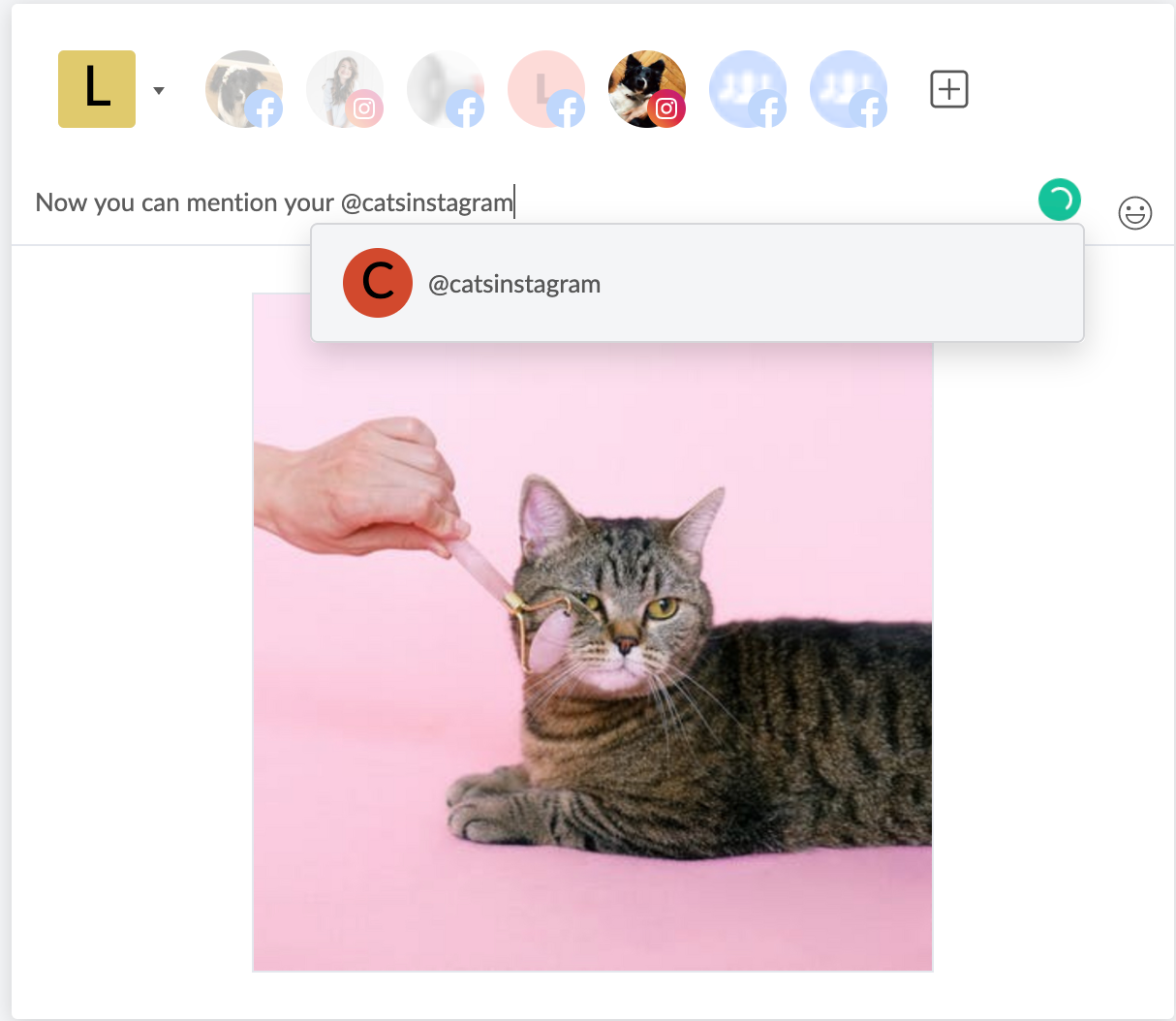
</li><li>Demographics
</li><li>Posts Published
</li><li>Posting Habits
</li><li>Top Post published</li></ul><p><b>For Facebook group: </b><br /></p><ul><li>
Total Fans </li><li>Posts Published
</li><li>Posting Habits
</li><li>Top Post published
</li></ul><p><b>For LinkedIn company page:
</b></p><ul><li>
Followers </li><li>Impressions
</li><li>Engagement
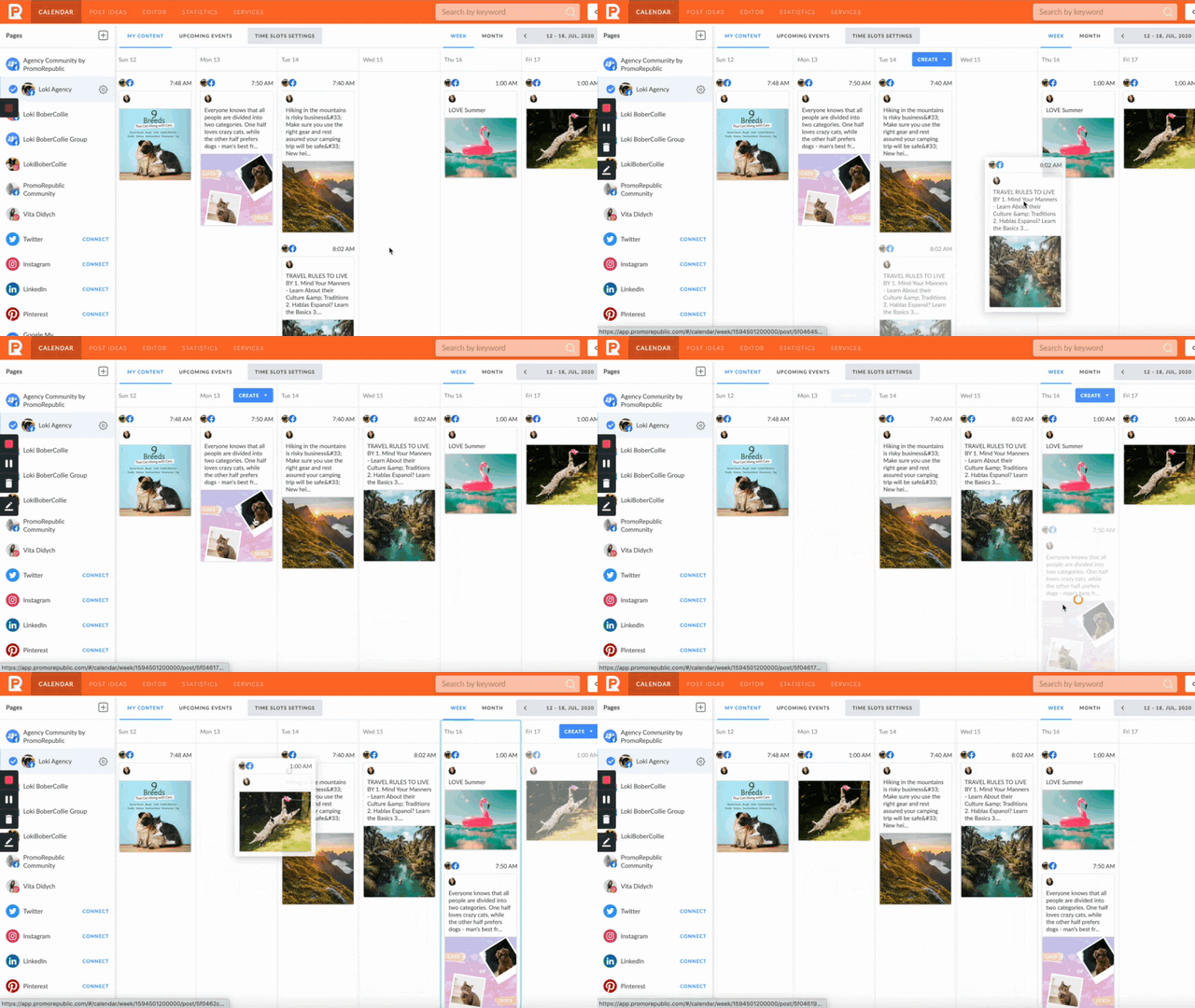
</li><li>Demographics
</li><li>Posts Published
</li><li>Posting Habits
</li><li>Top Post published</li></ul><p><b>For LinkedIn personal profile:
</b></p><ul><li>
Engagement </li><li>Posts published 
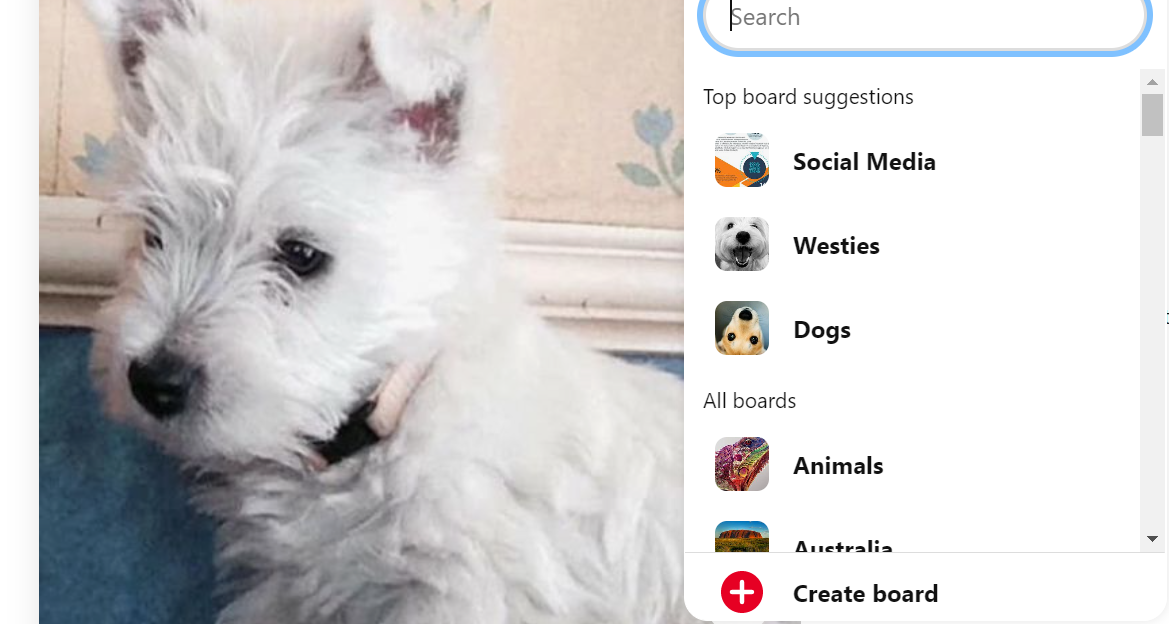
</li><li>Posting Habits
</li><li>Top Post published
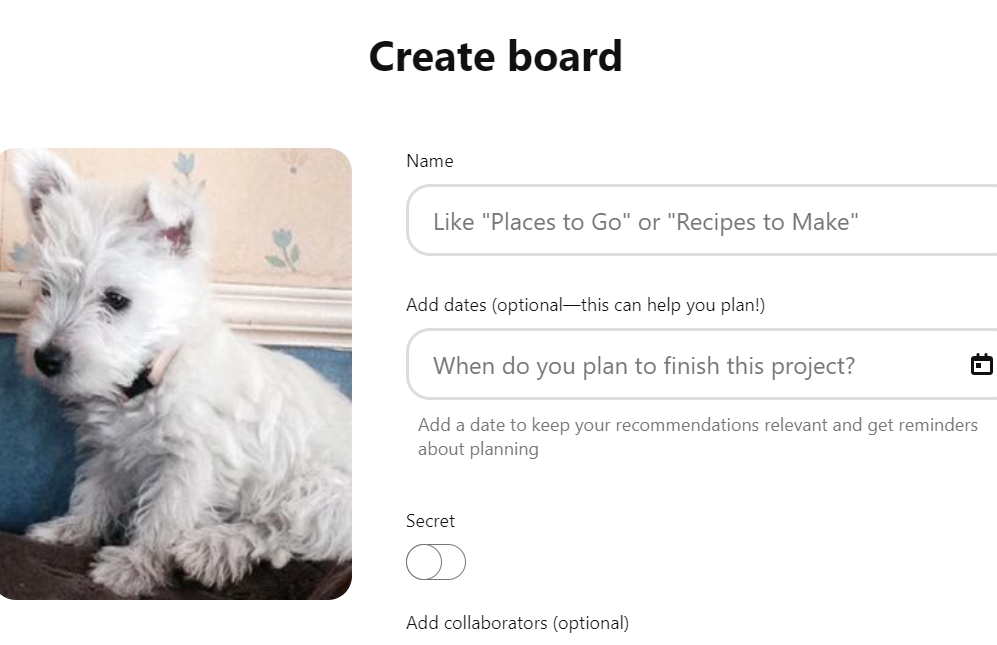
</li></ul><p><b>For Twitter:
</b></p><ul><li>
Followers </li><li>Engagement
</li><li>Tweets Published
</li><li>Posting Habits
</li><li>Top Tweet published</li></ul><p><b>For Pinterest business board:
</b></p><ul><li>
Followers </li><li>Engagement
</li><li>Impressions
</li><li>Pins Published
</li><li>Top Pin published
</li></ul><p><b>For Pinterest personal board:
</b></p><ul><li>
Followers </li><li>Engagement
</li><li>Total Pins published
</li><li>Posting Habits
</li><li>Top Pin published</li></ul><p><br /></p><p><b>Export and download
</b></p><p>In order to export a report, click on the appropriate button in the top right corner. </p><p><img src="https://support-hub--assets.s3.eu-west-2.amazonaws.com/assets/268/images/pCF7xFVmxTqBtiDR9aHkAhRW2VoIP1Nky4qnM4Lp.png" alt="pCF7xFVmxTqBtiDR9aHkAhRW2VoIP1Nky4qnM4Lp.png" /><br /></p><p><br /></p><p>To download it hit on the Download button and the file will be uploaded to your computer in pdf format instantly. </p><p><img src="https://support-hub--assets.s3.eu-west-2.amazonaws.com/assets/268/images/3BnLzrnVFWQj24PmmoYDDoITTOi3qp008TyznXzZ.png" alt="3BnLzrnVFWQj24PmmoYDDoITTOi3qp008TyznXzZ.png" /><br /></p><p><br /></p><p><br /></p>]]>
            </summary>
                                    <updated>2020-12-21T04:51:22+00:00</updated>
        </entry>
            <entry>
            <title><![CDATA[SET UP A FACEBOOK SHOP]]></title>
            <link rel="alternate" href="https://support.yourdigitalagency.com.au/articles/set-up-a-facebook-shop-2390" />
            <id>https://support.yourdigitalagency.com.au/2390</id>
            <author>
                <name><![CDATA[Leah Gibbs]]></name>
            </author>
            <summary type="html">
                <![CDATA[<p>With Facebook Shops, you can display and sell items on Facebook and Instagram. Anyone who visits your shop will see your items and can browse them. You can customize your shop by adding featured collections. <br /></p><p>
If you use a website to sell your items, you can send people to your website from your Facebook or Instagram shop to complete their purchase. Follow the steps below to set up a shop in this way or learn how to set up a shop with checkout. </p><p><b>
WHY? </b></p><p>
Set up a shop for your business page brand you can add your shop items and start selling. </p><p><b>
Meet Customers Where They Are </b></p><p>Reach millions of customers across Facebook's family of apps.
</p><p><b>
Grow Your Business </b></p><p>Get more opportunities to make sales with a streamlined shop that's optimized for mobile.
</p><p><b>
Build Your Brand </b></p><p>Customize your shop to suit your brand. Use simple creative tools to give it a look and feel that your customers will recognize.
</p><p><b>
START HERE </b></p><p>Setting up your shop takes a while 
</p><p><a href="https://www.facebook.com/commerce_manager/onboarding_landing">https://www.facebook.com/commerce_manager/onboarding_landing</a></p><p><img src="https://support-hub--assets.s3.eu-west-2.amazonaws.com/assets/268/images/rgEo9jv8YIhwrgs2ccZ08XWUi0WdLto9DiRkHgrv.png" alt="rgEo9jv8YIhwrgs2ccZ08XWUi0WdLto9DiRkHgrv.png" /><br /></p><p>
</p><p>
</p><p><b>Are you already selling online?
</b></p><p>You can import and sync your products from a platform like Shopify or BigCommerce.
</p><p>Sync a Partner Platform here <a href="https://www.facebook.com/commerce_manager/onboarding/?initial_step=PARTNER_SELECTION">https://www.facebook.com/commerce_manager/onboarding/?initial_step=PARTNER_SELECTION</a></p><p><img src="https://support-hub--assets.s3.eu-west-2.amazonaws.com/assets/268/images/uztUuKBtAFZgJzyZ8g6RCgpRjujTJzVqae9fTOQT.png" alt="uztUuKBtAFZgJzyZ8g6RCgpRjujTJzVqae9fTOQT.png" /><br /></p><p>
</p><p>
</p><p><b>FAQ
</b></p><p>
</p><p><b>How will people buy my products on Facebook?
</b></p><p>Customers on Facebook will be able to buy your products
</p><p>
</p><p><b>How will people buy my products on Instagram?
</b></p><p>Customers on Instagram will be able to buy your products through posts you create using your business handle.
</p><p>
</p><p><b>What products can I sell?
</b></p><p>You can sell physical goods that comply with our product standards and shipping policies.
</p><p>
</p><p>
</p><p><b>FURTHER READING
</b></p><p><b>
About Facebook Shops </b></p><p>https://www.facebook.com/business/help/2343035149322466?id=1077620002609475
</p><p>
</p><p><b>PRODUCT STANDARDS
</b></p><p>https://www.facebook.com/policies/commerce
</p><p>
</p><p><b>SERVICES MAY NOT BE LISTED
</b></p><p><a href="https://www.facebook.com/policies/commerce/prohibited_content/services">https://www.facebook.com/policies/commerce/prohibited_content/services</a></p><p><b>BUSINESS MANAGER USER PLAYBOOK</b></p><p>https://resources.yourdigitalagency.com.au/p/facebook-business-manager-playbook/</p><p><b>SET UP A TEST SHOP</b><br /></p><p>Do you want to set up a test shop?
</p><p>Test your integration and preview what the purchase experience is like for customers.
</p><p>Create a Test Shop here https://www.facebook.com/commerce_manager/onboarding/?is_test_mode=true
</p><p>With a test account, you can learn how to set up Commerce Manager, with test products, and place test orders using test credit cards. </p><p><b>Once created, the test account can't be converted to a regular account.
</b></p><p>
</p><p>
</p><p>
</p><p>
</p><p>
</p><p>
</p><p><br /></p>]]>
            </summary>
                                    <updated>2021-01-02T07:53:34+00:00</updated>
        </entry>
            <entry>
            <title><![CDATA[PROPOSE SOCIAL MEDIA POSTS FOR CLIENT APPROVAL]]></title>
            <link rel="alternate" href="https://support.yourdigitalagency.com.au/articles/propose-social-media-posts-for-client-approval-2416" />
            <id>https://support.yourdigitalagency.com.au/2416</id>
            <author>
                <name><![CDATA[Leah Gibbs]]></name>
            </author>
            <summary type="html">
                <![CDATA[<p>When the post is ready, at the right to the image find the toggle that says 'Propose This Post For Approval'. Activate the mode by moving the switcher to the right (pictured below).</p><p><img src="https://support-hub--assets.s3.eu-west-2.amazonaws.com/assets/268/images/plaDpT5EbnZhJGWcxB0FAWeQKPKs93KajSKa2pRo.png" alt="plaDpT5EbnZhJGWcxB0FAWeQKPKs93KajSKa2pRo.png" /></p><p><br /></p><p>The post will appear immediately on the client's calendar. The client will be able to approve the post or edit it before publishing. Be sure that proposed posts for approval won’t be published without being approved. </p><p><img src="https://support-hub--assets.s3.eu-west-2.amazonaws.com/assets/268/images/Q9CLjYemXeTRFY5MTdjuWFcPtMvL7uAPc1vf9l28.png" alt="Q9CLjYemXeTRFY5MTdjuWFcPtMvL7uAPc1vf9l28.png" /></p><p><br /></p><p>IMPORTANT: You can suggest posts for your client’s approval only for the pages that are connected to the Workspace. 
</p><p>
</p><p>If the post isn't approved on time, the client will receive an email notification (see an example below). </p><p><br /></p><p><img src="https://support-hub--assets.s3.eu-west-2.amazonaws.com/assets/268/images/J1ST5ZocTtyWALP6wB5d3dwA3nb81d04dE1z8pLY.png" alt="J1ST5ZocTtyWALP6wB5d3dwA3nb81d04dE1z8pLY.png" /></p><p><br /></p><p>Also, the Approve button will be replaced by the Publish Now button. Hitting it will actually publish the post.</p><p><br /></p><p><img src="https://support-hub--assets.s3.eu-west-2.amazonaws.com/assets/268/images/oMJZPahHRDL4VKLIWT616FJiPbKBnnVKi8uj2Q6F.png" alt="oMJZPahHRDL4VKLIWT616FJiPbKBnnVKi8uj2Q6F.png" /></p><p><br /></p><p>If you click on the image, you will be redirected to the view that will give you such options as to publish the post now, edit or save it to the My Ideas or simply delete the post.
</p><p>
</p><p>If you have any further questions, don't hesitate to contact your Customer Success Manager or Support team</p><p><br /></p><p><br /></p>]]>
            </summary>
                                    <updated>2021-01-18T06:51:16+00:00</updated>
        </entry>
            <entry>
            <title><![CDATA[HOW TO ADD COMMENTS ON YOUR POSTS]]></title>
            <link rel="alternate" href="https://support.yourdigitalagency.com.au/articles/how-to-add-comments-on-your-posts-2417" />
            <id>https://support.yourdigitalagency.com.au/2417</id>
            <author>
                <name><![CDATA[Leah Gibbs]]></name>
            </author>
            <summary type="html">
                <![CDATA[<p>the Comments feature help agency teams to collaborate effectively on creation, scheduling, or content approval by clients. 
</p><p>
</p><p>Please note that you are only able to comment on posts that were created within the platform. Other posts are not available for commenting and will be marked in your calendar. Comments can contain text, links or emojis. 
</p><p>
</p><p>To leave a comment on a post, click on it in the Calendar and the commenting sidebar will appear, as shown below:</p><p><img src="https://support-hub--assets.s3.eu-west-2.amazonaws.com/assets/268/images/LMPEvqTpSwGdEY2xTSYgm3tHGvysasRVi1UuYoz6.png" alt="LMPEvqTpSwGdEY2xTSYgm3tHGvysasRVi1UuYoz6.png" /></p><p><br /></p><p>Posts with comments will be noted by the "comment icon" in the calendar view, as highlighted below</p><p><img src="https://support-hub--assets.s3.eu-west-2.amazonaws.com/assets/268/images/PdnGQt9ehtbgRJsjGC8VH4UYlOLgtcDD2A9gaxuH.png" alt="PdnGQt9ehtbgRJsjGC8VH4UYlOLgtcDD2A9gaxuH.png" /></p><p><br /></p><p>You can comment on posts when they are "Scheduled," "Published," "Proposed for Approval," or "Not approved" (not published). If the post with comments was rescheduled or recycled, comments will still be there.
</p><p>
</p><p>Who can create and manage comments?
</p><p>
</p><p>All Team roles within the Agency Collaboration Platform (Admin, Member, Client) are able to create comments on all posts created within PromoRepublic’s Platform. You will be able to see the author of a comment and the time when it was created.
</p><p>
</p><p>Comments can be deleted or resolved by the author (own comments only) or an admin (own and all other comments). To resolve or delete a comment, click on the “trash” icon.</p><p><img src="https://support-hub--assets.s3.eu-west-2.amazonaws.com/assets/268/images/foXpXfZuxPVS1KL9RO3LYCl2D7weQD0UJcspoIqY.png" alt="foXpXfZuxPVS1KL9RO3LYCl2D7weQD0UJcspoIqY.png" /></p><p><br /></p><p>Comments feature is available for Agency Collaboration Platform users only. 
</p><p>
</p><p>If you have any further questions don't hesitate to reach out to your Customer Success Manager directly or our support team</p><p>Comments feature is available for Agency Collaboration Platform users only. 
</p><p>
</p><p>If you have any further questions don't hesitate to reach out to your Customer Success Manager directly or our support team</p><p><br /></p><p><br /></p><p><br /></p>]]>
            </summary>
                                    <updated>2021-01-18T06:59:00+00:00</updated>
        </entry>
            <entry>
            <title><![CDATA[COLLABORATE EASIER WITH TEAM NOTIFICATIONS]]></title>
            <link rel="alternate" href="https://support.yourdigitalagency.com.au/articles/collaborate-easier-with-team-notifications-2418" />
            <id>https://support.yourdigitalagency.com.au/2418</id>
            <author>
                <name><![CDATA[Leah Gibbs]]></name>
            </author>
            <summary type="html">
                <![CDATA[<p>Using notifications will be a lot easier to collaborate with your teammates and clients, manage content creation, track publishing and approval processes. You will get notifications about all the events that happen in the workspace.</p><p><img src="https://support-hub--assets.s3.eu-west-2.amazonaws.com/assets/268/images/szUBroOkQwW6XAZjtJe47SOSkAbgbVVMkDs6655M.png" alt="szUBroOkQwW6XAZjtJe47SOSkAbgbVVMkDs6655M.png" /></p><p><br /></p><p><br /></p><p>How does it work?
</p><p>Find the Notifications icon in the top right corner and click on it. </p><p><br /></p><p><img src="https://support-hub--assets.s3.eu-west-2.amazonaws.com/assets/268/images/jtO8UZ5TqKY8aUmM6IfccLsde1Wsq9klhUZpKoh8.png" alt="jtO8UZ5TqKY8aUmM6IfccLsde1Wsq9klhUZpKoh8.png" /></p><p><br /></p><p><br /></p><p>The list of activities will emerge on the right side.</p><p><br /></p><p><img src="https://support-hub--assets.s3.eu-west-2.amazonaws.com/assets/268/images/zmcTVdN8ZzPKE0MGsbbteLVzUzsFBTE4LjCulpWI.png" alt="zmcTVdN8ZzPKE0MGsbbteLVzUzsFBTE4LjCulpWI.png" /></p><p><br /></p><p>Here you'll be able to see the following types of notifications:
</p><p>
</p><p>New posts created in the calendar 
</p><p>Who can see this notification? Workspace admins, members and clients.
</p><p>
</p><p>Post was edited
</p><p>Who can see this notification? Post author, post editor and post approver.
</p><p>
</p><p>Proposed post was approved
</p><p>Who can see this notification? Workspace admins, members and clients, post author and post editor.
</p><p>
</p><p>New comments on your posts
</p><p>Who can see this notification?  Workspace admins, members and clients, post author, post editor, post approver, comment author, commentator.
</p><p>
</p><p>Resolved or Deleted comments 
</p><p>Who can see this notification? Comment author.
</p><p>
</p><p>You can see the name of the person, who took an action as well as the corresponding name of the workspace and the page. Simply click on the notification to get to the post immediately.
</p><p>
</p><p>The Notifications feature is available for Agency Collaboration Platform users only. 
</p><p>
</p><p>If you have any further questions, don't hesitate to contact your Customer Success Manager or Support team</p><p><br /></p>]]>
            </summary>
                                    <updated>2021-01-18T07:03:45+00:00</updated>
        </entry>
            <entry>
            <title><![CDATA[WORKPLACE ROLES AND SOCIAL DASHBOARD PERMISSIONS]]></title>
            <link rel="alternate" href="https://support.yourdigitalagency.com.au/articles/workplace-roles-and-social-dashboard-permissions-2419" />
            <id>https://support.yourdigitalagency.com.au/2419</id>
            <author>
                <name><![CDATA[Leah Gibbs]]></name>
            </author>
            <summary type="html">
                <![CDATA[<p>Manage your clients' and teammates' permissions in a workspace with the appropriate user roles. 
</p><p>
</p><p>Go to the Workspace settings and find the Connected Pages &amp; Teammates section.</p><p><br /></p><p><img src="https://support-hub--assets.s3.eu-west-2.amazonaws.com/assets/268/images/oA1SJ7fbByNZvvEey5eNFYE5cGztWWdqUPx3MSNk.png" alt="oA1SJ7fbByNZvvEey5eNFYE5cGztWWdqUPx3MSNk.png" /></p><p>Click on the plus icon to add a participant. There are three types of user roles.
</p><p>
</p><p><br /></p><p><br /></p><p><img src="https://support-hub--assets.s3.eu-west-2.amazonaws.com/assets/268/images/mt5ReL8R3B2RXjgn3kdH6xiRy29usBDLmMzhANVW.png" alt="mt5ReL8R3B2RXjgn3kdH6xiRy29usBDLmMzhANVW.png" /></p><p><br /></p><p>CLIENT 
</p><p>
</p><p>Clients see the limited interface. They can:
</p><p>
</p><p>Add pages to the workspace;
</p><p>Create posts and publish them;
</p><p>Approve proposed content to be published;
</p><p>Create notes;  
</p><p>Change basic page settings (country, timezone);
</p><p>Clients cannot:
</p><p>
</p><p>Invite other members;
</p><p>Create other workspaces.
</p><p>MEMBER 
</p><p>
</p><p>Members see the full interface. They can:
</p><p>
</p><p>Create posts and propose them for approval;
</p><p>Create notes;   
</p><p>Create other workspaces.
</p><p>Members cannot:
</p><p>
</p><p>Add other participants and pages;
</p><p>Manage page settings;
</p><p>Add pages to the workspace.
</p><p>ADMIN
</p><p>
</p><p>Admins see the full interface. They can:
</p><p>
</p><p>Add other participants and pages;  
</p><p>Manage page settings;
</p><p>Manage Smart Planner settings; 
</p><p>Create posts, publish them and propose content for approval;
</p><p>Create workspaces.</p><p><br /></p>]]>
            </summary>
                                    <updated>2021-01-18T07:07:33+00:00</updated>
        </entry>
            <entry>
            <title><![CDATA[INSTAGRAM BUSINESS PROFILES]]></title>
            <link rel="alternate" href="https://support.yourdigitalagency.com.au/articles/instagram-business-profiles-2426" />
            <id>https://support.yourdigitalagency.com.au/2426</id>
            <author>
                <name><![CDATA[Leah Gibbs]]></name>
            </author>
            <summary type="html">
                <![CDATA[<p><b>What is an Instagram Business Profile, and why is it needed?
</b></p><p>Starting in 2016, Instagram divided accounts into Personal and Business Profiles. Converting to a Business Profile on Instagram allows you to include additional business information like a phone number, email address, physical address, and call-to-action buttons making it easier for you to connect to your customers.
</p><p>Adding an Instagram Business Profile has several benefits as well. Not only does it enable direct publishing to Instagram through the Social Dashboard, but it also unlocks additional reporting metrics in PromoRepublic reports.
</p><p><b>How to identify what type of account you currently have? 
</b></p><p>Open the Instagram app on your mobile device and head to Settings, and then Account. </p><p><img src="https://support-hub--assets.s3.eu-west-2.amazonaws.com/assets/268/images/05p1DqAmxbGLe4r8ww6YjgHupD3LYjjEXb93YBjS.jpeg" alt="05p1DqAmxbGLe4r8ww6YjgHupD3LYjjEXb93YBjS.jpeg" /></p><p><br /></p><p>Here's what you will see at the bottom of the list of options.
</p><p>If you have an Instagram Personal Profile, you'll see one option:
</p><p>Switch to Professional Account
</p><p>If you currently have an Instagram Business Profile, you'll see two options:
</p><p>Switch to Personal Account
</p><p>Switch to Creator Account
</p><p>If you currently have an Instagram Creator Profile, you'll see these two options:
</p><p>Switch to Personal Account
</p><p>Switch to Business Account
</p><p><b>How do I convert my profile to an Instagram Business Profile?
</b></p><p>Converting to an Instagram Business Profile is free and easy. Please find the detailed instructions for converting your profile here. 
</p><p><b>I have already converted my Instagram profile to an Instagram Business Profile, and it is already connected to Social Dashboard.  Do I need to reconnect the page? </b></p><p>Yes. Even if your Instagram Business Profile is connected, you need to reconnect it again due to the AI changes. This will then allow you to start receiving additional reporting data and updated functionality such as Instagram direct publishing. 
</p><p>IMPORTANT: upon the page reconnection, you'll lose the scheduled content. We suggest that you save the posts to the My Ideas section and then reschedule them.
</p><p><b>Which features will be available with Instagram Publishing?
</b></p><p>Direct publishing is limited to single-image and single-video posts. Same as for other posts, you can include @mentions and hashtags. Stories and posts for Instagram Personal Profiles can still be published with the mobile workflow. Instagram Business publishing is limited to 25 API-published posts within a 24-hour moving period.
</p><p><b>I followed all of the steps, but my Instagram posts still aren’t posting.
</b></p><p>Please check the Facebook settings of the page connected to your Instagram Business Profile. If the audience is not set to Public, the post will fail the same way as the Facebook post will. You will need to remove SocialPost from Facebook Settings and then reconnect the Instagram Business Profile with the audience set to Public.
</p><p><b>If you have any further questions, please contact us</b></p><p>
</p><p>
</p><p>
</p><p>
</p><p>
</p><p>
</p><p>
</p><p>
</p><p>
</p><p>
</p><p>
</p>]]>
            </summary>
                                    <updated>2021-02-03T23:14:51+00:00</updated>
        </entry>
            <entry>
            <title><![CDATA[CONNECT INSTAGRAM BUSINESS PROFILE TROUBLESHOOTING]]></title>
            <link rel="alternate" href="https://support.yourdigitalagency.com.au/articles/connect-instagram-business-profile-troubleshooting-2427" />
            <id>https://support.yourdigitalagency.com.au/2427</id>
            <author>
                <name><![CDATA[Leah Gibbs]]></name>
            </author>
            <summary type="html">
                <![CDATA[<p><b>Connect Instagram Business Profile
</b></p><p><b>Troubleshooting Business Instagram connection</b></p><p>This article will help if your Instagram business account isn't listed when you're trying to connect it to the Social Dashboard. </p><p>There can be a few reasons:</p><ol><li>Your Instagram page has not been properly converted to a business account.
</li><li>Your Facebook personal profile does not have the admin role on the Facebook business page that is linked to your business Instagram account.
</li><li>Your permissions for Social Dashboard to access your Facebook account have not been properly set up.
</li><li>Your Instagram page has not been properly converted to a business account.
</li></ol><p><b>To check the account status, navigate to the settings of the Facebook business page that is linked to your Instagram page.</b></p><p><b><br /></b></p><p><b><br /></b></p><p><b><br /></b></p><p><img src="https://support-hub--assets.s3.eu-west-2.amazonaws.com/assets/268/images/tdkc3Hk4362QGEwtZJAS3BS9aL9EsTaWOIk4mWxt.jpeg" alt="tdkc3Hk4362QGEwtZJAS3BS9aL9EsTaWOIk4mWxt.jpeg" /><b>If you see a screen that differs from the image above, it means your Instagram account is either not connected to your Facebook Page, or it hasn't been converted to a business account. 
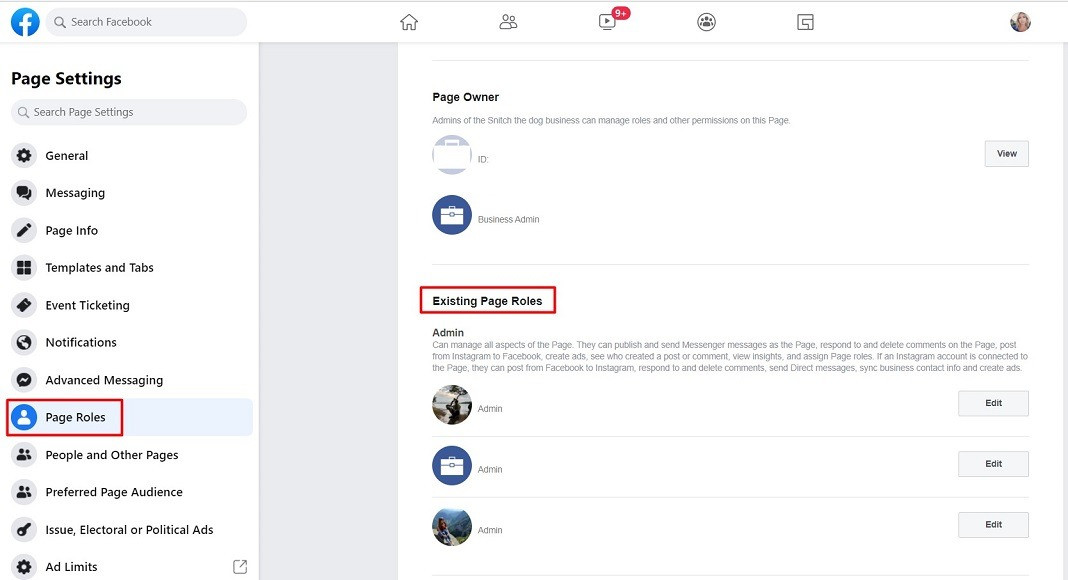
<br /></b></p><p>Your Facebook personal profile does not have the admin role on the Facebook business page that is linked to your business Instagram account.
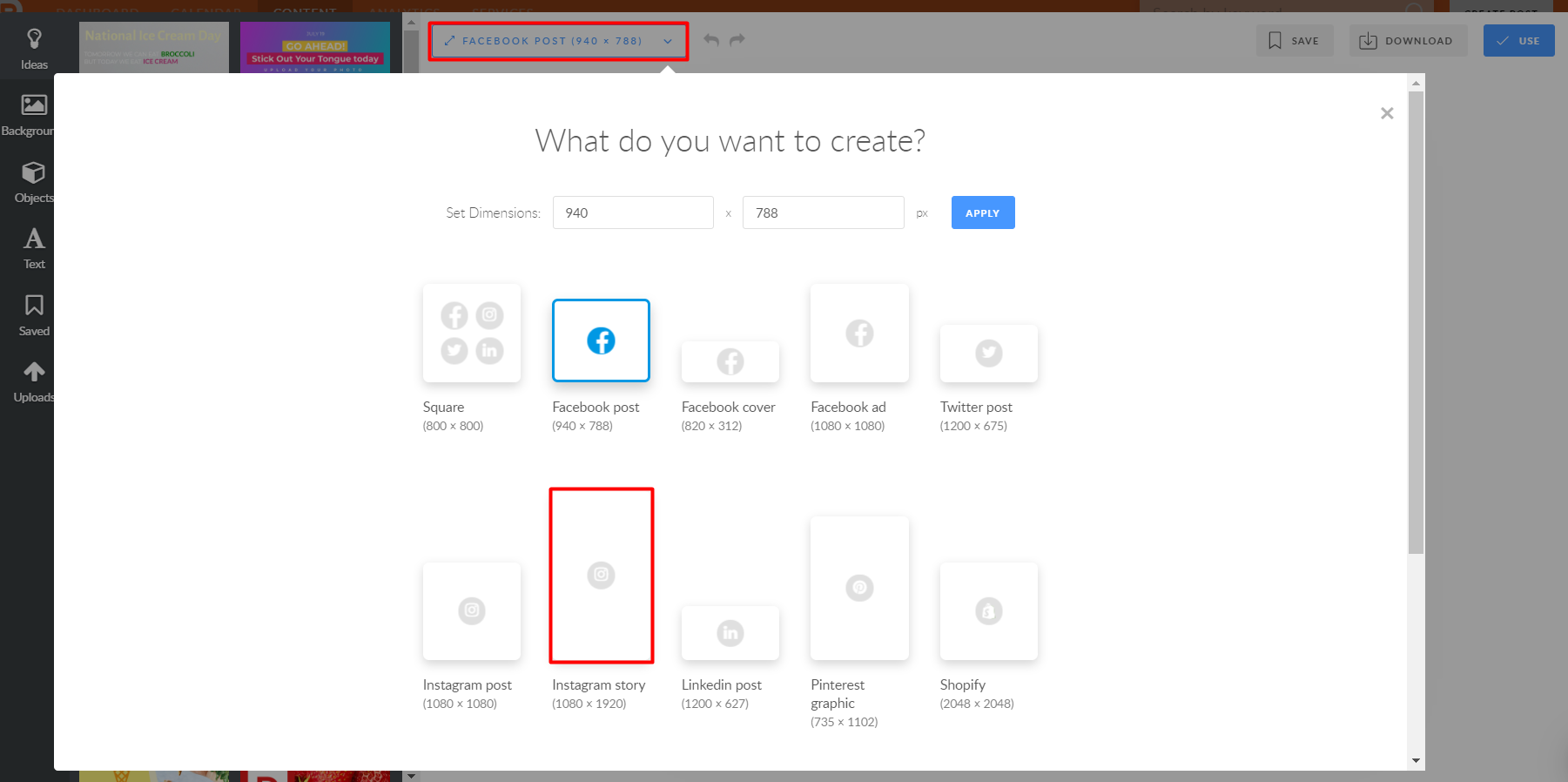
</p><p>In order to make sure that your Facebook personal profile has the admin role on the Facebook business page that is linked to your Instagram account. Click Page Roles on the left-hand side.</p><p><img src="https://support-hub--assets.s3.eu-west-2.amazonaws.com/assets/268/images/uDv6gaiZx7PZ5vGkvQuuZmeVsshATnp9ilFTKAFr.jpeg" alt="uDv6gaiZx7PZ5vGkvQuuZmeVsshATnp9ilFTKAFr.jpeg" /></p><p><br /></p><p>f you have any other role, then you will not be able to authorize the connection.
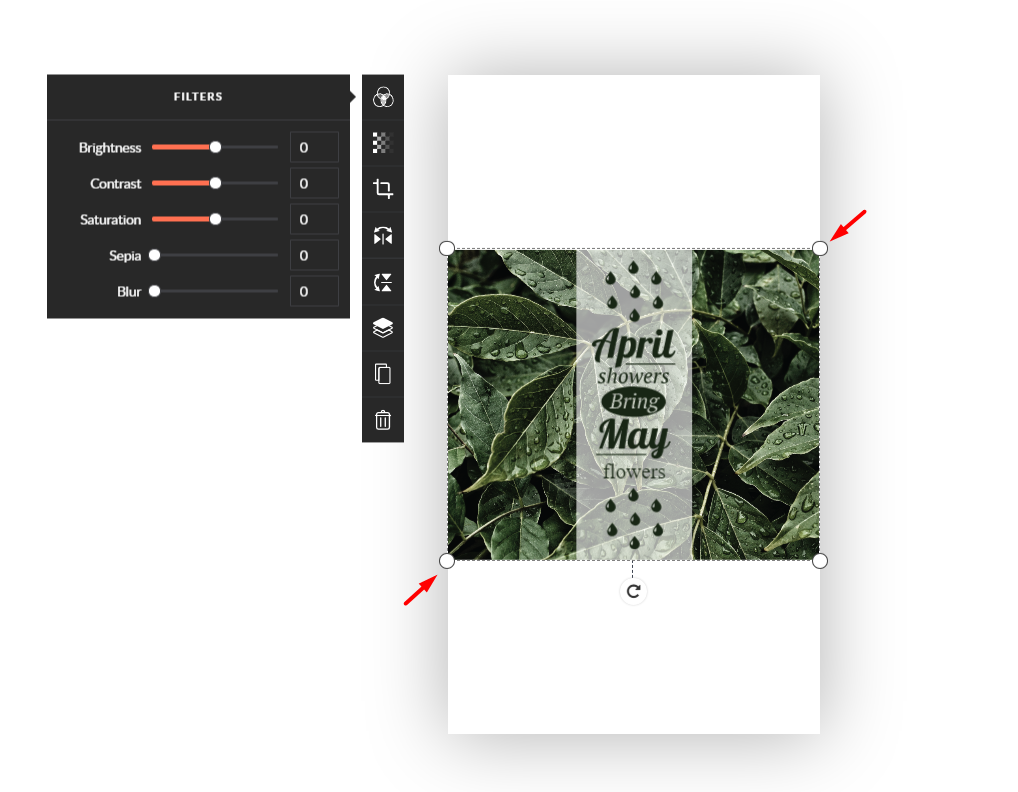
</p><p>
</p><p><br /></p><p><b>Your permissions for Social Dashboard  to access your Facebook account have not been properly set up
</b></p><p><b>Check that SocialPost has the permissions to access your Facebook account. 
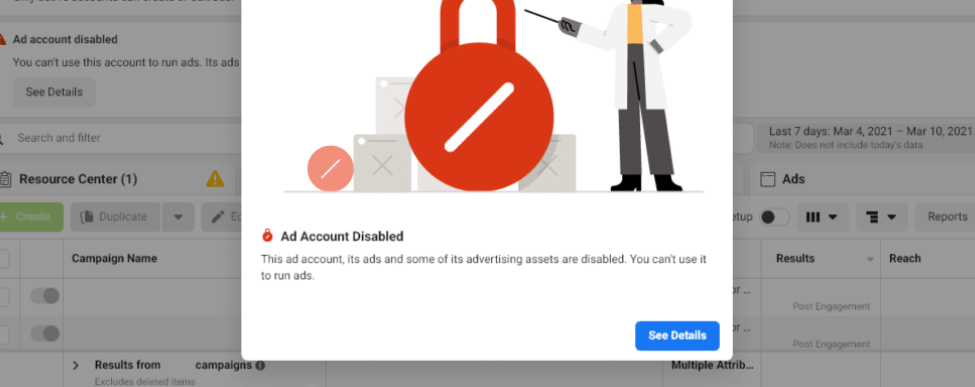
</b></p><p>In the top right corner click on the arrow, then hit Settings &amp; privacy &gt; Settings &gt; Business integrations, or click this link. Hitting on View and edit make sure that every toggle is toggled and the rest of the required boxes are checked.
</p><p><br /></p><p><br /></p><p><img src="https://support-hub--assets.s3.eu-west-2.amazonaws.com/assets/268/images/8X36P2FrPg1HLxVSlAjPSXWdCWl5cQuZiBQipilD.jpeg" alt="8X36P2FrPg1HLxVSlAjPSXWdCWl5cQuZiBQipilD.jpeg" /></p><p><br /></p><p>f you don’t see any individual Pages listed as shown below, it means that you’ve previously granted SocialPost permission to access all Pages, which is the ideal setup. In this case, you won’t need to check any Pages here, and instead, you’ll need to re-authorize permission, as described further.</p><p><br /></p><p><img src="https://support-hub--assets.s3.eu-west-2.amazonaws.com/assets/268/images/eI3QWcsBHpa1cijsr4UnhIpBZc6fYq6y00tHlGCH.jpeg" alt="eI3QWcsBHpa1cijsr4UnhIpBZc6fYq6y00tHlGCH.jpeg" /></p><p><br /></p><p>Once that's done, try connecting your Instagram business account again. If the issue persists, check the box and remove the integration. </p><p><br /></p><p><img src="https://support-hub--assets.s3.eu-west-2.amazonaws.com/assets/268/images/bCu2ITqM4f4Wkbp2pEJLhvHkfNcTkF78D5Oc0XPr.jpeg" alt="bCu2ITqM4f4Wkbp2pEJLhvHkfNcTkF78D5Oc0XPr.jpeg" /></p><p><br /></p><p>Next, hit on the red Disconnect Facebook button in your Social Dashboard account settings as shown. If it is not clickable create a password in the Change Password section as shown. The button will be clickable after you this.</p><p><br /></p><p><br /></p><p><br /></p><p>
</p><p>
</p><p>
</p><p>
</p><p><b>
</b></p>]]>
            </summary>
                                    <updated>2021-02-03T23:26:21+00:00</updated>
        </entry>
            <entry>
            <title><![CDATA[INSTAGRAM DIRECT IS OUT OF BETA]]></title>
            <link rel="alternate" href="https://support.yourdigitalagency.com.au/articles/instagram-direct-is-out-of-beta-2429" />
            <id>https://support.yourdigitalagency.com.au/2429</id>
            <author>
                <name><![CDATA[Leah Gibbs]]></name>
            </author>
            <summary type="html">
                <![CDATA[<p>So, the great news is that Instagram Direct off Beta </p><p>This integration is more stable now; you'll see fewer failed posts and better reporting as it'll reflect data over the past three months. </p><p>The less exciting news is this means that your IG pages need to be:<br /></p><p>1. Converted from Personal/Creator to Instagram Business account in the IG app. But chances are, most of your IG pages are already Business accounts.</p><p>2. Linked to a FB business page. If you're the one connecting this IG Business page, your personal FB profile must be an Admin on that FB business page.</p><p>Each Instagram Business account will be limited to 25 API-published posts within a 24-hour moving period.
</p><p>Stories are not supported.
</p><p>Shopping tags are not supported.
</p><p>Branded content tags are not supported.
</p><p>Multi-image posts are not supported.
</p><p>As for connecting new IG pages, please make sure that IG business accounts are linked to FB business pages. 
</p><p>I understand that this might be a handful, and I apologize for any inconvenience. 
</p><p>Please let me know if you have any questions or if there's anything I can do for you.
</p><p>Thank you for your patience,</p><p>
</p><p>
</p><p>
</p><p>
</p><p>
</p><p>
</p>]]>
            </summary>
                                    <updated>2021-02-15T23:33:44+00:00</updated>
        </entry>
            <entry>
            <title><![CDATA[WHAT IS SOCIAL MEDIA'S ROLE IN CUSTOMER SERVICE?]]></title>
            <link rel="alternate" href="https://support.yourdigitalagency.com.au/articles/what-i-social-medias-role-in-customer-service-2460" />
            <id>https://support.yourdigitalagency.com.au/2460</id>
            <author>
                <name><![CDATA[Leah Gibbs]]></name>
            </author>
            <summary type="html">
                <![CDATA[<p>Companies know that customer service is important, but a lot of businesses still haven’t formed a specific strategy for addressing online concerns and building social relationships. </p><p>With 89% of U.S. consumers saying that they’ve gone to a competitor after a poor customer service experience, it’s clear that a business’s ability to listen to complaints and provide solutions is linked to its success.<br /></p>]]>
            </summary>
                                    <updated>2021-05-14T10:35:49+00:00</updated>
        </entry>
            <entry>
            <title><![CDATA[HOW ARE SOCIAL AUDIENCES BUILT?]]></title>
            <link rel="alternate" href="https://support.yourdigitalagency.com.au/articles/how-are-social-audiences-built-2461" />
            <id>https://support.yourdigitalagency.com.au/2461</id>
            <author>
                <name><![CDATA[Leah Gibbs]]></name>
            </author>
            <summary type="html">
                <![CDATA[<p>Did you know that 90% of small businesses have Facebook pages, but that almost one-third of them have less than thirty-two fans? </p><p>Building an engaged audience can be difficult, and for many local businesses, it’s the reason why they quit updating their pages long ago.</p><p>In order to create a successful following on social media, every post needs to have value. This means posting timely, relevant, and engaging content.<br /></p>]]>
            </summary>
                                    <updated>2021-05-14T10:36:04+00:00</updated>
        </entry>
            <entry>
            <title><![CDATA[HOW TO SWITCH TO A INSTAGRAM BUSINESS ACCOUNT]]></title>
            <link rel="alternate" href="https://support.yourdigitalagency.com.au/articles/how-to-switch-to-a-instagram-business-account-2485" />
            <id>https://support.yourdigitalagency.com.au/2485</id>
            <author>
                <name><![CDATA[Leah Gibbs]]></name>
            </author>
            <summary type="html">
                <![CDATA[<p><b>How to switch to an Instagram business account
</b></p><p>Have you heard enough about the benefits of an Instagram business account? Ready to switch your account over to an Instagram business profile? Let’s walk you through the process so you can start taking advantage of these great perks.
</p><p><b>
</b></p><p><b>Step 1: Go to your Instagram account settings</b><br /></p><p>Go to your profile, then tap the hamburger menu in the top right corner of the app. Tap Settings and then tap Account to get started.
</p><p>
</p><p><b>Step 2: Switch to Instagram professional account</b><br /></p><p>Once in the account settings, you’ll see a blue call-to-action at the bottom of the page for you to Switch to Professional Account.</p><p>Tap that to move forward with your big switch.
</p><p><img src="https://support-hub--assets.s3.eu-west-2.amazonaws.com/assets/268/images/i3cs6r2OCPAu8IhpAfwqENzXztXMr0nZFCQf39Og.png" alt="i3cs6r2OCPAu8IhpAfwqENzXztXMr0nZFCQf39Og.png" /></p><p><br /></p><p><b>Step 3: Choose a Business account
</b></p><p>Selecting Business will allow you to start gathering impressions, reach, and video views within your reporting insights, as well as schedule content ahead of time using third-party tools</p><p>Instagram recently rolled out a new type of business account – an Instagram creator account. These are more specifically for influencers, public figures or other types of content producers, whereas a business account is better for brands and businesses that sell a product or service.</p><p><img src="https://support-hub--assets.s3.eu-west-2.amazonaws.com/assets/268/images/LfdyraBtnORUqQiyccobDTq4Dt3hAFMvrhLPKsUL.png" alt="LfdyraBtnORUqQiyccobDTq4Dt3hAFMvrhLPKsUL.png" /></p><p><br /></p><p>This is a part of Instagram’s effort to further separate influencers and businesses, making it more obvious for its users when a partnership is an influencer promotion rather than an ad.
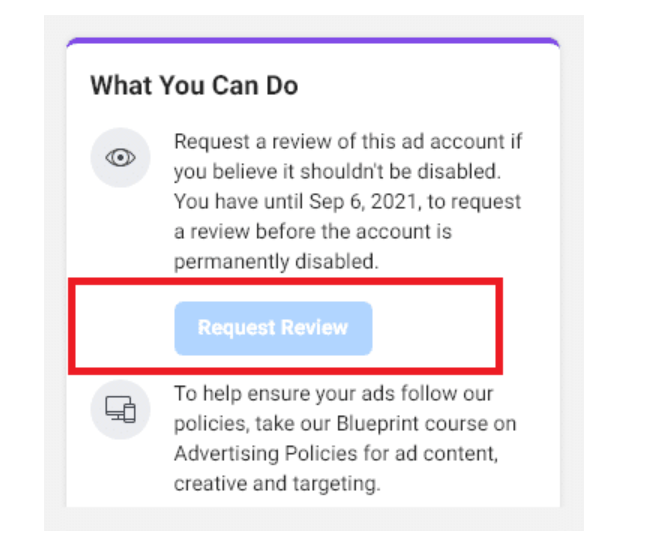
<br /></p><p>
</p><p>The tools surrounding a creator account are slightly different from those accessible in a Business account, but they were created with influencer marketing in mind. There are also more features surrounding messaging and profile flexibility.<br /></p><p>The core business profile features are still available, including shoppable posts. This means influencers will be able to tag the products they’re recommending directly within their Instagram posts, offering even more streamlined shopping for all parties involved.
</p><p>If you plan to partner with businesses as an influencer, you’ll want to create an Instagram creator account. If not, including if you plan to partner with influencers to promote your products or services, you’ll want to create an Instagram business account.</p><p><b>Step 4: Connect your Facebook Page
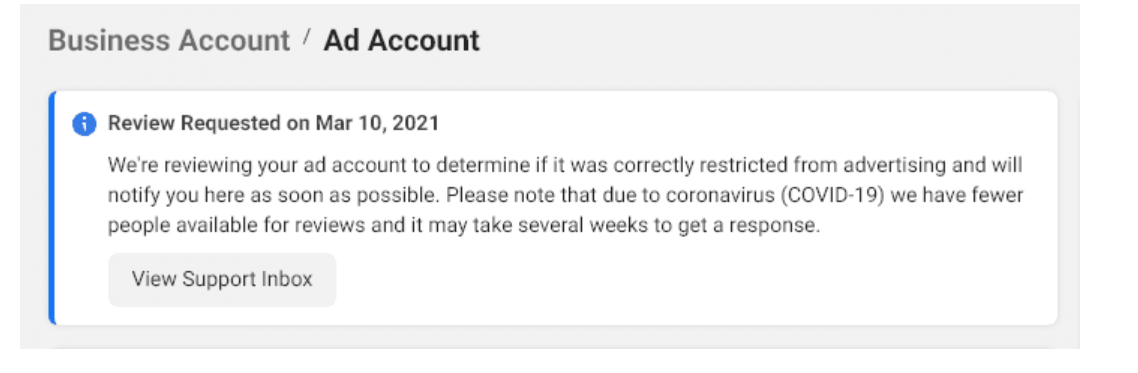
</b></p><p>If you’re moving forward in creating or switching to a business profile, your next step is to connect your Facebook Page. You must have admin access to your business Facebook Page to take this action.
</p><p>
</p><p>Once you confirm which Facebook Page you want to connect to, your business profile is ready to go!</p><p><img src="https://support-hub--assets.s3.eu-west-2.amazonaws.com/assets/268/images/J6xb2rlSwk6iZApeqs3jhy8e9Cxiw3Y0LLAfS6Co.png" alt="J6xb2rlSwk6iZApeqs3jhy8e9Cxiw3Y0LLAfS6Co.png" /></p><p><br /></p><p>If you’re switching to a creator profile, all you need to do is select a category for the type of creator you are.</p><p><br /></p><p><img src="https://support-hub--assets.s3.eu-west-2.amazonaws.com/assets/268/images/ssSuixzHDEf7XYA18qrslpGrAMCpKsaoUxI3pw1I.png" alt="ssSuixzHDEf7XYA18qrslpGrAMCpKsaoUxI3pw1I.png" /><br /></p><p><br /></p><p><b>How to switch back to a personal Instagram account
</b></p><p>If you decide an Instagram business or creator account isn’t for you, it’s possible (and extremely easy) to revert right back to a personal account.
</p><p>
</p><p>You can also switch between business and creator accounts to find the one that makes the most sense for your brand.<br /></p><p>All you have to do is head right back to your account settings, and this time the blue Switch to Professional Account call-to-action will be replaced with two different options: Switch to Personal Account or Switch to Creator Account.
</p><p><br /></p><p><img src="https://support-hub--assets.s3.eu-west-2.amazonaws.com/assets/268/images/GEP6IEzjxqGAx2VMEcG4b7OpkvKIqyLyVhVyVDcB.png" alt="GEP6IEzjxqGAx2VMEcG4b7OpkvKIqyLyVhVyVDcB.png" /></p><p><br /></p><p><b>Start taking advantage of Instagram business profile tools
</b></p><p>Ready to ramp up your Instagram marketing strategy? By switching over to an Instagram business profile, you gain access to so many more great brand tools and perks, allowing you to really wow your audience on the platform.</p><p><br /></p><p><br /></p><p><br /></p><p>
</p><p>
</p><p>
</p><p>
</p><p>
</p><p>
</p>]]>
            </summary>
                                    <updated>2021-03-18T10:52:05+00:00</updated>
        </entry>
            <entry>
            <title><![CDATA[NEW MOBILE APP IS NOW LIVE]]></title>
            <link rel="alternate" href="https://support.yourdigitalagency.com.au/articles/new-mobile-app-is-now-live-2523" />
            <id>https://support.yourdigitalagency.com.au/2523</id>
            <author>
                <name><![CDATA[Leah Gibbs]]></name>
            </author>
            <summary type="html">
                <![CDATA[<p>New Mobile App is Live</p><p>We’re happy to report that today we’re releasing our new Mobile App that will allow you to schedule and approve posts right on your mobile.
</p><p>﻿Now users are able to do the following on their mobile app:
</p><ul><li>Quickly connect social media pages when you're away from your desktop.
</li><li>See what posts you have planned in your calendar.
</li><li>Schedule images and videos from your camera roll.
</li><li>Approve suggested posts in the Collaboration tab.
</li><li>Manage their pages - connect and disconnect them
</li><li>Create posts directly from their camera roll
</li><li>Edit posts caption
</li></ul><p>It's included with all paid plans, so there's never been a better time to see how Flat Rate Social Media Subscription can elevate your social media presence.
</p><p>We appreciate your trust and support and we truly hope you enjoy the new app.
</p><p>Here are the links for download
</p><p><a href="https://play.google.com/store/apps/details?id=com.promorepublic.socialpost" target="_blank" rel="noreferrer noopener">GOOGLE PLAY, CLICK HERE </a></p><p><a href="https://apps.apple.com/us/app/socialpost-manager/id1465587077" target="_blank" rel="noreferrer noopener">APP STORE, CLICK HERE</a></p><p><img src="https://support-hub--assets.s3.eu-west-2.amazonaws.com/assets/268/images/8phAY7vyvcIbyi2xpTYrbekGvBPxfG4zy4lX1Zcp.webp" alt="8phAY7vyvcIbyi2xpTYrbekGvBPxfG4zy4lX1Zcp.webp" /><br /></p><p><br /></p><p><img src="https://support-hub--assets.s3.eu-west-2.amazonaws.com/assets/268/images/n4sRPfMn3GUDCzNtKhalR8xuDhkg0DVYVol8ND3W.webp" alt="n4sRPfMn3GUDCzNtKhalR8xuDhkg0DVYVol8ND3W.webp" /></p><p><br /></p><p><img src="https://support-hub--assets.s3.eu-west-2.amazonaws.com/assets/268/images/rMe6SueazguEYvhPM9s8XslxibK245gxQkm9zT2E.webp" alt="rMe6SueazguEYvhPM9s8XslxibK245gxQkm9zT2E.webp" /></p><p><br /></p><p><img src="https://support-hub--assets.s3.eu-west-2.amazonaws.com/assets/268/images/eAzLBSRtn5MuISd6qLR4RkXd8Nd2OA9pOteuZrmy.png" alt="eAzLBSRtn5MuISd6qLR4RkXd8Nd2OA9pOteuZrmy.png" /></p><p><br /></p><p><img src="https://support-hub--assets.s3.eu-west-2.amazonaws.com/assets/268/images/4CuvdIVF2oRqE7NxGT6IAkYy5vCfbPS3xL8jeXID.webp" alt="4CuvdIVF2oRqE7NxGT6IAkYy5vCfbPS3xL8jeXID.webp" /></p><p><br /></p><p><br /></p><p>
</p><p>
</p><p>
</p><p>
</p><p>
</p><p>
</p><p>
</p><p>
</p><p>
</p><p>
</p><p>
</p>]]>
            </summary>
                                    <updated>2021-05-14T10:47:54+00:00</updated>
        </entry>
            <entry>
            <title><![CDATA[SWITCHING WORKSPACES ON MOBILE]]></title>
            <link rel="alternate" href="https://support.yourdigitalagency.com.au/articles/switching-workspaces-on-mobile-2524" />
            <id>https://support.yourdigitalagency.com.au/2524</id>
            <author>
                <name><![CDATA[Leah Gibbs]]></name>
            </author>
            <summary type="html">
                <![CDATA[<p>Workspaces are a feature that makes it easier to store and manage social media pages in folders (by businesses, clients, etc.). As an individual user, you can have your own workspace and be part of other workspaces as a user with different levels of permissions. 
</p><p>Switching between workspaces on the mobile app differs slightly from the way you do it on the desktop. 
</p><p>Follow the steps below to switch between workspaces on the mobile app. 
</p><p>1. Tap the hamburger menu icon at the top left of the screen, where you'll see the list of the pages connected to the workspace that is running at the moment.</p><p><br /></p><p><img src="https://support-hub--assets.s3.eu-west-2.amazonaws.com/assets/268/images/9nHs0jLB6OXj6YpRqdCTOmtZrTJjinYdtQhQzz0w.jpeg" alt="9nHs0jLB6OXj6YpRqdCTOmtZrTJjinYdtQhQzz0w.jpeg" /></p><p><br /></p><p>2. At the bottom of this list, you find the Workspaces button.</p><p><br /></p><p>3. Tapping it will open the list of the workspaces. Pick the necessary one and it will populate the channels for that organization.</p><p><br /></p><p><img src="https://support-hub--assets.s3.eu-west-2.amazonaws.com/assets/268/images/oCNhvs78PyMMY18HpbJ0h6HX8uAaCIT6oJ4zZdBF.jpeg" alt="oCNhvs78PyMMY18HpbJ0h6HX8uAaCIT6oJ4zZdBF.jpeg" /></p><p><br /></p><p>By the way, if you happen to not remember or recognize what workspace you are logged in at the moment, tapping on the Workspace button you'll see the one that is running at the moment for it will be marked as shown above. </p><p>
</p><p>
</p>]]>
            </summary>
                                    <updated>2021-05-14T11:05:00+00:00</updated>
        </entry>
            <entry>
            <title><![CDATA[CONNECT A PAGE ON MOBILE]]></title>
            <link rel="alternate" href="https://support.yourdigitalagency.com.au/articles/connect-a-page-on-mobile-2525" />
            <id>https://support.yourdigitalagency.com.au/2525</id>
            <author>
                <name><![CDATA[Leah Gibbs]]></name>
            </author>
            <summary type="html">
                <![CDATA[<p>Connecting your social pages is the first step to getting up and running </p><p>Follow the steps below to connect a page to the mobile app.
</p><p>1. Tap the hamburger menu icon at the top left of your screen.</p><p><img src="https://support-hub--assets.s3.eu-west-2.amazonaws.com/assets/268/images/5M6SkjMDf76rUuNwugoBJHXCbbJTdlqlK9tp2urv.jpeg" alt="5M6SkjMDf76rUuNwugoBJHXCbbJTdlqlK9tp2urv.jpeg" /></p><p><br /></p><p>2. Tap on the plus icon on the top, but before you do this check what workspace is on at the moment and switch to the necessary one if needed. </p><p><br /></p><p>3. Select the type of account you'd like to connect.
</p><p><br /></p><p><img src="https://support-hub--assets.s3.eu-west-2.amazonaws.com/assets/268/images/rogue7L9WzvcyK7m84TtCEKOi3nUiip1EuTIr2j5.jpeg" alt="rogue7L9WzvcyK7m84TtCEKOi3nUiip1EuTIr2j5.jpeg" /></p><p><br /></p><p><br /></p><p>4. You'll be prompted to enter your login details and give permission to SocialPost.</p><p><br /></p><p><br /></p><p><img src="https://support-hub--assets.s3.eu-west-2.amazonaws.com/assets/268/images/2Ws6iwgNoIXMuogNB55RCz0VWSPNw30OpxCvUqNi.jpeg" alt="2Ws6iwgNoIXMuogNB55RCz0VWSPNw30OpxCvUqNi.jpeg" /></p><p><br /></p><p>5. Choose the page you want. The already connected pages will be marked accordingly.</p><p><br /></p><p><img src="https://support-hub--assets.s3.eu-west-2.amazonaws.com/assets/268/images/ftbaWg3DyudlYSlkG3eJuLzJUXFts4Mw66T0W9OF.jpeg" alt="ftbaWg3DyudlYSlkG3eJuLzJUXFts4Mw66T0W9OF.jpeg" /></p><p>Set the timezone and you should be all set!
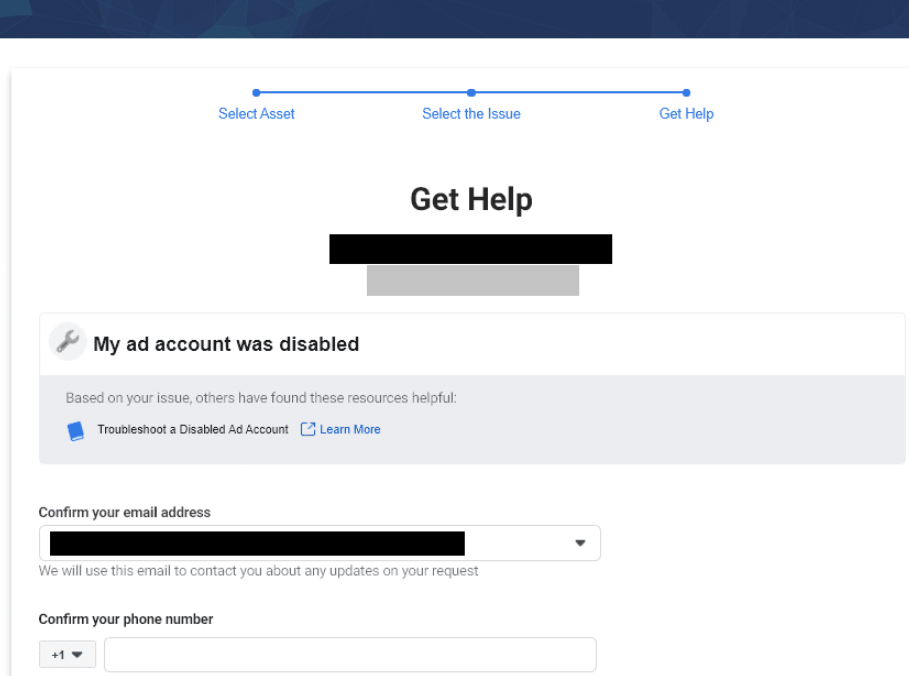
</p><p>
</p><p><br /></p><p>Note: The number of channels you can connect will depend on the plan you're subscribed to. You can disconnect the page by clicking Manage Pages and x sign near the page you want to remove.</p><p>
</p><p>
</p>]]>
            </summary>
                                    <updated>2021-05-14T11:08:20+00:00</updated>
        </entry>
            <entry>
            <title><![CDATA[SCHEDULE A POST ON MOBILE]]></title>
            <link rel="alternate" href="https://support.yourdigitalagency.com.au/articles/schedule-a-post-on-mobile-2526" />
            <id>https://support.yourdigitalagency.com.au/2526</id>
            <author>
                <name><![CDATA[Leah Gibbs]]></name>
            </author>
            <summary type="html">
                <![CDATA[<p>To create a new post from the camera roll in the mobile app follow the tips below.
</p><p>1. Tap the plus icon at the bottom middle of your screen. It will open up the Post Editor form.</p><p><img src="https://support-hub--assets.s3.eu-west-2.amazonaws.com/assets/268/images/YtfdhJgiZDhLX6ae56ShhyokYoBzSK6kGANZ5u2A.jpeg" alt="YtfdhJgiZDhLX6ae56ShhyokYoBzSK6kGANZ5u2A.jpeg" /></p><p><br /></p><p>2. Select the social media channel you want to publish the post by clicking the + sign at the button of Post Editor. 
</p><p><img src="https://support-hub--assets.s3.eu-west-2.amazonaws.com/assets/268/images/FDtET9dPTfQmPJRY0Jxzn8COKZ8rlyiz8yTpt3Gc.jpeg" alt="FDtET9dPTfQmPJRY0Jxzn8COKZ8rlyiz8yTpt3Gc.jpeg" /></p><p><br /></p><p>If you'd like to schedule it to multiple channels, tick the necessary pages and tap Confirm. 
</p><p>
</p><p><br /></p><p>3. Type the caption and add a media attachment by tapping the image icon at the bottom left. Select a photo or a video.</p><p><br /></p><p><img src="https://support-hub--assets.s3.eu-west-2.amazonaws.com/assets/268/images/wKZ9vZ8oXJvsxDJ3eBUWgspa85SaeBEOUC7o5riH.jpeg" alt="wKZ9vZ8oXJvsxDJ3eBUWgspa85SaeBEOUC7o5riH.jpeg" /></p><p><br /></p><p>Note: You can only select up to 4 images or one video from the camera roll. Multiple photos option is available for Facebook and Twitter. 
</p><p>
</p><p><br /></p><p>When you intend to post multiple images, for instance, to a Facebook page and a Pinterest board, you can choose one picture that will be published to Pinterest, and all selected images will be published to Facebook. Pick the image you’d like to post to the other social page (Pinterest in this example) with a long tap that will be prompted as Make as Main.</p><p><br /></p><p><img src="https://support-hub--assets.s3.eu-west-2.amazonaws.com/assets/268/images/FHWrg6tXJOYyLdwSav1XE4eY0e9hiQJwbQYV0VgB.jpeg" alt="FHWrg6tXJOYyLdwSav1XE4eY0e9hiQJwbQYV0VgB.jpeg" /></p><p><br /></p><p>We support video posting to such social platforms as Facebook, Linkedin, Instagram Business, and Twitter. Although, video publishing is limited to Instagram Personal, Pinterest, and Google My Business. When attempting to post a video to these platforms, the preview will be published instead.
</p><p>4. Once your piece of content is ready, tap the Clock sign at the bottom of your screen to schedule it in advance or the Publish button on the top to publish the post now.</p><p><br /></p><p><img src="https://support-hub--assets.s3.eu-west-2.amazonaws.com/assets/268/images/yPW8QT99Ewki10vVvTurg82W6C9hTScRfyGxsqqR.png" alt="yPW8QT99Ewki10vVvTurg82W6C9hTScRfyGxsqqR.png" /></p><p>Note that the Clock sign will be grayed out till you select the social page. 
</p><p>
</p><p><br /></p><p>5. Choose a publishing method:
</p><p>None
</p><p>Custom
</p><p>Add to Queue
</p><p>None means publishing the post right away after tapping the Publish button on the top right. By default, the None option is selected.</p><p><br /></p><p><img src="https://support-hub--assets.s3.eu-west-2.amazonaws.com/assets/268/images/FfdpB48aQ6whIWkdDhadr3O12UTTQv85fyBLmADN.jpeg" alt="FfdpB48aQ6whIWkdDhadr3O12UTTQv85fyBLmADN.jpeg" /></p><p><br /></p><p>Custom will enable you to choose a custom date and time to schedule the post. Once it is scheduled, you'll see the confirmation pop-up and the post itself in the Scheduled tab on the top.  </p><p><br /></p><p><img src="https://support-hub--assets.s3.eu-west-2.amazonaws.com/assets/268/images/Oi7UYhj59tVUZKsD6brwPxEKAwbyKvtWFbcJBNee.jpeg" alt="Oi7UYhj59tVUZKsD6brwPxEKAwbyKvtWFbcJBNee.jpeg" /></p><p>Add to Queue means adding the post to the pre-set schedule. You can read about the queue</p><p>
</p><p>
</p><p>
</p><p>
</p><p>
</p><p>
</p><p>
</p>]]>
            </summary>
                                    <updated>2021-05-14T11:13:56+00:00</updated>
        </entry>
            <entry>
            <title><![CDATA[CAN YOU PLEASE EXPLAIN?]]></title>
            <link rel="alternate" href="https://support.yourdigitalagency.com.au/articles/can-you-please-explain-2543" />
            <id>https://support.yourdigitalagency.com.au/2543</id>
            <author>
                <name><![CDATA[Leah Gibbs]]></name>
            </author>
            <summary type="html">
                <![CDATA[<p>I don't get it, can you elaborate?
</p><p>In a nutshell:
</p><p>You pay a monthly flat rate and we will provide you with a dedicated graphic designer who works on your design requests in the order that you request them. The price doesn’t change regardless of how many requests you may have. We will work on one design at a time until all designs have been completed and approved.
</p><p>When your design is completed, we upload them to your account and send you a link to give you instant access to your designs. If you’re not happy with the design, no problem! You have unlimited edit requests. We’ll work with it until we produce the design that you are happy with.</p>]]>
            </summary>
                                    <updated>2021-05-20T06:12:45+00:00</updated>
        </entry>
            <entry>
            <title><![CDATA[CAN I SUBMIT 20 DESIGNS IN A DAY?]]></title>
            <link rel="alternate" href="https://support.yourdigitalagency.com.au/articles/can-i-submit-20-designs-in-a-day-2544" />
            <id>https://support.yourdigitalagency.com.au/2544</id>
            <author>
                <name><![CDATA[Leah Gibbs]]></name>
            </author>
            <summary type="html">
                <![CDATA[<p>You certainly can send 20 requests in a day, although one dedicated designer working on your requests will only be able to complete one request at a time and subsequently your requests establish a queue. First in, first served.<br /></p><p>Depending on the complexity of your request, we like to give a general guideline of at least one day per design request. This time frame will extend again if there are edit requests. Gauging a timeline for a product from a creative service definitely requires some common sense and understanding from both client and designer</p>]]>
            </summary>
                                    <updated>2021-05-20T06:14:01+00:00</updated>
        </entry>
            <entry>
            <title><![CDATA[WHAT IS THE UNLIMITED FLAT RATE DESIGN PACKAGE?]]></title>
            <link rel="alternate" href="https://support.yourdigitalagency.com.au/articles/what-is-the-unlimited-flat-rate-design-package-2545" />
            <id>https://support.yourdigitalagency.com.au/2545</id>
            <author>
                <name><![CDATA[Leah Gibbs]]></name>
            </author>
            <summary type="html">
                <![CDATA[<p>The UNLIMITED SOCIAL is a monthly graphic design specifically for social media designs.<br /></p><p>- Custom branded social media designs
</p><p>Each month you can send through as many requests as you want and we design them up for you. We work on 1 design at a time so you can log them all at once or throughout the month and we design our way through them. When we deliver them to you, they will be sized and ready for you to post.
</p><p>It also comes with unlimited revisions, so if get it wrong or you would like a change, just let us know and we will amend it.</p><p>
</p><p>
</p>]]>
            </summary>
                                    <updated>2021-05-20T06:15:49+00:00</updated>
        </entry>
            <entry>
            <title><![CDATA[ARE THEY BRANDED WITH MY LOGO AND COLOURS?]]></title>
            <link rel="alternate" href="https://support.yourdigitalagency.com.au/articles/are-they-branded-with-my-logo-and-colours-2546" />
            <id>https://support.yourdigitalagency.com.au/2546</id>
            <author>
                <name><![CDATA[Leah Gibbs]]></name>
            </author>
            <summary type="html">
                <![CDATA[<p>They sure are. Just provide us details of your brand and we will ensure that all designs stay in line with your brand identity.</p>]]>
            </summary>
                                    <updated>2021-05-20T06:16:24+00:00</updated>
        </entry>
            <entry>
            <title><![CDATA[WHAT IS AN INSTAGRID?]]></title>
            <link rel="alternate" href="https://support.yourdigitalagency.com.au/articles/what-is-an-instagrid-2547" />
            <id>https://support.yourdigitalagency.com.au/2547</id>
            <author>
                <name><![CDATA[Leah Gibbs]]></name>
            </author>
            <summary type="html">
                <![CDATA[<p>An Instagrid is the main grid display of Instagram profiles. They are always displayed in rows of 3. </p><p>Some businesses and influencers use this display as a design feature by having their posts designed to form part of a larger display to promote their brand. </p><p><br /></p>]]>
            </summary>
                                    <updated>2021-05-20T06:17:21+00:00</updated>
        </entry>
            <entry>
            <title><![CDATA[WHAT IS A CAROUSEL DESIGN?]]></title>
            <link rel="alternate" href="https://support.yourdigitalagency.com.au/articles/what-is-a-carousel-design-2548" />
            <id>https://support.yourdigitalagency.com.au/2548</id>
            <author>
                <name><![CDATA[Leah Gibbs]]></name>
            </author>
            <summary type="html">
                <![CDATA[<p>A carousel design is a series of slides designed to form part of a longer display of information. Essentially it is using multiple designed posts to help illustrate information to its audience.
</p><p>A carousel is a great way to grab the attention of your audience getting them to swipe through the carousel designs and providing a call to action at the end to get them to engage.</p><p>
</p>]]>
            </summary>
                                    <updated>2021-05-20T06:17:59+00:00</updated>
        </entry>
            <entry>
            <title><![CDATA[IS THERE A CONTRACT?]]></title>
            <link rel="alternate" href="https://support.yourdigitalagency.com.au/articles/is-there-a-contract-2549" />
            <id>https://support.yourdigitalagency.com.au/2549</id>
            <author>
                <name><![CDATA[Leah Gibbs]]></name>
            </author>
            <summary type="html">
                <![CDATA[<p>There is no contract, so you can cancel at anytime :)</p><p>We do like a months notice to be fair!</p>]]>
            </summary>
                                    <updated>2021-05-20T06:18:43+00:00</updated>
        </entry>
            <entry>
            <title><![CDATA[HOW MANY DESIGNS CAN I GET?]]></title>
            <link rel="alternate" href="https://support.yourdigitalagency.com.au/articles/how-many-designs-can-i-get-2550" />
            <id>https://support.yourdigitalagency.com.au/2550</id>
            <author>
                <name><![CDATA[Leah Gibbs]]></name>
            </author>
            <summary type="html">
                <![CDATA[<p>It's unlimited so you can request as many designs as you want. We work on 1 design at a time.</p>]]>
            </summary>
                                    <updated>2021-05-20T06:19:12+00:00</updated>
        </entry>
            <entry>
            <title><![CDATA[DO YOU PROVIDE CONTENT?]]></title>
            <link rel="alternate" href="https://support.yourdigitalagency.com.au/articles/do-you-provide-content-2551" />
            <id>https://support.yourdigitalagency.com.au/2551</id>
            <author>
                <name><![CDATA[Leah Gibbs]]></name>
            </author>
            <summary type="html">
                <![CDATA[<p>Unfortunately not with this service.</p><p>You are welcome to shoot us over your content that will go into the social post designs and we can make it look pretty.</p><p>We do offer another service that comes with writing and scheduling</p><p>
</p>]]>
            </summary>
                                    <updated>2021-05-20T06:20:28+00:00</updated>
        </entry>
            <entry>
            <title><![CDATA[DO YOU POST TO OUR SOCIAL MEDIA?]]></title>
            <link rel="alternate" href="https://support.yourdigitalagency.com.au/articles/do-you-post-to-our-social-media-2552" />
            <id>https://support.yourdigitalagency.com.au/2552</id>
            <author>
                <name><![CDATA[Leah Gibbs]]></name>
            </author>
            <summary type="html">
                <![CDATA[<p>Unfortunately not with this service. </p><p>We will design up the social posts. But once we deliver the designed posts back to you, it's up to you to post it on your social media platform.</p><p>We do offer a complete another service where we can write and schedule </p>]]>
            </summary>
                                    <updated>2021-05-20T06:21:41+00:00</updated>
        </entry>
            <entry>
            <title><![CDATA[WHAT SOCIAL PLATFORMS DO YOU DESIGN FOR?]]></title>
            <link rel="alternate" href="https://support.yourdigitalagency.com.au/articles/what-social-platforms-do-you-design-for-2553" />
            <id>https://support.yourdigitalagency.com.au/2553</id>
            <author>
                <name><![CDATA[Leah Gibbs]]></name>
            </author>
            <summary type="html">
                <![CDATA[<p>Facebook
</p><p>LinkedIn
</p><p>Instagram
</p><p>and if there is another platform you want to have your branded package designed for, just let us know which one and the dimensions if you have it, and we should be able to do it for you. </p><p>To be on the safe side, let us know prior to signing up so we can investigate it for you and save you money.</p><p>
</p>]]>
            </summary>
                                    <updated>2021-05-20T06:22:26+00:00</updated>
        </entry>
            <entry>
            <title><![CDATA[WHAT IF I HAVE MORE THAN ONE BRAND?]]></title>
            <link rel="alternate" href="https://support.yourdigitalagency.com.au/articles/what-if-i-have-more-than-one-brand-2554" />
            <id>https://support.yourdigitalagency.com.au/2554</id>
            <author>
                <name><![CDATA[Leah Gibbs]]></name>
            </author>
            <summary type="html">
                <![CDATA[<p>If you wanted to get social media designs for another business or brand, then you can simply purchase another plan to get unlimited designs for it. </p>]]>
            </summary>
                                    <updated>2021-05-20T06:23:06+00:00</updated>
        </entry>
            <entry>
            <title><![CDATA[CAN I GET EDITS DONE?]]></title>
            <link rel="alternate" href="https://support.yourdigitalagency.com.au/articles/can-i-get-edits-done-2555" />
            <id>https://support.yourdigitalagency.com.au/2555</id>
            <author>
                <name><![CDATA[Leah Gibbs]]></name>
            </author>
            <summary type="html">
                <![CDATA[<p>Yes of course. The monthly plan comes with unlimited edits as well.</p>]]>
            </summary>
                                    <updated>2021-05-20T06:23:32+00:00</updated>
        </entry>
            <entry>
            <title><![CDATA[DO I NEED TO SUBMIT ALL IN ONE GO?]]></title>
            <link rel="alternate" href="https://support.yourdigitalagency.com.au/articles/do-i-need-to-submit-all-in-one-go-2556" />
            <id>https://support.yourdigitalagency.com.au/2556</id>
            <author>
                <name><![CDATA[Leah Gibbs]]></name>
            </author>
            <summary type="html">
                <![CDATA[<p>Nope. You can provide it whenever you want so long as you are a subscribed member.</p>]]>
            </summary>
                                    <updated>2021-05-20T06:24:08+00:00</updated>
        </entry>
            <entry>
            <title><![CDATA[WILL MY SOCIAL MEDIA DESIGNS BE UNIQUE?]]></title>
            <link rel="alternate" href="https://support.yourdigitalagency.com.au/articles/will-my-social-media-esigns-be-unique-2557" />
            <id>https://support.yourdigitalagency.com.au/2557</id>
            <author>
                <name><![CDATA[Leah Gibbs]]></name>
            </author>
            <summary type="html">
                <![CDATA[<p>Yes, all social media graphics that we create are fresh, unique and exclusive only to you. </p><p>You have full 100% copyrights to the social media graphics designed for you.</p>]]>
            </summary>
                                    <updated>2021-05-20T07:57:42+00:00</updated>
        </entry>
            <entry>
            <title><![CDATA[WHY SHOULD I CHOOSE THIS SERVICE?]]></title>
            <link rel="alternate" href="https://support.yourdigitalagency.com.au/articles/why-should-i-chosse-this-service-2558" />
            <id>https://support.yourdigitalagency.com.au/2558</id>
            <author>
                <name><![CDATA[Leah Gibbs]]></name>
            </author>
            <summary type="html">
                <![CDATA[<p>Why should I choose you instead of other similar services out there?
</p><p>We believe, through design, we can express our creativity and passion to the highest level. We believe that the ability to solve our customer’s problems is a gift, without them, we wouldn’t grow. We just happened to make a great design</p>]]>
            </summary>
                                    <updated>2021-05-20T07:58:42+00:00</updated>
        </entry>
            <entry>
            <title><![CDATA[DO YOU WORK 24/7 FOR ME?]]></title>
            <link rel="alternate" href="https://support.yourdigitalagency.com.au/articles/do-you-work-247-for-me-2559" />
            <id>https://support.yourdigitalagency.com.au/2559</id>
            <author>
                <name><![CDATA[Leah Gibbs]]></name>
            </author>
            <summary type="html">
                <![CDATA[<p>Are you kidding me? No freaking way</p><p>No, we only work on business days during standard business hours. Monday to Friday from 10 AM - 6 PM.</p>]]>
            </summary>
                                    <updated>2021-05-20T06:48:34+00:00</updated>
        </entry>
            <entry>
            <title><![CDATA[ADD PEOPLE TO FACEBOOK BUSINESS MANAGER]]></title>
            <link rel="alternate" href="https://support.yourdigitalagency.com.au/articles/add-people-to-facebook-business-manager-2561" />
            <id>https://support.yourdigitalagency.com.au/2561</id>
            <author>
                <name><![CDATA[Leah Gibbs]]></name>
            </author>
            <summary type="html">
                <![CDATA[<p>To give people access to your business:<br /></p><p>Go to <a href="https://business.facebook.com/select" target="_blank" rel="noreferrer noopener">Business Settings.</a>
</p><p>Click People.
</p><p>Click + Add.
</p><p>Enter the work email address of the person you want to add.</p><p><img src="https://support-hub--assets.s3.eu-west-2.amazonaws.com/assets/268/images/CIBpHCYPZnwwwmzHBHH9DnNz10KClpBddP7Gc7xW.png" alt="CIBpHCYPZnwwwmzHBHH9DnNz10KClpBddP7Gc7xW.png" /><br /></p><p>
</p><p>Select the role you'd like to assign them. Be sure to read the description for each role. Choose either Employee access or Admin access. You can also select Show Advanced Options to choose Finance analyst or Finance editor.
</p><p>Click Next.
</p><p>Choose a type of asset in the first column, then select the individual assets you want to add this person to in the second column. In the third column, toggle on each task you'd like to grant them. Or, toggle on admin access to allow them to manage the asset and perform all available tasks. You can add people to multiple assets on this screen by repeating this step.
</p><p>Click Invite.
</p><p><a href="https://www.facebook.com/business/help/442345745885606?id=180505742745347" target="_blank" rel="noreferrer noopener">Learn more about Business Manager roles and permissions.</a></p><p><br /></p><p>
</p>]]>
            </summary>
                                    <updated>2021-06-02T05:35:36+00:00</updated>
        </entry>
            <entry>
            <title><![CDATA[POSTING INSTAGRAM STORIES]]></title>
            <link rel="alternate" href="https://support.yourdigitalagency.com.au/articles/posting-instagram-stories-2564" />
            <id>https://support.yourdigitalagency.com.au/2564</id>
            <author>
                <name><![CDATA[Leah Gibbs]]></name>
            </author>
            <summary type="html">
                <![CDATA[<p>It is possible to post to Instagram Stories with Social Dashboard.</p><p><b>Facebook doesn't allow to publish Instagram stories directly from third parties, so it is possible using our SocialPost notifier app </b></p><p>Not automatically though, but through the mobile app (Android, iOS). </p><p><b>Download the App, log in the same way as you do on desktop, schedule a Story and it'll notify you when it's time to publish it.</b></p><p><b>Download Here</b></p><p><a href="https://play.google.com/store/apps/details?id=com.promorepublic.socialpost" target="_blank" rel="noreferrer noopener">Google Play</a></p><p><a href="https://apps.apple.com/us/app/socialpost-manager/id1465587077" target="_blank" rel="noreferrer noopener">Apple App Store</a></p><p>Here is a typical flow of how to publish an Instagram Story through the  app on Android devices.<br /></p><p>1. Click on the blue Post button to start the process.
</p><p>2. Hit OK.
</p><p>3. Select Stories.</p><p><img src="https://support-hub--assets.s3.eu-west-2.amazonaws.com/assets/268/images/QB9hxtbTrWITJRN2sFReOW2awTEZeaBHreGFUvCf.png" alt="QB9hxtbTrWITJRN2sFReOW2awTEZeaBHreGFUvCf.png" /></p><p><b>4. Add any visuals and graphic effects that you desire and hit Send To at the bottom.</b></p><p><img src="https://support-hub--assets.s3.eu-west-2.amazonaws.com/assets/268/images/KAUGEvI7J3qPvJea1Ok7bnTCavKrsX2DKKx7a8mK.png" alt="KAUGEvI7J3qPvJea1Ok7bnTCavKrsX2DKKx7a8mK.png" /><br /></p><p><b>Please note that unlike a feed post, a story can't be re-posted in the Calendar.
</b></p><p><b>Don't forget to assign the proper size to the picture in the Graphics Editor.</b></p><p><img src="https://support-hub--assets.s3.eu-west-2.amazonaws.com/assets/268/images/EHlsBV9Fc3AFEjhjv6n44j1f1tNgycLdcxC03cxN.png" alt="EHlsBV9Fc3AFEjhjv6n44j1f1tNgycLdcxC03cxN.png" /></p><p><br /></p><p><b>Adjust the artwork dragging it by the corners.</b></p><p><br /></p><p><img src="https://support-hub--assets.s3.eu-west-2.amazonaws.com/assets/268/images/ajgeMzcnG8yma028HXMfmxrnLznLKsgoGFDZht7x.png" alt="ajgeMzcnG8yma028HXMfmxrnLznLKsgoGFDZht7x.png" /><br /></p><p>
</p><p>
</p><p>
</p><p>
</p><p>
</p>]]>
            </summary>
                                    <updated>2021-06-02T11:40:13+00:00</updated>
        </entry>
            <entry>
            <title><![CDATA[FACEBOOK ORGANIC REACH RATES]]></title>
            <link rel="alternate" href="https://support.yourdigitalagency.com.au/articles/facebook-organic-reach-rates-2565" />
            <id>https://support.yourdigitalagency.com.au/2565</id>
            <author>
                <name><![CDATA[Leah Gibbs]]></name>
            </author>
            <summary type="html">
                <![CDATA[<p>Organic Reach Rate (ORR) is the Organic Reach on a post divided by Page Likes averaged out across all published posts in the report time interval. This metric is shown as a percentage and represents the degree to which your Fans (Page Likes) saw your published posts organically. If you rely on organic performance only and don't have a budget for paid promotion, this is a very important metric for understanding the success of your content publishing. If you see ORR falling month-on-month, this might be an indication that you require some spend to promote posts so they are seen by more people.<br /></p><p>While some industry commentators say "organic reach is dead" and that Facebook is "pay to play" - this is actually not the case. Some Facebook pages achieve excellent levels of organic reach (eg ORR of 50+%).
</p><p>Facebook Engagements
</p><p>“Facebook Engagements” is a roll-up metric which means its the sum of 8 individual metrics:
</p><ol><li>Reactions (Like, Love, Haha, Wow, Sad, Angry)
</li><li>Comments
</li><li>Shares
</li><li>Video Views (3-sec)
</li><li>Clicks to Play (clicks or taps on the actual video play button)
</li><li>Photo Views (clicks or taps on an image)
</li><li>Link Clicks (clicks or taps on a URL or link card)
</li><li>Other Clicks (clicks or taps anywhere else on the post including the post text, "See More" link, profile image, page name or post date)
</li></ol><p>This makes benchmarking Engagements across multiple social channels tricky because all the channels roll-up different metrics so you're never comparing apples with apples in a multi-channel comparison. For example, Instagram Engagements are based on 4 metrics (Likes, Comments, Saves, 3-sec Video Views). </p><p>The thing to remember is not all Engagements are equal.</p><p>Source: Social Status</p><p>
</p><p> 
</p><p>
</p><p> 
</p><p>
</p><p>
</p><p> 
</p><p>
</p><p>
</p><p> 
</p><p>
</p>]]>
            </summary>
                                    <updated>2021-06-02T12:16:50+00:00</updated>
        </entry>
            <entry>
            <title><![CDATA[SETTING UP FACEBOOK PIXEL]]></title>
            <link rel="alternate" href="https://support.yourdigitalagency.com.au/articles/setting-up-facebook-pixel-2567" />
            <id>https://support.yourdigitalagency.com.au/2567</id>
            <author>
                <name><![CDATA[Leah Gibbs]]></name>
            </author>
            <summary type="html">
                <![CDATA[<p>Facebook Pixel enables you to measure audiences; giving Facebook feedback in order to optimize your campaigns and reach the right audiences. </p><p><a href="https://www.facebook.com/business/m/get-started-with-facebook-pixelNeed%20help%20with%20your%20pixel,%20click%20here" target="_blank" rel="noreferrer noopener">Need help with your pixel, click here</a></p>]]>
            </summary>
                                    <updated>2021-06-09T10:43:44+00:00</updated>
        </entry>
            <entry>
            <title><![CDATA[MY AD ACCOUNT WAS DISABLED]]></title>
            <link rel="alternate" href="https://support.yourdigitalagency.com.au/articles/my-ad-account-was-disabled-2577" />
            <id>https://support.yourdigitalagency.com.au/2577</id>
            <author>
                <name><![CDATA[Leah Gibbs]]></name>
            </author>
            <summary type="html">
                <![CDATA[<p>What to do if you Think your Ad Account was Disabled by Mistake
</p><p>If your ad account has been disabled, you can visit Account Quality to find out more information and request another review.
</p><p>Note: You must be an admin on the ad account you wish to appeal.
</p><p>Visit Account Quality here <a href="https://www.facebook.com/accountquality" target="_blank" rel="noreferrer noopener">https://www.facebook.com/accountquality</a></p><p>Under What You Can Do, select Request Review.<br /></p><p>Follow the steps to submit a review.</p><p>
</p><p>
</p>]]>
            </summary>
                                    <updated>2021-06-29T02:43:03+00:00</updated>
        </entry>
            <entry>
            <title><![CDATA[STEP BY STEP INSTRUCTIONS ON HOW TO FIX A DISABLED AD ACCOUNT]]></title>
            <link rel="alternate" href="https://support.yourdigitalagency.com.au/articles/step-by-step-instructions-on-how-to-fix-a-disabled-ad-account-2578" />
            <id>https://support.yourdigitalagency.com.au/2578</id>
            <author>
                <name><![CDATA[Leah Gibbs]]></name>
            </author>
            <summary type="html">
                <![CDATA[<p><b>Step by Step Instructions to Fix a Disabled Facebook Ads Account
</b></p><p>If a situation like this has happened to you, here is how to get it fixed.
</p><p><b>Step #1: Check Your Account
</b></p><p>This is obvious and you have probably already done it, but give your ad account a good once over and look at all recent ads. Facebook Business Help Center has a document titled “Troubleshoot a Disabled Ad Account” which you should read before proceeding. </p><p>You can find that here: <a href="https://www.facebook.com/business/help/968402779873601" target="_blank" rel="noreferrer noopener">https://www.facebook.com/business/help/968402779873601</a></p><p>Also, this is probably a good time to read Facebook’s Advertising Policies just in case. You can find those here: <a href="https://business.facebook.com/policies/ads" target="_blank" rel="noreferrer noopener">https://business.facebook.com/policies/ads</a></p><p>
</p><p><b>Step #2: Review the Details of Your Suspension
</b></p><p>Log in to your Facebook Ads Manager and click on the button that says “see details” in the message bubble alerting you to the suspension. That message bubble should read something like this: “You can’t use this account to run ads. Its ads have stopped running and some of its advertising assets are also disabled.”</p><p><img src="https://support-hub--assets.s3.eu-west-2.amazonaws.com/assets/268/images/c6Y0RwIiaz6ajKc52bXbSuUJP8pbFqlBvOxVsPM3.png" alt="c6Y0RwIiaz6ajKc52bXbSuUJP8pbFqlBvOxVsPM3.png" /></p><p><br /></p><p><b>Step #3: Review the Exact Reason Facebook Suspended Your Account
</b></p><p>When you click on “see details” it does not show you the actual details of the suspension reason, it takes you to the “Account Quality” page where Facebook will list out the section / sub-section of their policies you supposedly violated and what exactly you can’t do with your Ad account during the suspension.
</p><p>Under your Account Name and ID Number Facebook will tell you the section / sub-section your Ad account supposedly violated. They should also link to it in the Advertising Policies so you can click the link to open a new tab and read it as one last final check to see if you did do something to violate their numerous and increasingly complex policies.</p><p><b>Step #4: Request a Review
</b></p><p>On the right-hand side of this page (desktop, btw you should not try and do this on mobile/tablet) you should see a section titled “What You Can Do”. Immediately under the heading, you might notice a small warning that Facebook may permanently disable your advertising account sometime in the next six months if you do not take action. That is obviously not something we want to happen so we definitely want to take action.
</p><p>
</p><p>Directly below this dire warning should be a button that reads “Request Review”. Click on this button to open up a special form that will allow you to request Facebook review your Ads account and see if you actually violated the policies they claim.<br /></p><p><img src="https://support-hub--assets.s3.eu-west-2.amazonaws.com/assets/268/images/BXzGPM3kLkECyRTRsG4gNsg24Ks9Brc28Ou83sYY.png" alt="BXzGPM3kLkECyRTRsG4gNsg24Ks9Brc28Ou83sYY.png" /></p><p><br /></p><p>In your request be as polite, gentle, and informative as possible but without being overly wordy. Facebook’s staff reviewing these requests likely get a lot of messages all day and using all caps, cursing, or writing a verbose response may not be the best way to get a quick and positive review.
</p><p>
</p><p><br /></p><p><b>Step #5: Wait a Few Days(?)
</b></p><p>Once you have filled out the “Request Review” form you may notice that your Account Quality page has a new message bubble on top of the first column. That may read something like “We’re reviewing your ad account to determine if it was correctly restricted from advertising and will notify you here as soon as possible. Please note that due to coronavirus (COVID-19) we have fewer people available for reviews and it may take several weeks to get a response.”
</p><p><br /></p><p><img src="https://support-hub--assets.s3.eu-west-2.amazonaws.com/assets/268/images/rxx0K8gX6ywKmEJgl6OpcJpp0sIsKaiJF7Sse1wk.png" alt="rxx0K8gX6ywKmEJgl6OpcJpp0sIsKaiJF7Sse1wk.png" /></p><p><br /></p><p>Yikes. Several Weeks!!
</p><p>
</p><p><br /></p><p>Yes, and there really is not much else you can do at this point but wait. Once you have successfully submitted your request someone who works at or for Facebook will review it, but they clearly have a backlog of these kinds of requests due to some unknown bug in their system.
</p><p>Give this 24 to 48 hours and you should get a response via email. If you do not jump down to Step #8
</p><p><b>Step #6: Try a Different Facebook Ads Account<br /></b></p><p>While you wait on Facebook to re-enable your Facebook Ads Account from their disabling of it, you may get antsy and want to run a small quick ad campaign or even boost a post or two. If you have access to other Ads accounts you can likely use one of those instead.</p><p>Most Facebook Personal Accounts have an Ads Account built-in but without a credit card added to it. These accounts should be able to be used on any Page you admin or manage to run ads. </p><p>You can find this account on the left-hand side of your personal screen after you login. Click the “Show More” link with a downward pointing arrow and scroll a little bit until you see “Ads Manager”. Open this up and it should open to your personal advertising account (with your name as the account name). You can add a credit card to this account and start running ads or boosts from here.</p><p><b>Step #7: Try Out Other Paid Social and Advertising Platforms
</b></p><p>You may consider giving some these a try while your Facebook Ads account is disabled:
</p><p>
</p><p><br /></p><p>Reddit Ads
</p><p>Snapchat Ads
</p><p>TikTok Ads<br /></p><p>Quora Ads
</p><p>LinkedIn Ads<br /></p><p>Pinterest Ads
</p><p>Twitter Ads
</p><p>Who knows, maybe one of these channels works far better than Facebook and provides a better ROAS for your brand / products / content. </p><p><b>Step #8: Send a Request for Help Via Facebook Chat Support</b></p><p>If you have gotten a weird response after your review request, if you did not get a response after 2 full business days, or if you were told that your account was permanently disabled for a bad reason or no reason – then it is time to take another approach. Unfortunatley now you will have to go through a bit of a dark pattern to get the help you need.
</p><p>
</p><p>You can find Facebook’s Chat Support at this URL: <a href="https://www.facebook.com/business/help" target="_blank" rel="noreferrer noopener">https://www.facebook.com/business/help</a></p><p>Look for the section that says “STILL NEED HELP? Find answers or contact support”<br /></p><p>Click or tap on the big blue button that says “Get Started”.</p><p><img src="https://support-hub--assets.s3.eu-west-2.amazonaws.com/assets/268/images/AYkvVvRWE5aNK7WG5H13gOZ4YTvel7w35xBTu4CV.png" alt="AYkvVvRWE5aNK7WG5H13gOZ4YTvel7w35xBTu4CV.png" /></p><p><br /></p><p>This will get you on your way to chat support but you are not there yet. You have to click a second blue button that says “Get Started”</p><p><img src="https://support-hub--assets.s3.eu-west-2.amazonaws.com/assets/268/images/2XaUSIQKXTkwo2PlSmgArzRbuqG8DtEPAwn0jdQZ.png" alt="2XaUSIQKXTkwo2PlSmgArzRbuqG8DtEPAwn0jdQZ.png" /></p><p><br /></p><p>Now you are finally getting somewhere. This screen wants you to select an asset to request support about. That could be a page, advertising account, etc… Make sure to select the correct advertising account here before moving forward.</p><p><br /></p><p><img src="https://support-hub--assets.s3.eu-west-2.amazonaws.com/assets/268/images/AdF5uiTu31WTFU9E3cG4YMzmnFnw9Aq0d8DTmXgZ.png" alt="AdF5uiTu31WTFU9E3cG4YMzmnFnw9Aq0d8DTmXgZ.png" /></p><p><br /></p><p>At the next screen, you are going to be asked what you need help with. Disabled Ads accounts are an incredibly common issue and it is most often the very first available selection here.
</p><p>
</p><p><br /></p><p><br /></p><p><br /></p><p></p><p><br /></p><p>Finally, you will be asked to fill out a form about your request.
</p><p>
</p><p>You need to confirm your email address and phone number and write a summary of your issue. Include at least one screenshot if possible and then down in the right-hand corner you will see a button to submit the information along with how long it might take for a support tech to get back to you.<br /></p><p><img src="https://support-hub--assets.s3.eu-west-2.amazonaws.com/assets/268/images/qxRSjNvwxqzKxRKc73ShkWyysgiKRUAA673yE3MC.png" alt="qxRSjNvwxqzKxRKc73ShkWyysgiKRUAA673yE3MC.png" /></p><p><br /></p><p>Once you submit the form and wait a few minutes you should get a response in the form of a message via FB Messenger that looks something like this.</p><p><br /></p><p><img src="https://support-hub--assets.s3.eu-west-2.amazonaws.com/assets/268/images/G3mx6mZXyybQgcA1JOgE1qgLpltdRPErfuHZNvyG.png" alt="G3mx6mZXyybQgcA1JOgE1qgLpltdRPErfuHZNvyG.png" /></p><p><br /></p><p>This final step most likely will result in your account being re-enabled. This is what it took to get our account re-enabled as you can see in the email response below. However, you should still request the review first and wait up to 48 hours for a response before accessing the Concierge / Chat support.</p><p><br /></p><p><img src="https://support-hub--assets.s3.eu-west-2.amazonaws.com/assets/268/images/BBVXuzJWmIjE05MlTmkNNP8f1tJof3BC2CkHTlnB.png" alt="BBVXuzJWmIjE05MlTmkNNP8f1tJof3BC2CkHTlnB.png" /></p><p><br /></p><p><br /></p><p>If instead of re-enabling your account the support tech tells you that your account is not disabled, is permanently disabled, or something else you may want to try this support channel again in a few days to get another person to review your account.</p><p><br /></p><p>
</p><p>
</p><p>
</p><p>
</p><p>
</p><p>
</p><p>
</p>]]>
            </summary>
                                    <updated>2021-06-29T06:54:38+00:00</updated>
        </entry>
            <entry>
            <title><![CDATA[REQUEST ACCESS TO A PAGE IN BUSINESS MANAGER]]></title>
            <link rel="alternate" href="https://support.yourdigitalagency.com.au/articles/request-access-to-a-page-in-business-manager-2579" />
            <id>https://support.yourdigitalagency.com.au/2579</id>
            <author>
                <name><![CDATA[Leah Gibbs]]></name>
            </author>
            <summary type="html">
                <![CDATA[<p>When you request access to a Page, you’re asking for permission to another person’s or business’s Page. You aren’t taking ownership of the Page, but are rather requesting access to perform certain tasks on the Page, such as view, comment or run ads. </p><p>You’ll be able to see this Page in your Business Manager, but it will show the person’s or business’s name as the owner.
</p><p><b>Request access to a page from your Business Manager
</b></p><p>Steps to request access to a Page from the Business Manager:
</p><p>Go to Business Settings.</p><p>
</p><p>Click the blue Add dropdown button<br /></p><p>Select Request Access to a Page.
</p><p>Enter the Facebook Page name or URL.
</p><p>Use the toggles to choose which permissions you need.
</p><p>Click Request Access.
</p><p>You've now sent your request to the Page admin or the Business Manager admin that owns the Page.</p><p><img src="https://support-hub--assets.s3.eu-west-2.amazonaws.com/assets/268/images/BPQNJ0YYGAw40WL1Ki0fWic97POrLWLNz2HpMCC5.png" alt="BPQNJ0YYGAw40WL1Ki0fWic97POrLWLNz2HpMCC5.png" /><br /></p><p> </p><p><b>Once the admin approves your request, you will see the Page in your Business Manager.</b></p><p>
</p><p>
</p><p>
</p>]]>
            </summary>
                                    <updated>2021-07-19T10:22:39+00:00</updated>
        </entry>
            <entry>
            <title><![CDATA[VERIFY YOUR BUSINESS ON GOOGLE]]></title>
            <link rel="alternate" href="https://support.yourdigitalagency.com.au/articles/verify-your-business-on-google-2580" />
            <id>https://support.yourdigitalagency.com.au/2580</id>
            <author>
                <name><![CDATA[Leah Gibbs]]></name>
            </author>
            <summary type="html">
                <![CDATA[<p></p><p>To update your business name and other info on Google products, you must first verify your business. </p><p>Guidelines
</p><ol><li>Before you start your verification, make or claim a Google My Business profile.
</li><li>Most local businesses verify by mail.</li><li>It may take a few weeks for your business info to show across Google.<br /></li><li>After your info is live, you can check it in your Business Profile. </li><li>To find your profile, search for your business name and city in Google Search or Maps. Search results can vary for many reasons. </li></ol><p>Follow this link for instructions <a href="https://support.google.com/business/answer/7107242?hl=en&amp;co=GENIE.Platform%3DAndroid" target="_blank" rel="noreferrer noopener">https://support.google.com/business/answer/7107242?hl=en&amp;co=GENIE.Platform%3DAndroid</a></p><p><b>Verify a business by mail
</b></p><ul><li>To avoid unnecessary delays:
</li><li>Make sure your address complies with <a href="https://support.google.com/business/answer/2853879" target="_blank" rel="noreferrer noopener">our address entry guidelines.</a>
</li><li>While you wait for your verification postcard:
</li><li>Do not edit your business name, address, or category.
</li><li>Do not request a new code.</li></ul><p>
</p>


<iframe src="https://www.youtube.com/embed/tVJfshp3j-U"></iframe><p><b>Enter Your Verification Code</b></p><ol><li>Verification codes expire after 30 days. If you update your business address, only the code you requested for your current address is valid.
</li><li>Each verification code you receive is unique to your business account and the particular location for which you requested verification. 
</li><li>Keep your code secure
</li><li>Important: Google won't call you to ask for a verification code.
</li><li>Do not share your verification code with anyone. This includes third parties that help manage your business on Google, like an SEO or marketing firm. Your code is unique to your business account and you should be the only one who uses it. If you share management of your business’s profile with a trusted third party:
</li><li>Verify your profile and personally enter your verification code.
</li><li>After you complete verification, you can add and remove owners and managers for your business. Then, you can transfer ownership of the profile to a third party.
</li><li>Verify your code
</li><li>After you get your postcard, on your computer, <a href="https://www.google.com/business/?ppsrc=GPDA2" target="_blank" rel="noreferrer noopener">sign in to Google My Business.</a>
</li><li>Choose the business you want to verify.
</li><li>From the menu, click Verify location.
</li><li>Alternatively, click Verify now.
</li><li>In the “Code” field, enter the 5-digit verification code from your postcard.  
</li><li>Submit the code.</li></ol><p><img src="https://support-hub--assets.s3.eu-west-2.amazonaws.com/assets/268/images/UGPKLmhCQIyWUNa5nLw4DzKCf2XRJhMUgcQRG3ju.gif" alt="UGPKLmhCQIyWUNa5nLw4DzKCf2XRJhMUgcQRG3ju.gif" /><br /></p><p>
</p><p>
</p><p>
</p><p>
</p>]]>
            </summary>
                                    <updated>2021-07-29T01:09:25+00:00</updated>
        </entry>
            <entry>
            <title><![CDATA[GRAPHIC EDITOR  BRAND STYLES]]></title>
            <link rel="alternate" href="https://support.yourdigitalagency.com.au/articles/graphic-editor-brand-styles-2641" />
            <id>https://support.yourdigitalagency.com.au/2641</id>
            <author>
                <name><![CDATA[Leah Gibbs]]></name>
            </author>
            <summary type="html">
                <![CDATA[<p>Right now we are ready to present an update for Graphic Editor - Brand Styles 🎨
</p><p>Now you can create custom saved styles for your clients by following these steps:
</p><p>From the Content, click on Editor.
</p><p>Select Styles and click + Add Style
</p><p>Set up your new Style by 
</p><p>Adding the title for the Style and assigning it to a workspace
</p><p>Select Fonts from the Popular fonts or upload your own fonts (OTF or TTF formats)
</p><p>Add Colors to the Palette 
</p><p>Save Style
</p><p>In the Styles section, click + to create the next Style</p><p><br /></p><p>
</p><p>
</p><p>
</p><p>
</p><p>
</p><p>
</p><p>
</p>]]>
            </summary>
                                    <updated>2021-12-29T11:26:21+00:00</updated>
        </entry>
            <entry>
            <title><![CDATA[HOW TO TELL IF YOU HAVE A BUSINESS PROFILE ACCOUNT ON INSTAGRAM]]></title>
            <link rel="alternate" href="https://support.yourdigitalagency.com.au/articles/how-to-tell-if-you-have-a-business-profile-account-on-instagram-2670" />
            <id>https://support.yourdigitalagency.com.au/2670</id>
            <author>
                <name><![CDATA[Leah Gibbs]]></name>
            </author>
            <summary type="html">
                <![CDATA[<p>On Instagram, there are business and personal accounts. Usually, business accounts are used for marketing, and this type of account gives the user access to several features that regular accounts don’t have. </p><p>If you want to determine if you have a business account, here’s what you need to do.</p><p><br /></p><p><iframe src="//www.youtube.com/embed/PXXESgcm8K0" class="note-video-clip"></iframe><br /></p>]]>
            </summary>
                                    <updated>2022-05-07T04:18:17+00:00</updated>
        </entry>
            <entry>
            <title><![CDATA[HOW TO TELL IF I HAVE AN INSTAGRAM BUSINESS ACCOUNT?]]></title>
            <link rel="alternate" href="https://support.yourdigitalagency.com.au/articles/how-to-tell-if-i-have-an-instagram-business-account-2672" />
            <id>https://support.yourdigitalagency.com.au/2672</id>
            <author>
                <name><![CDATA[Leah Gibbs]]></name>
            </author>
            <summary type="html">
                <![CDATA[<p>How Can I Tell if My Instagram is Already a Business Account?</p><p>To see if you already have a business account on Instagram, log into your account, tap the three lines in the upper righthand corner of your profile, and then tap “Settings” at the top.</p><p><img src="https://support-hub--assets.s3.eu-west-2.amazonaws.com/assets/268/images/bCr6127FNCJOGRiyDb6NlPL944ykMF4eikR0FrHU.png" alt="bCr6127FNCJOGRiyDb6NlPL944ykMF4eikR0FrHU.png" /></p><p><br /></p><p>From there, tap “Account” and look at the very last option. If you have a business account, it will say, “Switch Back to Personal Account.” If you don’t have a business account, the last option will be “Switch to Professional Account”. No worries, though, we’ll show you how to convert it to a business account!</p><p><img src="https://support-hub--assets.s3.eu-west-2.amazonaws.com/assets/268/images/a6e88anYCWeWafl38Sux2nY9STjpJBvgPxwijJ8t.png" alt="a6e88anYCWeWafl38Sux2nY9STjpJBvgPxwijJ8t.png" /><br /></p><p><br /></p><p>How to Switch Instagram to a Business Account
</p><p>Before doing this, you should know that your account will be public. Your account cannot be both a private account and a business account (and really, why would you want a private business account?)
</p><p>When you change to a business account, your account will be exactly the same, but you’ll have access to analytics and tools not available on personal accounts.
</p><p>To change your Instagram account to a business account, you’ll start with the steps we followed to check your account:
</p><p>Go to your account and tap the three lines in the upper-righthand corner
</p><p>Tap “Settings” at the top
</p><p>Select “Account” and then “Switch to Professional Account”
</p><p>Swipe through the next 4 screens that explain the benefits of a Professional Account
</p><p>Then, you will have the opportunity to choose what category your business falls under. Start typing to search for the category that best fits your business
</p><p>Click “Done”, and then confirm that you want to switch to a Professional Instagram Account
</p><p>Lastly, you will be taken to a screen that gives you the option between “Creator” and “Business.” Choose “Business.” (The “Creator” account is for Instagram influencers and public figures so it does not offer all the tools a business account does.)</p><p><img src="https://support-hub--assets.s3.eu-west-2.amazonaws.com/assets/268/images/jk4FcSVYPoKzMWQVOQLd2q1hoUXxRwn2RNUKyI4D.png" alt="jk4FcSVYPoKzMWQVOQLd2q1hoUXxRwn2RNUKyI4D.png" /><br /></p><p><br /></p><p>8. Now you’ll have the chance to put in contact info for your account. This email address will be tied to the “email” button on your profile so be sure it’s one you check regularly!
</p><p>You can add your phone number and address. If you don’t want to receive calls or you don’t have a physical location that customers or clients would visit, you don’t have to add this information. However, you are required to add at least an email address.</p><p><img src="https://support-hub--assets.s3.eu-west-2.amazonaws.com/assets/268/images/V9Tp0wA4oWYOVpCLB4osnaswctgUSPUe0Bq6NR3B.png" alt="V9Tp0wA4oWYOVpCLB4osnaswctgUSPUe0Bq6NR3B.png" /></p><p><br /></p><p>9. The last step is setting up or linking your business’s Facebook page. You’ll do that by naming your page on Instagram but you’ll finish setting up the page on Facebook.
</p><p>
</p><p><br /></p><p>If you already have a Facebook page for your business, you can link them with these instructions.
</p><p>This is a requirement because Facebook owns Instagram. If your business is on both platforms, this can actually be beneficial since Facebook displays your Instagram feed on your Facebook page. You can also have your Instagram posts automatically published to Facebook, which saves a little time!</p><p><br /></p><p><img src="https://support-hub--assets.s3.eu-west-2.amazonaws.com/assets/268/images/aEuk41BaJ3WQ1KWWHcCumZ4vloPkUCUbm1C3YuB8.png" alt="aEuk41BaJ3WQ1KWWHcCumZ4vloPkUCUbm1C3YuB8.png" /></p><p><br /></p><p>Once you’ve named and connected your Facebook page, you’re done! Your Instagram account is now a business account and you can use the analytics, ads, and sponsored posts to take your Instagram game to the next level.</p><p>
</p><p>
</p><p>
</p><p>
</p><p>
</p>]]>
            </summary>
                                    <updated>2022-05-13T00:34:28+00:00</updated>
        </entry>
            <entry>
            <title><![CDATA[PROHIBITED AND RESTRUCTED CONTENT ON WHICH WE CAN NOT RUN FACEBOOK ADS]]></title>
            <link rel="alternate" href="https://support.yourdigitalagency.com.au/articles/prohibited-and-restructed-content-on-whic-we-can-not-run-facebook-ads-2673" />
            <id>https://support.yourdigitalagency.com.au/2673</id>
            <author>
                <name><![CDATA[Leah Gibbs]]></name>
            </author>
            <summary type="html">
                <![CDATA[<p>Prohibited and Restricted content on which we can't run Ads.
</p><p>https://www.facebook.com/policies/ads/</p><p>
</p>]]>
            </summary>
                                    <updated>2022-05-18T01:58:22+00:00</updated>
        </entry>
            <entry>
            <title><![CDATA[HOW TO SWITCH TO A TIK TOK BUSINESS ACCOUNT]]></title>
            <link rel="alternate" href="https://support.yourdigitalagency.com.au/articles/how-to-switch-to-a-tik-tok-business-account-2686" />
            <id>https://support.yourdigitalagency.com.au/2686</id>
            <author>
                <name><![CDATA[Leah Gibbs]]></name>
            </author>
            <summary type="html">
                <![CDATA[<p>Anyone who has a personal TikTok account can create a TikTok Business Account. To upgrade your account:<br /></p><p>​Open the TikTok app and log in to your account 
</p><p>​Go to your profile homepage by tapping Me
</p><p>​Open your Settings and privacy page by tapping the three dots icon on the top right corner of your profile homepage.</p><p>​From the Account module, tap Manage account.</p><p>​Then under the Account control options, tap Switch to Pro Account
</p><p>​Tap Business under Select an account type 
</p><p>​Select a category that best describes your account, then tap Next, which will complete the process.</p><p><img src="https://support-hub--assets.s3.eu-west-2.amazonaws.com/assets/268/images/tg5DCFfgKg43LCoSyL2bjibCzl7g2oUUg636XEqB.gif" class="note-float-left" style="float:left;width:536.208px;height:357.462px;" alt="tg5DCFfgKg43LCoSyL2bjibCzl7g2oUUg636XEqB.gif" /><br /></p><p>
</p><p><br /></p><p><br /></p><p><br /></p><p><br /></p><p><br /></p><p><br /></p><p><br /></p><p><br /></p><p><br /></p><p><br /></p><p>Once you've switched to a Business Account, you can edit your profile with newly available options, like adding your website or email address to your profile.
</p><p>For a full list of features supported by TikTok Business Accounts, see TikTok Business Account Features.
</p><p><b>Note: If you wish to switch to a personal account, go to Settings, and privacy &gt; Manage account &gt; Account control and tap Switch to Personal Account.
</b></p><p><br /></p><p>
</p><p>
</p><p>
</p>]]>
            </summary>
                                    <updated>2022-09-14T10:49:33+00:00</updated>
        </entry>
            <entry>
            <title><![CDATA[HOW DO I CREATE A GOOD LINKEDIN PROFILE]]></title>
            <link rel="alternate" href="https://support.yourdigitalagency.com.au/articles/how-do-i-create-a-good-linkedin-profile-2692" />
            <id>https://support.yourdigitalagency.com.au/2692</id>
            <author>
                <name><![CDATA[Leah Gibbs]]></name>
            </author>
            <summary type="html">
                <![CDATA[<p>Your LinkedIn profile is a professional landing page for you to manage your personal brand. </p><p>A LinkedIn profile is an excellent way to let people know who you are, what you stand for, and what you’re interested in. Your profile will be your storyboard where people can find you and stay updated on your activity, so make sure your profile is complete and representative of you.
</p><p>Your profile is fully visible to all LinkedIn members who've signed in to LinkedIn. However, you can control what appears on your profile, notifications to your network, and your profile privacy preferences.
</p><p><b>Having a profile on LinkedIn helps:
</b></p><p><b>Manage your professional brand</b> – You can define and develop how other members view your professional experience and qualifications. Since you will have complete control over your profile and its visibility, you can customize it to fit your needs. Your customized profile will help recruiters and other members understand your professional personality.
</p><p><b>Create opportunities for you</b> – Since people and organizations globally use LinkedIn, a LinkedIn profile will help you get noticed. An updated profile is a great way to ensure that you can be found by right people at the right time. </p><p><b>Build your network and track your professional milestones</b> – Your professional achievements (new job, work anniversary, promotion, etc.) can be recorded and displayed on your LinkedIn profile. It’ll help you showcase your professional experience and achievements to other members who view your profile. An updated profile opens the door to meeting new members and making connections.
</p><p>You can add various sections to your profile to showcase your skills and expertise. A complete LinkedIn profile will increase your discoverability and profile search appearances.
</p><p><b>Tips for creating a great LinkedIn profile:
</b></p><p><b>Add a professional profile photo</b> - A good profile photo increases the credibility of your profile and helps you stand out from the crowd. Members with a profile photo on LinkedIn can get up to 21 times more profile views than members without a photo. You can also add a background image to personalize your profile. Check out some more tips for picking the right LinkedIn profile photo.
</p><p><b>Make your headline stand out </b>– Your headline is created when you add your positions to your profile. However, you can re-write it to either promote an area of expertise or to let your personality shine through.
</p><p><img src="https://support-hub--assets.s3.eu-west-2.amazonaws.com/assets/268/images/JJdUaRoe0cJjkQZkhN7FezO39fXSEvUFeWcqaxpl.png" alt="JJdUaRoe0cJjkQZkhN7FezO39fXSEvUFeWcqaxpl.png" /><br /></p><p><br /></p><p><b>Write a summary </b>- The About section of your profile should express your mission, motivation, and skills to people who view your profile. Ideally, you should limit the text to one or two paragraphs while filling this section. You can use bullet points if you’re not comfortable with writing paragraphs. C</p><p><b>Add all your relevant work and education experiences –</b> You should keep the profile updated with all your professional experiences that align with your current career goals. You can also add media samples to provide quick access to your work portfolio.
</p><p><b>Add relevant skills </b>– A list of relevant skills on your profile helps you showcase your abilities to other members, like your colleagues and recruiters. It helps other understand your strengths. Once you add your skills, your connections can endorse them. If someone endorses your skills, it will increase the likelihood of you being discovered for opportunities related to the skills you possess. You can also take assessments for the skills you’ve listed on your profile to showcase your proficiency.
</p><p><b>Request recommendations from your connections</b> - A recommendation is written to recognize or commend a connection, such as a colleague, business partner, or student. There’s no limit to the number of recommendations you can request for. Once you accept a recommendation written by a connection, it becomes visible to your network by default. You can also hide recommendations that you think don’t suit your professional goals.
</p><p><b>Use your profile strength meter to gauge the strength of your profile.
</b></p><p>Once you’ve created and updated different sections of your profile, you can begin sharing your public profile with your wider network. Your public profile is a simplified version of your complete LinkedIn profile that shows up in search engines and is visible to everyone. You can promote your profile to show up better in search engine results by creating a personal URL. You can also create a badge for your public profile that you can add to your online resume, blog, or website from the Public profile settings page.
</p><p><br /></p>]]>
            </summary>
                                    <updated>2022-11-18T04:08:50+00:00</updated>
        </entry>
            <entry>
            <title><![CDATA[LEARNING LINKEDIN]]></title>
            <link rel="alternate" href="https://support.yourdigitalagency.com.au/articles/learning-linkedin-2693" />
            <id>https://support.yourdigitalagency.com.au/2693</id>
            <author>
                <name><![CDATA[Leah Gibbs]]></name>
            </author>
            <summary type="html">
                <![CDATA[<p><b>Who this course is for?</b></p><p>This course was designed as a beginning course for individuals who want to set up or improve their LinkedIn profile and as a way to learn more about some of the features and functions available to you on LinkedIn. </p><p>I believe that anyone interested in LinkedIn will get some tips on how to use the platform better from this course. </p><p><b>If you want to get started with LinkedIn or make better use of the platform, this is the course for you.</b></p><p>By harnessing the power of the LinkedIn platform, you can tap into an expansive network of professionals, companies, and groups in your industry and beyond. </p><p>This course teaches how to make the most of your LinkedIn account. </p><p><b>Learning objectives</b></p><ol><li>Recognize how to choose which industry you are in when setting up your LinkedIn account.</li><li>Name the two options you have for writing your LinkedIn profile summary.</li><li>Explain how LinkedIn lists your skills based on endorsements.</li><li>Recall what recommendations on LinkedIn profiles are compared to.</li><li>Identify the messaging service in LinkedIn that allows you to communicate with other users who are online instantly.</li><li>Recognize the benefits of using private mode on LinkedIn.</li></ol><p><b><a href="https://www.linkedin.com/learning/learning-linkedin-2021/who-this-course-is-for?autoplay=true" target="_blank" rel="noreferrer noopener">CLICK HERE TO GET STARTED</a></b></p>]]>
            </summary>
                                    <updated>2022-11-18T04:16:03+00:00</updated>
        </entry>
            <entry>
            <title><![CDATA[SIGN UP TO LINKEDIN]]></title>
            <link rel="alternate" href="https://support.yourdigitalagency.com.au/articles/sign-up-to-linkedin-2694" />
            <id>https://support.yourdigitalagency.com.au/2694</id>
            <author>
                <name><![CDATA[Leah Gibbs]]></name>
            </author>
            <summary type="html">
                <![CDATA[<p>LinkedIn is the world's largest professional network, with hundreds of millions of members, and growing rapidly. Our mission is to connect the world's professionals to make them more productive and successful.</p><p><b>To join LinkedIn and create your profile:</b><br /></p><ol><li>Navigate to the LinkedIn sign-up page <a href="https://www.linkedin.com/reg/join" target="_blank" rel="noreferrer noopener">https://www.linkedin.com/reg/join</a></li><li>Type your first and last name, email address, and a password you'll use.<br /></li><li>Note: You must use your actual name when creating a profile. company names and pseudonyms are not allowed.
</li><li>Click Join now.
</li><li>Complete any additional steps as prompted.</li></ol><p>
</p>]]>
            </summary>
                                    <updated>2022-11-18T04:23:40+00:00</updated>
        </entry>
            <entry>
            <title><![CDATA[LINKEDIN MULTIPLE IMAGE POSTING]]></title>
            <link rel="alternate" href="https://support.yourdigitalagency.com.au/articles/linkedin-multiple-image-posting-2702" />
            <id>https://support.yourdigitalagency.com.au/2702</id>
            <author>
                <name><![CDATA[Leah Gibbs]]></name>
            </author>
            <summary type="html">
                <![CDATA[<p><b>LinkedIn Multiple Image and GIF posting!✨</b></p><p><b>Multiple Image posting!</b></p><p>Social media has amplified the power of visual content, making it more critical than ever.
</p><p>We're excited to announce that you can now share posts with multiple images on your LinkedIn company profiles and personal pages via Social Dashboard</p><p><img src="https://support-hub--assets.s3.eu-west-2.amazonaws.com/assets/268/images/39c91WpzYUFWlAS2C7pxQgoxfXC6aatcwUfBxSh7.png" alt="39c91WpzYUFWlAS2C7pxQgoxfXC6aatcwUfBxSh7.png" /><br /></p><p><b>What are the benefits of using multi-image posts?
</b></p><p>As social media users increasingly prefer visual content, multi-image posts provide an excellent opportunity to engage your audience. Here are just a few ways you can use them:</p><p>● Showcase a new product or service from different angles
</p><p>● Share highlights from a recent industry event your company attended
</p><p>● Promote upcoming events with eye-catching visuals
</p><p>● Combine text-based images with photographs for added impact
</p><p>To create your first LinkedIn multiple images post, click "create post," choose Linkedin, upload or create up to 9 images, schedule the post or post it immediately, and voila. Here is your post with Multiple Images.</p><p>This update also allows you to publish one GIF to LinkedIn.
</p><p>If you delete a post from your calendar, it will be automatically removed from LinkedIn.
</p><p>Start using this exciting new feature today to enhance your LinkedIn presence and engage.</p><p><br /></p><p>
</p><p>
</p><p>
</p>]]>
            </summary>
                                    <updated>2023-02-25T10:22:53+00:00</updated>
        </entry>
            <entry>
            <title><![CDATA[NEW FORMAT OF GOOGLE POSTS]]></title>
            <link rel="alternate" href="https://support.yourdigitalagency.com.au/articles/new-format-of-google-posts-2718" />
            <id>https://support.yourdigitalagency.com.au/2718</id>
            <author>
                <name><![CDATA[Leah Gibbs]]></name>
            </author>
            <summary type="html">
                <![CDATA[<p>Introducing new format of Google Posts</p><p>Our product team has added updated Google Posts, and we hope it will make managing your businesses a breeze.
</p><p>Now your team can create and publish three types of posts:
</p><p>Updates: to let everyone know about new products or changes to operating hours
</p><p>Offers: to highlight sweet discounts or fantastic giveaways
</p><p>Events: to invite everyone to a party or workshop</p><p><img src="https://support-hub--assets.s3.eu-west-2.amazonaws.com/assets/268/images/Bw5aNVKwGfl0d1wcGstj7EYRY4x34pcJT1uww2DA.png" alt="Bw5aNVKwGfl0d1wcGstj7EYRY4x34pcJT1uww2DA.png" /><br /></p><p>
</p><p>
</p>]]>
            </summary>
                                    <updated>2023-03-24T10:50:26+00:00</updated>
        </entry>
            <entry>
            <title><![CDATA[MANAGE FACEBOOK ACCESS IN NEW PAGES EXPERIENCE]]></title>
            <link rel="alternate" href="https://support.yourdigitalagency.com.au/articles/manage-facebook-access-in-new-pages-experience-2727" />
            <id>https://support.yourdigitalagency.com.au/2727</id>
            <author>
                <name><![CDATA[Leah Gibbs]]></name>
            </author>
            <summary type="html">
                <![CDATA[<p>If you have Facebook access with complete control of a Page in the new Pages experience, you can manage people’s Facebook access or task access. You can add, edit or remove someone’s Page access at anytime.</p><p><b>Give Someone Page Access</b></p><p>You can give someone Facebook access with complete control or partial control. People with Facebook access with complete control or partial control can switch to the Page and manage it on Facebook. If you give someone Facebook access with complete control, you can provide access to others, remove anyone from the Page (including you) or delete the Page. Learn more about Facebook access.
</p><p><b>To give someone Facebook access to a Page in the new Pages experience:
</b></p><p>Log into Facebook, then click your profile photo in the top right.
</p><p>Click See all Profiles, then select the Page you want to switch into.</p><p><img src="https://support-hub--assets.s3.eu-west-2.amazonaws.com/assets/268/images/CrJiefyykVviIhdcxAVZh1YFM3tLDgobYNS1CqvX.jpg" alt="CrJiefyykVviIhdcxAVZh1YFM3tLDgobYNS1CqvX.jpg" /><br /></p><p>
</p><p>Click your Page's profile picture in the top right to go to your Page.
</p><p>Click Manage, then click Page access on the left below Your tools.
</p><p>Next to People with Facebook access, click Add New.
</p><p>Click Next, type the name or email address of the person you want to give Facebook access to, and then click their name.
</p><p>From here, you can choose to give the person Facebook access with complete control or partial control:
</p><p>To give Facebook access with partial control: Scroll down, then click Give Access.
</p><p>To give Facebook access with full control: Scroll down, click  to allow this person complete control, then click Give Access.
</p><p>Type your Facebook password, then click Confirm.
</p><p>The person will receive an email to accept your invitation to access your Page.</p><p>
</p><p><b>More info here <a href="https://www.facebook.com/business/help/582754542592549?id=418112142508425" target="_blank" rel="noreferrer noopener">https://www.facebook.com/business/help/582754542592549?id=418112142508425</a></b></p><p><img src="https://support-hub--assets.s3.eu-west-2.amazonaws.com/assets/268/images/2RVm2EVyk7h22ftOwncyHziTEe6AQxkNcjRnHg9f.jpg" alt="2RVm2EVyk7h22ftOwncyHziTEe6AQxkNcjRnHg9f.jpg" /><br /></p>]]>
            </summary>
                                    <updated>2024-01-19T06:10:53+00:00</updated>
        </entry>
    </feed>